How to edit an existing shortcut in Zendesk Chat
Here is how to edit an existing shortcut in zendesk chat
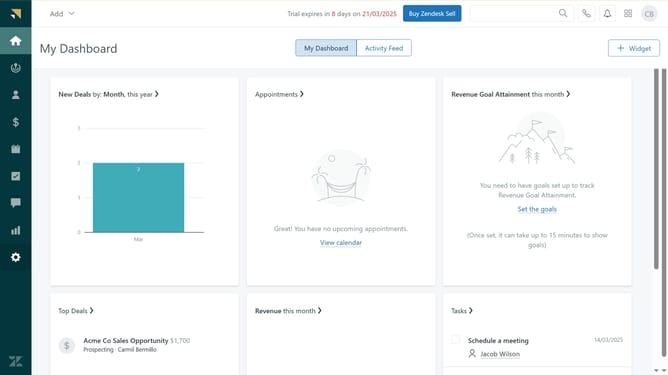
- First in your dashboard, click on the "Settings" option in the left sidebar
- Then click on the "Shortcuts" item in the settings menu
- Next click on the shortcut you want to edit in the shortcuts list
- Make the necessary changes to the shortcut text, or shortcut type as needed
- You can also edit the message, in the Message field
- Click on "Insert placeholder" link below the message text area
- Then select the placeholder you want to use to insert into the message body from the dropdown menu, if needed
- Finally once done, click on the "Save changes" button to save the updated shortcut
Why should you edit an existing shortcut in Zendesk Chat
Zendesk is a powerful tool designed to enhance customer interactions and streamline support operations.
Editing an existing shortcut in Zendesk Chat allows you to modify preset responses, ensuring they remain relevant and effective. This feature is particularly beneficial for adapting to frequently changing information or improving the clarity of your communication.
Utilizing this flexibility not only boosts efficiency but also enhances the customer experience by delivering more personalized and accurate responses.
Last update