How to deactivate a custom user field in Zendesk
Here is how to deactivate a custom user field in zendesk
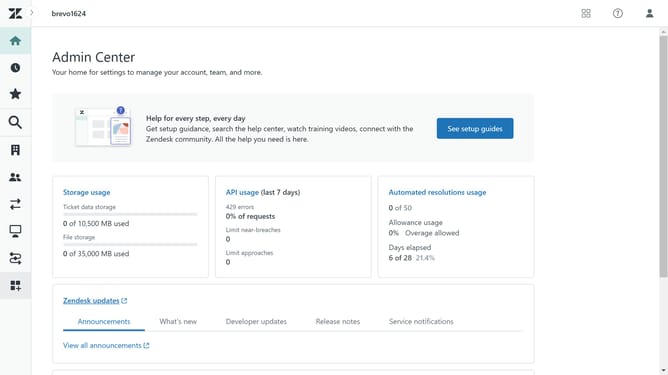
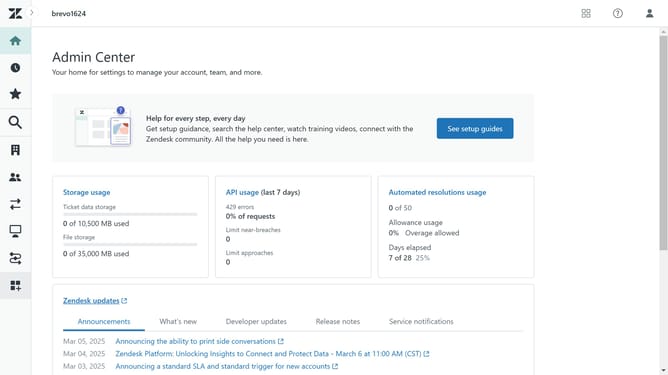
- First in Admin Center, click on the "People" icon in the left sidebar
- Then click on "User fields" under the Configuration section
- In the user fields list, find the custom field you want to deactivate
- Click on the "More options" menu (three dots) next to it
- Select "Deactivate" from the dropdown menu that appears
- Finally, click the "Deactivate" button in the confirmation dialog box
Why should you deactivate a custom user field in Zendesk
Zendesk is a versatile tool designed to enhance customer service management by simplifying communication between businesses and their clients.
Deactivating a custom user field in Zendesk allows administrators to manage user data efficiently without cluttering the system with unnecessary information.
This feature helps in streamlining the interface, making it more straightforward and user-friendly for agents who need to focus on pertinent customer data.
Moreover, deactivating unused fields can improve data management and overall system performance, enabling teams to deliver an optimal service experience.
Last update