How to view the results of an export in Zendesk Explore
Here is how to view the results of an export in zendesk explore
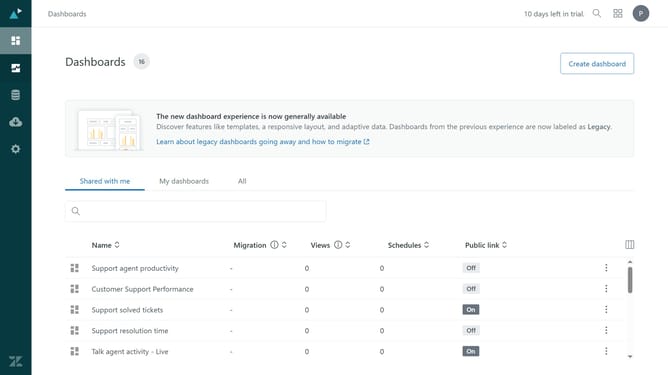
- First in Zendesk Explore, click on the "Dataset export" icon in the left sidebar
- Then click on the "Recurring" or "One-time" tab, depending on the type of export you want to check
- In the Recurring tab, view the dataset, frequency, last run, and next run details
- In the One-time tab, check the export date, dataset, time range, file size, expiration, and download link
- Finally if the export is complete, click "Download" to view the results of the export as a CSV file
Why should you view the results of an export in Zendesk Explore
Zendesk is a powerful tool designed to streamline and enhance customer support.
One of its most valuable features is Zendesk Explore, which allows users to view detailed analytics and results from data exports. This feature provides a comprehensive view of how support teams are performing, enabling managers to make data-driven decisions swiftly.
Viewing export results in Zendesk Explore can reveal insights that help improve response times and customer satisfaction. It’s an essential tool for any support team aiming to enhance their efficiency and service quality.
Last update