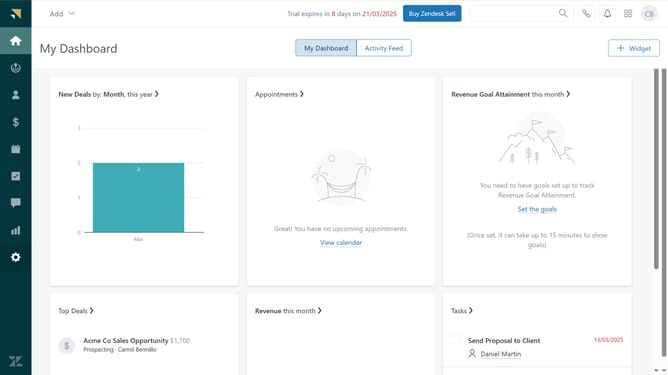
How to integrate Zendesk with Google Sheets
Here is how to integrate zendesk with google sheets
- First log into your Zapier account, click on "Create" and select "Zaps" to begin
- Then, click on "Trigger" to begin the setup process
- Search for "Zendesk" and select it as your Trigger App
- Next click on "Sign in" to sign into your Zendesk account
- Provide all the necessary details related to your Zendesk account
- Then click on "Yes, Continue to Zendesk" to authorize access
- Click on "Choose an event" dropdown to select trigger
- Choose the trigger event that fits your needs from the trigger options
- Click "Continue" to proceed with the configuration
- Then click on "Test trigger" to verify the Zendesk trigger configuration
- Click "Test trigger" to verify the setup
- Click "Continue with selected record" to proceed
- Now, search for "Google Sheets" and select it as your Action App
- Next sign in to your account
- Choose an Action event
- Fill in and customize the required fields as prompted
- Click "Test step" to verify the Gmail integration
- Finally click "Publish" to activate the Zap and complete the integration
Why should you integrate Zendesk with Google Sheets
Zendesk is a powerful customer service platform designed to enhance interaction and streamline communication.
Integrating Zendesk with Google Sheets allows users to seamlessly import data, making tracking and analysis of customer interactions both simple and efficient.
With this integration, businesses can automate data entry, reducing potential errors and saving valuable time.
Moreover, it fosters better data-driven decision-making, as teams gain immediate access to organized insights directly within a collaborative workspace.
Last update