How to create a dashboard restriction in Zendesk Explore
Here is how to create a dashboard restriction in zendesk explore
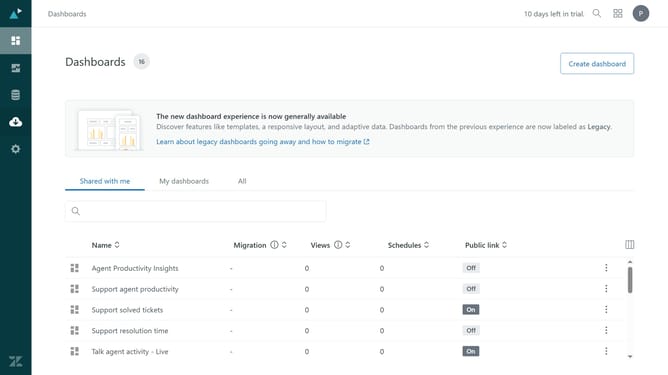
- First in Zendesk Explore, click on "Dashboards" icon in the left sidebar
- Then click on the dashboard you want to restrict from the list
- Click the dropdown menu next to the "Share" button in the top toolbar
- Select "Manage data restrictions" from the share dropdown menu
- Click the "Create restriction" button in the restrictions modal
- Enter a descriptive name for your dashboard restriction
- Click the dataset dropdown and select the dataset that you want to restrict data for
- Click on the filter dropdown menu
- Select the attribute that you want to restrict data for
- Next for the filter you selected above, select the values that will be visible to the dashboard viewer
- If needed, click "Add filter" and select an additional set of Dataset, Filter, and Values
- Finally, click the "Create restriction" button to save and apply the restrictions
- You have successfully applied a restriction to your dashboard
Why should you create a dashboard restriction in Zendesk Explore
Zendesk is a versatile customer service platform designed to enhance and streamline interactions between businesses and their clients.
Creating a dashboard restriction in Zendesk Explore allows you to manage data visibility, ensuring that sensitive information is protected and accessible only to the appropriate personnel.
This feature is beneficial as it helps maintain data integrity and fosters a more secure environment, minimizing risks associated with unauthorized data access.
Ultimately, dashboard restrictions simplify the user experience by delivering targeted insights, enabling teams to focus on the most pertinent information.
Last update