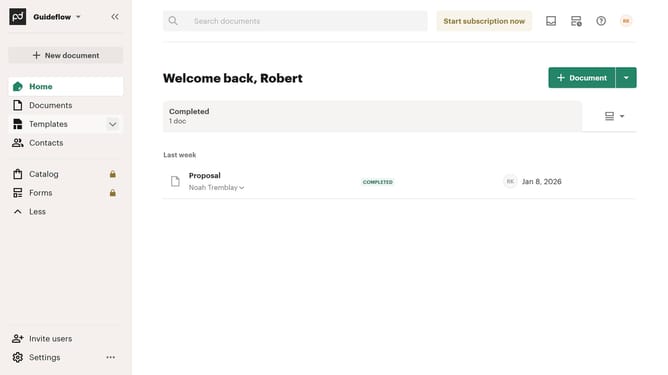
How to filter all documents by declined status in PandaDoc
Here is how to filter all documents by declined status in pandadoc
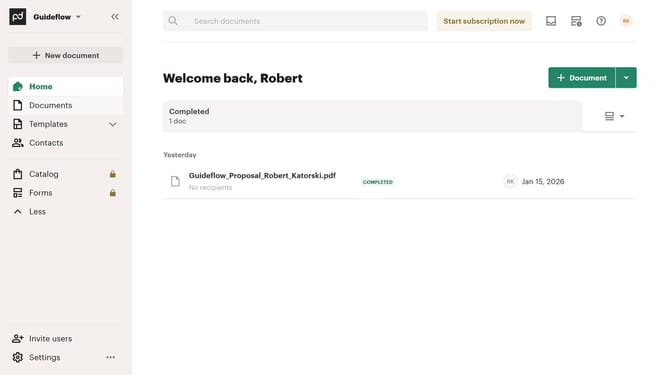
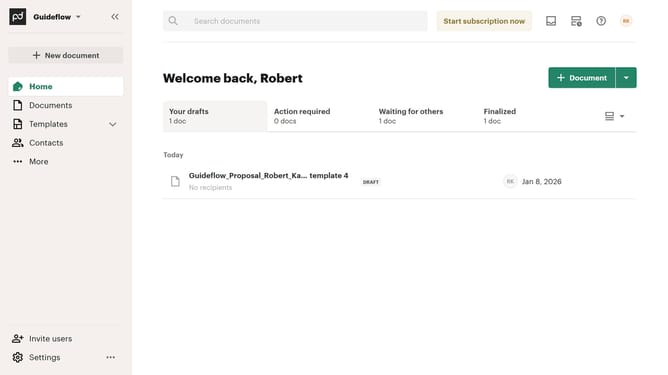
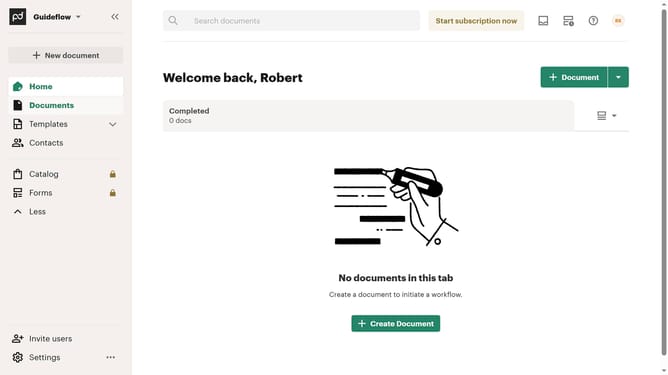
- First click on "Documents" in the left sidebar
- Then click on "All documents" tab in the top navigation
- Next click on "Status" dropdown filter in the filter bar
- Then scroll down in the menu list that appears
- Next click on "Declined" checkbox in the status filter dropdown
- Finally click on "Apply" button to apply the selected filter
Why should you filter all documents by declined status in PandaDoc
PandaDoc is a powerful tool designed to streamline your document management processes.
The ability to filter all documents by a declined status in PandaDoc enhances your efficiency by allowing you to effortlessly pinpoint which proposals need adjustments or reconsideration.
By quickly identifying declined documents, you save time and focus on refining your strategies to improve deal closure rates.
This feature ensures you stay proactive, maintaining a clear overview of all transactions, thereby optimizing workflow and increasing productivity.
Last update