How to disable custom email and language for each recipient in DocuSign
Here is how to disable custom email and language for each recipient in docusign
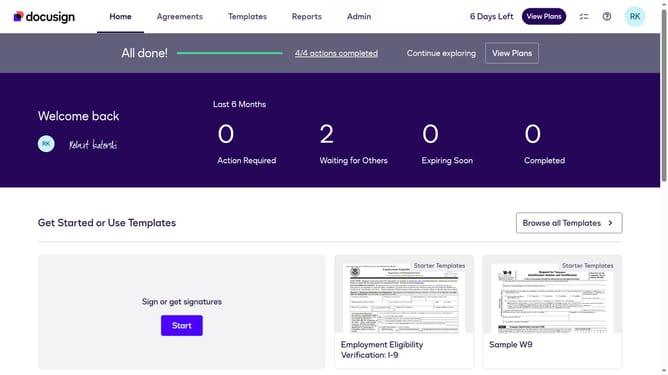
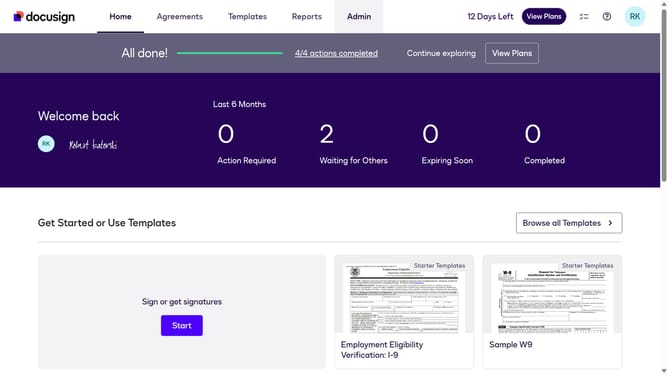
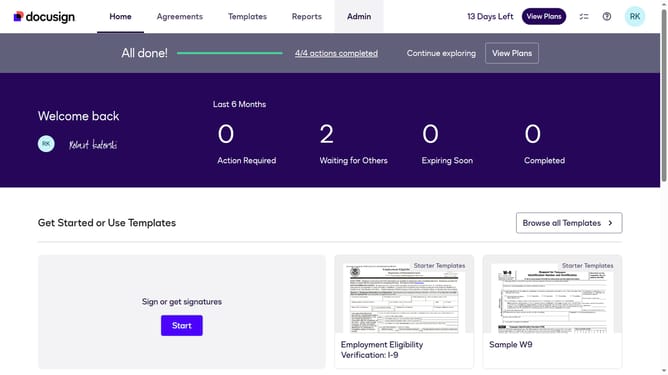
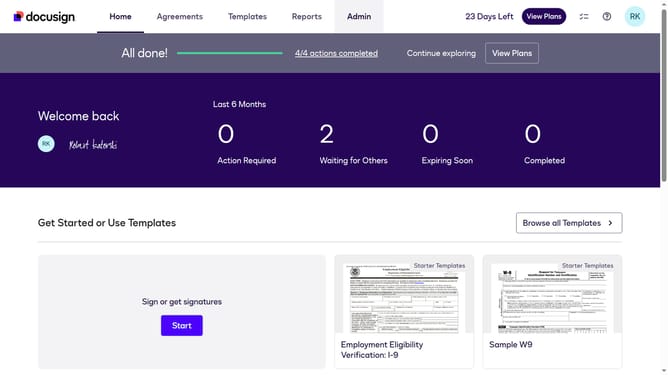
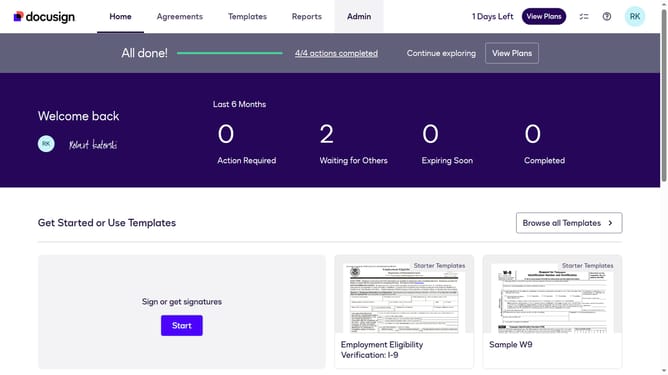
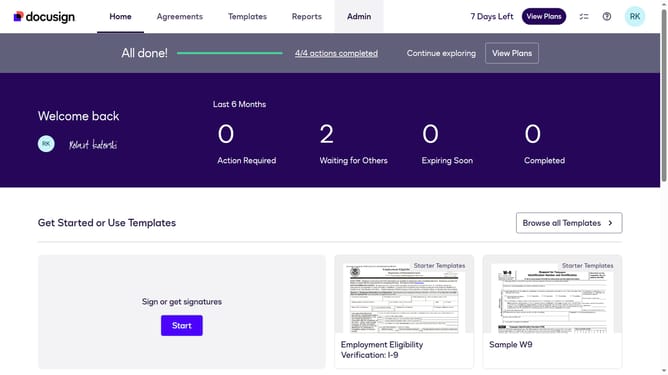
- First click on the "Admin" tab in the top navigation menu
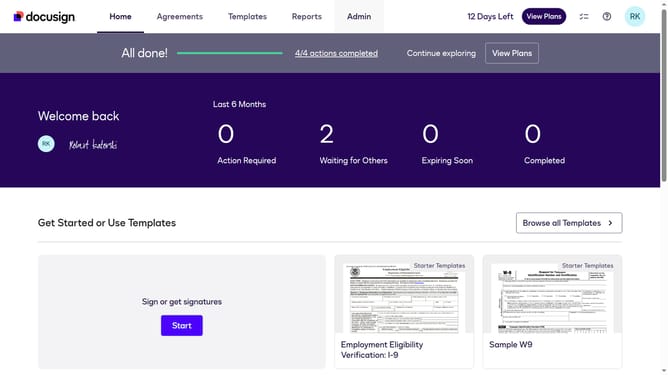
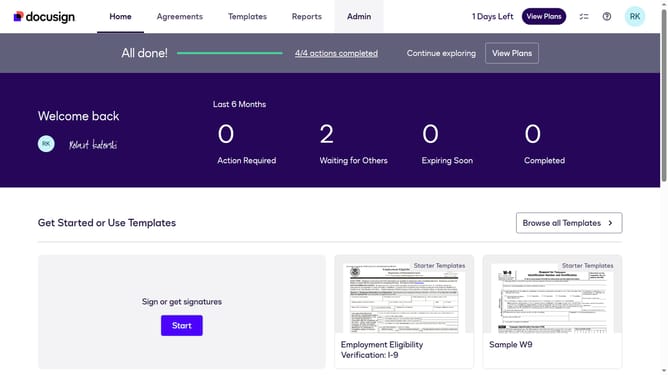
- Then scroll down the page to view more admin settings options
- Next click on "Sending Settings" in the left sidebar under the "SIGNING AND SENDING" section
- Then scroll down the page to view additional sending settings options
- Next uncheck the "Enable custom email and language for each recipient" checkbox to disable it
- Then scroll down to the bottom of the page to view the save button
- Finally click on the "Save Changes" button to apply the settings
Why should you disable custom email and language for each recipient in DocuSign
DocuSign is an innovative platform that streamlines the process of managing electronic agreements.
The feature to disable custom email and language per recipient allows senders to maintain uniformity in communication, ensuring branding and messaging remain consistent.
This is particularly beneficial for large organizations dealing with recipients of various linguistic backgrounds, as it guarantees that all communications align with corporate standards.
Utilizing this feature simplifies workflows and enhances compliance by providing a cohesive recipient experience.
Last update