How to customize the confirmation page for an event type in Calendly
Here is how to customize the confirmation page for an event type in calendly
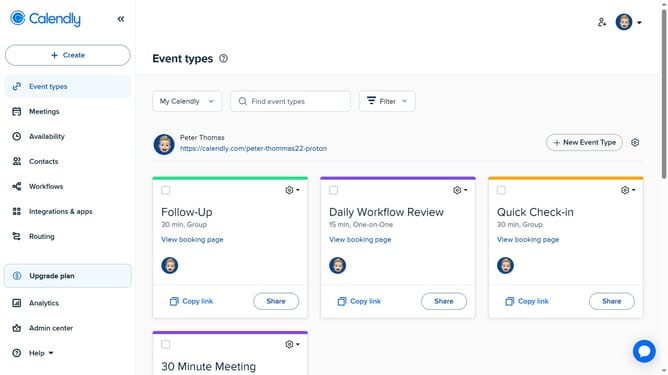
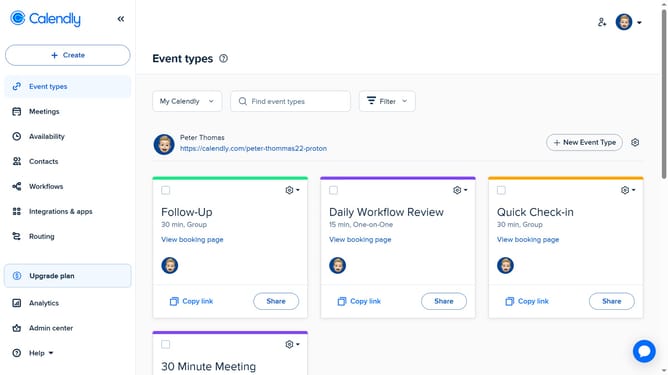
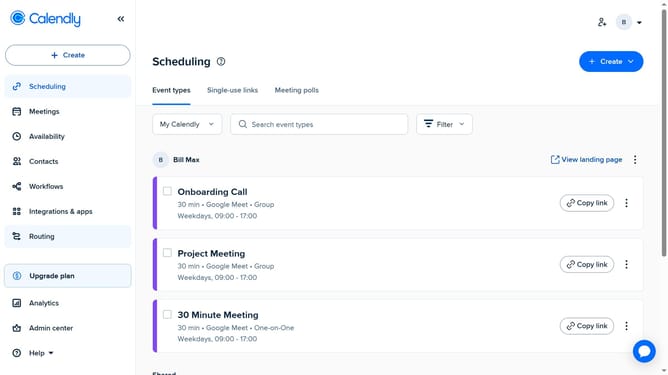
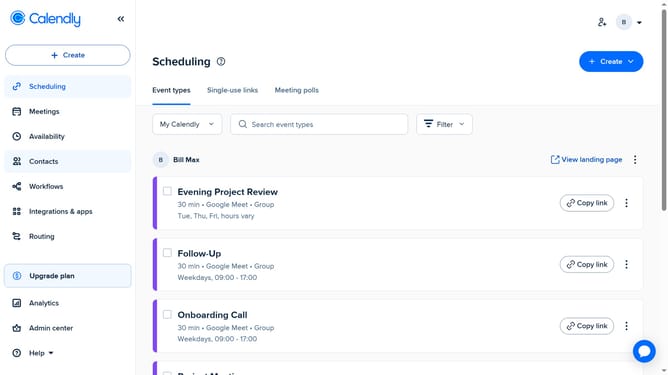
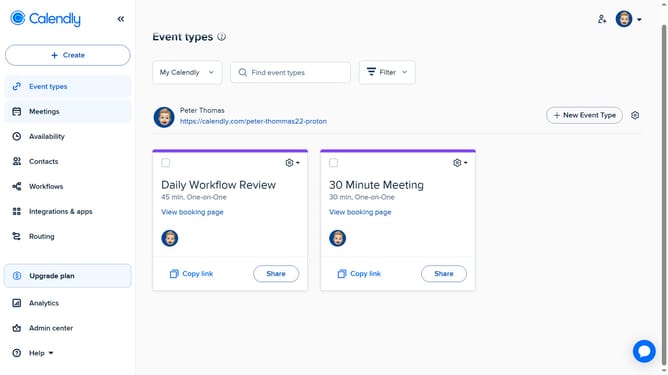
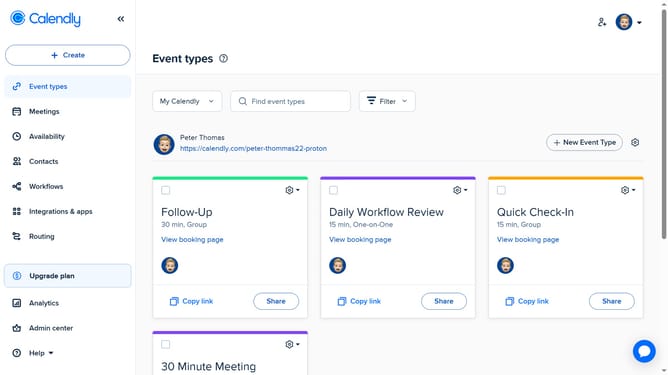
- First click on the "Event types" in the left sidebar
- Locate and click the event type you want to customize
- Next click on the "More options" button in the bottom right
- Click on the "Confirmation page" section in the right sidebar settings
- Then click the "After booking" dropdown menu
- From the dropdown menu, select either "Display the Calendly confirmation page" or "Redirect invitees to your own page"
- Under "Links on confirmation page", manage custom links
- To add a new custom link, click the "+ Add new link" button
- Then enter a Link name and URL, and toggle the Status switch to ON to activate it
- Finally click the "Save changes" button in the bottom right corner
Why should you customize the confirmation page for an event type in Calendly
Calendly is a streamlined scheduling tool that simplifies meeting coordination.
Customizing the confirmation page for an event type in Calendly allows businesses and professionals to create a tailored post-scheduling experience.
By personalizing this page, you can reinforce your brand and foster positive engagement. This feature can include specific instructions or supplementary information that participants might need to retain better engagement and ensure a smooth event experience.
Ultimately, it empowers users to leave a lasting impression, enhancing interaction before the event.
Last update