How to remove a member from a group in Calendly
Here is how to remove a member from a group in calendly
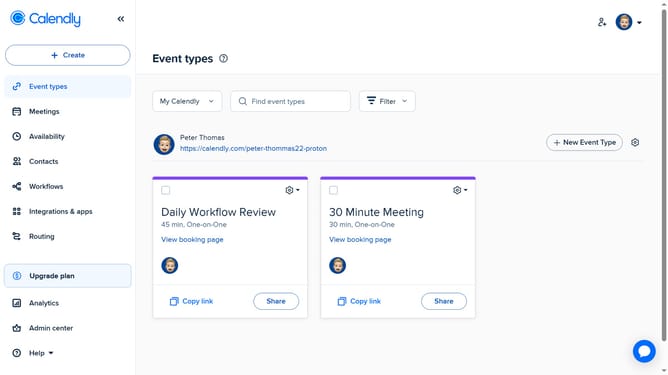
- First click on "Admin center" option in the left sidebar
- Next click on "Groups" option in the Organization settings section of the sidebar
- From the list, click on the group containing the member you want to remove
- Then, locate the member you want to remove in the members list
- Next click on the "More options" menu (three dots) next to it
- Select the "Remove as member" option from the dropdown menu
- Finally click on "Yes, remove" button in the confirmation dialog
Why should you remove a member from a group in Calendly
Calendly is a streamlined scheduling tool designed to simplify meeting coordination.
In the ever-evolving dynamics of group management, the ability to remove a member from a group in Calendly is a vital feature.
By keeping your group list relevant and up-to-date, you ensure efficient scheduling and avoid unnecessary confusion.
This feature facilitates better organization within your team or client roster, enhancing productivity by minimizing redundant notifications and potential scheduling conflicts.
Last update