How to edit a team page in Calendly
Here is how to edit a team page in calendly
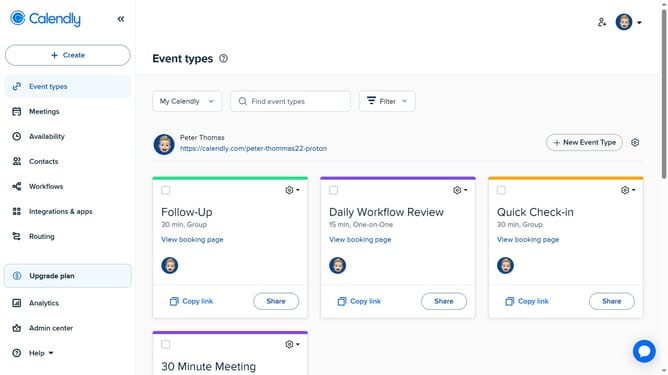
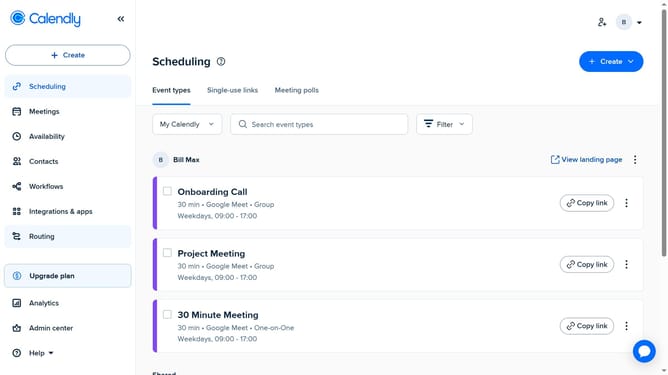
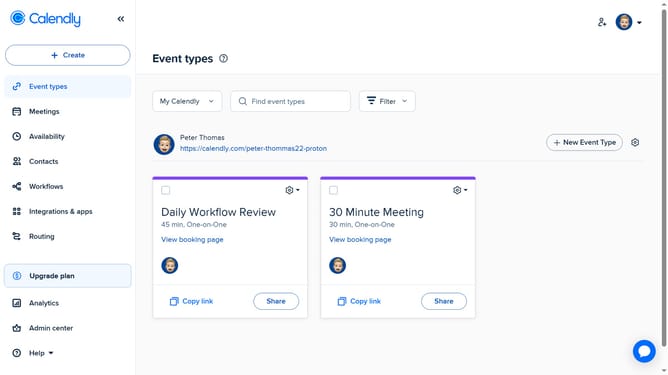
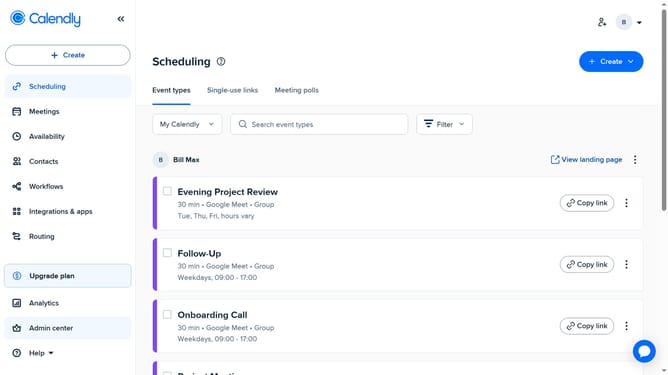
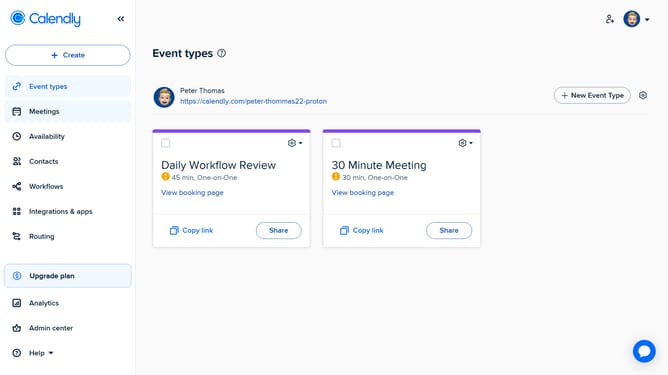
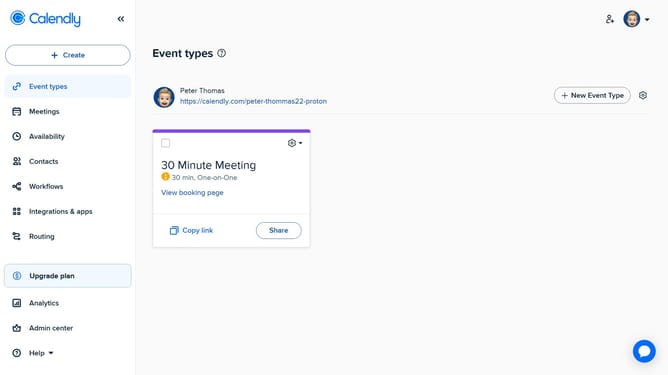
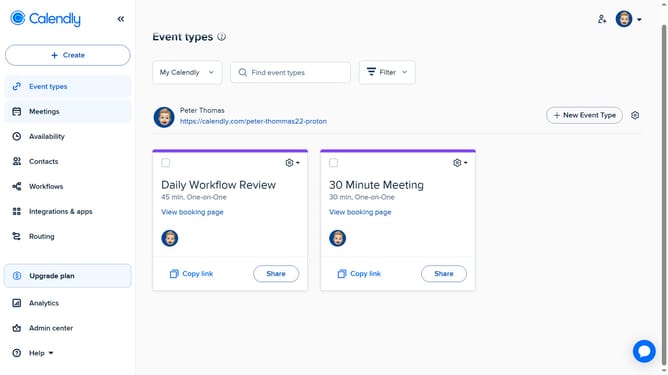
- First navigate to "Event types" in the left sidebar
- Next click on the "My Calendly" dropdown menu in the top toolbar
- Select the team you want to edit from the dropdown list
- Then click on the settings gear icon next to the "New Event Type" button
- Select "Edit Team" from the dropdown menu
- On the team page, start making Your Changes such as update the team name, URL, or welcome message
- Under the Team Members section, add or remove team members
- Next change the team avatar or time zone if needed
- Finally, click the "Save" button to apply the team changes
Why should you edit a team page in Calendly
Calendly streamlines scheduling by connecting individuals and organizing meetings seamlessly.
Editing a team page in Calendly enables teams to customize their scheduling hub, reflecting their brand's unique style and voice. This feature facilitates better alignment within teams by allowing members to update contact information and meeting preferences.
Embracing the editing capabilities of the team page strengthens communication with clients, creating an efficient, cohesive experience, enhancing both presentation and functionality.
Last update