How to set a buffer time for an event type in Calendly
Here is how to set a buffer time for an event type in calendly
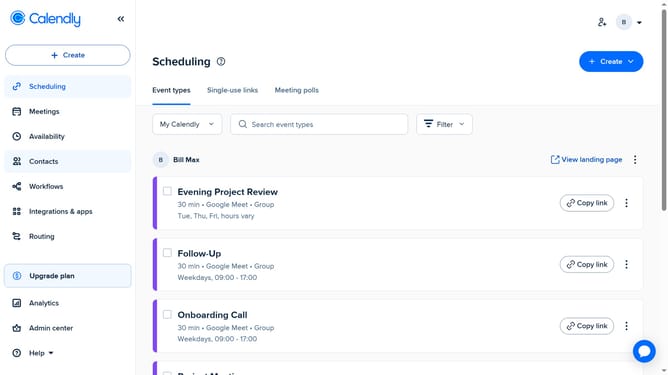
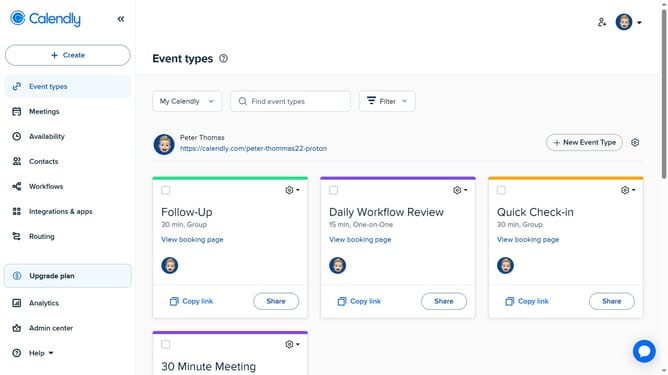
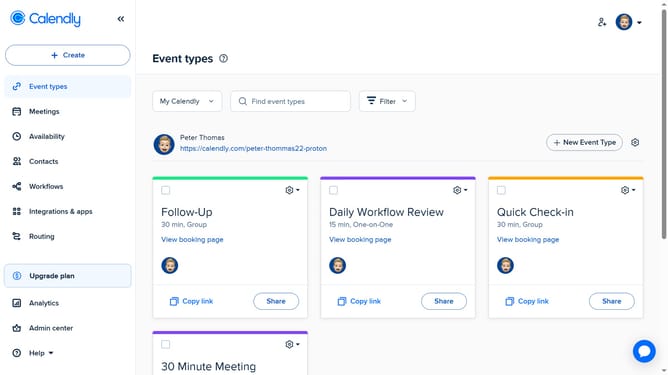
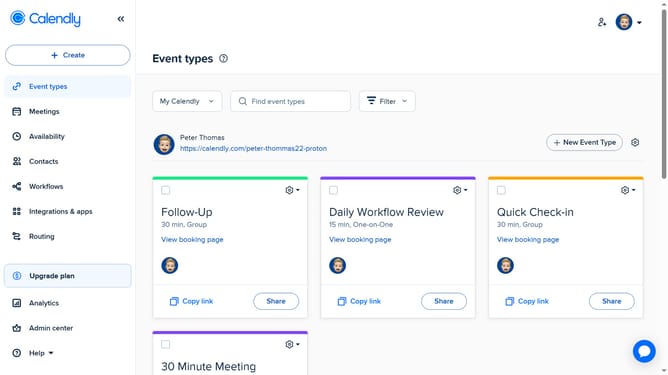
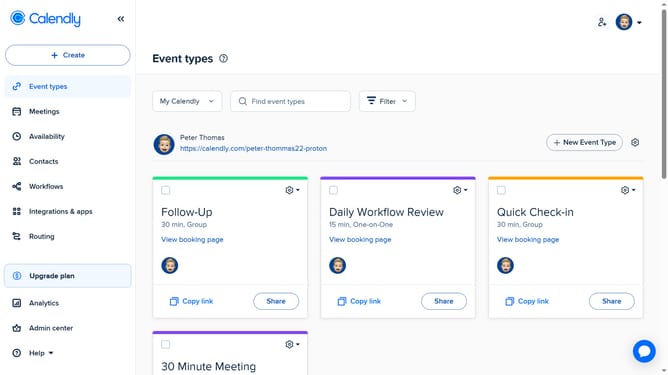
- First click on the "Event types" option in the left sidebar menu
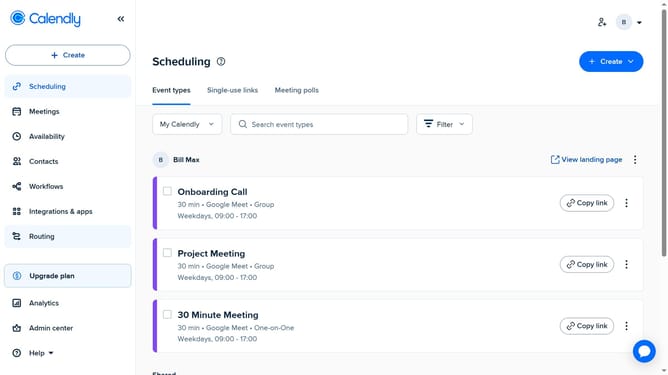
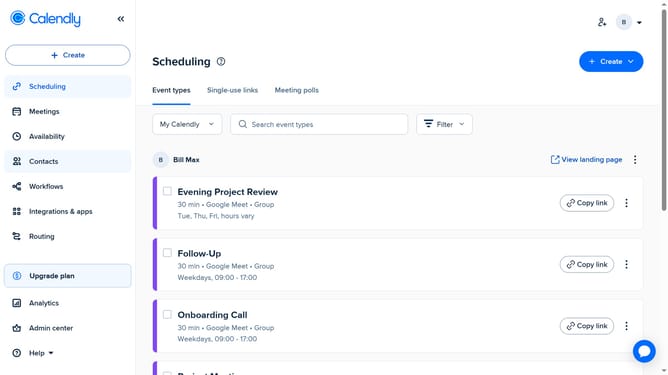
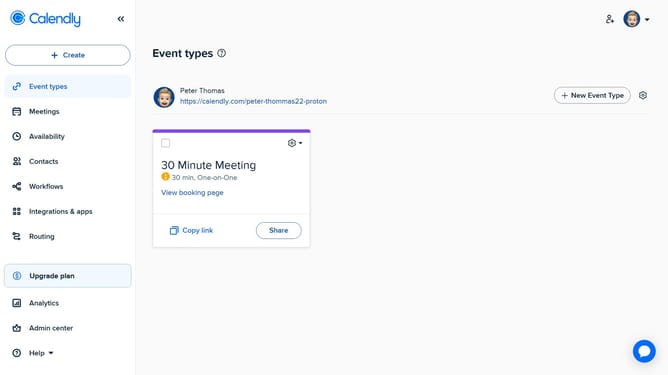
- Next, select the event type where you want to add a buffer
- In the settings panel, click on the "More options" button
- Select the "Limits and buffers" section in the settings menu
- Then click on the "Set buffer time" button
- Choose how much time you want before the event, after the event, or both
- Finally, click the "Save changes" button to apply the buffer time settings
Why should you set a buffer time for an event type in Calendly
Calendly is a streamlined scheduling tool designed to simplify meeting bookings with ease and efficiency.
Setting a buffer time for an event type in Calendly allows users to create a dedicated space before or after scheduled appointments. This feature ensures that you have the necessary time to prepare or wrap up, enhancing productivity and reducing stress.
By incorporating buffer times, you avoid back-to-back meetings and guarantee that each encounter is met with focus and attention. This thoughtful scheduling strategy leads to smoother workflow and more meaningful interactions.
Last update