How to customize booking page options in Calendly
Here is how to customize booking page options in calendly
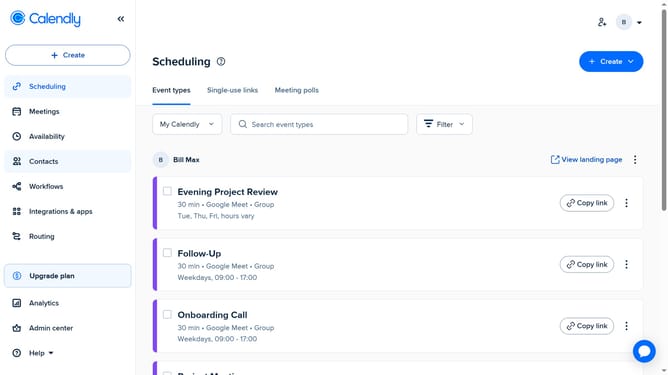
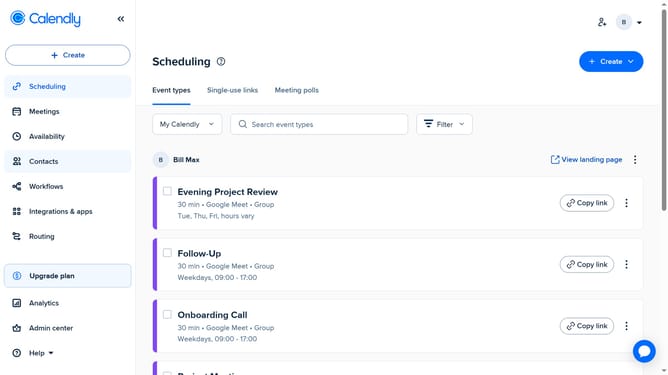
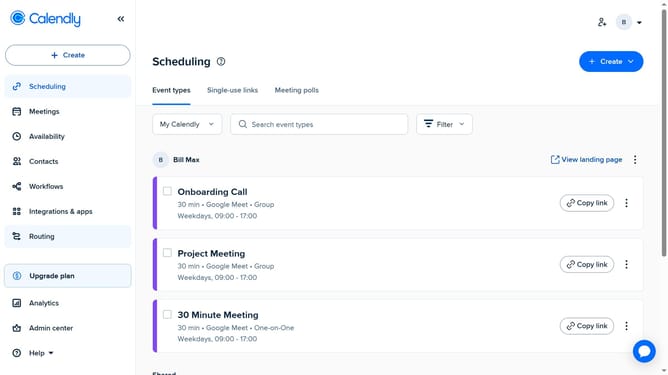
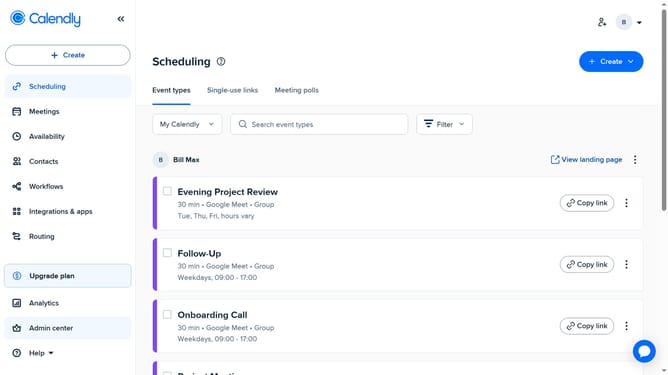
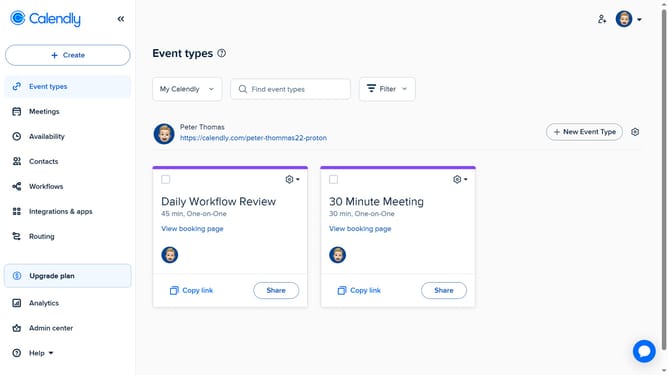
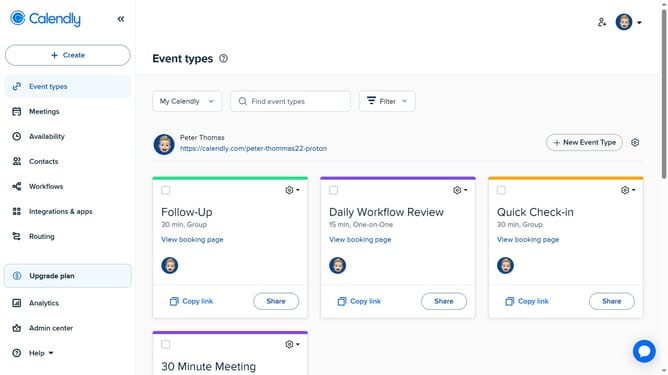
- First click on the "Event types" item in the left sidebar
- Locate and click the event type you want to customize to open its settings
- Next click on "More options" button in the event settings panel
- Click on the "Booking page options" section
- Then click the slug input fiel and edit the slug for your event if needed
- Next under "Start time Increments" choose how often time slots appear
- Then set how the time zone appears on your booking page based on your preferences
- Finally click on the "Save changes" button in the bottom-right corner of the settings panel
Why should you customize booking page options in Calendly
Calendly is a versatile scheduling tool designed to make setting appointments seamless and efficient.
Customizing booking page options in Calendly allows users to tailor their scheduling experience to better meet the needs of both their business and their clients.
By adjusting these settings, businesses can provide a more personalized and professional touch, enhancing client interactions and overall satisfaction.
This feature not only streamlines scheduling but also reflects the unique brand identity of each user, ensuring every booking feels catered and considerate.
Last update