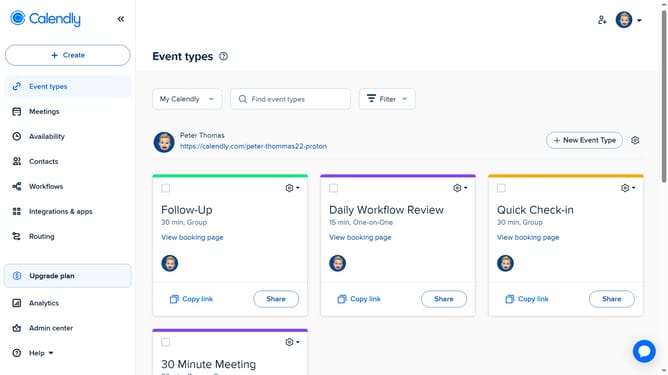
How to edit buffer times for an event in Calendly
Here is how to edit buffer times for an event in calendly
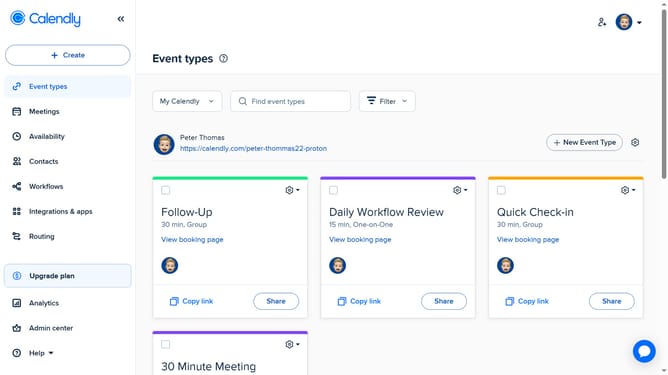
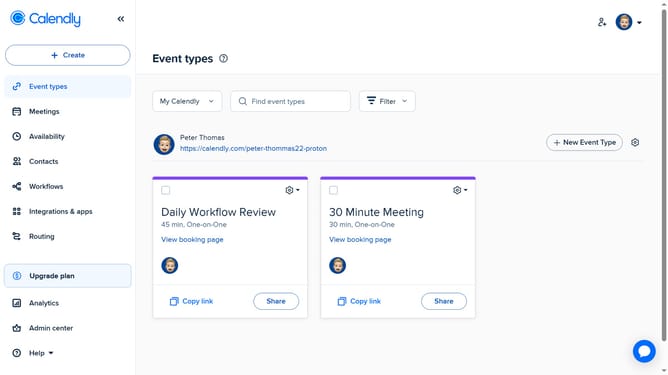
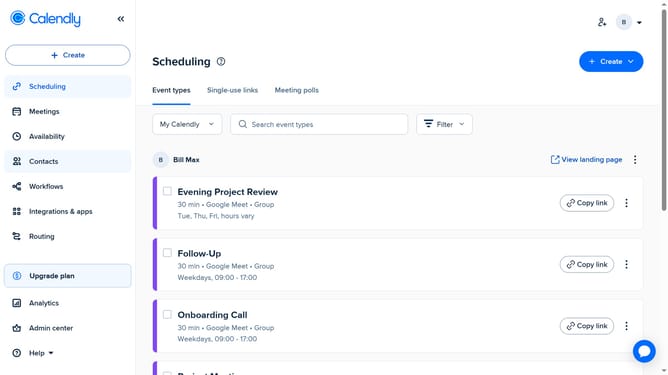
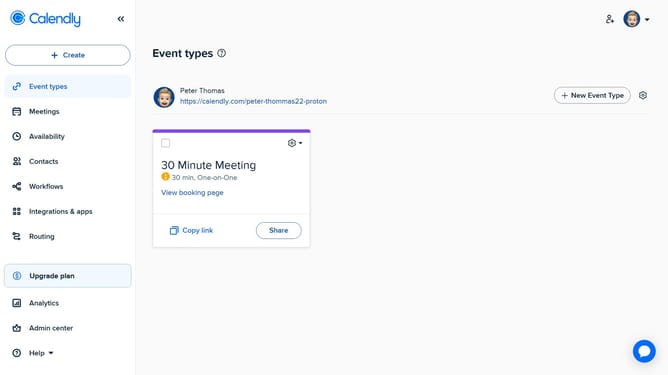
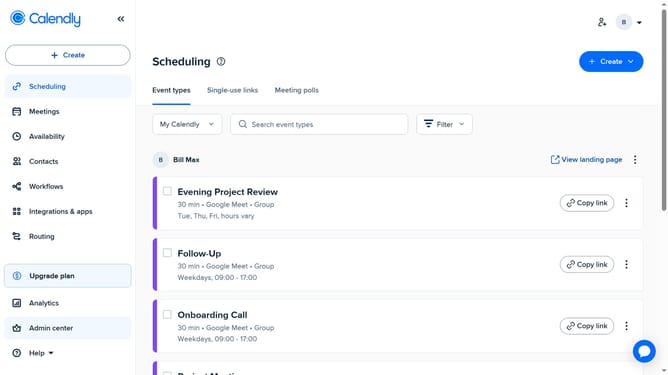
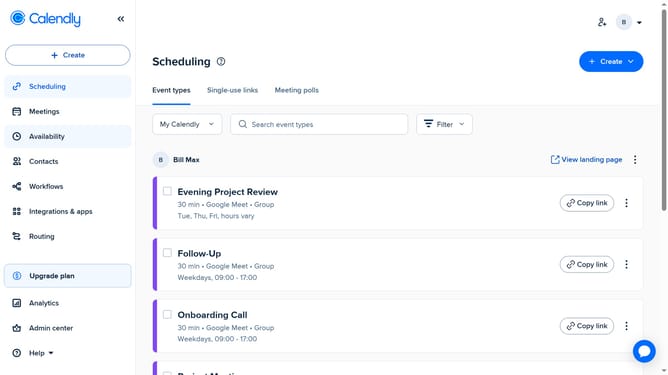
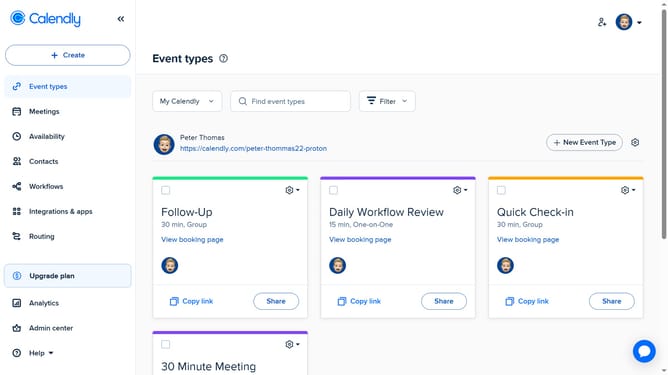
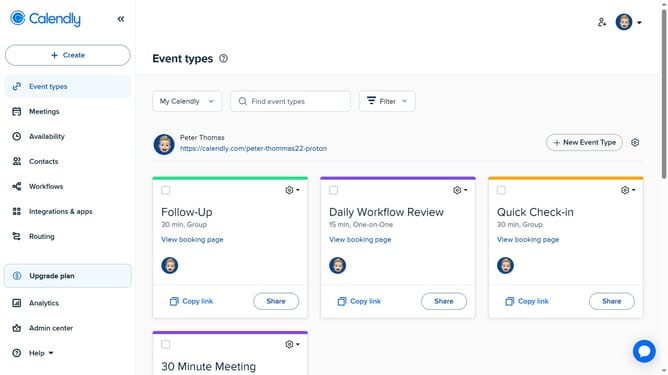
- First click on "Event types" in the left sidebar navigation menu
- Next find and click on the event type you want to update
- Click the "More options" button in the event settings panel
- Click on the "Limits and buffers" section to expand it
- Then under the Buffer Times section, adjust the buffer duration using the dropdown menus
- Finally once you're done, click the "Save changes" button to apply the modifications
Why should you edit buffer times for an event in Calendly
Calendly is a seamless scheduling tool that simplifies and streamlines the way people book meetings and appointments.
A significant feature within Calendly is the ability to edit buffer times for events, ensuring you have moments of rest and preparation between engagements. Customizing buffer times allows for personal breather spaces or to finalize details for the upcoming meeting.
Utilizing this option ensures that each interaction is met with your full attention, reducing the stress of back-to-back scheduling and enhancing productivity effortlessly. Embrace these intervals for increased mental clarity and organized transitions throughout your day.
Last update