How to create a team Collective event type in Calendly
Here is how to create a team collective event type in calendly
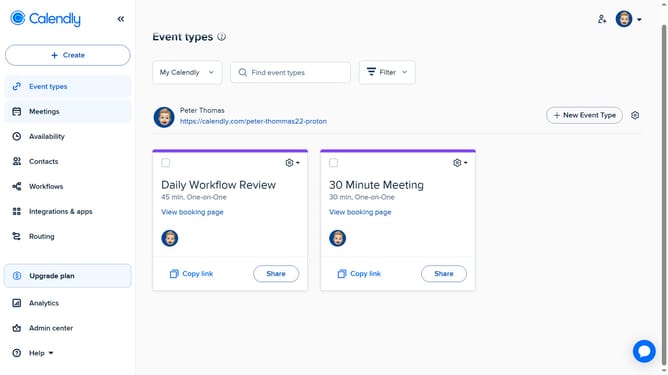
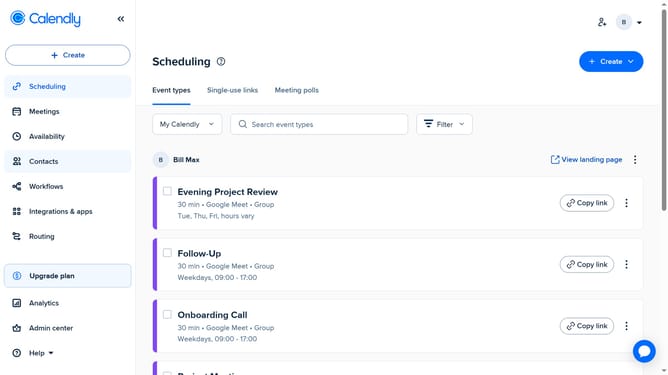
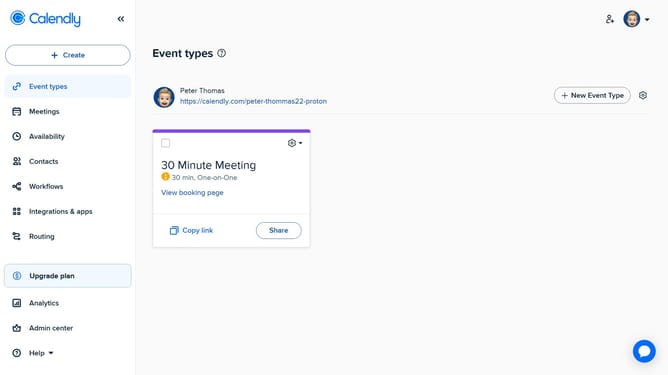
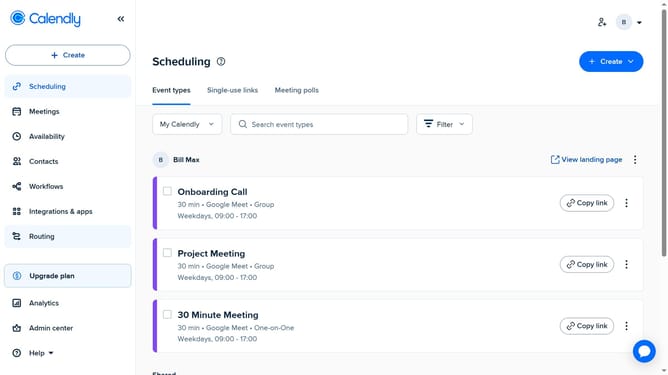
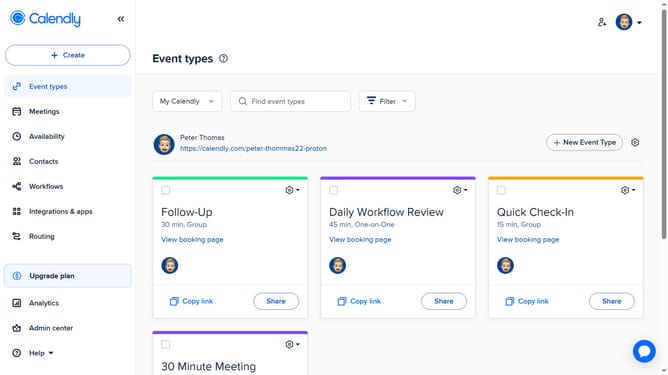
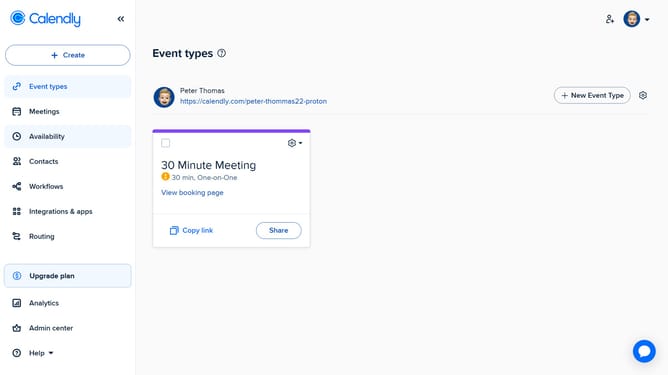
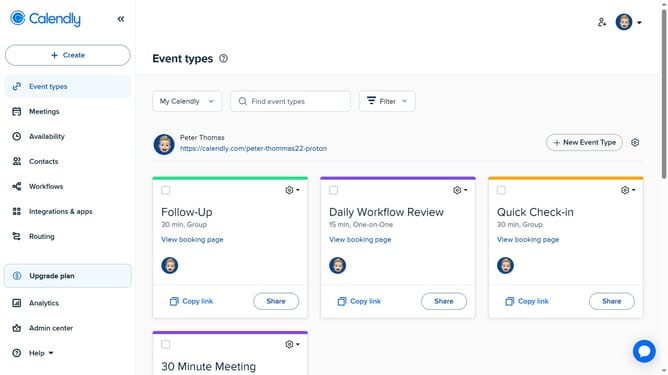
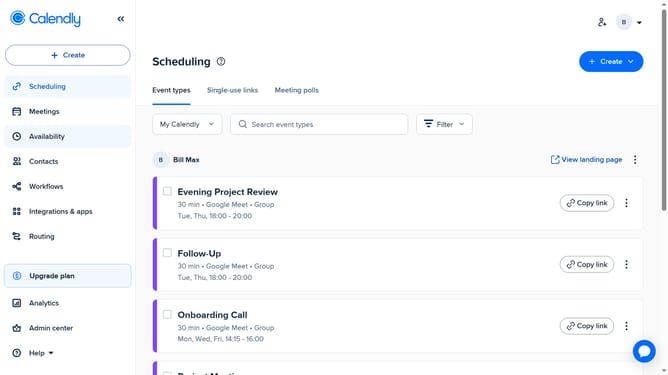
- First click on the "Event types" in the left sidebar
- Click on "New Event Type" button in the top right corner
- Click the "More ways to meet" option from the dropdown menu
- Next select "Collective" option from the list of event types
- Enter a name for the event and select a color as needed
- In the event settings panel, configure the duration and location
- Then, in the “Hosts” section, click “Add co-host” to assign permanent hosts, and “Add a rotating host” to set up rotating ones
- Under Reschedule preference, set your reschedule preference
- Next click on the "Availability" section to set the Availability settings for this event type
- Then set the date range options and choose to set the schedule for each host or apply the same hours to all hosts
- To access additional settings, click on "More options" button
- Here, you can customize advanced options such as a description, buffer time, booking page settings, and other custom options
- Finally click on "Save changes" button to save and create the event type
- Your team Collective event type has been successfully created and is now ready to be scheduled by invitees
Why should you create a team Collective event type in Calendly
Calendly is a smart scheduling tool designed to streamline and simplify appointment bookings.
Creating a team Collective event type in Calendly allows multiple team members to coordinate and participate simultaneously, facilitating seamless collaboration.
This feature is ideal for organizations that rely on a collective approach for effective interactions, ensuring that clients or partners can connect with the right group at once.
Utilizing this feature enhances team efficiency and customer engagement, significantly improving the scheduling process.
Last update