How to duplicate an event type in Calendly
Here is how to duplicate an event type in calendly
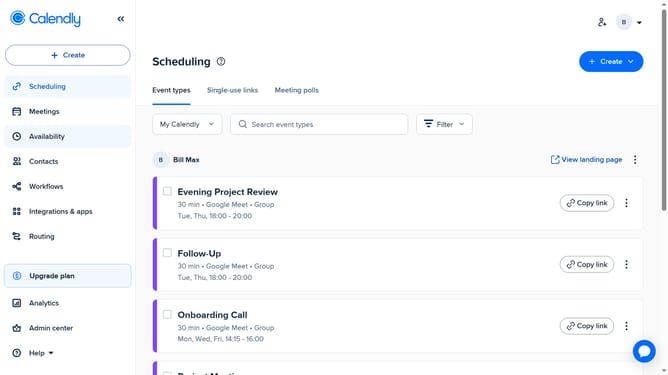
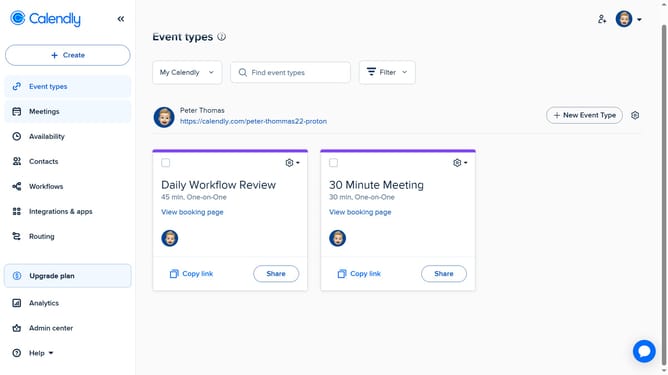
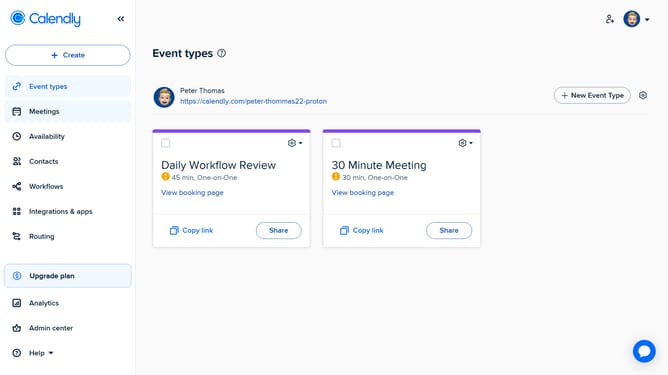
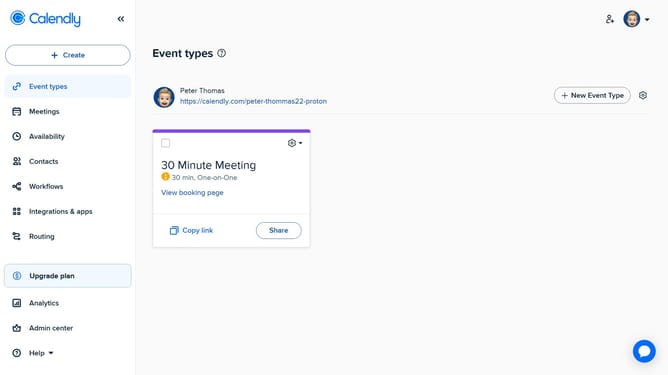
- First click on the "Event types" in the left sidebar
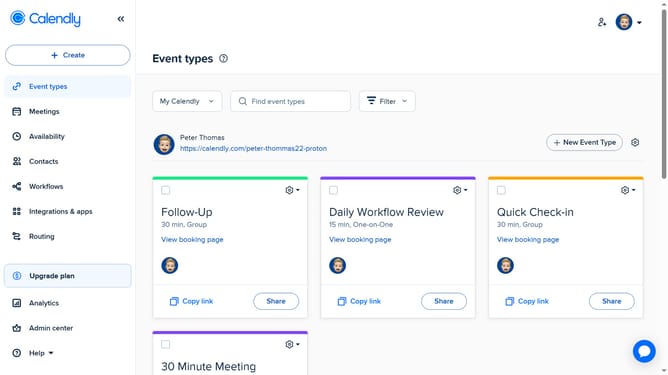
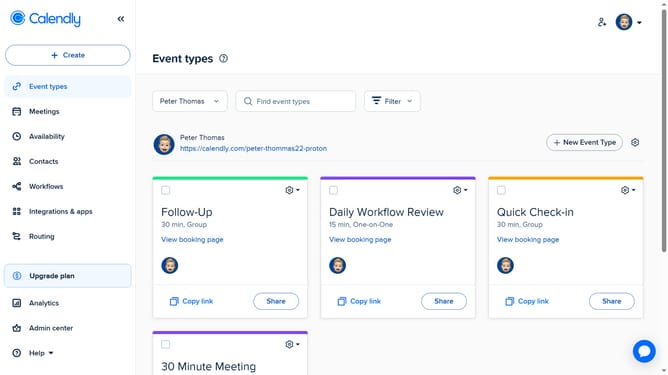
- Next locate the event type you want to duplicate
- Click on the settings gear icon in the top-right corner of that event type card
- Then select the "Clone" option from the settings dropdown menu
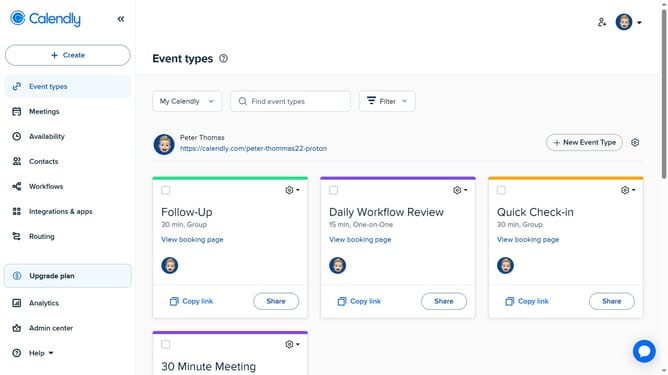
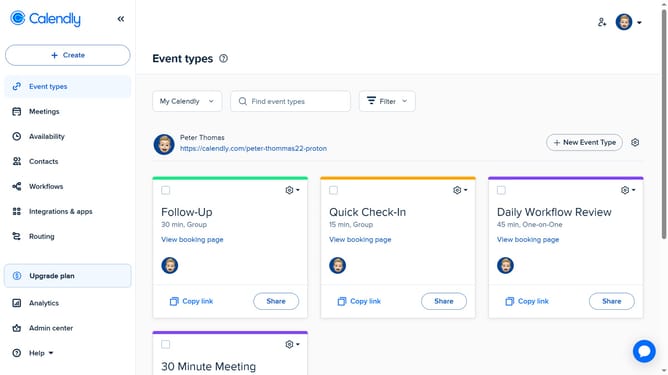
- A copy of the event type will appear, which you can now edit (Event name, URL, duration, location, and more)
- Finally click "Save changes" to finalize your new duplicated event
- Click the “Exit” button (×) in the top-right corner to return to your dashboard
- The duplicated event type has been created. It is inactive by default, and you can enable it whenever you're ready to use it
Why should you duplicate an event type in Calendly
Calendly streamlines your scheduling process by connecting you effortlessly with clients and colleagues.
Duplicating an event type in Calendly saves time and maintains consistency, particularly useful when needing to create similar events. This feature negates the need to start from scratch, allowing you to effortlessly replicate settings, reminders, and details.
By streamlining the setup of multiple similar events, this feature enhances productivity and ensures a seamless user experience. It’s an invaluable tool for busy professionals who thrive on efficiency and precision.
Last update