How to cancel a meeting in Calendly
Here is how to cancel a meeting in calendly
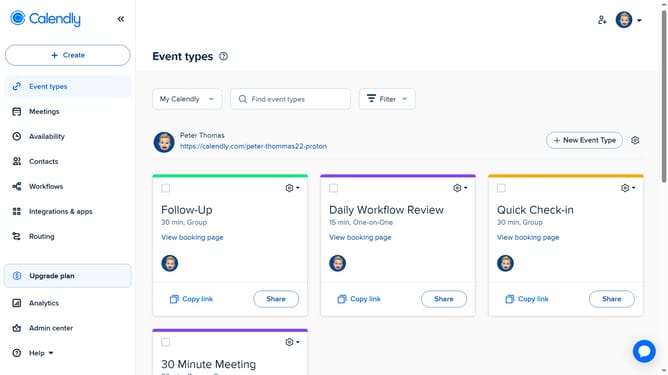
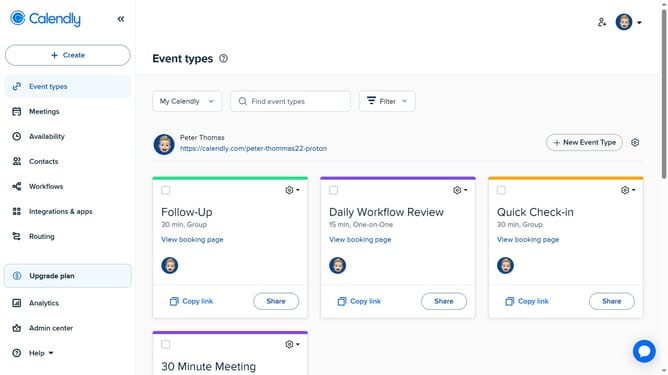
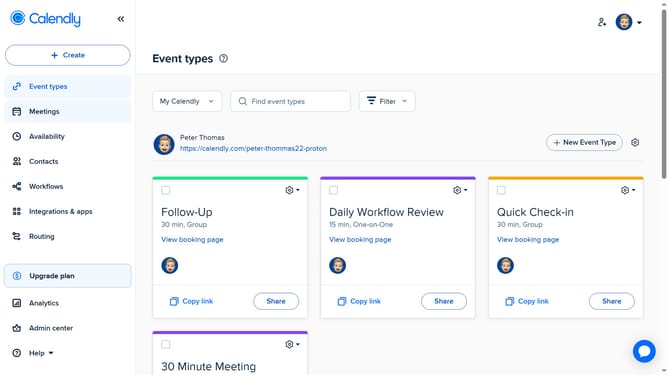
- First, click on the "Meetings" option in the left sidebar menu
- Next navigate to the "Upcoming" tab to find your scheduled meetings
- Locate the meeting you want to cancel and click on it
- Then click the "Cancel" button in the meeting details
- In the cancellation dialog, click on the text input field and add a message if needed
- Finally click on the "Yes, cancel" button to confirm
Why should you cancel a meeting in Calendly
Calendly revolutionizes scheduling by simplifying meeting management for individuals and teams.
The ability to cancel a meeting effortlessly is one of Calendly's key features, bringing flexibility and control to your schedule.
Utilizing this feature keeps your calendar accurate and up-to-date, preventing any miscommunications or missed appointments.
Cancelling a meeting in Calendly ensures you and your participants remain informed and organized, freeing up valuable time for both parties involved.
Last update