How to set up a meeting poll in Calendly
Here is how to set up a meeting poll in calendly
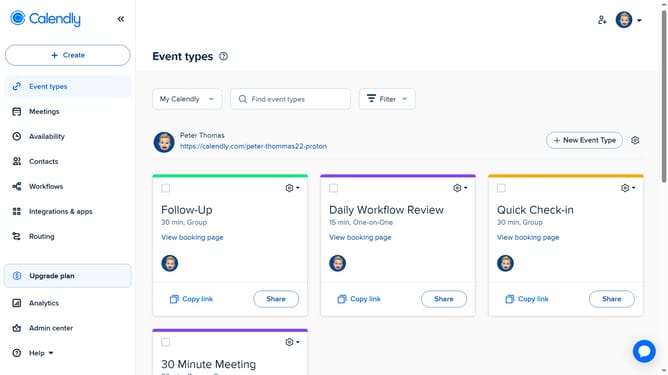
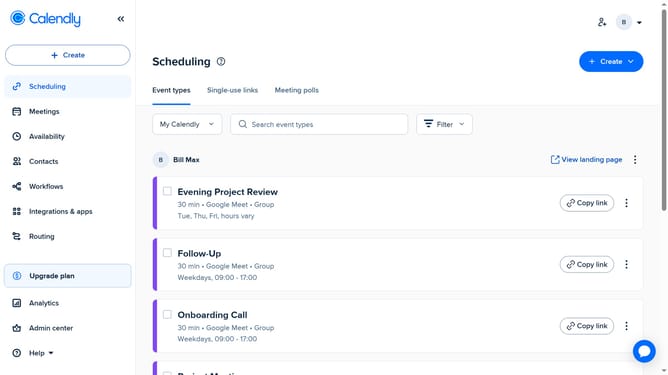
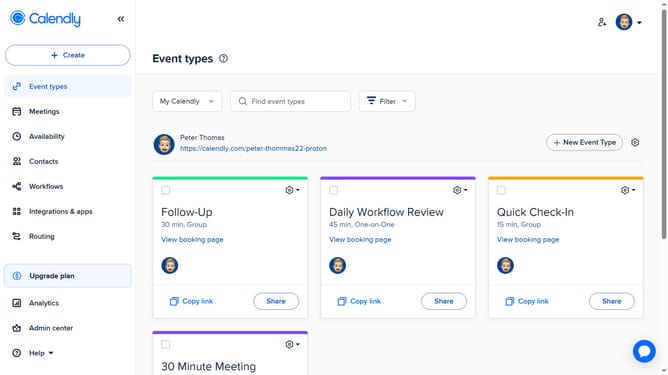
- First click on "Event types" in the left sidebar
- Next click on "New Event Type" button in the top right corner
- Click on "More ways to meet" dropdown in the event types menu
- Then select "Meeting poll" option from the dropdown menu
- Next, on the left side, adjust the time zone and meeting duration as needed
- Choose several date and time options you want to offer to invitees in the calendar grid
- Then click on the "Next" button to proceed
- Locate the "Meeting name" field in the Event details section
- Next enter enter a name for your meeting in the meeting name field
- Select a location options from the available list
- In the optional settings, configure additional options such as enabling or disabling Reserve Times, showing votes on the page, and setting the invitee language
- Then click the "Share meeting poll" button at the bottom
- Finally in the share dialog, click the "Copy Link" button to copy the poll link
- The meeting poll link has been successfully copied and is ready to be shared
Why should you set up a meeting poll in Calendly
Calendly is an intuitive scheduling platform that seamlessly coordinates meetings, saving you time and effort.
One standout feature is its meeting poll setup, which simplifies the process of finding the perfect time for group gatherings. Instead of juggling endless email threads, you can propose multiple options and let the participants vote for their preferred time slot.
This feature facilitates faster decision-making and enhances collaboration, making it easy to align busy schedules with minimal fuss. Utilizing meeting polls in Calendly maximizes productivity and minimizes scheduling conflicts.
Last update