How to manage event type permissions in Calendly
Here is how to manage event type permissions in calendly
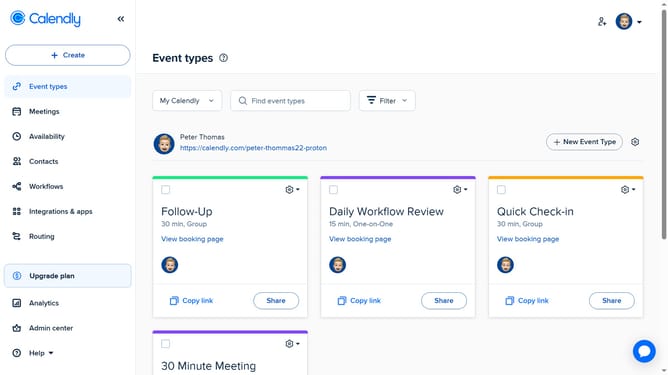
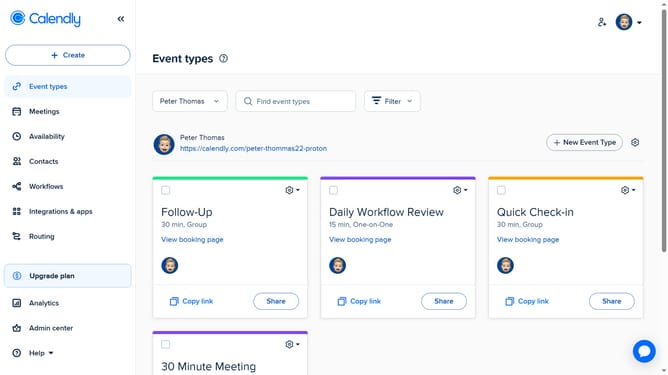
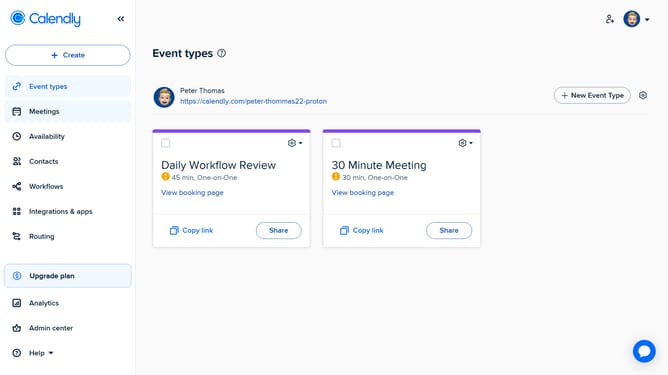
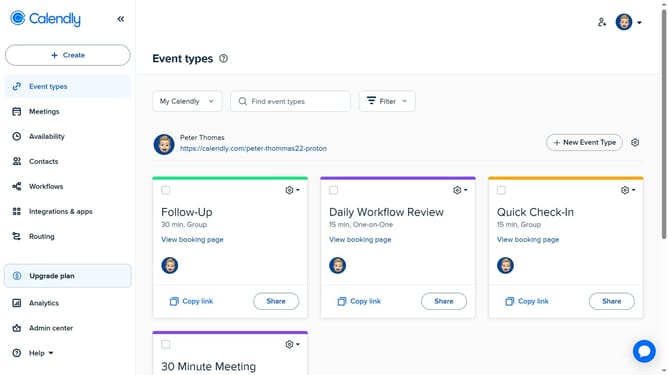
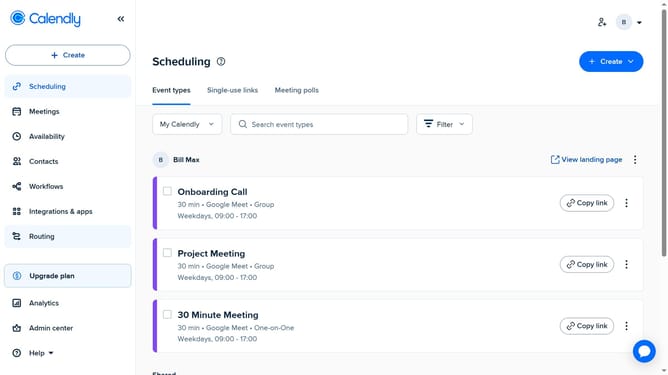
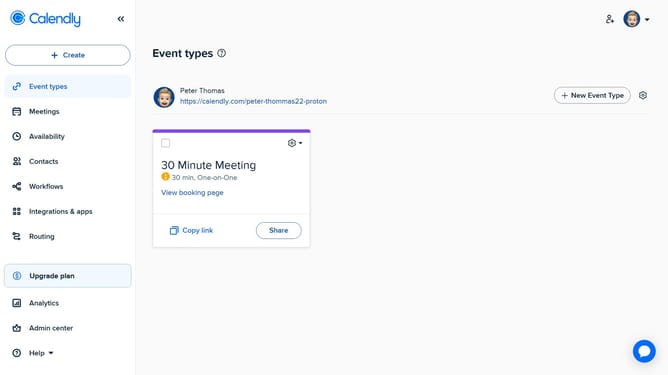
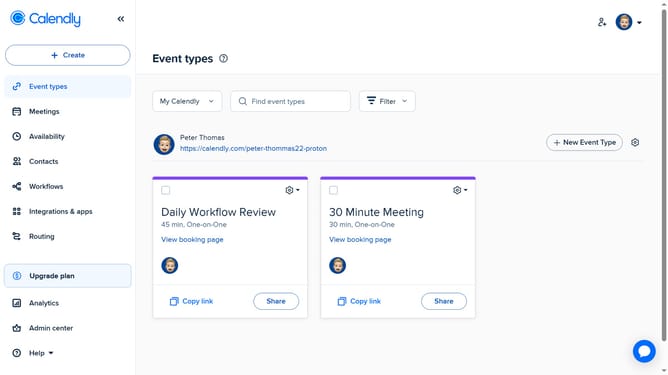
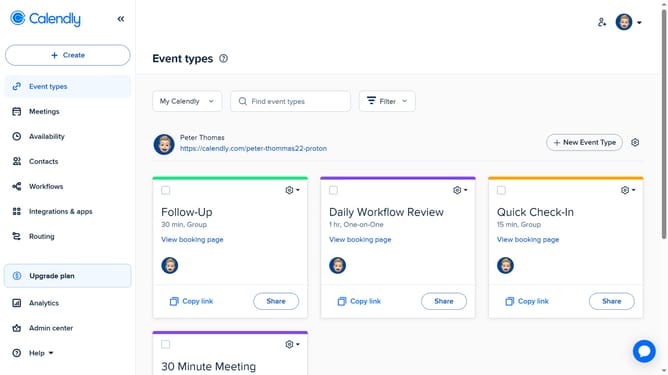
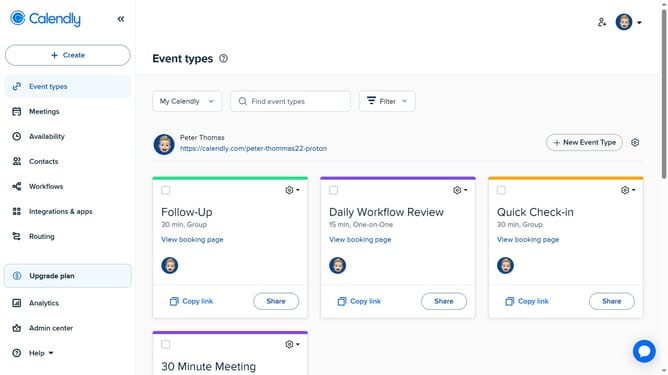
- First navigate to the "Event types" in the left sidebar
- Next locate the event type whose permissions you want to manage
- Click on the settings gear icon in the top-right corner of that event type card
- Then select the "Edit permissions" option from the dropdown menu
- In the Permissions panel, you can view current team members and their access levels
- Next, change permission levels by clicking the permissions dropdown next to a team member’s name
- Then select the desired permission level from the list
- To add new people, click the “Add people” field and type their name
- Select the correct user from the dropdown list
- Finally once you’ve made your changes, click the “Apply” button
Why should you manage event type permissions in Calendly
Calendly is a powerful tool designed to simplify scheduling through seamless appointment coordination.
Managing event type permissions in Calendly enhances control over who can view or schedule events, ensuring privacy and selectivity. This feature enables users to define specific access levels for different event types.
Using event type permissions not only optimizes organizational efficiency but also elevates user experience by customizing interactions, thus fostering a professional environment tailored to unique preferences and requirements.
Last update