How to add an internal note to an event type in Calendly
Here is how to add an internal note to an event type in calendly
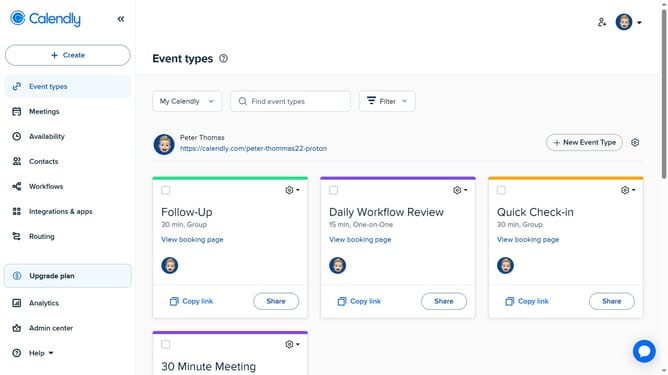
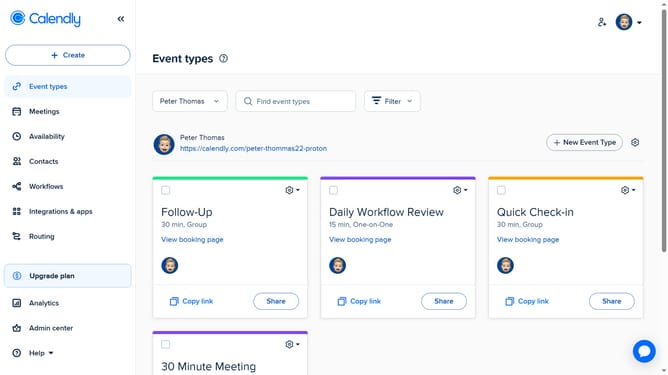
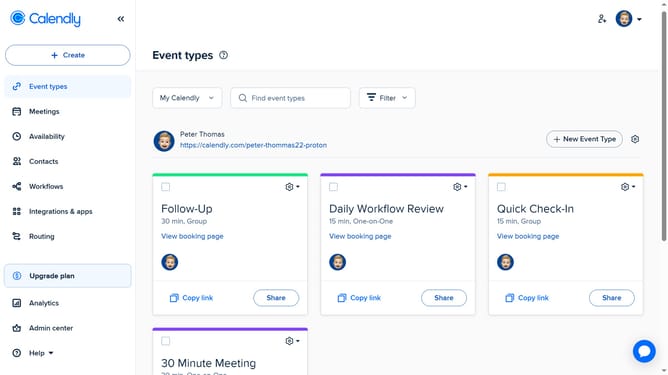
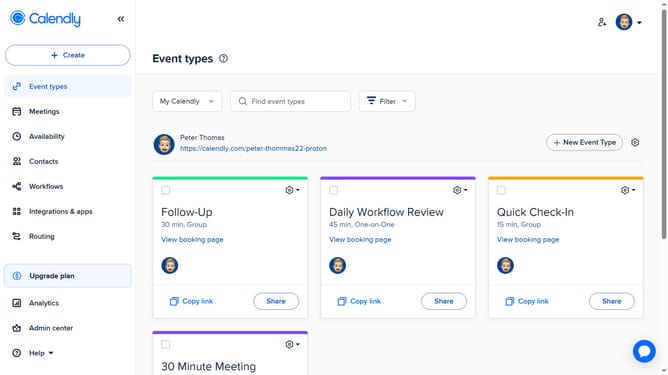
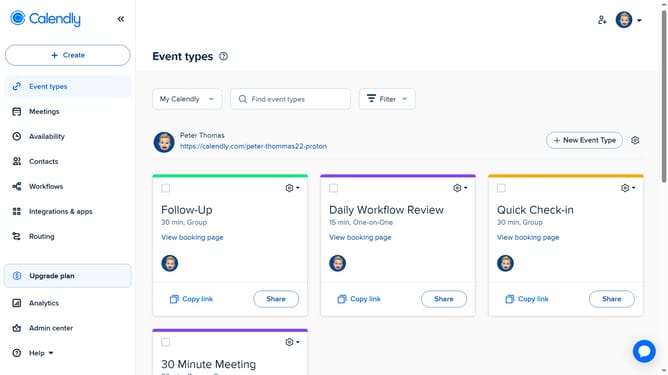
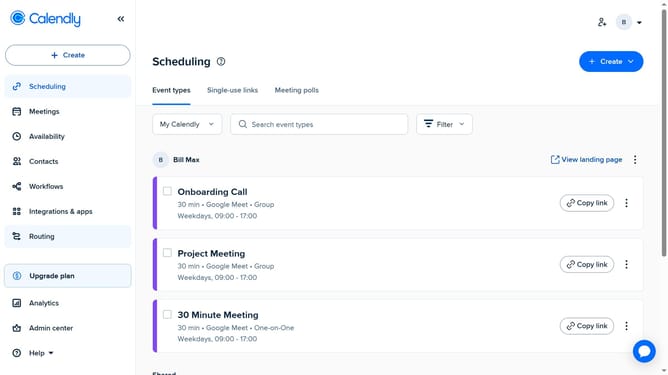
- First click on the "Event types" link in the left sidebar
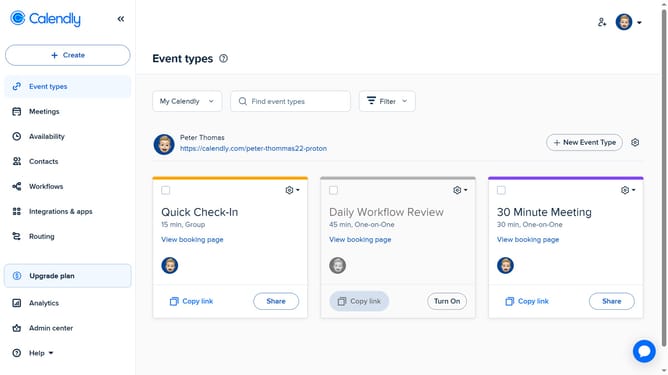
- Next find the event type you want to add a note to
- Click on the settings gear icon in the top-right corner of that event type card
- Then click on "Add Internal Note" option in the dropdown menu
- In the note field that appears, type your note
- Finally click the "Apply" button to save the internal note
Why should you add an internal note to an event type in Calendly
Calendly streamlines scheduling by connecting people effortlessly through a simple calendar interface.
One of its key features allows users to add internal notes to an event type, enhancing organizational clarity. This feature empowers users by allowing them to jot down essential details that might not be visible to invitees.
Internal notes serve as a powerful tool for maintaining context and ensuring everyone involved is aligned. They enhance communication efficiency, allowing teams to prepare thoroughly for any meeting without any last-minute scrambles.
Last update