How to view buffer settings for an event in Calendly
Here is how to view buffer settings for an event in calendly
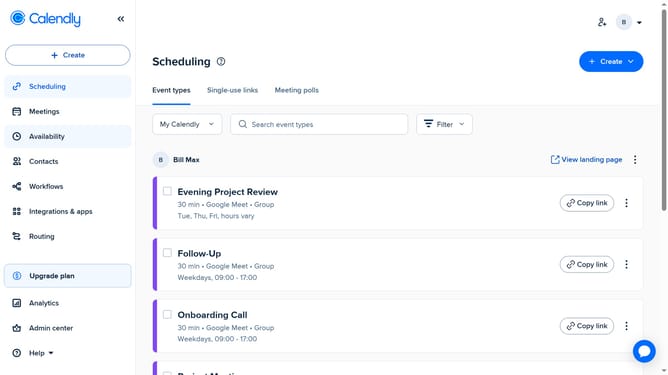
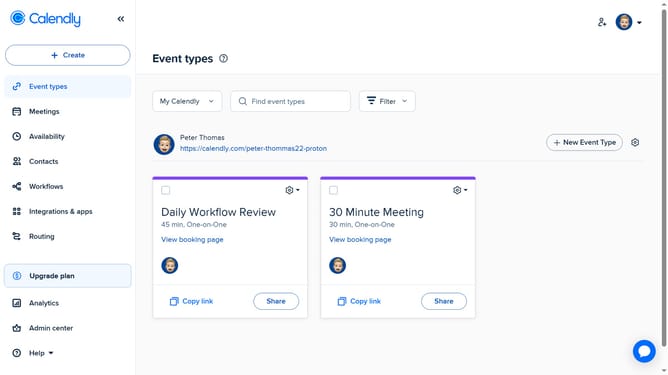
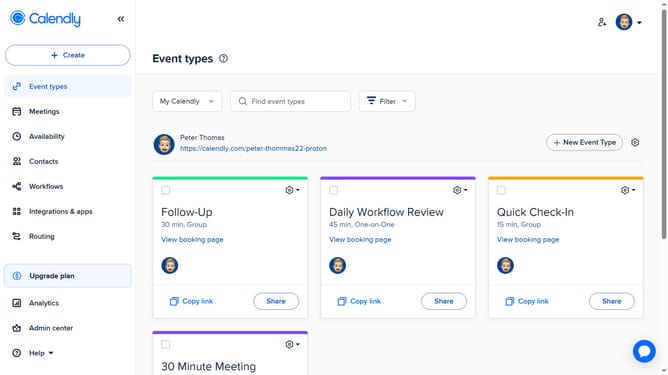
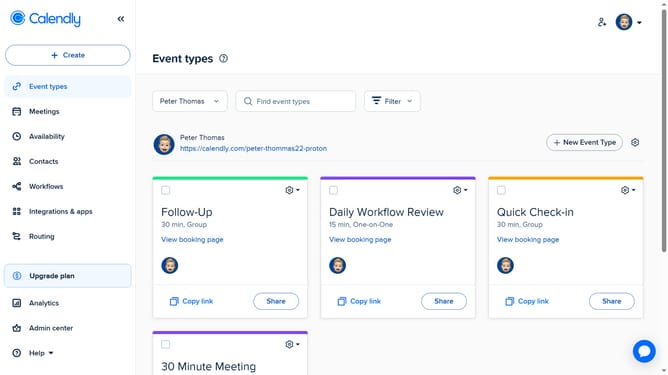
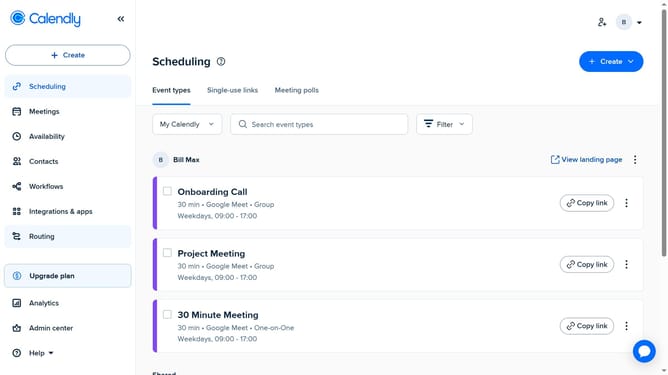
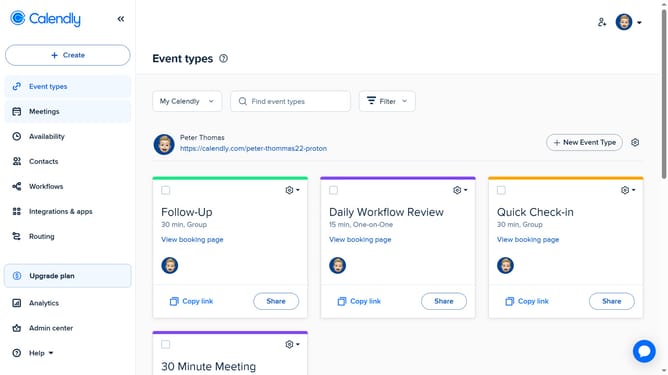
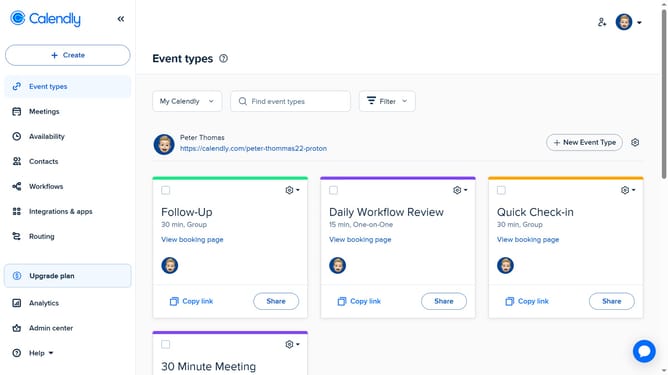
- First click on the "Event types" option in the left sidebar menu
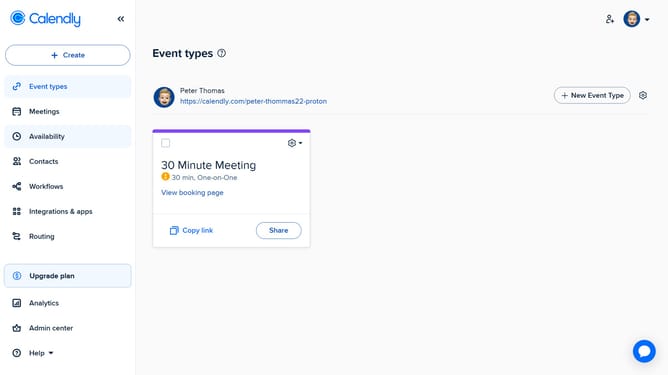
- Next find and click the event type you want to check
- In the event settings sidebar, click on the "More options" button at the bottom
- Click on the "Limits and buffers" section in the settings panel
- Finally, you’ll see any buffer time that’s been set before or after the meeting
Why should you view buffer settings for an event in Calendly
Calendly transforms the chaos of scheduling into a seamless experience by connecting your calendars and controlling your availability.
One of its impressive features is the buffer setting view. This feature lets you see and manage the time gaps before and after each meeting. Clear visibility of these settings helps maintain your schedule and breathe between appointments.
Using buffer settings reduces back-to-back meetings, decreases stress, and enhances overall efficiency. Enjoy uninterrupted workflow and improved productivity, keeping your day organized and hassle-free.
Last update