How to change the time zone for an event type in Calendly
Here is how to change the time zone for an event type in calendly
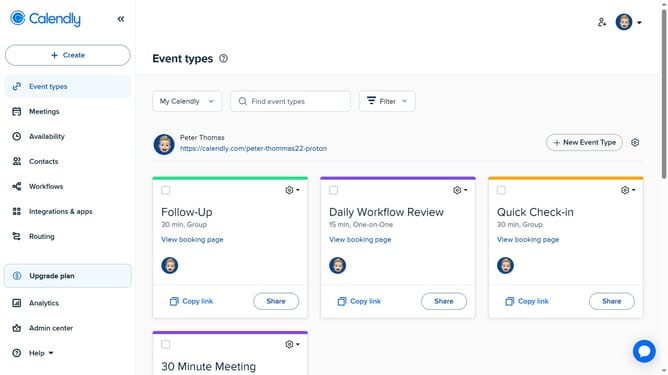
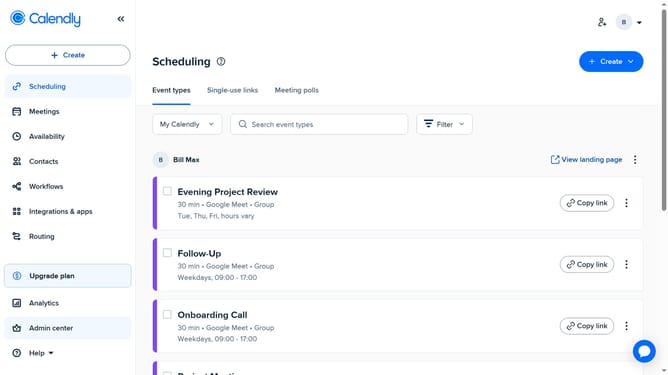
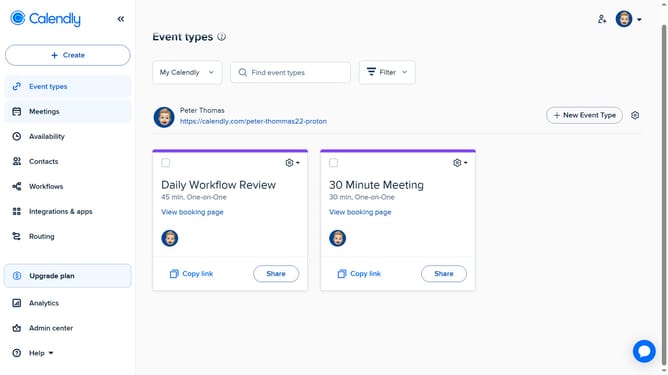
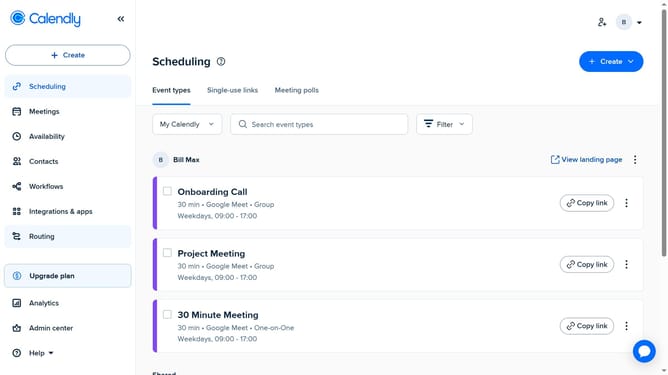
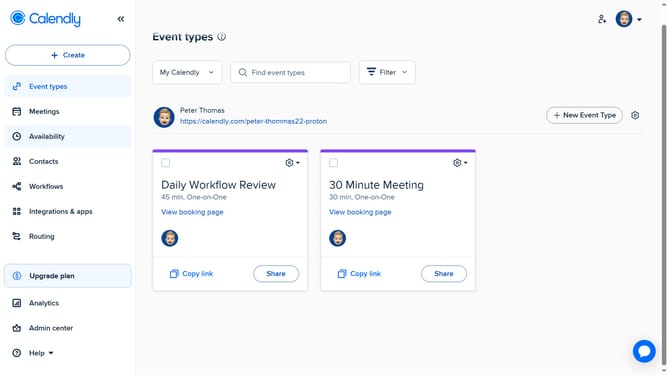
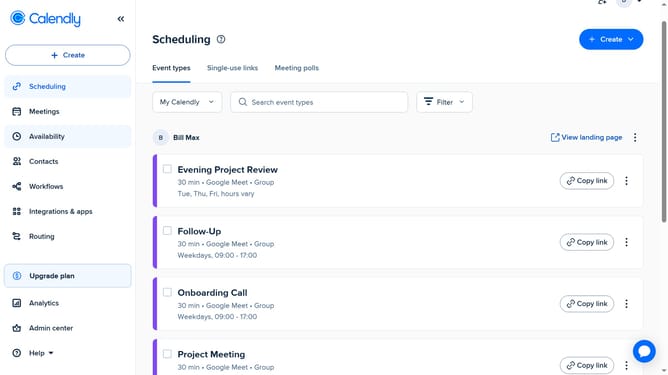
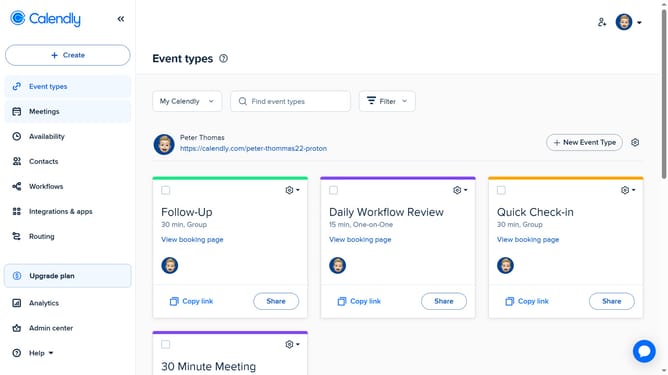
- First click on "Event types" in the left sidebar menu
- Next find and click the event type you want to change the time zone for
- Click on the "Availability" dropdown in the event settings panel
- In the "Availability" section, click the current time zone under your available hours
- Then select the desired time zone from the dropdown list
- Finally click on "Save changes" button in the bottom right to apply the change
Why should you change the time zone for an event type in Calendly
Calendly is a seamless scheduling tool designed to simplify meeting coordination.
One of its powerful features is the ability to change the time zone for an event type. This ensures that you and your invitees are always on the same page, regardless of geographical locations, making scheduling across time zones hassle-free.
By adjusting the time zone, you enhance clarity and prevent miscommunication, ultimately leading to more efficient and stress-free interactions.
Embrace this feature for a more synchronized and globally aware scheduling experience.
Last update