How to create a report from Microsoft Excel in Looker Studio
Here is how to create a report from microsoft excel in looker studio
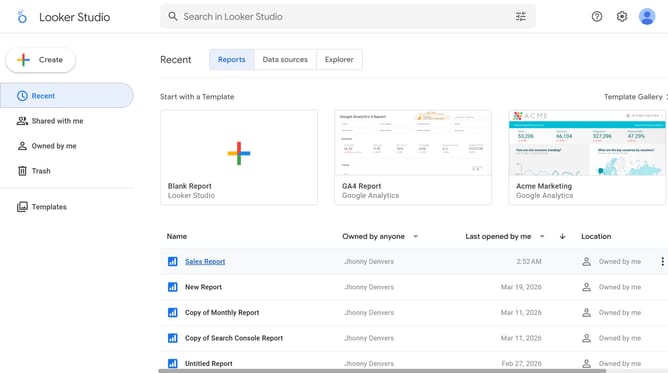
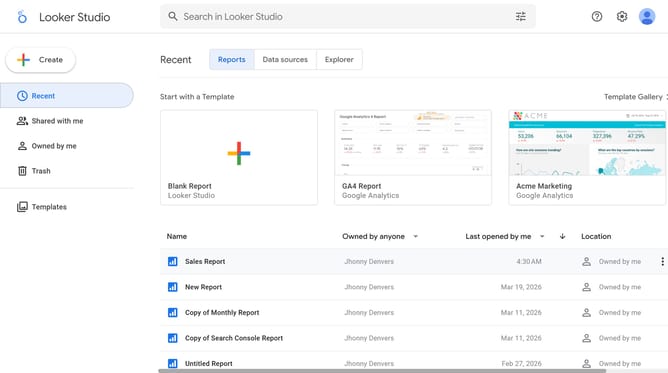
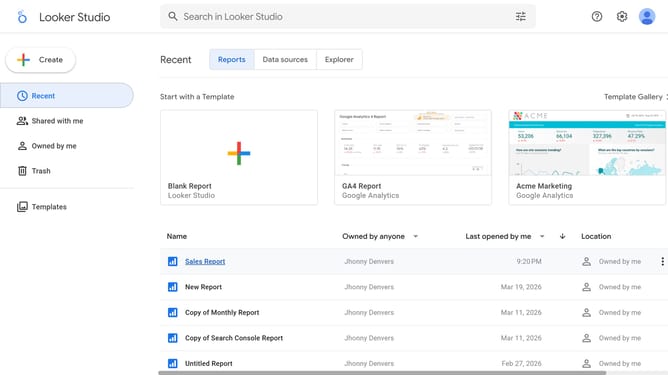
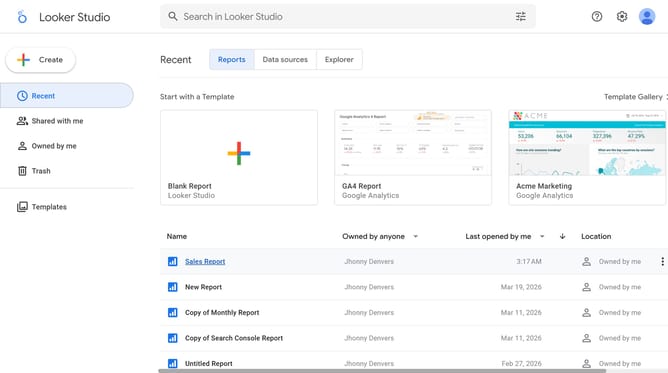
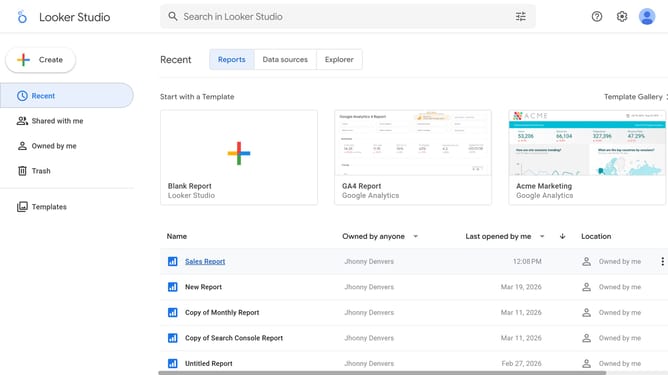
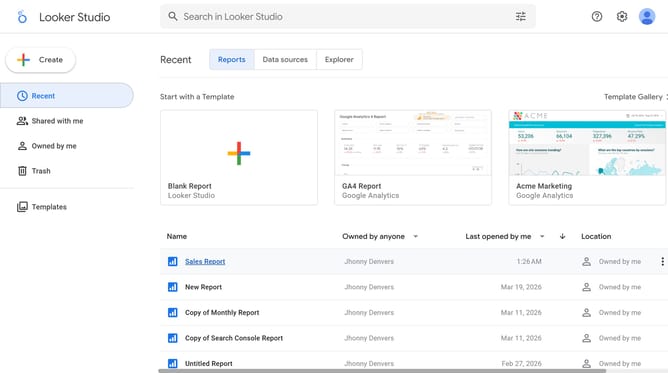
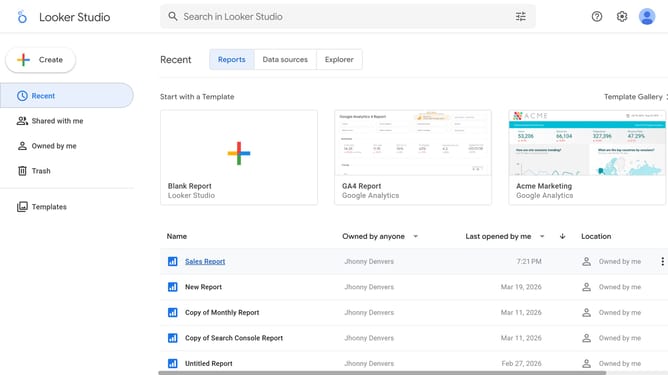
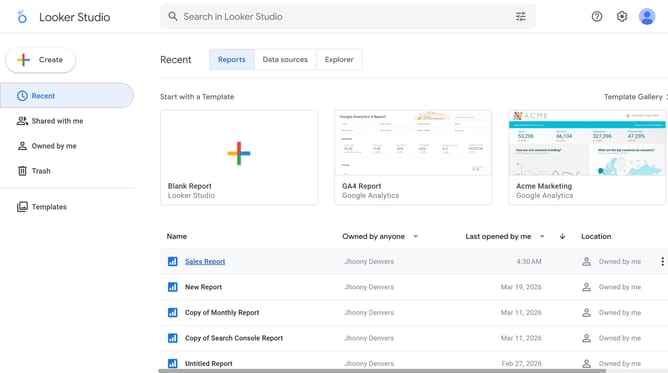
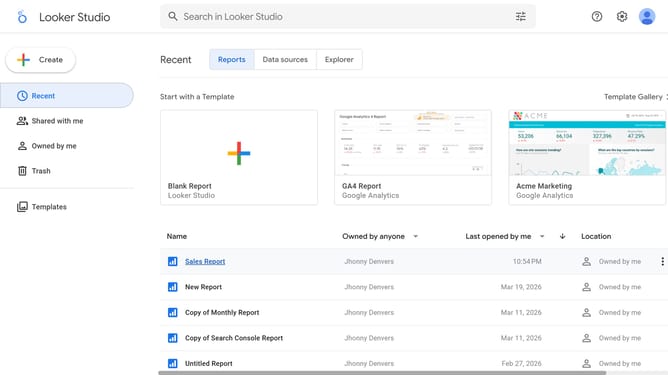
- First click on "Create" button in the left sidebar
- Then click on "Report" option from the dropdown menu
- Next click on "Microsoft Excel" connector card in the data source selection panel
- Then click on "Upload file" button in the file upload dialog
- Next click on "Add" button to confirm adding the data source
- Then click on "ADD TO REPORT" button in the confirmation dialog
- After that, click on the data source name "looker_studio_sample_report - Sales Data" in the right Data panel
- Finally click on "Freeform layout" option in the canvas layout selector
Why should you create a report from Microsoft Excel in Looker Studio
Looker Studio is a powerful tool designed to transform data into actionable insights through compelling data visualizations.
Creating reports from Microsoft Excel in Looker Studio leverages its robust analytical capabilities to enhance data interpretation. By integrating Excel data, you harness the ability to visualize information dynamically, fostering deeper understanding and facilitating strategic decision-making.
This integration benefits users by allowing seamless consolidation of data to generate intuitive reports, enabling teams to communicate effectively and make informed decisions faster.
Last update