How to configure record naming for a custom object in Zendesk
Here is how to configure record naming for a custom object in zendesk
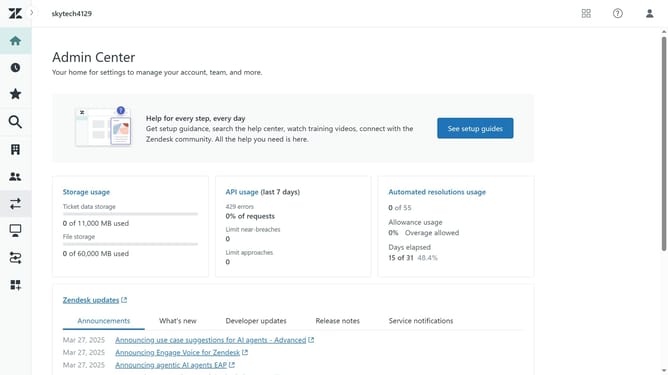
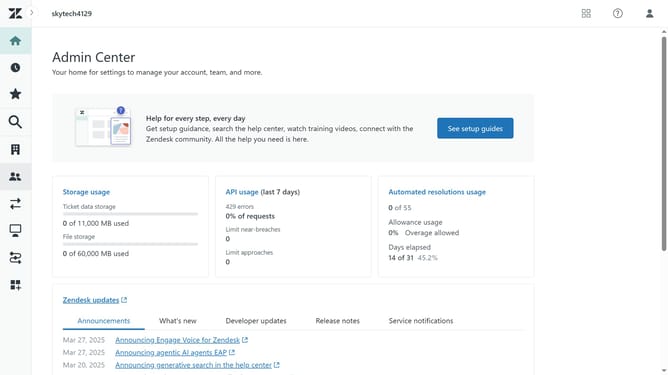
- First in Admin Center, click on the "Objects and rules" icon in the left sidebar
- Then click on "Objects" under the Custom objects section
- Next click on the custom object you want to edit
- Click on the "Fields" tab in the object details view
- Click the display name for the field with the field key of "standard::name" in the fields list
- In the field details, scroll down and find the "Record name type" section
- Choose how you'd like the object's records to be named. Select "Name records manually" to require agents to manually enter a name
- Optionally, select "Require unique record name" to enforce uniqueness
- You can also select "Name records with autonumbering" to automatically generates unique record names
- Configure it by entering a "Prefix" to appear at the beginning of each record's name
- Enter the starting number for the first record, using leading zeros for up to 9 digits
- Finally once done, click the "Save" button to apply the changes
Why should you configure record naming for a custom object in Zendesk
Zendesk is a powerful platform designed to enhance customer support through streamlined communication and data management.
Configuring record naming for a custom object in Zendesk offers great organizational advantages. By tailoring record names, you can ensure data consistency and easy recognition across your workflows.
This feature empowers teams to personalize their processes according to specific business needs, leading to improved clarity and efficiency. It allows seamless collaboration by providing clear identification of records, resulting in a more intuitive user experience.
Last update