How to add a Slack channel in Zendesk
Here is how to add a slack channel in zendesk
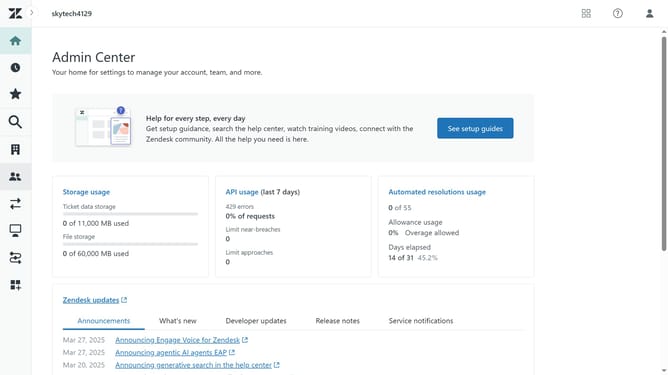
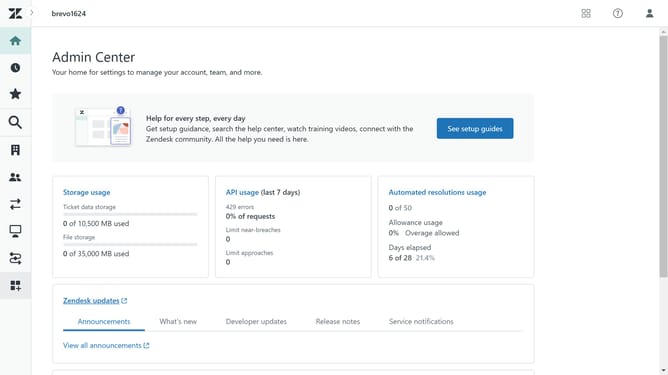
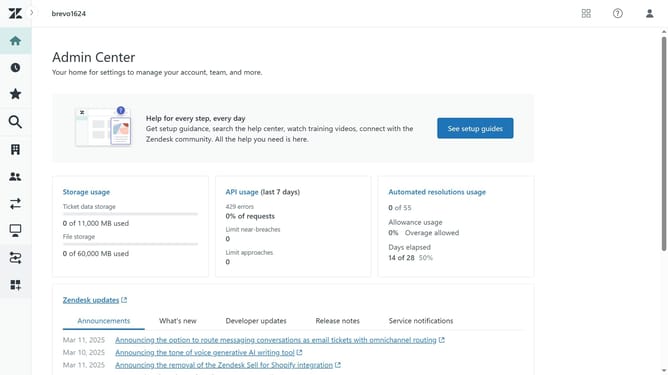
- First in Admin Center, click on the "Channels" icon in the left sidebar
- Then select "Messaging" under Messaging and social section
- Next click the "Add channel" button in the top-right corner of the page
- From the dropdown menu, select "Slack" integration option
- Enter the channel name in the "Channel name" text field
- Click the "Next" button to proceed with the setup
- Click the "Link workspace in Slack" button to connect your Slack account
- Click the "Continue to Slack" button in the confirmation dialog
- Then click the "Allow" button to grant permissions to Zendesk Slack Direct Message
- Your Slack channel is now successfully added and linked to Zendesk
- Click the "Next" button to continue configuration
- Finally, click the "Save settings" button to complete the Slack integration
Why should you add a Slack channel in Zendesk
Integrating a Slack channel into Zendesk streamlines communication and boosts team collaboration.
This feature allows for real-time updates and alerts directly within Slack, enhancing your team's ability to respond swiftly to customer queries.
By linking Slack with Zendesk, teams can address issues more transparently, ensuring everyone is on the same page without the need for constant email checks.
The seamless connection reduces response times and makes customer interaction more efficient, ultimately enhancing overall service quality.
Last update