How to activate or deactivate the CSAT survey for a channel in Zendesk
Here is how to activate or deactivate the csat survey for a channel in zendesk
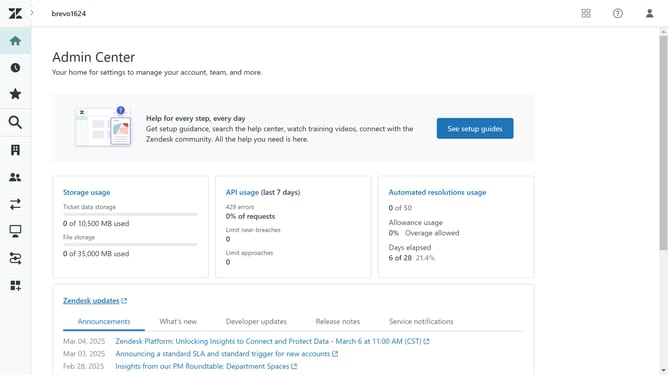
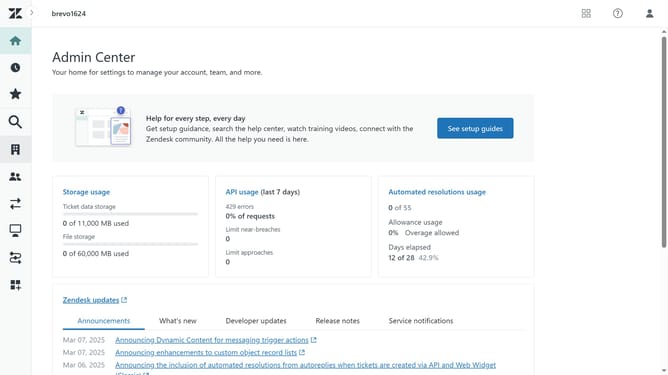
- First in the Admin Center, click on the "Objects and rules" in the left sidebar
- Then click on "Customer satisfaction" option under Business rules section
- In the Channels section, click on the menu button (three dots) next to the channel you want to activate
- Click "Activate" button in the dropdown menu to enable the automation
- Finaly, click "Activate rule" button in the confirmation dialog to confirm
- The CSAT survey is now activated for the selected channel
- To deactivate it, Click on the menu button (three dots) and click "Deactivate" in the dropdown menu
Why should you activate or deactivate the CSAT survey for a channel in Zendesk
Zendesk is a versatile customer service platform designed to enhance customer support interactions.
The ability to activate or deactivate the CSAT survey for a channel in Zendesk empowers businesses to tailor their feedback mechanisms with ease. By customizing when and where these surveys are deployed, companies can gather targeted insights, helping to improve their services based on real customer feedback.
Utilizing this feature promotes flexibility and ensures that the feedback collection process aligns seamlessly with the company's strategic goals. This leads to more meaningful data, ultimately driving better-informed decision-making and heightened customer satisfaction.
Last update