

You can survive one bad file overwrite. Building a repeatable engineering workflow around "final_final_v3.py" is a different story. Version control clients give teams a structured way to track changes, review work, resolve conflicts, and roll back when something breaks.
The global version control systems market was valued at $1.24 billion in 2025, according to Fortune Business Insights. That figure reflects how deeply source control has embedded itself into modern software delivery. And according to The Pragmatic Engineer's 2025 survey of nearly 3,000 tech professionals, 78% reported using version control, with almost all of them on a Git variant.
For presales teams, the stakes are concrete: Versioned POC scripts, configuration files, and technical validation artifacts need to stay auditable and recoverable. Picking the right version control client is part of keeping deal work organized and credible under scrutiny.
What's inside
This guide covers 15 version control clients and platforms for 2026. It focuses on tools used for practical repository work, not an exhaustive catalog of every system built since the 1970s.
Selection criteria:
- Repository model and system support (distributed, centralized, enterprise)
- Ease of use for technical and cross-functional teams
- Collaboration and code review workflows
- Pricing, platform fit, and enterprise readiness
TL;DR
- Best overall for most teams: Git is the dominant distributed version control system and works across almost every modern development workflow
- Best GUI client for GitHub-centered teams: GitHub Desktop keeps branch, commit, and pull request workflows accessible without a terminal
- Best visual Git client: GitKraken offers a rich commit graph and cross-platform collaboration
- Best for enterprise and large assets: Perforce Helix Core handles huge repositories and binary files where standard Git struggles
- Best for game development: Unity Version Control is built for artist and programmer teams managing large binary assets
- Best self-hosted DevSecOps platform: GitLab combines repository hosting with built-in CI/CD and security tooling
What is version control client software?
Version control client software is a tool that helps users create, clone, edit, commit, review, merge, and synchronize changes in a version-controlled repository.
The distinction matters: A version control system (like Git or Apache Subversion) is the underlying engine that tracks change history. A client is the interface people use to interact with that system, whether through a command line, a desktop GUI, or a hosted web platform.
Version control tools sit at the center of how software teams coordinate work. Without them, parallel development creates overwrites, lost work, and debugging nightmares.
Core capabilities to look for:
- Repository cloning and creation
- Commits and change history (revision control software tracks who changed what, and when)
- Branching and merging across parallel workstreams
- Conflict resolution when changes overlap
- Remote sync, pull requests, and code review
- Access control and audit trails
- Large-file and binary-asset handling
- CI/CD and issue-tracking integrations
Repository models explained:
- Local: Single-machine history, no collaboration layer
- Centralized version control systems (CVCS): One shared server holds the repository; clients check out and check in (Apache Subversion, Perforce)
- Distributed version control systems (DVCS): Every contributor holds a full copy of history; Git and Mercurial follow this model
The right model depends on team size, offline work requirements, and how tightly you need to govern who can write to the main branch.
When to use version control clients
Manage parallel development without overwriting changes
When multiple engineers or SEs work on the same codebase, scripts, or configuration files simultaneously, version control clients show who changed what and whether branches can merge safely. Branching and merging capabilities prevent one team member's work from quietly overwriting another's.
Roll back risky changes during releases or POC deployments
Change history lets teams recover from broken scripts, failed deployments, and altered configuration files. For presales engineers supporting proof-of-concept work, the ability to identify exactly what changed and restore a previous state is the difference between a smooth demo and a credibility problem.
Standardize source control across distributed teams
GUI clients, hosted platforms, and enterprise systems reduce workflow drift when teams span offices, time zones, or technical skill levels. Onboarding a new SE or implementation partner into a consistent repository workflow takes minutes rather than days when the right client is in place.
Version control clients comparison
The table below shows all 15 tools with verified pricing and G2 ratings. Pricing and ratings were confirmed from each vendor's official pricing page and G2 listing.
| # | Product | Best for | Key differentiator | Pricing | G2 rating |
|---|---|---|---|---|---|
| 1 | Git | Distributed version control for all team sizes | Ubiquitous open-source DVCS, free forever | Free | 4.7/5 |
| 2 | GitHub Desktop | Beginner-friendly Git GUI for GitHub workflows | Simple branch, commit, and pull request UI | Free | N/A |
| 3 | GitKraken | Visual Git workflows across platforms | Rich commit graph, AI assistance, integrations | Free / paid plans | 4.5/5 |
| 4 | Sourcetree | Free Git and Mercurial GUI | Atlassian ecosystem fit, no cost | Free | 4.3/5 |
| 5 | Fork | Fast native Git desktop client | Lightweight, one-time purchase | $59.99 one-time | N/A |
| 6 | TortoiseGit | Windows File Explorer Git integration | Right-click Git commands in shell | Free | N/A |
| 7 | SmartGit | Cross-platform power-user Git workflows | Multi-host support, starts at $5/user/month | Free (non-commercial) / from $5/user/month | N/A |
| 8 | GitLab | Self-hosted DevSecOps with CI/CD | Repository plus security plus pipelines | Free / $29/user/month (Premium) | 4.5/5 |
| 9 | Bitbucket | Atlassian-centered Git hosting | Jira-native integration, free up to 5 users | Free / $3.65/user/month | 4.4/5 |
| 10 | Azure DevOps | Microsoft-centered engineering teams | Repos, pipelines, boards, artifacts in one suite | Free (5 users) / $6/user/month | 4.2/5 |
| 11 | Apache Subversion | Centralized version control | Mature SVN workflow, open source | Free | N/A |
| 12 | Mercurial | Distributed workflows outside Git | Simple DVCS model, strong history | Free | N/A |
| 13 | Perforce Helix Core | Large files and enterprise repositories | High-performance versioning for huge repos | Free (5 users) / $39/user/month (Cloud) | 4.2/5 |
| 14 | Unity Version Control | Game and 3D asset teams | Artist-friendly binary and large-file support | Free tier / $38/seat (on-prem) | 4.2/5 |
| 15 | Fossil | Small teams wanting an all-in-one solution | VCS, tickets, wiki, and forum in one binary | Free | N/A |
Best 15 version control clients for 2026
1. Git
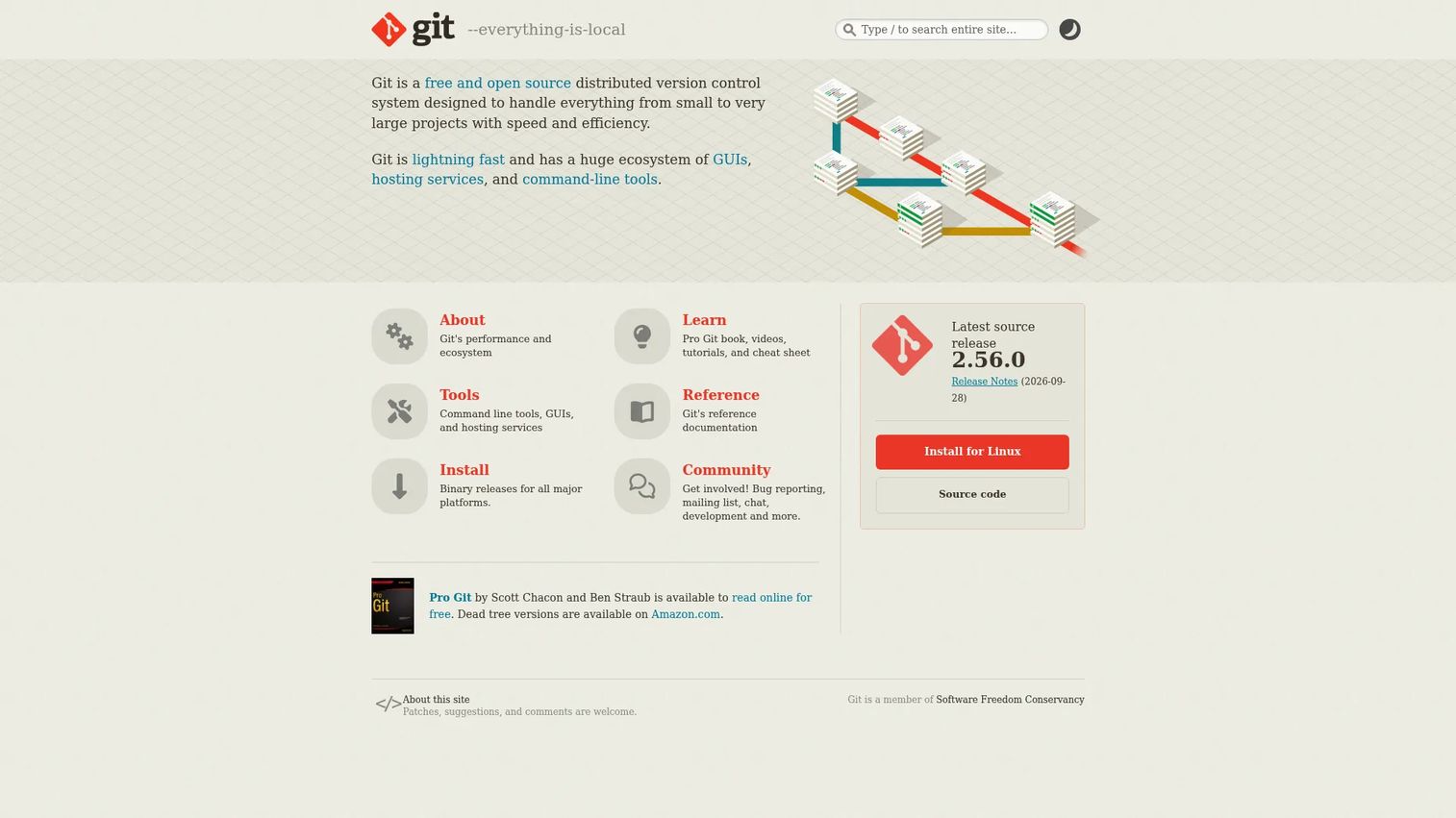
Git is the dominant distributed version control system in software development. Created by Linus Torvalds in 2005, it underpins most modern software workflows. Teams use it through the command line, through GUI clients layered on top, or through hosted platforms like GitLab and Bitbucket. Every developer gets a full copy of the repository, so work continues offline and history never lives in just one place.
Best for: Developers and technical teams comfortable with command-line workflows, and any team that wants maximum ecosystem compatibility.
Key features
- Distributed local repositories with full history
- Branching and merging with fast performance
- Commit history, tagging, and rollback
- Remote sync via fetch, pull, and push
- Broad ecosystem: Hooks, integrations, and hosting platforms
Why choose Git: Choose Git when you need broad compatibility with modern tooling and no licensing cost. Teams that struggle with the command line should layer a GUI client on top rather than avoid Git entirely.
G2 rating: 4.7/5
2. GitHub Desktop
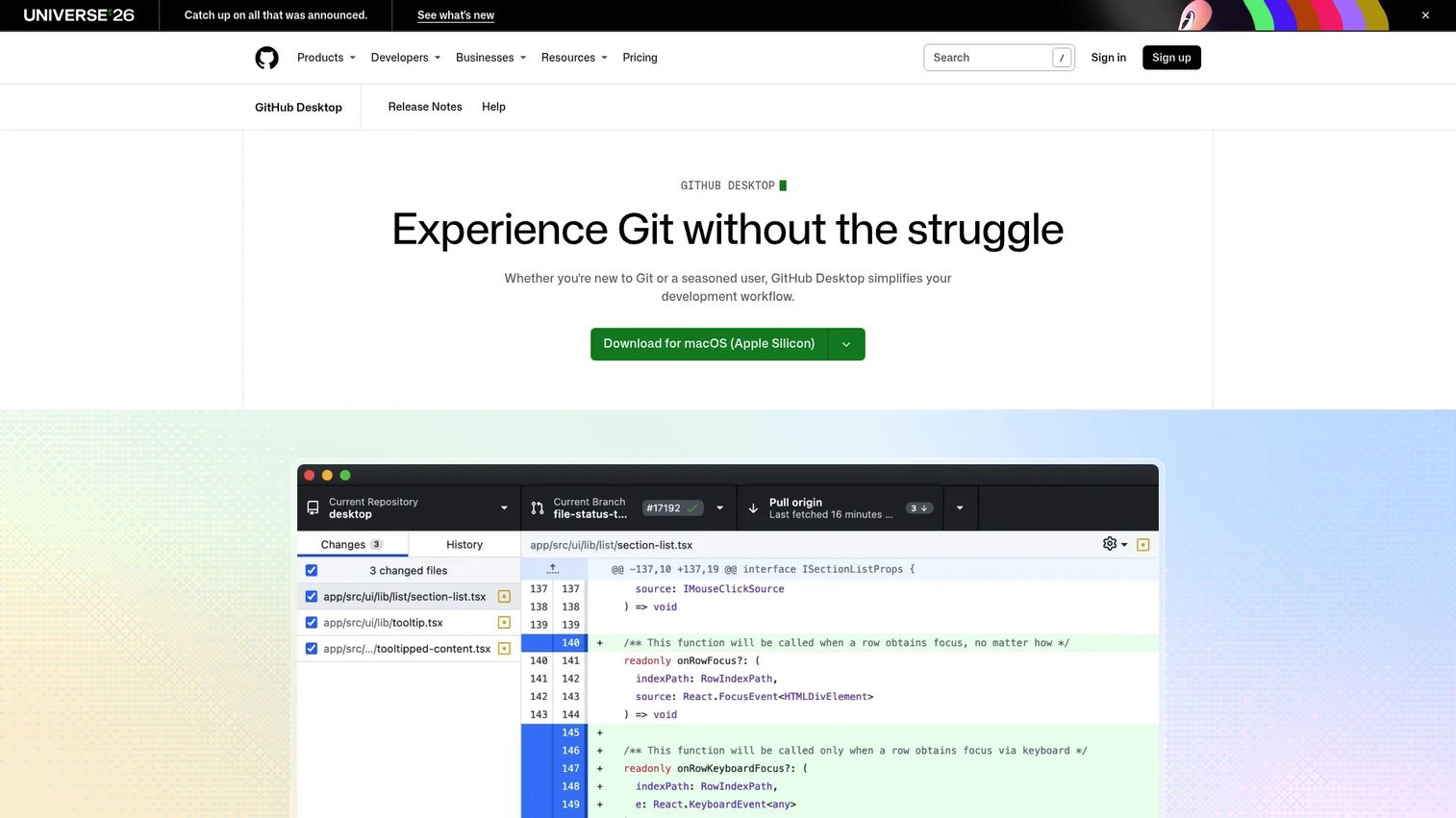
GitHub Desktop is a free, open-source desktop application that puts a graphical layer on top of Git for teams centered on GitHub repositories. It handles clone, branch, commit, push, pull, and pull request handoffs without requiring terminal access. For presales engineers who need to inspect demo scripts or technical validation files stored in GitHub, it removes the command-line barrier.
Best for: Teams that want a simple Git GUI tied directly to GitHub repositories, particularly those without deep terminal experience.
Key features
- Visual commit workflow with diff previews
- Repository cloning and branch publishing
- Pull request creation and handoff to GitHub
- Stash and conflict resolution prompts
- Available for Windows and macOS
Why choose GitHub Desktop: Choose it when GitHub is already the system of record and you want a clean desktop client without added complexity. Teams needing advanced Git graph controls or multi-host repository support will find it limiting.
GitHub Desktop pricing: GitHub Desktop is free. GitHub account plans determine what repositories are accessible.
3. GitKraken
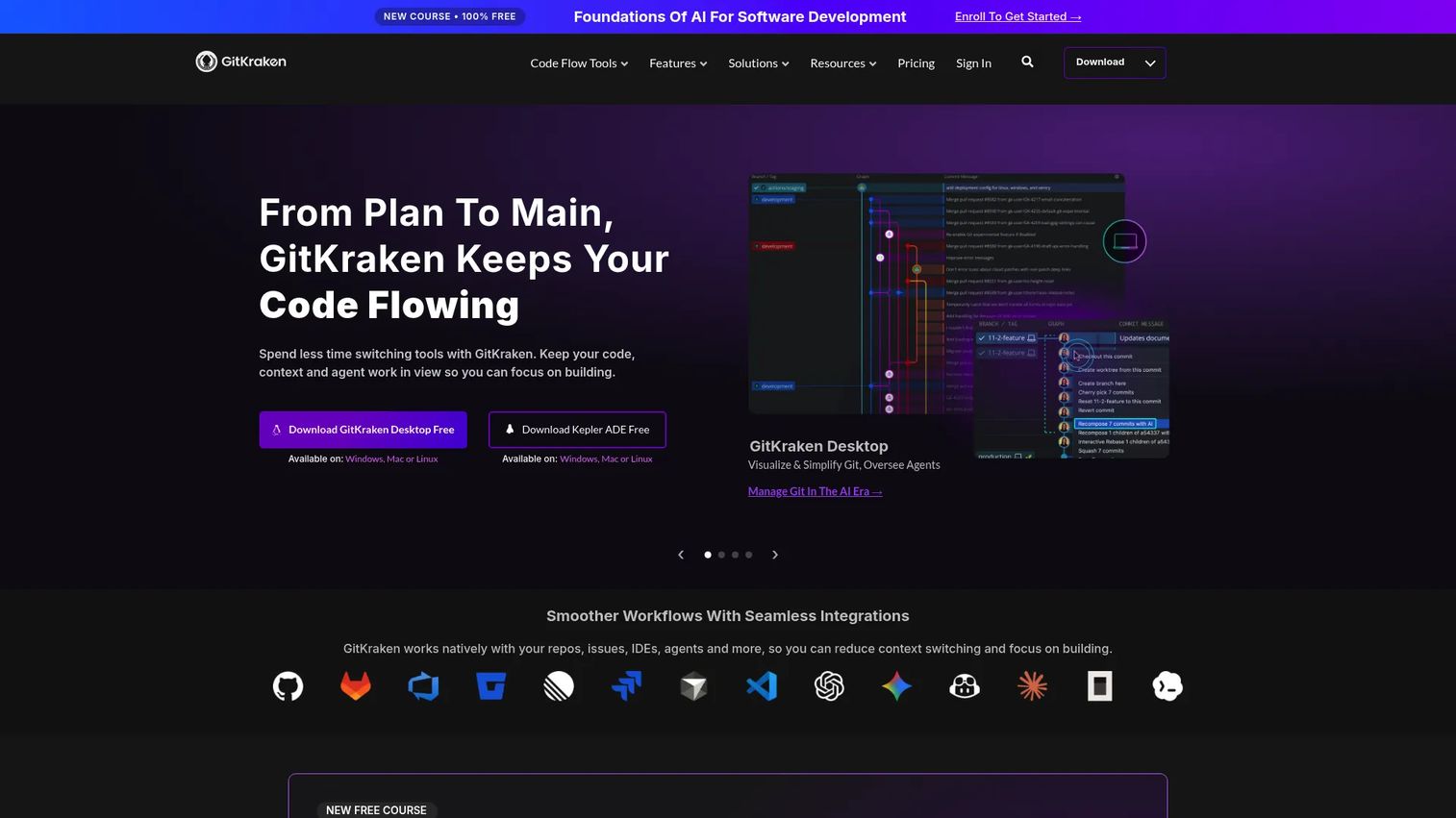
GitKraken provides a full suite of visual Git tools including a cross-platform desktop client, CLI, GitLens for VS Code, and Kepler. Its commit graph makes complex branch relationships readable at a glance, which matters when you're validating implementation work or reviewing POC-related scripts with engineering. It integrates with GitHub, GitLab, Bitbucket, and Azure DevOps.
Best for: Developers and DevOps teams that want a polished visual Git experience with collaboration and AI features built in.
Key features
- Visual commit graph and repository history
- Diff view with file blame and code editing
- Pull request and issue management
- AI-assisted commit messages and merge-conflict resolution
- Team workspaces with multi-repository support
Why choose GitKraken: Choose GitKraken when branch complexity is the problem and your team needs to see repository state clearly. The Community plan covers basic use; teams needing private repositories and integrations move to a paid plan.
GitKraken pricing: A free Community plan covers basic GitKraken Desktop and CLI capabilities. Paid plans (Pro, Advanced, Business) add private-repository access, deeper integrations, and AI features. Specific paid plan prices were not publicly displayed on the pricing page at time of verification.
G2 rating: 4.5/5
4. Sourcetree
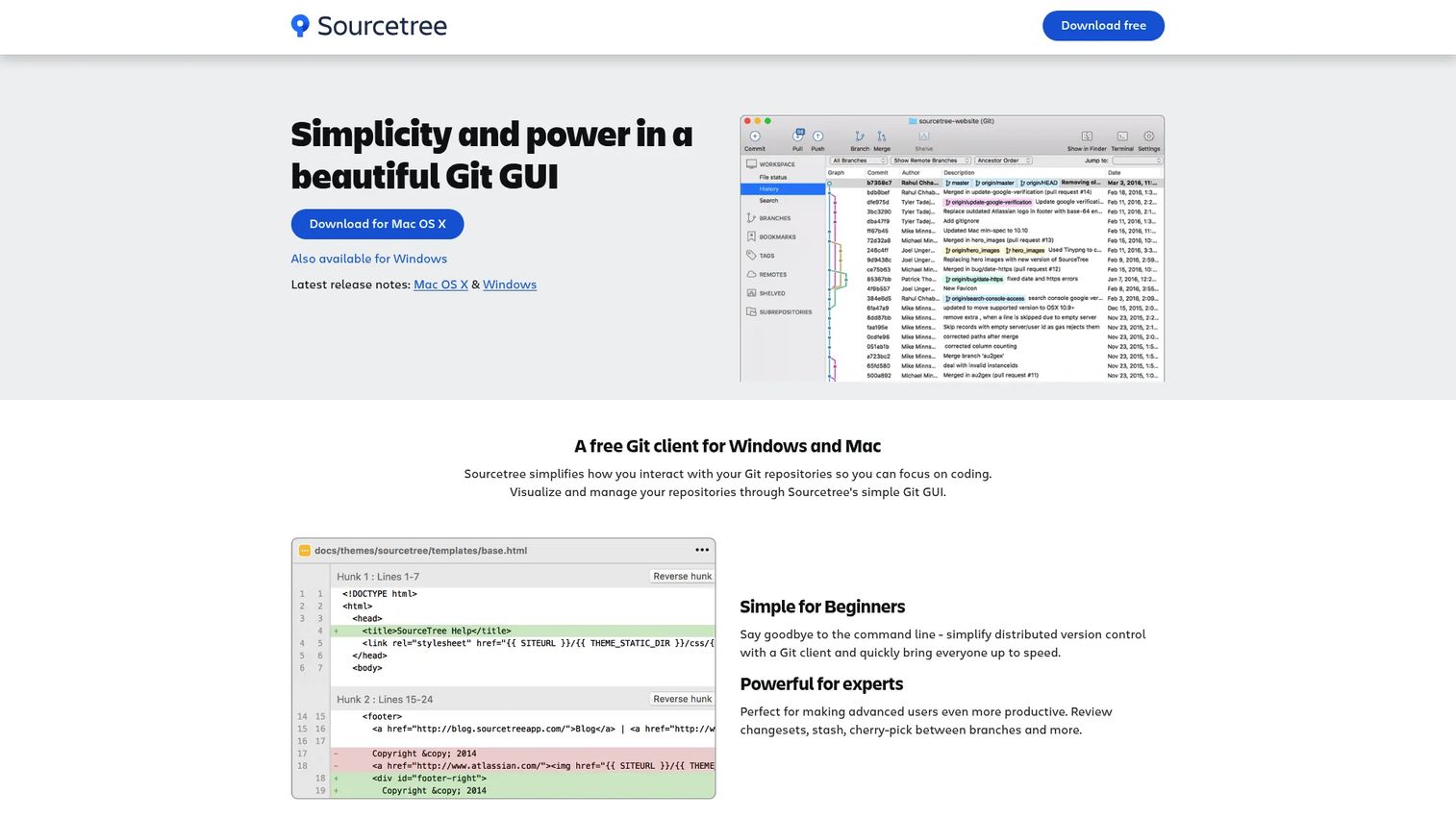
Sourcetree is a free desktop Git client for Windows and macOS that also supports Mercurial repositories. Atlassian builds and maintains it, so it fits naturally alongside Bitbucket and Jira-driven workflows. The visual branch and commit diagram makes it easier to follow a repository's history without memorizing git log flags.
Best for: Developers and teams that want a free GUI supporting both Git and Mercurial, particularly those already using Atlassian tooling.
Key features
- Git and Mercurial repository management
- Visual branch history and commit diagram
- Staging area controls and interactive rebase
- Git LFS and Git-flow support
- Remote repository cloning and search
Why choose Sourcetree: Choose Sourcetree when you need a free client that handles more than Git, or when your team runs on Bitbucket. Teams wanting a more modern paid visual experience may compare it with GitKraken or Fork.
G2 rating: 4.3/5
5. Fork
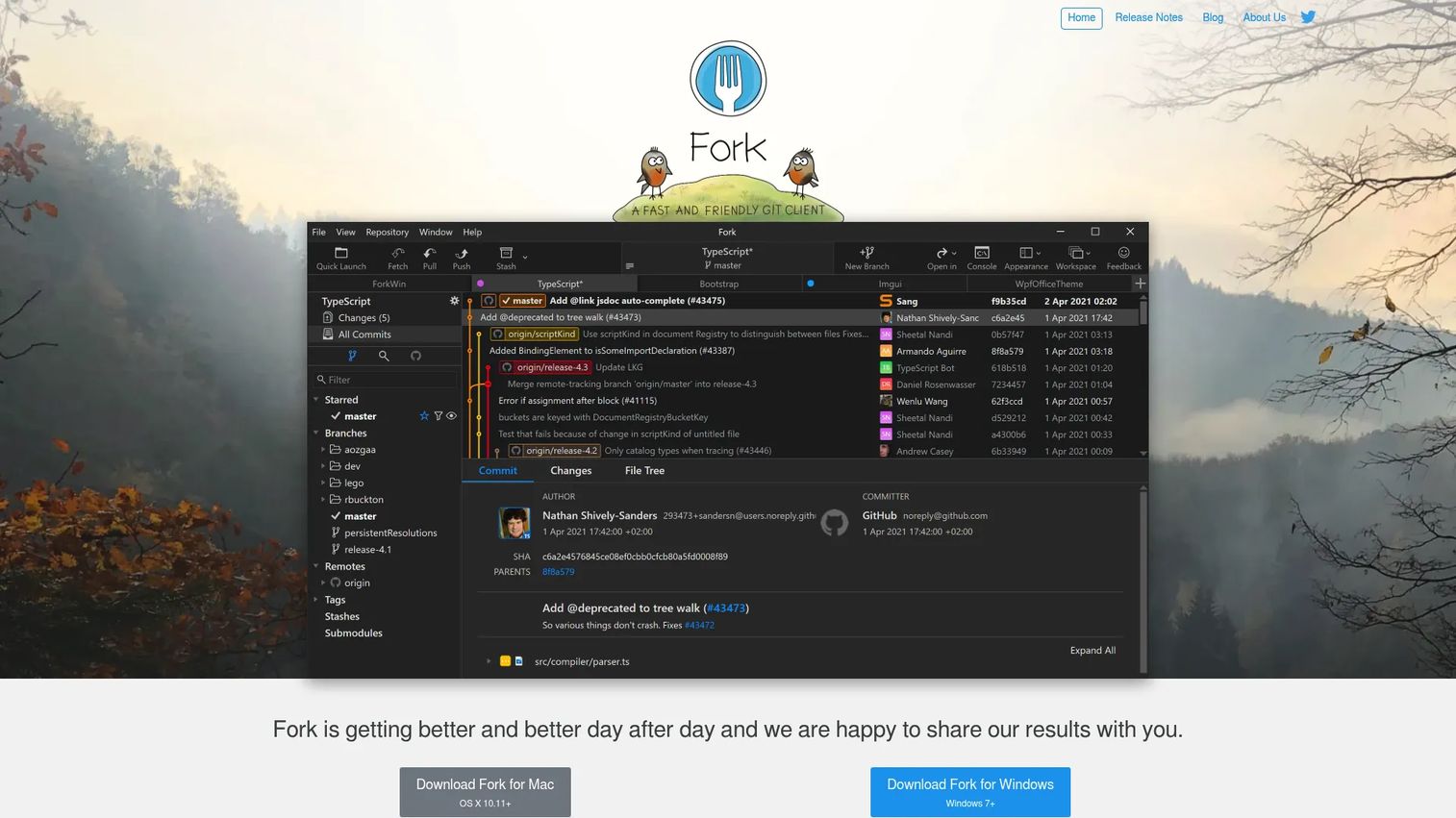
Fork is a fast, native Git client for macOS and Windows built for developers who want clean desktop performance without enterprise overhead. It handles interactive rebase, stash management, merge conflict resolution, and Git-flow style tasks with a focused interface. A free evaluation is available before purchase.
Best for: Individual developers who want a fast native Git client that covers advanced operations without subscription pricing.
Key features
- Fast commit browsing and repository history
- Interactive rebase and cherry-pick
- Visual merge conflict resolver
- Stash management and Git LFS support
- Blame, file history, and line-by-line staging
Why choose Fork: Choose Fork when speed and clean desktop UX matter more than team collaboration features. It suits hands-on developers who already understand Git concepts and prefer a one-time purchase over recurring fees.
Fork pricing: Fork costs $59.99 as a one-time purchase. A free evaluation period is available before buying.
6. TortoiseGit
TortoiseGit is a free, GPL-licensed Windows shell extension that integrates Git commands directly into File Explorer via right-click menus and status icon overlays. Windows-heavy teams get Git access without leaving the file system they already work in. It covers commit, log, diff, branch, tag, merge, and patch operations.
Best for: Windows developers who want Git commands accessible from File Explorer without opening a separate terminal or desktop application.
Key features
- Windows shell integration with right-click menus
- File status icon overlays in Explorer
- Revision graph and log viewer
- Diff and merge tools
- Commit, branch, tag, and patch support
Why choose TortoiseGit: Choose it when Windows is the primary environment and your team prefers working in the file system. It has no relevance for macOS or Linux-first teams.
TortoiseGit pricing: TortoiseGit is free and open source under the GPL license.
7. SmartGit

SmartGit is a cross-platform visual Git client for power users who manage repositories across multiple hosts. It supports GitHub, GitLab, Bitbucket, Azure DevOps, and self-hosted Git servers. Advanced operations like rebase, cherry-pick, submodule handling, and multi-repository log views make it suited to SEs or engineers navigating complex deal environments.
Best for: Power users managing repositories across several hosts, platforms, or advanced Git operations who want a visual desktop client.
Key features
- Cross-platform desktop client (Windows, macOS, Linux)
- Multi-host repository support
- Advanced log view and graph
- Rebase, cherry-pick, and submodule handling
- Pull request and conflict resolution tools
Why choose SmartGit: Choose SmartGit when repository work spans hosts and advanced Git operations are common. Free licenses cover hobby and education use. Commercial teams pay from $5 per user per month.
SmartGit pricing: Free for hobby, student, education, open-source, and charity use. Commercial individual and team licensing starts at $5 per user per month. Enterprise pricing requires a custom quote.
8. GitLab
GitLab is a DevSecOps platform that puts source code management, CI/CD, security scanning, and issue tracking in one place. Teams use GitLab's web interface, merge request workflows, and IDE integrations as their primary working client rather than a separate desktop application. It offers both a SaaS version and a self-managed deployment option, which matters for teams with strict data-residency or security requirements.
Best for: Teams that need version control tightly connected to CI/CD, security tooling, and release workflows in a single self-hosted or cloud platform.
Key features
- Git repository hosting and merge requests
- Built-in CI/CD pipelines and artifact registries
- Application security testing and vulnerability management
- Issue tracking and project management
- Self-managed or SaaS deployment options
Why choose GitLab: Choose GitLab when source control needs to sit inside a broader DevSecOps workflow. It is more than a lightweight desktop client; teams that only need a local GUI may find it heavier than necessary.
GitLab pricing: Free plan at $0 per user per month. Premium plan at $29 per user per month (billed annually). Ultimate plan pricing requires contacting sales.
G2 rating: 4.5/5
9. Bitbucket
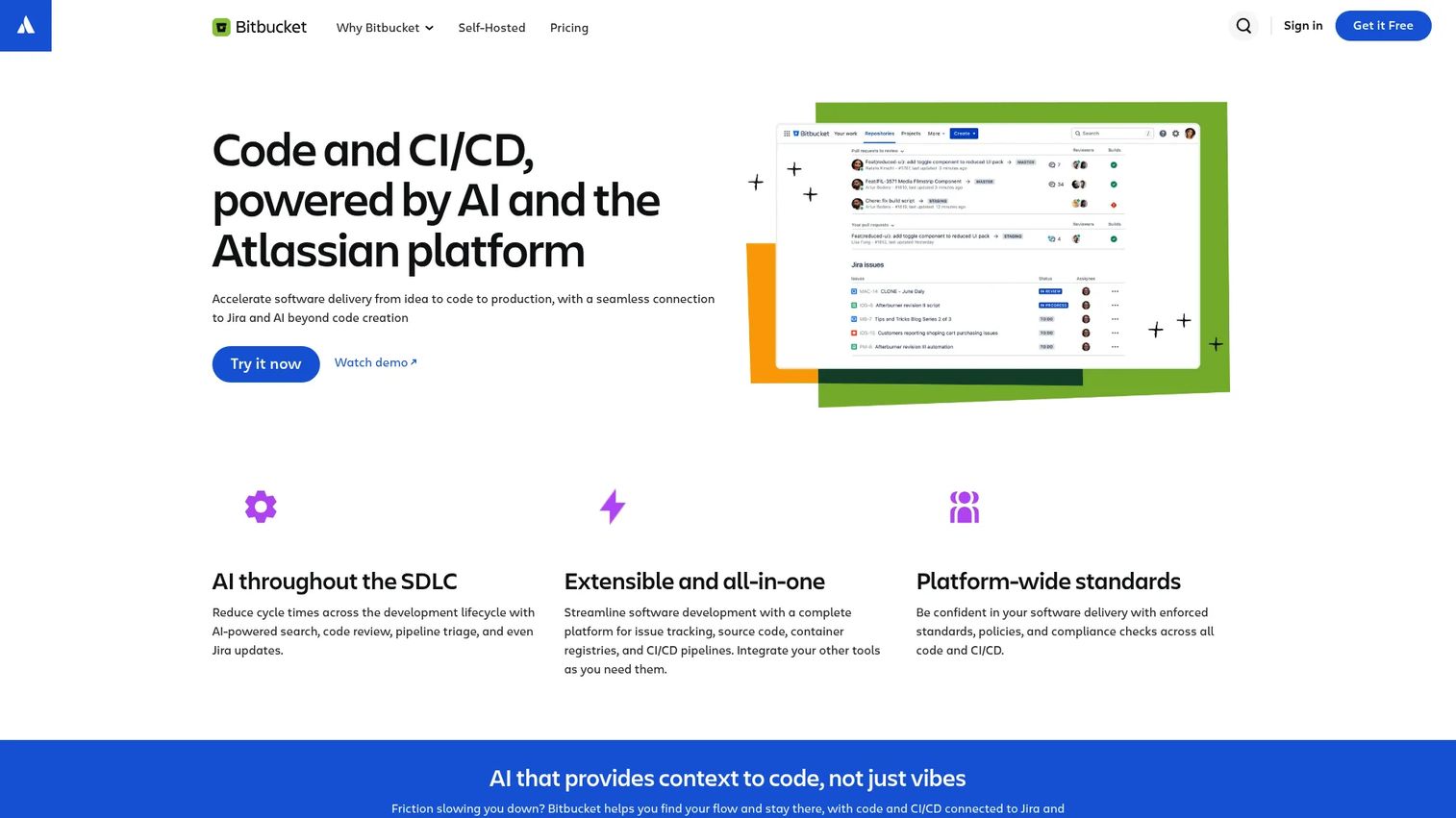
Bitbucket is Atlassian's Git repository management platform. It connects source code directly to Jira issues, making it straightforward to trace a commit back to the story or bug that prompted it. For presales teams documenting technical validation work, the Jira link gives implementation partners a clear audit trail from requirement to change.
Best for: Software development teams running delivery through Atlassian tools, particularly those using Jira for project tracking.
Key features
- Git repository hosting and pull request reviews
- Jira issue linking per commit and branch
- Branch permissions and merge checks
- Bitbucket Pipelines for CI/CD
- Deployment permissions and IP allowlisting
Why choose Bitbucket: Choose Bitbucket when repository workflow and Jira planning need to stay tightly connected. The free plan supports up to five users, which covers small POC teams without added cost.
Bitbucket pricing: Free for up to 5 users. Standard plan at $3.65 per user per month. Premium plan at $8 per user per month.
G2 rating: 4.4/5
10. Azure DevOps
Azure DevOps is Microsoft's platform for agile planning, source control, CI/CD, testing, and package management. Azure Repos provides unlimited Git repositories with code review and branch policies. For engineering teams already running Microsoft identity and Azure infrastructure, it removes the need to manage separate repository and pipeline tools.
Best for: Software development teams standardized on Microsoft cloud and development tooling who want an integrated planning and delivery platform.
Key features
- Azure Repos with unlimited Git repositories
- Pull request policies and code review
- Azure Pipelines for CI/CD
- Azure Boards for agile planning and tracking
- Enterprise access control and audit
Why choose Azure DevOps: Choose Azure DevOps when version control must fit Microsoft identity, cloud infrastructure, and delivery workflows. Teams that only need a Git client will find the full platform heavier than required.
Azure DevOps pricing: First five users are free. Basic users cost $6 per user per month. Basic + Test Plans costs $52 per user per month.
G2 rating: 4.2/5
11. Apache Subversion
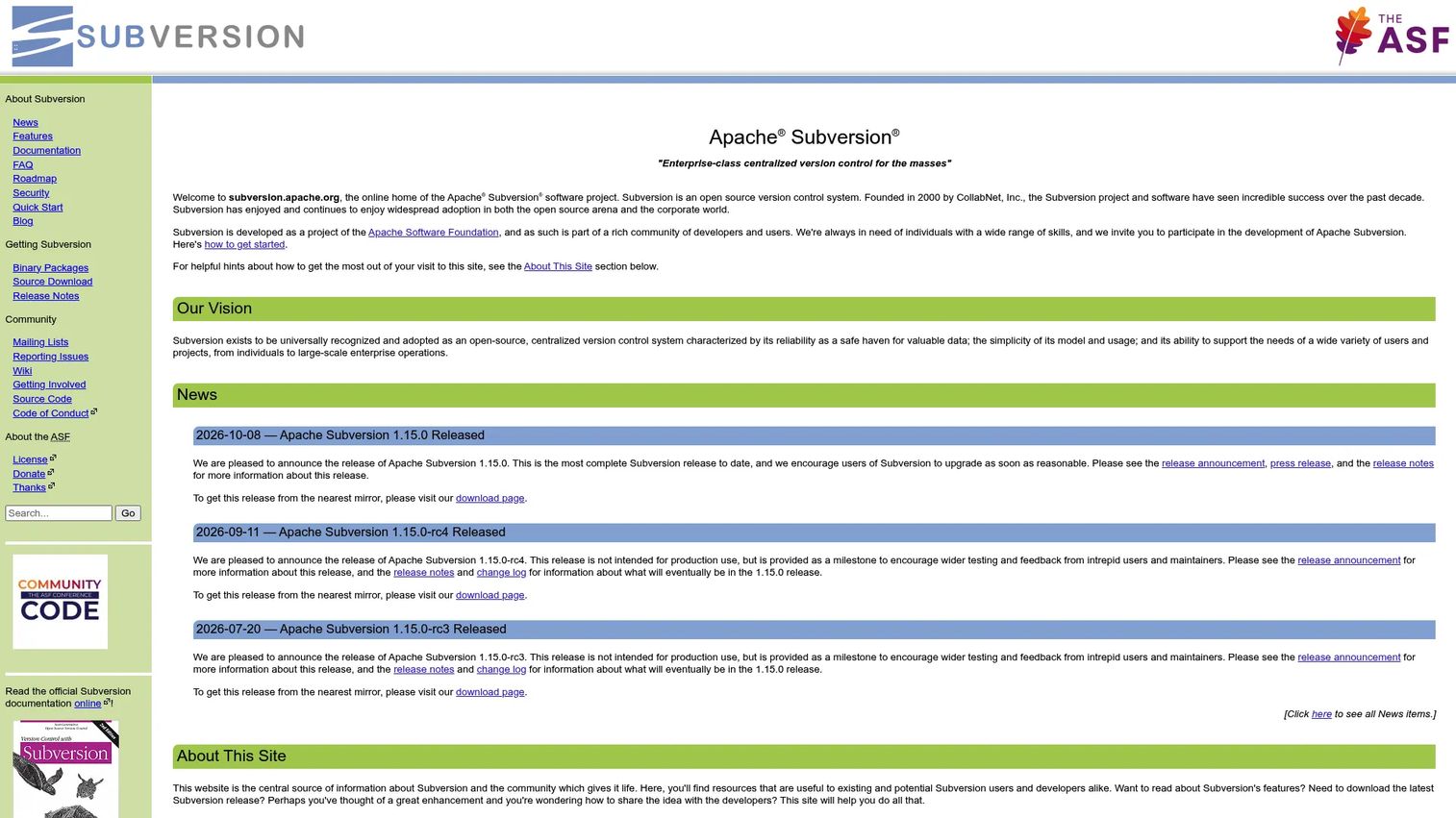
Apache Subversion (SVN) is a mature, open-source centralized version control system. Unlike distributed systems, it uses a single authoritative repository that clients check out and commit to. SVN fits regulated environments, legacy codebases, and teams where centralized governance of a single source of truth is non-negotiable.
Best for: Teams that require centralized version control with a long track record, particularly those maintaining legacy systems or operating under strict governance requirements.
Key features
- Central repository model with checkout and commit workflow
- Directory-level versioning and metadata
- Atomic commits across multiple files
- Branches, tags, and merge tracking
- Apache HTTPD/WebDAV and standalone svnserve server options
Why choose Apache Subversion: Choose SVN when centralized governance matters more than distributed local history. Most new teams default to Git unless they have an existing SVN installation or a specific centralized-control requirement.
Apache Subversion pricing: Apache Subversion is free and open source. Managed hosting costs come from the hosting provider, not from the SVN project itself.
12. Mercurial
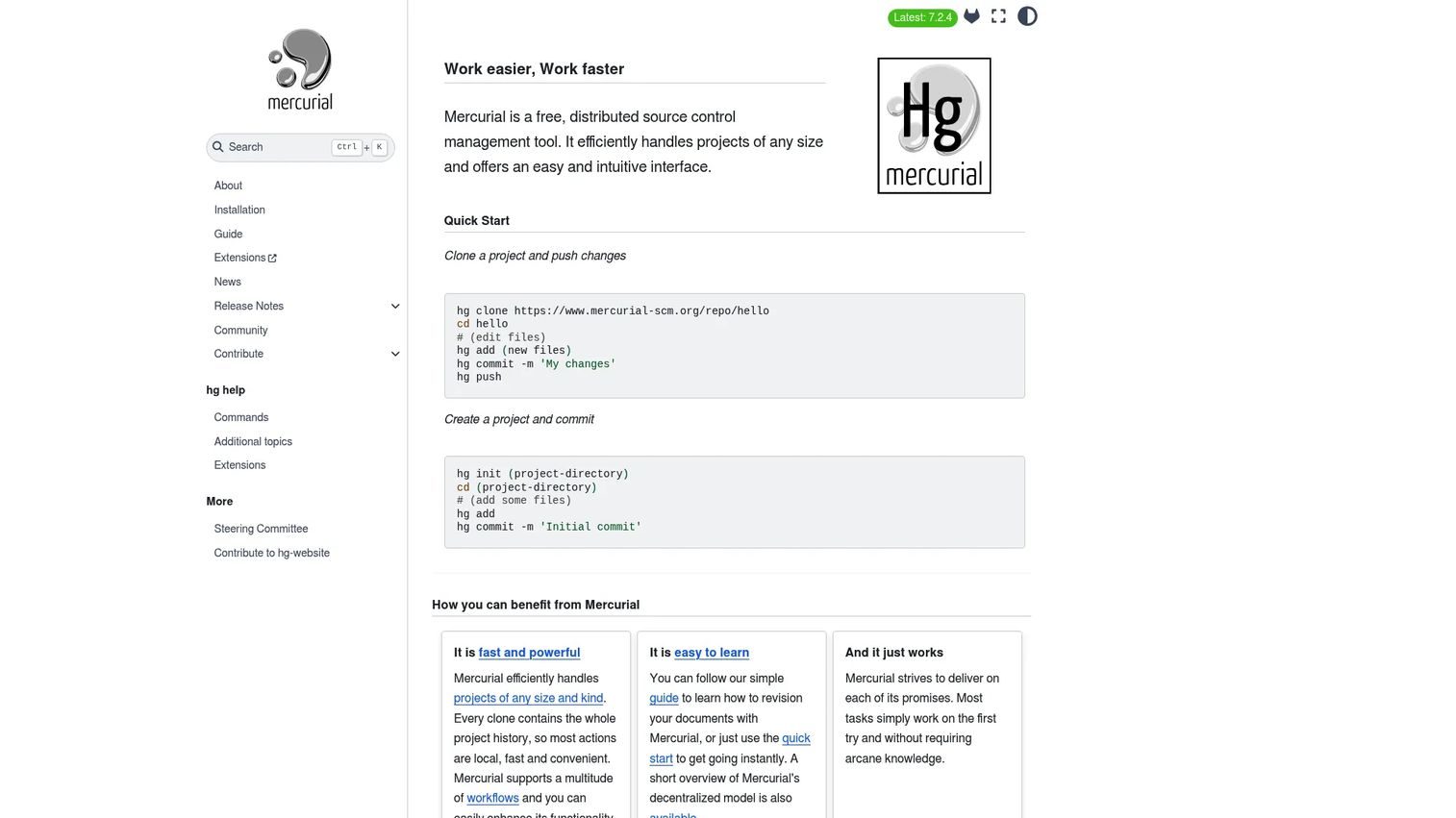
Mercurial is a free, distributed source control management tool that predates widespread Git adoption. Its command model is considered simpler than Git's by some teams, and it handles large repositories and long history well. Some legacy projects and specialized teams continue to prefer it for its stability and consistency.
Best for: Teams with existing Mercurial expertise or specific distributed workflow preferences outside the Git mainstream.
Key features
- Distributed repositories with full local history
- Simple command model
- Strong history tracking and performance on large repositories
- Branching and named-branch support
- Cross-platform operation (Windows, macOS, Linux)
Why choose Mercurial: Choose Mercurial when the team has existing Mercurial experience and the distributed model fits the workflow. Git's ecosystem is substantially broader today, so new teams should factor in tooling, hosting, and hiring when comparing options.
Mercurial pricing: Mercurial is free and open source under the GNU General Public License version 2 or later.
13. Perforce Helix Core
Perforce Helix Core (now also marketed as P4) is enterprise version control software designed for teams managing enormous repositories and large binary assets. Gaming studios, automotive teams, semiconductor companies, and VFX houses use it because standard Git struggles with file locking, huge binary assets, and repositories measured in terabytes. A 2025 Perforce and JetBrains survey found that 86% of professionals across gaming, media, automotive, and manufacturing integrate version control into their workflows, and many of those cite large-asset support as the deciding factor.
Best for: Enterprise teams managing large binary assets, game development codebases, or massive repositories where Git performance degrades.
Key features
- Exclusive file locking for binary and design assets
- Streams-based branching model
- Granular permissions and audit logs
- Parallel and delta-based syncing for large repositories
- Support for game, VFX, and digital asset workflows
Why choose Perforce Helix Core: Choose it when Git struggles with repository size, binary assets, or when file locking is a hard requirement. It is a heavier system than any desktop Git client, so the tradeoff makes sense only when asset complexity demands it.
Perforce Helix Core pricing: Free for up to 5 users. Cloud plan at $39 per user per month (billed monthly). Scale and Platform plans use quote-based annual pricing.
G2 rating: 4.2/5
14. Unity Version Control
Unity Version Control (formerly Plastic SCM) is a scalable version control system built for game-development studios where artists, designers, and programmers share the same repository. Large binary files, Smart Locks, and a visual branch explorer make it accessible to non-developers who would struggle with terminal-based Git. It integrates with the Unity Editor and Unity Hub and supports cloud or on-premises deployment.
Best for: Game and 3D production teams that need one versioning workflow covering both source code and large binary assets.
Key features
- Large binary and digital asset support
- Smart Locks for file-locking during active editing
- Visual branch explorer for non-technical team members
- Unity Editor and Unity Hub integration
- Cloud and on-premises deployment options
Why choose Unity Version Control: Choose it when artists and programmers need a shared workflow for code plus large assets. It is strongest in Unity or game-production environments; teams outside that context should evaluate whether the asset-handling features justify the switch from standard Git tooling.
Unity Version Control pricing: Free tier available with included storage. On-premises seats cost $38 per seat. Cloud storage is billed at $0.10 per GB beyond the included amount.
G2 rating: 4.2/5
15. Fossil
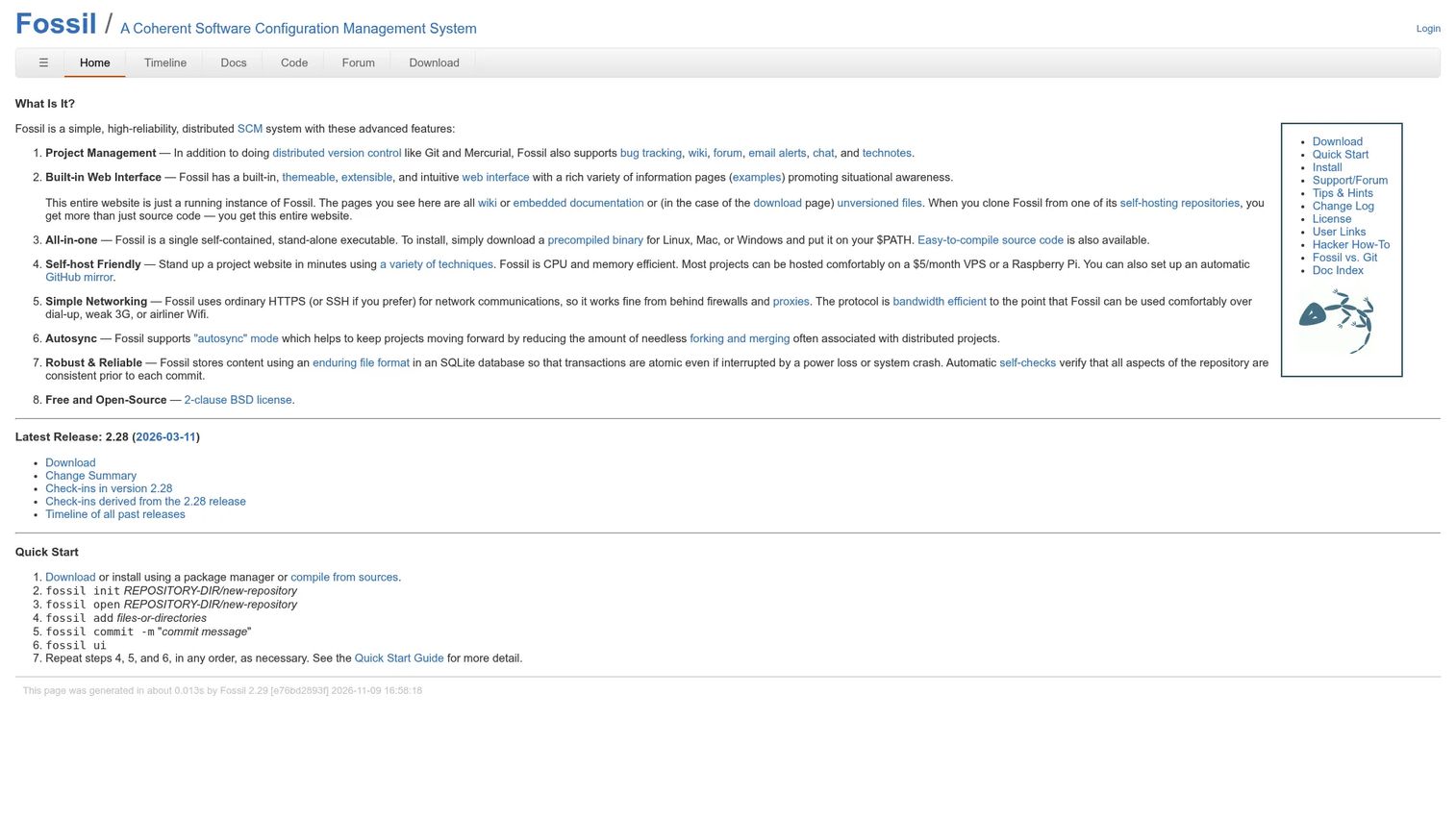
Fossil is a free, open-source distributed version control system that ships everything a small team needs in a single executable: Version control, bug tracking, wiki, forum, chat, and a built-in web interface. No separate issue tracker or project management tool is required. Teams self-host it over HTTPS or SSH and can sync distributed repositories with the autosync feature.
Best for: Small teams or open-source projects that want source control and project tracking in one self-contained tool.
Key features
- Distributed version control with autosync
- Built-in bug tracking, wiki, and forum
- Themeable web interface included
- Single self-contained executable
- Self-hosting via HTTPS or SSH
Why choose Fossil: Choose Fossil when simplicity and a self-contained project history matter. It is less common than Git, so adoption requires more internal explanation when onboarding outside contributors.
Fossil pricing: Fossil is free and open source under a 2-clause BSD license.
Considerations when choosing version control clients
Repository model
Distributed systems like Git and Mercurial give every contributor a full local copy of history, which supports offline work and faster local operations. Centralized systems like SVN and Perforce provide a single authoritative source, which simplifies governance and access control. Choose the model that matches your team's collaboration style and security requirements, not the one that sounds more modern.
GUI versus command line
Command-line Git offers precision and scriptability, but adoption friction is real for non-engineers. GUI clients like GitHub Desktop, Sourcetree, Fork, and GitKraken reduce that friction significantly. For presales teams where SEs need to read or update versioned assets without deep Git expertise, a GUI client often determines whether version control actually gets used.
Hosting and ecosystem fit
The right client should align with your identity provider, CI/CD system, issue tracker, and access control. GitHub, GitLab, Bitbucket, and Azure DevOps each carry assumptions about how teams work. Self-hosted options like GitLab's self-managed tier or Fossil give tighter control over data residency, which matters during security review in enterprise deals.
Large files and binary assets
Standard Git slows down on repositories with large binary files. If your team versions game assets, design files, or compiled binaries, evaluate Git LFS support, file locking, and the dedicated solutions Perforce Helix Core and Unity Version Control offer. Picking the wrong tool for a binary-heavy repository creates performance problems that are expensive to unwind later.
Governance and auditability
Branch policies, access control, audit logs, and mandatory code review are not optional in regulated industries or enterprise buying committees. Tools like GitLab, Azure DevOps, and Perforce Helix Core provide granular permission models that satisfy security reviewers. If a customer's procurement team asks how source code is governed, the answer needs to point to a specific tool's controls.
Conclusion
The right version control client depends on what you're managing and who needs to use it. Git is the correct starting point for the vast majority of software teams. GUI clients like GitHub Desktop, Sourcetree, Fork, and GitKraken make Git accessible to developers who prefer not to live in a terminal. SmartGit and TortoiseGit serve specific platform and power-user needs.
When repository work needs to live inside a broader delivery platform, GitLab, Bitbucket, and Azure DevOps each offer strong answers depending on your existing stack. Bitbucket fits Atlassian-heavy teams; Azure DevOps fits Microsoft-centered organizations; GitLab fits teams that want self-hosted DevSecOps control.
For large-asset teams, Perforce Helix Core and Unity Version Control solve problems that standard Git cannot. Apache Subversion and Mercurial remain solid choices for teams with specific centralized-control or legacy requirements. Fossil handles the small-team, self-contained-project case without requiring additional tools.
Pick the client that fits the team's actual workflow, not the most popular one on the market. Version control only improves delivery when people actually use it.
Once your technical workflow is under control, showing it clearly is the next step. Start your journey with Guideflow today!
FAQs
A version control client is software that lets users interact with a version-controlled repository. It handles operations like cloning, committing, branching, merging, pushing, and pulling. The client is the interface people use; the version control system underneath (such as Git or SVN) is the engine tracking change history.
Version control software refers to the system or platform managing change history, such as Git, Mercurial, or Apache Subversion. A client is the interface people use to interact with that system. Git is the system; GitHub Desktop, Sourcetree, and GitKraken are clients that sit on top of it.
Git is a distributed version control system. It also includes a command-line client by default. Many teams install a separate desktop GUI like GitKraken or GitHub Desktop on top of Git to make repository work more visual and accessible.
GitHub Desktop is the strongest starting point for beginners working with GitHub repositories. Sourcetree is a good alternative for teams that also use Mercurial. Both provide clear commit, branch, and conflict workflows without requiring command-line knowledge.
The answer depends on the existing tech stack. GitLab suits teams that want source control, CI/CD, and security in one self-hosted platform. Azure DevOps fits Microsoft-centered organizations. Bitbucket works best when Jira is the project management backbone. Perforce Helix Core is the right answer when large binary assets, file locking, or extreme-scale repositories are the requirement.
Perforce Helix Core and Unity Version Control are the two strongest options for game development. Both handle large binary files and file locking in ways that standard Git cannot match at scale. Unity Version Control adds artist-friendly workflows and direct Unity Editor integration, which is a practical advantage when non-engineers are committing assets daily.
Presales engineers rarely own core software repositories, but they often work with versioned assets that benefit from source control: POC configuration files, demo scripts, implementation templates, and technical validation artifacts. Version control makes those assets auditable, recoverable, and consistent across handoffs with engineering and implementation partners.
The most important capabilities are branching, merging, conflict resolution, and rollback for recovering from bad changes. Beyond those fundamentals, the right client needs to fit your hosting environment, support your access control requirements, and provide enough repository visibility for everyone on the team. Large-file handling and CI/CD integrations become critical as projects scale.