You wrote a five-paragraph email explaining how to set up the new dashboard. Nobody read it. Two of them replied asking the same question you already answered in paragraph three.
That is the daily reality most marketing and support teams live in. Written walkthroughs get skimmed. Static screenshots go stale the moment the UI changes. And scheduling a live call to explain a two-minute workflow burns an hour of everyone's day. Screen recording software fixes the wrong-format problem: it turns a live screen action into something reusable, shareable, and far easier to follow than a wall of text.
The market agrees. Screen recording software was worth $2.10 billion in 2025 and is forecast to reach $4.62 billion by 2030, growing at a 17.08% CAGR, according to Mordor Intelligence (2025). Training and onboarding drove 40.29% of demand in 2024, which tells you exactly who leans on these tools: teams that explain the same thing repeatedly and want to stop.
Picking the right screen recorder comes down to five things: capture quality, sharing speed, editing depth, platform support, and price. Free tools now handle more than they used to, so the real question is whether a tool fits your workflow or adds another tab to an already crowded stack. If your end goal is a guided, clickable product experience rather than a passive video, an interactive demo or a browser-based sandbox may serve that job better than a recording. This guide focuses on the screen capture side. For AI-driven video creation, our roundup of the best AI video generators covers adjacent ground.
What's inside
This guide is for anyone comparing screen recording software in 2026: marketers, support teams, trainers, sales reps, and creators who need to capture their screen and get it in front of people fast. It covers free and paid tools, desktop apps and browser-based recorders, and the full range from quick-share workflows to polished production.
We selected tools based on four criteria that matter most to a busy marketer: capture quality and audio support, how fast you can share what you record, editing depth (from simple trims to full timelines), and platform fit across Windows, Mac, Linux, and the browser. Pricing and G2 ratings were verified against each vendor's live pages.
TL;DR
- Best for interactive product captures: Guideflow turns a capture into a clickable demo in seconds.
- Best for instant private sharing: ScreenRec, no time limit and no watermark, free.
- Best for async team communication: Loom, quick record-and-send with AI summaries.
- Best for polished tutorials on Mac: Screen Studio, automatic zooms and cursor smoothing.
- Best for Windows users who want free recording: Bandicam, long-duration capture and webcam overlay.
- Best for advanced recording and live streaming: OBS Studio, free, open-source, endlessly configurable.
- Best for transcription-heavy workflows: Descript, edit video by editing the transcript.
- Best for all-in-one recording and editing: Camtasia, timeline editing plus AI features.
What is screen recording software?
Screen recording software captures what happens on your screen as a video file, usually with audio, so you can share it, edit it, or reuse it later. A screen recorder replaces the live call or the long written explanation with a visual asset people can watch on their own time.
Most buyers expect the same core capabilities, whichever screen recorder software they pick:
- Capture modes: full screen, a single window, or a selected area.
- Audio inputs: microphone narration and system audio, together or separately.
- Webcam or facecam overlay: put your face on screen for a more personal walkthrough.
- Sharing and export: instant links, downloads, or exports to MP4, GIF, and other formats.
- Editing: trimming, annotations, cursor effects, zooms, and captions.
The gap between tools shows up after you hit stop. Some optimize for speed: record, get a link, paste it in Slack. Others optimize for production: multitrack timelines, motion polish, and 4K export. Knowing which side of that line your work falls on is the fastest way to narrow the field.
When to use screen recording software
Create tutorials and how-to videos
A screen recording beats a static screenshot sequence when order and motion matter. Showing someone where to click, in what sequence, with narration, removes the ambiguity that written steps leave behind. For product tutorials that need step-by-step guidance and click-tracking, a guided interactive demo performs best when you want to control the exact path a user takes, while a screen recording works well for a linear, watch-and-follow explanation.
Share quick product walkthroughs
Internal updates, client handoffs, and async feedback all move faster with a recorded walkthrough than a scheduled meeting. You record once, share a link, and let people watch on their own schedule. The reply comes back with context instead of a calendar invite. Being able to share an asset with a single link is the whole point of an async workflow.
Record presentations, webinars, and support answers
Support teams use screen recordings to answer the same multi-step question once and reuse it across tickets. Trainers record presentations and webinars so the content lives on past the live session. In every case, the recording becomes a reusable communication asset instead of a one-time event.
Comparison table
The table below sorts the eight tools by relevance to a marketer who needs to record, share, and reuse screen content quickly. Pricing reflects each vendor's entry paid tier or free plan, and G2 ratings were pulled from live listings.
| # | Product | Intent | Key differentiation | Pricing | G2 rating |
|---|---|---|---|---|---|
| 1 | Guideflow | Interactive product demos | One capture becomes a clickable demo, no cleanup | Free; from $35/mo | 5.0/5 |
| 2 | ScreenRec | Instant private sharing | No time limit, no watermark, instant cloud links | Free; Pro from $8.32/mo | 4.7/5 |
| 3 | Loom | Async team communication | Record-and-send with AI summaries and chapters | Free; Business $18/user/mo | 4.7/5 |
| 4 | Screen Studio | Polished Mac tutorials | Automatic zooms and cursor smoothing | $9/mo billed yearly | 4.5/5 |
| 5 | Bandicam | Free Windows recording | Long-duration capture, game recording, webcam | Free trial; from $2.78/mo | 4.4/5 |
| 6 | Camtasia | All-in-one editing | Multitrack timeline plus AI avatars | Free; Starter $39/yr | 4.6/5 |
| 7 | OBS Studio | Advanced recording and streaming | Scene composition and live streaming, open-source | Free | Free/open-source |
| 8 | Descript | Transcript-based editing | Edit video by editing the text | Free; Hobbyist $16/mo | 4.6/5 |
| 9 | Tella | Quick browser production | Auto-editing and polished output | Free; Creator $29/mo | Not listed |
1. Guideflow
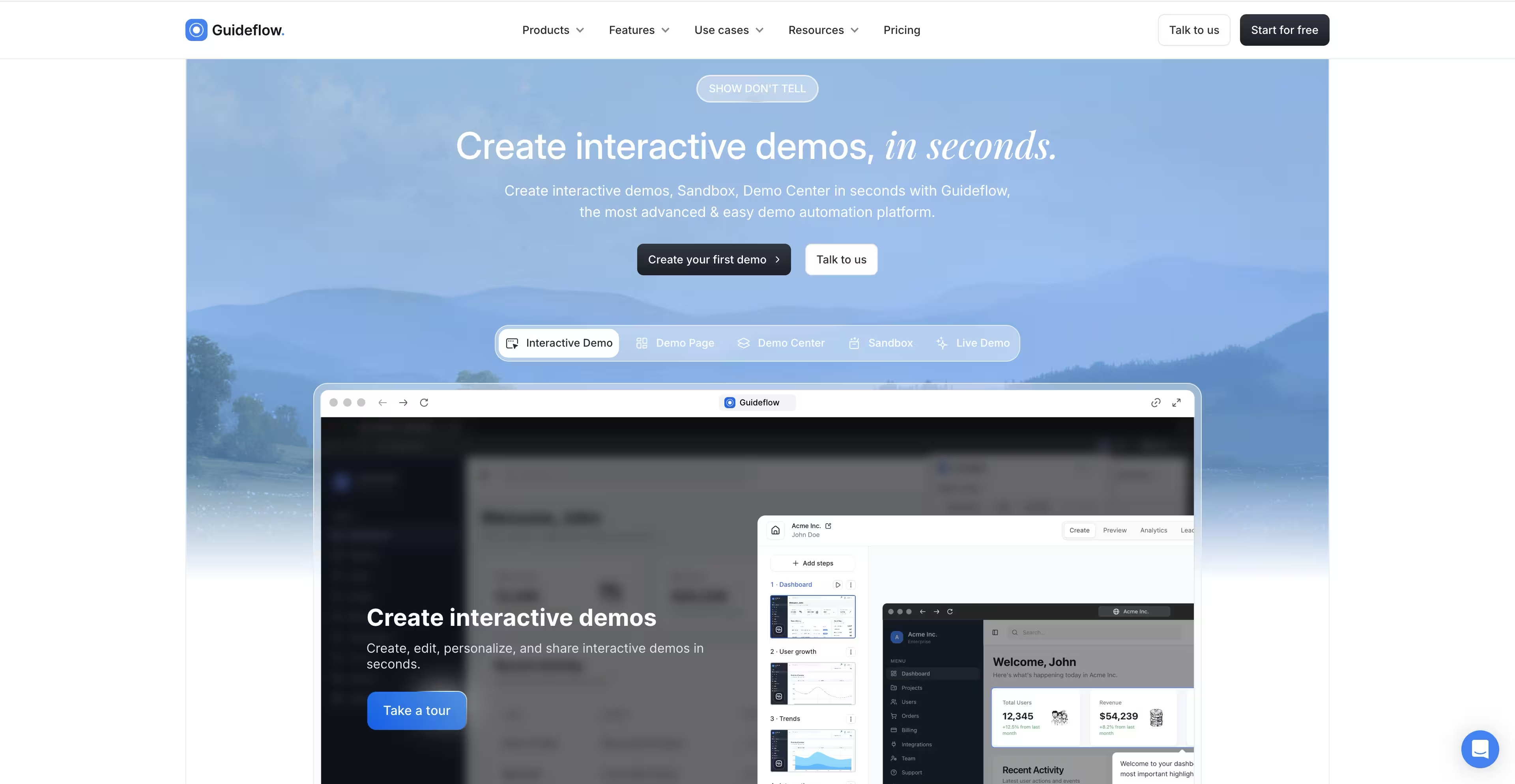
Guideflow is a demo automation platform that turns a screen capture into an interactive demo instead of a flat video. Record once with the Chrome extension or native app, and Guideflow writes the step text and CTAs automatically. A ready demo takes about 2 minutes 30 seconds, with no editing or design help.
Best for: Teams who record their product to explain it and want viewers to click through, not just watch.
Key strengths
- Capture once, skip the edit: a finished interactive demo in about 2 minutes 30 seconds.
- Personalize without re-recording: change text, numbers and images inside the demo, tailor it per viewer, and blur sensitive data.
- AI voiceover and translation: voice cloning, 150+ avatars and 100+ languages from the same capture.
Why choose Guideflow: Viewers click through at their own pace, and you see completion, drop-off and which companies viewed, with leads sent to your CRM. The same capture powers demo pages, demo centers, sandboxes, live demos and mobile demos.
Guideflow pricing: Free plan at $0. Solo is $35 per user per month, Growth $499 per month, Advanced $1,499 per month, all billed annually. Enterprise starts at $2,999 per month.
2. ScreenRec
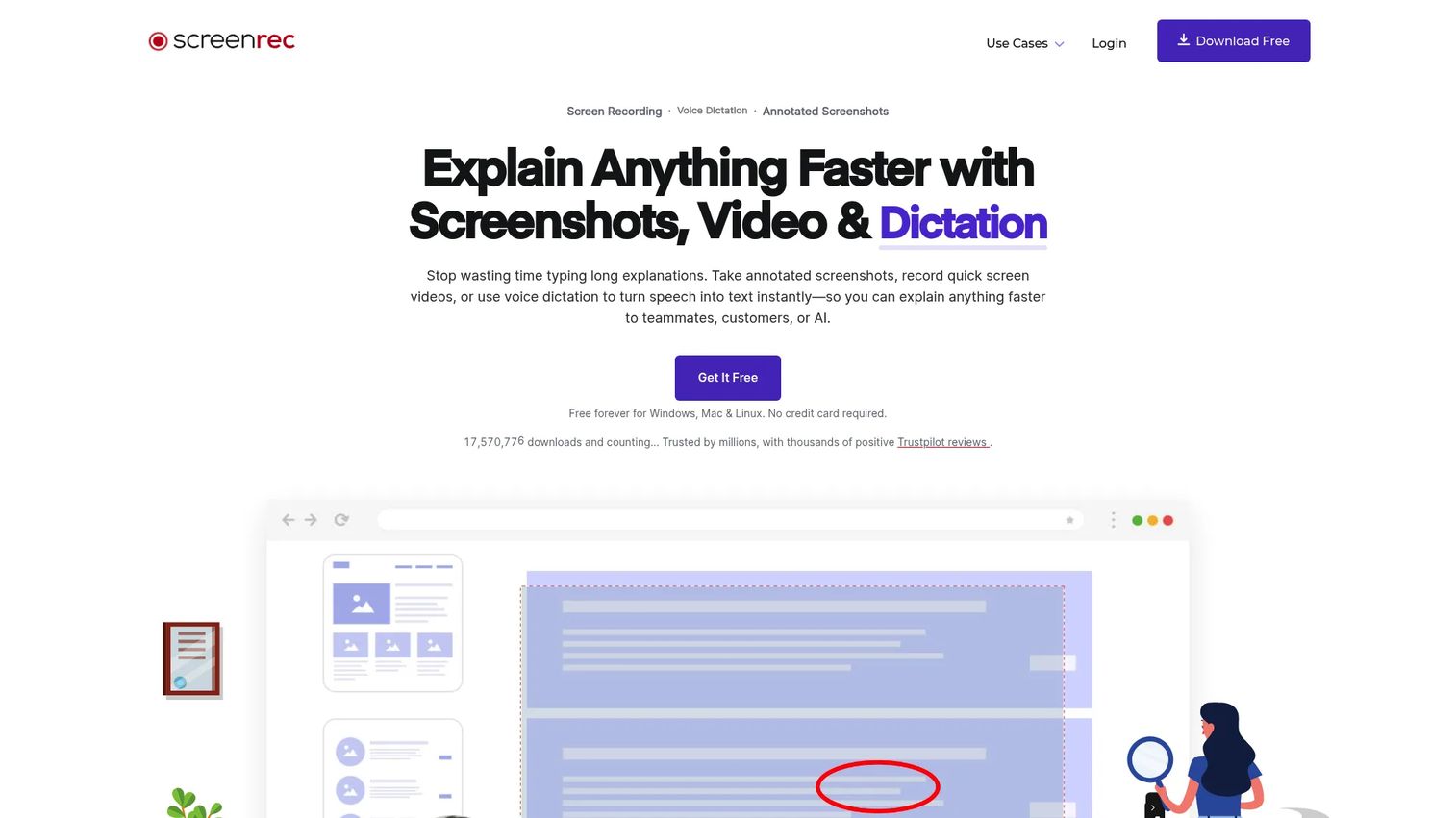
ScreenRec is a lightweight screen recorder built around one promise: record fast, share faster. It records your screen and webcam, captures annotated screenshots, and generates a private cloud link the moment you finish. There is no time limit and no watermark on the free plan, which is rare in this category and the main reason it ranks first for speed-focused users.
Best for: Teams and individuals who want quick screen recordings with instant private sharing.
Key strengths
- No time limit, no watermark: record as long as you need and share clean output, even on the free plan.
- Instant private links: every recording generates a shareable cloud link automatically, so distribution is one paste away.
- Screen and webcam capture with annotations: record your screen, add a facecam overlay, and mark up screenshots for context.
Why choose ScreenRec: If your workflow is record-and-send and you do not want a watermark or a stopwatch cutting you off, ScreenRec removes the friction most free recorders add. It saves locally and uploads to the cloud in the background, so you get a link without waiting on a full export. It fits marketers and support agents who value speed over timeline editing.
ScreenRec pricing: The Free Forever plan costs $0 per month and includes recording, screenshots, and instant sharing. The Pro plan runs $8.32 per month, billed annually or month to month, and the Premium plan is $81.66 per month for heavier cloud and video-hosting needs. A free tier makes it easy to test before committing.
3. Loom
Loom built the async video habit. Its record-and-send workflow makes it the default for teams that swap walkthroughs, meeting recaps, and feedback instead of stacking more live calls. Now part of Atlassian, Loom captures screen and camera together and layers AI on top to auto-generate titles, summaries, and chapters, so viewers get context without watching every second.
Best for: Teams that need quick async video updates, walkthroughs, and meeting recaps.
Key strengths
- Screen and camera recording: capture your screen with a webcam bubble for a personal, face-to-face feel.
- Loom AI: automatic titles, summaries, chapters, and meeting recaps cut the busywork after you stop recording.
- Unlimited sharing links and screenshots: share instantly and let viewers comment inline for async back-and-forth.
Why choose Loom: Loom wins on collaboration. Viewer comments, reactions, and threaded replies turn a one-way video into a conversation, which is exactly what distributed teams need. If your recordings are meant to spark discussion rather than sit in a help center, Loom's sharing model fits the way async teams already work.
Loom pricing: The Starter plan is free. Business runs $18 per user per month, and Business + AI is $24 per user per month for the full AI feature set. Enterprise pricing is quote-based. The free tier is enough to test the workflow before rolling it out to a team.
4. Screen Studio
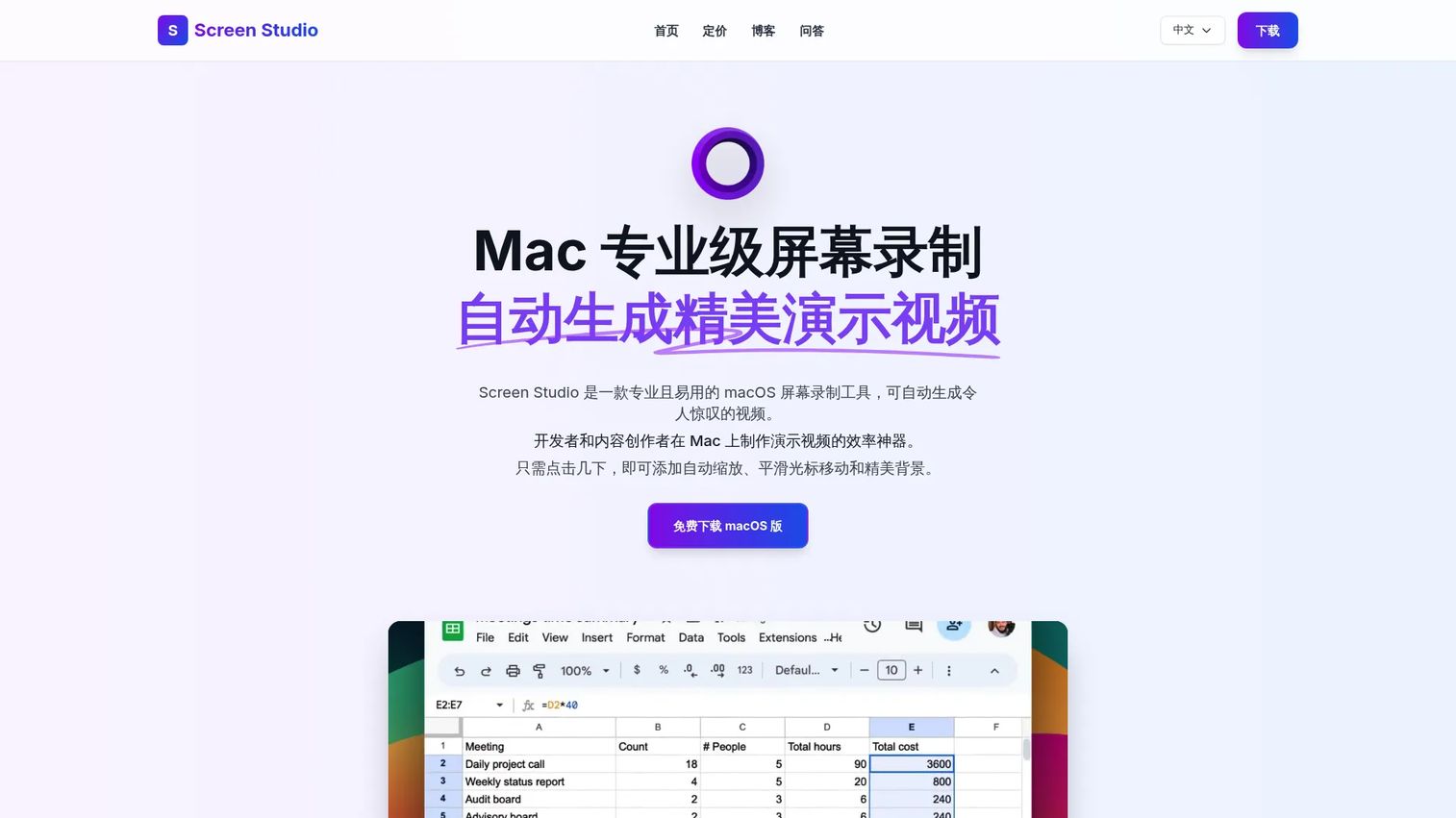
Screen Studio is a macOS recorder built for output that looks produced without the production time. It automatically adds smooth zooms toward wherever you click, smooths cursor movement, and drops your recording onto clean backgrounds. The result is the kind of motion-rich tutorial that usually takes an editor hours, generated on capture.
Best for: Mac users making polished product demos, tutorials, and app walkthroughs.
Key strengths
- Automatic zoom: the camera pushes in on your clicks so viewers always see what matters, no manual keyframing.
- Smooth cursor movement: jittery mouse paths get cleaned into smooth, professional motion.
- 4K export and beautiful backgrounds: export up to 4K and frame recordings on polished backgrounds, plus record iPhone or iPad.
Why choose Screen Studio: For product marketers and creators who care about how a demo looks, Screen Studio delivers cinematic output with almost no editing effort. The automatic zooms and cursor polish do the work a video editor would otherwise handle. The tradeoff is platform: it is Mac-only, so cross-platform teams need a second option.
Screen Studio pricing: Screen Studio charges $29 per month, or $9 per month billed as $108 per year. All plans include every feature and lifetime updates. There is no free paid tier, but a free trial lets you test the workflow before buying.
5. Bandicam
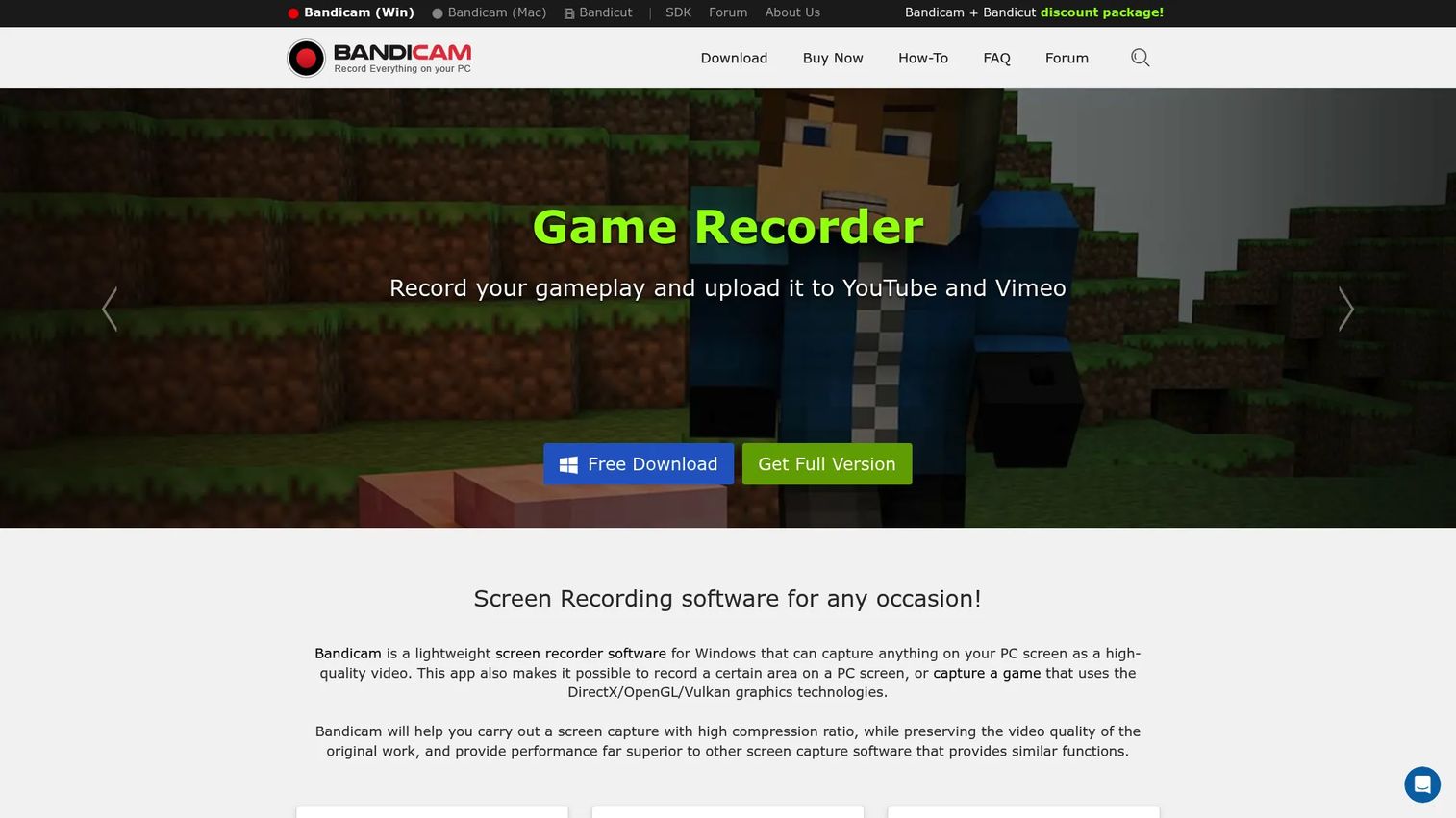
Bandicam is a Windows-first recorder known for lightweight performance and long-duration capture. It records the full screen, a window, or a selected area, handles game recording, and supports a webcam overlay and system audio. For Windows users who want reliable capture without heavy system load, it has been a staple for years.
Best for: Users who need lightweight screen and game recording with webcam capture.
Key strengths
- Flexible screen recording: capture full screen, a region, or a specific window on your Windows machine.
- Game recording: record high-frame-rate gameplay and DirectX/OpenGL apps with low overhead.
- Webcam overlay: add a facecam to tutorials and gameplay for a personal touch.
Why choose Bandicam: Bandicam suits Windows users who record long sessions, tutorials, and gameplay and want a recorder that stays light on resources. It is a practical pick for a screen recording program on Windows when you need dependable capture over polished auto-editing. A Mac version exists as well for teams that span both platforms.
Bandicam pricing: A free version and free trial are available. The Windows annual license works out to about $2.78 per month billed yearly, and a perpetual 1-PC license runs $53.90 one time. Bandicam Pro for Mac is $9.99 per month or $39.99 per year. That range covers casual users and long-term buyers alike.
6. Camtasia
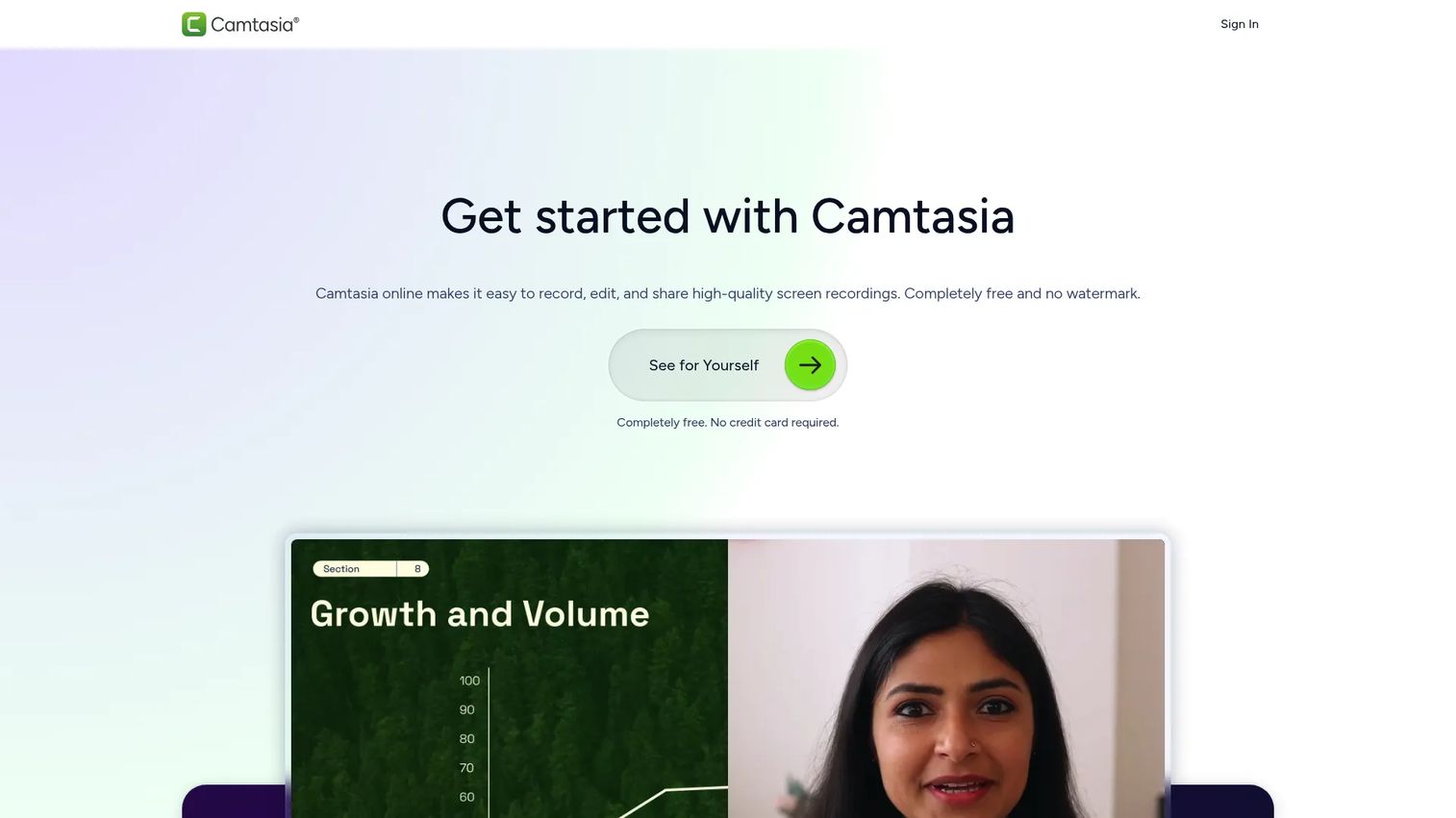
Camtasia from TechSmith is the all-in-one option for teams that want recording and full video editing in the same tool. It pairs multitrack screen recording with a timeline editor, annotations, cursor effects, templates, and newer AI avatar generation. A browser-based Camtasia Online adds collaboration and sharing on top of the desktop app.
Best for: Teams and creators making tutorials, demos, and training videos.
Key strengths
- Multitrack recording and editing: record and edit on a full timeline, layering video, audio, and callouts.
- AI avatar generation: create presenter-style avatars without filming a person.
- Camtasia Online: record, edit, and share high-quality screen recordings in the browser with collaboration built in.
Why choose Camtasia: Camtasia is the pick when a simple trim-and-send tool is not enough and you need real editing control. Training teams, course creators, and product marketers use it to produce structured, polished tutorials with annotations and effects. It carries more editing depth than a quick recorder, which is exactly the point for production-heavy work.
Camtasia pricing: TechSmith offers a free online tier at $0, plus four paid annual plans: Starter at $39.00 per year, Essentials at $179.88 per year, Create at $249.00 per year, and Pro at $599.00 per year. The free tier lets you try the browser version before stepping up to the desktop app.
7. OBS Studio
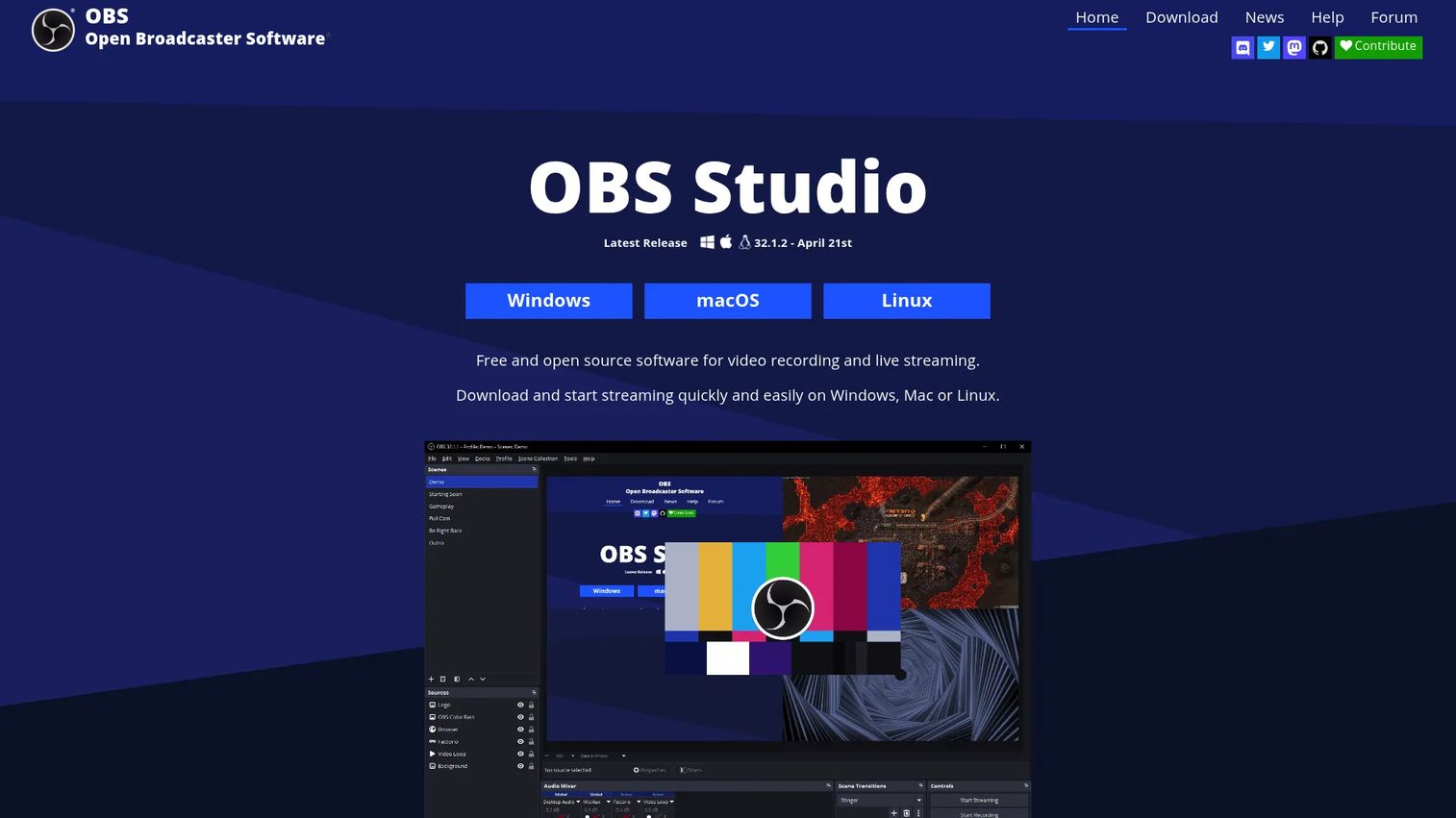
OBS Studio is the free, open-source powerhouse for recording and live streaming. It composes scenes from multiple sources, mixes audio with filters, and streams to any platform, all with a plugin ecosystem that extends it far past a basic recorder. Power users reach for it when they want total control over layout, layers, and output.
Best for: Creators and teams that need free live streaming and screen recording.
Key strengths
- Scenes and sources: compose layouts from windows, cameras, images, and captures, then switch between them live.
- Audio mixer and filters: control multiple audio tracks with real-time filters and per-source settings.
- Studio Mode and transitions: preview scenes before going live and add custom transitions for a produced feel.
Why choose OBS Studio: OBS is the strongest free option for anyone who needs scene composition, multi-source layouts, and live streaming in one tool. It rewards the time you invest in configuring it with a level of control paid tools rarely match. The tradeoff is a learning curve: expect to spend time setting up scenes and sources before your first recording feels dialed in.
OBS Studio pricing: OBS Studio is completely free and open-source, with no paid tiers. The project runs on donations and sponsorships rather than licenses, so every feature is available to everyone at no cost across Windows, Mac, and Linux.
8. Descript
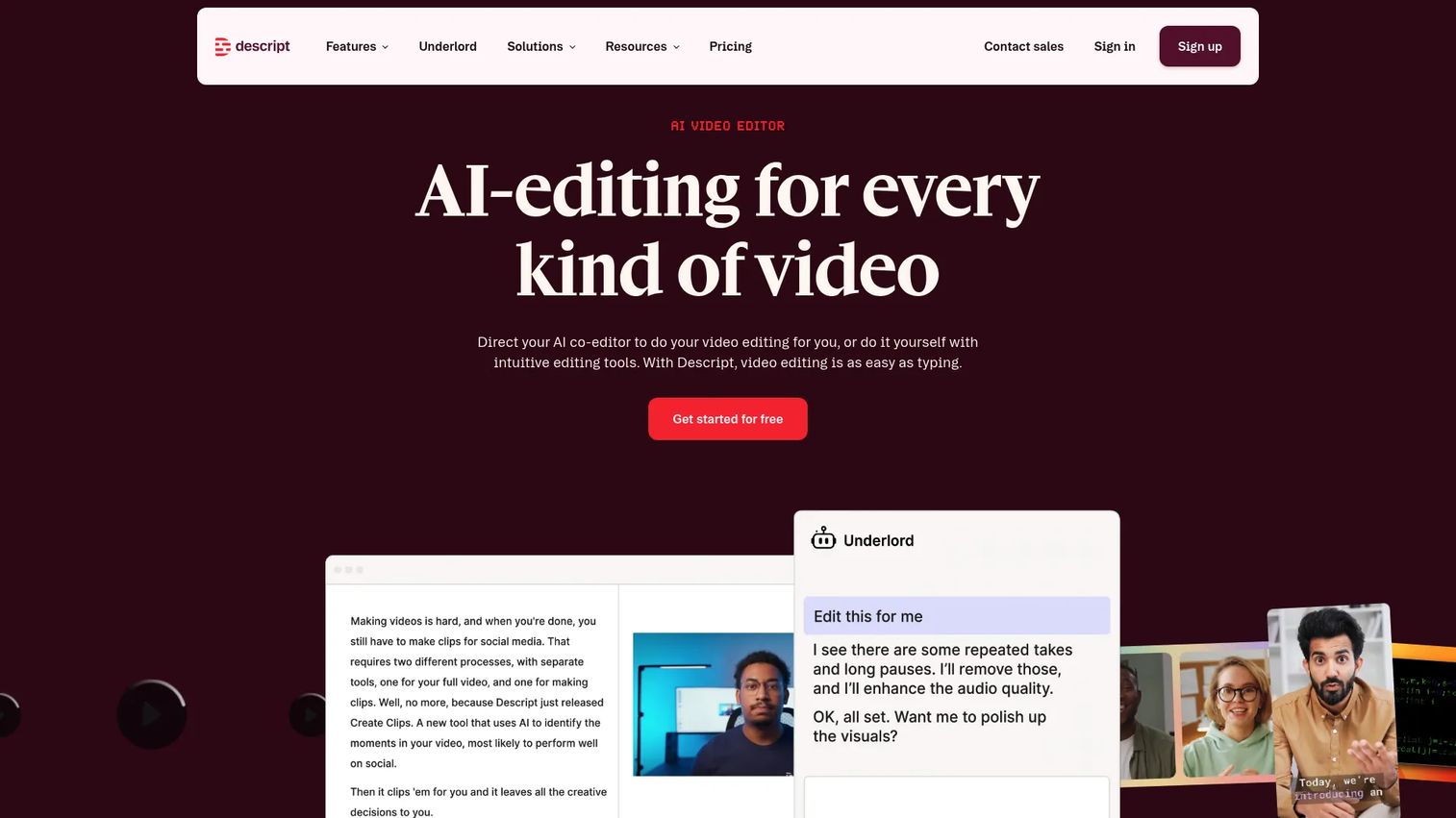
Descript flips editing on its head: you edit video and audio by editing the transcript. It records your screen, transcribes automatically, and lets you delete a sentence from the text to delete it from the video. AI tools remove filler words, clean up audio, and generate captions, which makes it a favorite for content and podcast teams.
Best for: Teams and creators making videos, podcasts, or shorts with transcript-based editing.
Key strengths
- Text-based editing: cut, rearrange, and trim video by editing the transcript instead of scrubbing a timeline.
- Built-in transcription and remote recording: auto-transcribe recordings and capture remote guests in one place.
- AI cleanup tools: remove filler words, regenerate misspoken lines, and auto-generate captions.
Why choose Descript: Descript fits content teams who work in words as much as visuals. If your process starts with a script or ends in captions, editing by transcript is dramatically faster than a traditional timeline. It is the natural pick for repurposing recordings into clips, shorts, and captioned social content.
Descript pricing: The Free plan is $0 per month. Hobbyist runs $16 per month, Creator $24 per month, and Business $50 per month, with lower rates on annual billing. Enterprise is custom. The free tier is enough to test the transcript-based workflow before upgrading.
9. Tella
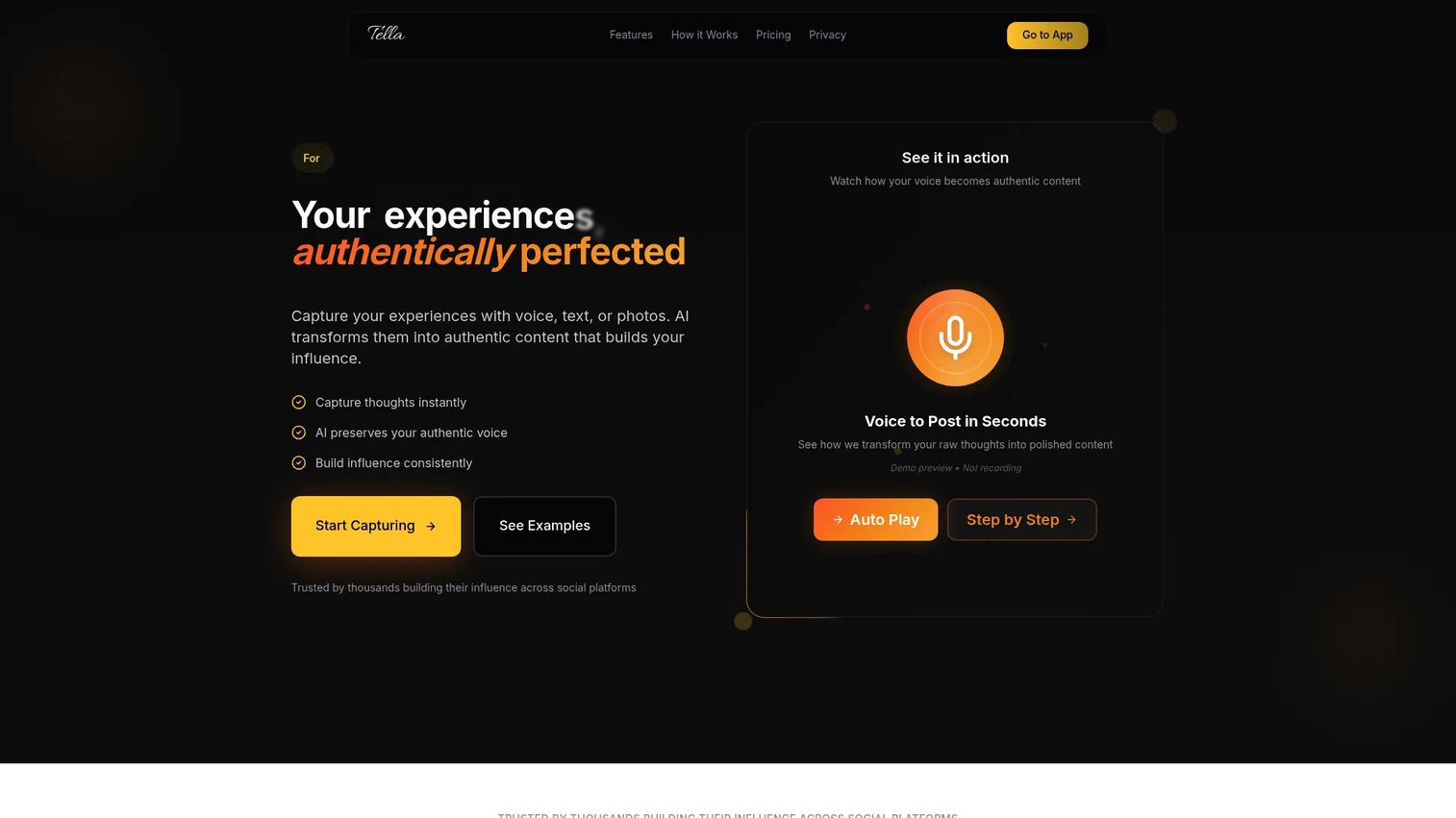
Tella is a streamlined, browser-based option built to turn quick captures into polished output with minimal effort. It leans on AI to help clean up and structure what you record, making it a fast path from raw idea to shareable content for creators and small teams.
Best for: Creators and teams who want to turn quick ideas into polished content.
Key strengths
- Browser-based capture: record and produce in the browser without installing heavy desktop software.
- AI-powered polishing: turn rough captures into cleaner, more structured output automatically.
- Team sharing: share finished content across a team from one workspace.
Why choose Tella: Tella suits creators and lean teams who want speed and a polished result without opening a full editing suite. The AI assistance handles the cleanup that would otherwise eat your afternoon. If your priority is getting from capture to a presentable asset fast, Tella's lightweight workflow fits.
Tella pricing: Starter is free forever. Creator is $29 per month, Team is $19 per user per month with a three-user minimum, and Enterprise is custom. The free tier lets you test the workflow before committing to a paid plan.
Considerations before you choose
Platform fit
Match the tool to where you actually work. OBS Studio and Descript span Windows, Mac, and Linux; Screen Studio is Mac-only; Bandicam leans Windows-first with a Mac option; Loom, Tella, and Camtasia Online run in the browser. Pick for your primary OS, then check the second one your team uses.
Sharing workflow
Decide whether you need instant links, downloadable files, or team collaboration. ScreenRec and Loom generate a shareable link the moment you stop recording, which is ideal for async work. If your recordings live in a help center or an LMS instead, prioritize clean exports over instant links.
Editing depth
Separate trim-and-send from timeline editing. Quick recorders get you a shareable clip in seconds. Camtasia and Descript give you real editing control, timelines, transcripts, effects, when the output has to be polished. Buying more editing than you need adds cost and a learning curve you will not use.
Audio, video, and branding
Verify microphone narration, system audio, and webcam support against your use case. Then check output: watermark rules, export quality, and how presentable the result looks. A watermark on client-facing content is a dealbreaker; a 4K export you never need is wasted budget.
Conclusion
The right screen recorder depends less on the feature list and more on what you do after you hit stop. For instant private sharing with no watermark and no time limit, ScreenRec is the fastest path. For async team communication with comments and AI recaps, Loom is the default for good reason. Mac users chasing polished, motion-rich tutorials should start with Screen Studio, and Windows users who want free, dependable capture will do well with Bandicam.
If you need real production control, Camtasia and Descript pull ahead: Camtasia for timeline editing and effects, Descript for transcript-based cutting and repurposing. Power users who want scene composition and live streaming get everything OBS Studio offers for free. And creators who want a fast, browser-based route to polished output should try Tella.
Start with the workflow, then pick the tool that fits it. If your real goal is a clickable, guided product experience rather than a passive video, explore what an interactive demo, a self-serve demo center, or a hands-on sandbox can do, and see how Guideflow helps teams turn products into interactive experiences.
FAQs
Install a screen recorder, choose your capture mode (full screen, window, or area), enable your microphone and system audio, then hit record. On Windows you can use the built-in Xbox Game Bar with Win+G, and on Mac you can press Shift+Command+5. Dedicated tools like ScreenRec or Loom add instant sharing and editing that native recorders lack.
For instant sharing with no watermark and no time limit, ScreenRec is a strong free pick. OBS Studio is the best free option for advanced recording and live streaming, and both Loom and Camtasia offer capable free tiers. The right free tool depends on whether you value quick sharing or deeper control.
ScreenRec records with no watermark and no time limit on its free plan, which is uncommon in this category. OBS Studio is also watermark-free since it is open-source. Many other free recorders add a watermark until you upgrade, so check the free plan terms before you commit.
Yes. Nearly every tool here captures your screen alongside microphone narration and system audio at once, and most let you record a webcam overlay too. Confirm that both microphone and system audio are enabled before recording so you do not lose the sound you need.
Screen Studio is the standout for polished Mac tutorials thanks to automatic zooms and cursor smoothing. For async sharing on Mac, Loom works in the browser, and Descript and OBS Studio both run natively on macOS. Your choice depends on whether you want production polish or quick sharing.
Bandicam is a reliable, lightweight screen recording program for Windows with long-duration capture and game recording. OBS Studio is the best free Windows option for advanced recording and streaming, while Camtasia suits Windows users who need editing and recording in one tool.
Yes, screen recordings work well for linear, watch-and-follow tutorials and quick walkthroughs. When you need viewers to click through a product themselves at their own pace, a guided interactive demo or an explorable sandbox performs best because it turns passive watching into hands-on interaction with click-level analytics.
It depends on your output. For quick internal updates and async messages, a trim-and-send tool like ScreenRec or Loom is plenty. For polished tutorials, courses, or client-facing content, Camtasia's timeline or Descript's transcript-based editing gives you the control to produce something refined.