Your VP's laptop dies two days before the board deck goes out. A shared folder gets "cleaned up" and the wrong files disappear. Your team assumes Google Drive is a backup. It is not.
According to a 2025 Western Digital and Researchscape survey, 63% of consumers have experienced data loss. For a Series B company with 30 to 150 employees, laptops, cloud apps, finance exports, and investor materials sitting without a real backup policy is a recoverable mistake only until it isn't.
Backup software is not about where you store files. It is about whether you can restore what matters when something breaks. The right tool protects the business without adding another system your team has to babysit. This guide helps you pick one that earns its place in the stack, then hands off cleanly to IT or Ops.
What's inside
This guide compares 15 cloud backup and online backup services for 2026, chosen by founders and operators who need a quick, defensible decision.
- Tools selected on restore depth, security controls, pricing transparency, and device coverage
- Coverage spans personal devices, team endpoints, servers, and sync-adjacent options
- Pricing verified from vendor pages; G2 ratings checked live
- Written for founders who skim first and delegate implementation
TL;DR
- Best overall online backup: IDrive covers personal devices, teams, servers, NAS, and cloud apps in one product family
- Best unlimited computer backup: Backblaze offers unlimited Mac and PC backup at a predictable per-computer price
- Best for simple endpoint backup: Carbonite starts at $6.33/month and runs in the background with minimal configuration
- Best for backup plus cyber protection: Acronis True Image bundles full-image backup with anti-ransomware defense
- Best for IT-managed or MSP backup: CrashPlan and MSP360 fit teams handing backup ownership to IT or an external provider
- Storage-first options: pCloud and Sync.com work well for secure file storage with recovery features, not full endpoint policy
What is online backup software?
Online backup software automatically copies files, folders, applications, or entire devices to remote cloud infrastructure so data can be restored after deletion, hardware failure, ransomware, or disaster.
The key distinction is between backup and sync. Sync tools keep files consistent across devices and accessible everywhere. A backup tool keeps recoverable versions and restore points. If a bad deletion syncs everywhere, versioned backup is what saves the day. Sync propagates mistakes; backup reverses them.
The 3-2-1 rule describes the gold standard for data backup: Three copies of data, two different storage types, and one offsite copy. Online backup satisfies the offsite component. Local-plus-cloud backup satisfies all three.
Key features to evaluate across any backup software:
- Automatic scheduled backup: Runs without employee action
- Continuous Data Protection: Captures changes as they happen, not just on a schedule
- File versioning and snapshots: Lets you roll back to a point before a mistake occurred
- Deleted-file recovery: Restores files within a provider's retention window
- Private encryption key: You control the key; the vendor cannot read your data
- Full-device restore: Recovers an entire machine, not just individual files
- Local backup support: Writes a copy to an attached drive for faster restores
- Ransomware recovery safeguards: Snapshots and version history protect against encrypted overwrites
- Multi-device backup: One plan covering multiple computers, phones, or servers
- Admin controls for teams: Centralized visibility into what is and isn't backed up
- Server or NAS backup: Critical once infrastructure grows beyond individual laptops
If your company is scaling past founder-managed laptops, backup needs to become policy, not memory.
When to use online backup software
Protect company laptops without relying on employees
You cannot depend on every hire saving the right files to the right place. Online backup covers endpoints automatically and reduces recovery chaos when a device is lost, stolen, or damaged. For a team of 50, one policy applied to every machine beats 50 individual habits.
Recover files after deletion, ransomware, or bad sync
Versioning and snapshots let teams roll back to a point before the mistake. File sync tools are great for access, but they can silently propagate deletions across every synced device. Backup tools with version history give you a clean restore point even when the damage looks complete.
Prepare for diligence, audits, and business continuity
Investors and acquirers ask about data governance. A backup policy that covers endpoints, cloud apps, and financial data with documented recovery procedures is a credibility signal. Assign one owner, test one restore, and document the recovery path before the next board cycle.
Online backup software comparison
The table below covers all 15 tools. Pricing reflects the lowest publicly displayed entry tier at the time of research. G2 ratings are taken from live listings where available; "N/A" indicates no verified G2 listing was found for that product.
| # | Product | Best for | Key differentiator | Pricing | G2 rating |
|---|---|---|---|---|---|
| 1 | IDrive | Broad personal and team backup | Multi-device, server, NAS, and cloud app backup | From $6.99/mo (billed annually) | N/A |
| 2 | Carbonite | Simple automatic endpoint backup | Unlimited computer backup with minimal setup | From $6.33/mo (billed annually) | N/A |
| 3 | Backblaze | Unlimited computer backup | Flat per-computer pricing with mailed-drive restore | $9/mo per computer | 4.6/5 |
| 4 | Acronis True Image | Backup plus cyber protection | Full-image backup bundled with anti-ransomware defense | From $49.99/year | 4.3/5 |
| 5 | CrashPlan | Small business endpoint backup | Continuous backup with admin management console | From $7.33/user/mo (billed annually) | 4.9/5 |
| 6 | Livedrive | Personal and home-office backup | Cloud backup with briefcase-style file access | Verify live | 4.0/5 |
| 7 | OpenDrive | Backup plus cloud workspace | Storage, sync, and backup in one service | Free; paid from $12.95/mo | 3.9/5 |
| 8 | Arq 7 Backup | Technical users controlling storage | Bring-your-own storage with encryption | $59.99 one-time per computer | 4.4/5 |
| 9 | Dropbox Backup | Dropbox users needing a backup layer | Computer folder backup inside Dropbox | From $15/user/mo (included with Dropbox plans) | 4.4/5 |
| 10 | MSP360 Managed Backup | IT-managed and MSP backup | Centralized multi-endpoint management | From $2.50/mo | 4.5/5 |
| 11 | EaseUS Todo Backup | Windows imaging and recovery | System, disk, and file backup with bootable media | Free; paid from $39.95 | 4.8/5 |
| 12 | Aomei Backupper | Budget Windows backup | Disk cloning and imaging at low annual cost | From $39.95/year | 4.3/5 |
| 13 | Retrospect | Server and mixed-environment backup | Desktop, server, and cloud backup with scripting | From $4/mo (Solo) | 3.0/5 |
| 14 | pCloud | Secure cloud storage with file recovery | Lifetime plans and optional client-side encryption | From $159 one-time (500 GB) | 4.3/5 |
| 15 | Sync.com | Privacy-focused encrypted storage | End-to-end encryption with team admin controls | From $6/user/mo (billed annually) | 4.3/5 |
Best 15 tools for online backup in 2026
1. IDrive
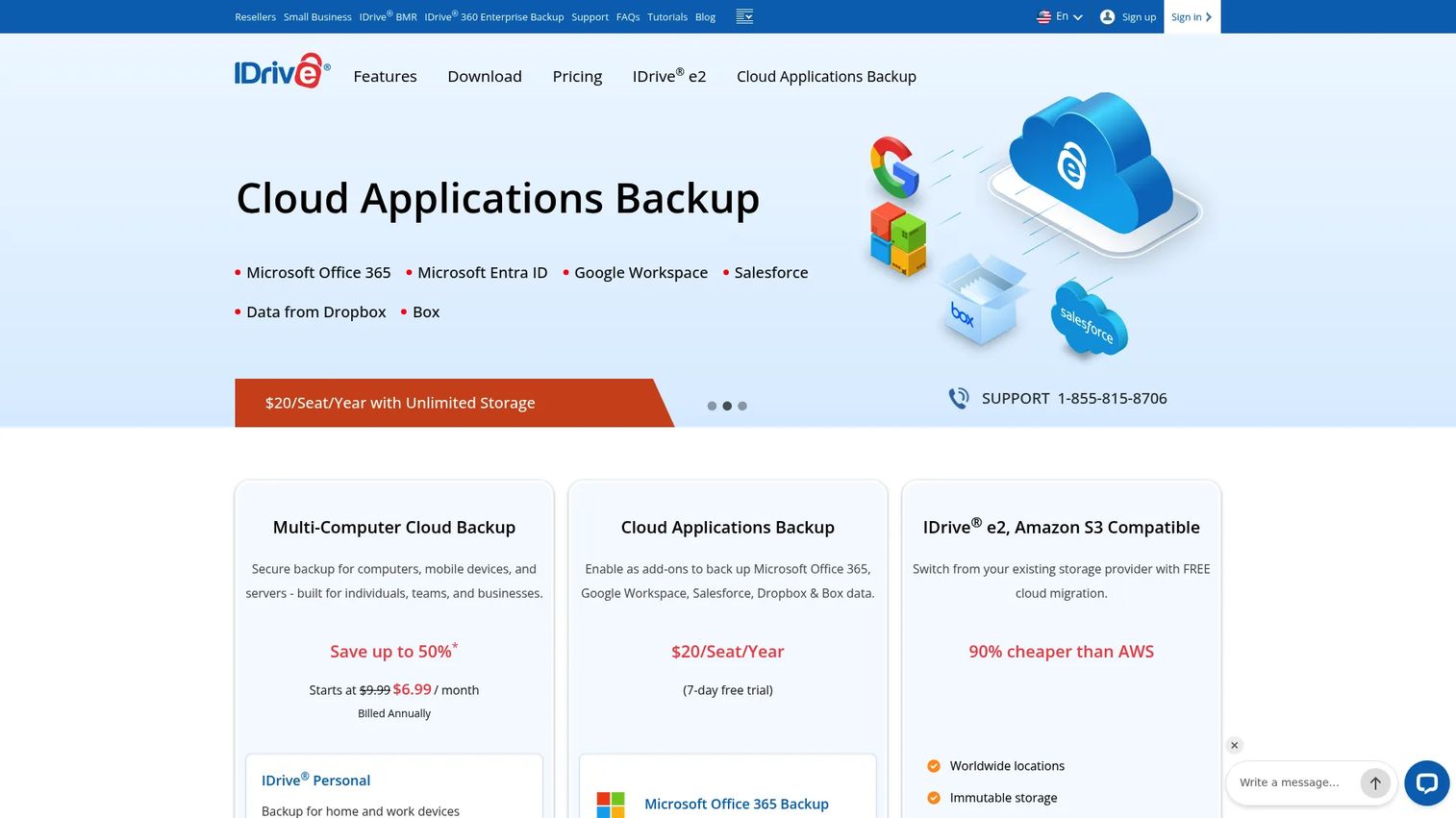
IDrive is a cloud backup and storage platform built to cover personal devices, team endpoints, servers, NAS systems, and cloud applications from a single account. It supports continuous data protection, 30 previous file versions with snapshots, and a private encryption key so only you can access your data. The platform also includes an express restore service that ships a physical drive when download speed is a bottleneck.
Best for: Founders and operators who want one product family that scales from personal laptops to a full company endpoint policy.
Key features
- Multi-device backup across computers, phones, servers, and NAS
- 256-bit AES encryption with optional user-defined private key
- Snapshots with up to 30 previous file versions
- Microsoft 365, Google Workspace, Salesforce, and Dropbox backup
- Express restore: Physical drive shipped for large recoveries
Why choose IDrive: IDrive covers more device types and application sources than most single-vendor alternatives. If you need broad coverage without immediately buying enterprise backup infrastructure, it's a practical starting point that IT can take over as the team grows.
IDrive pricing: A free 10 GB tier is available. Personal plans start at $6.99/month, billed annually. Business plans also start at $13.99/month, billed annually, with server backup available as an add-on at $5/month per server.
2. Carbonite
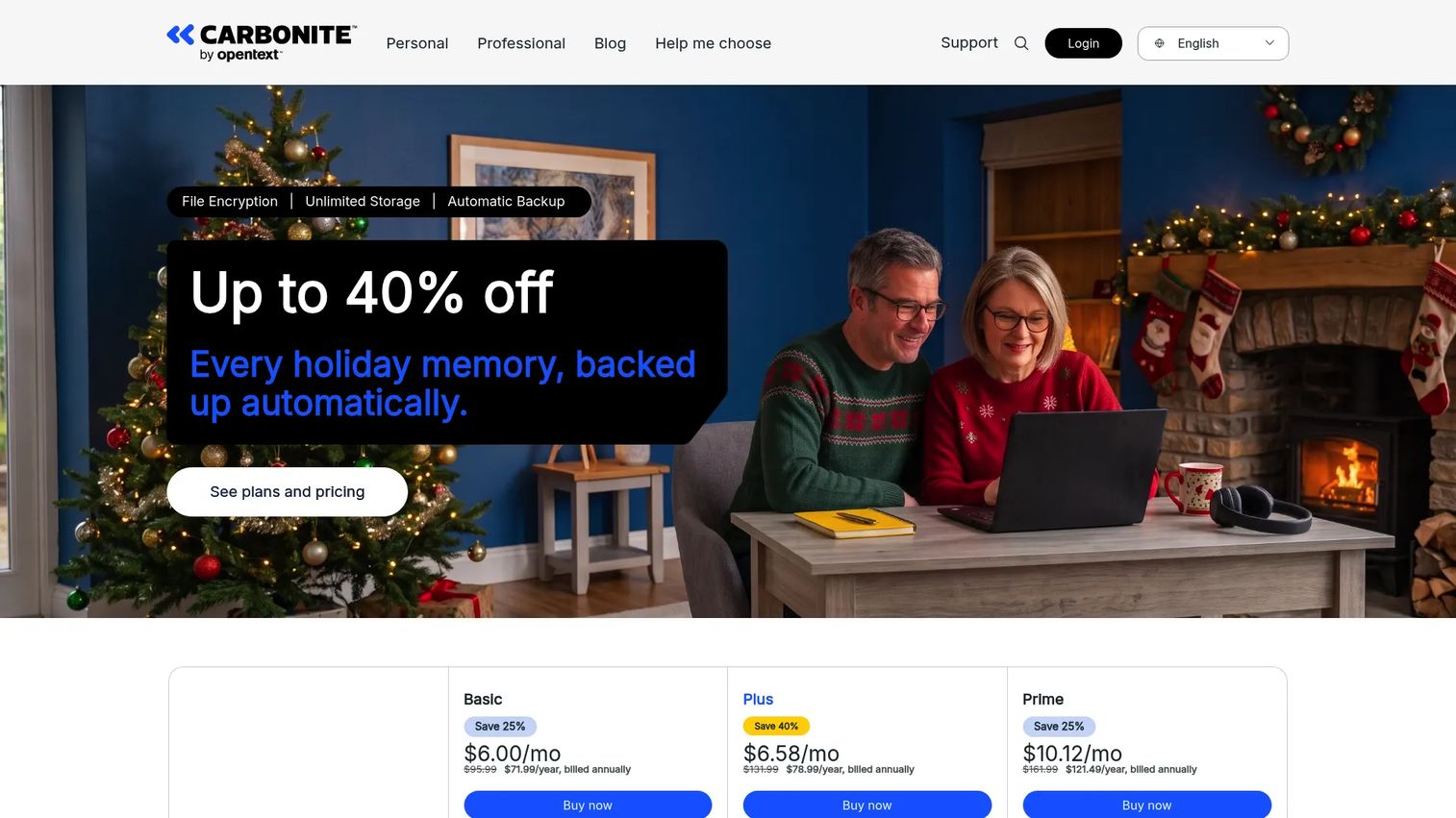
Carbonite provides automatic encrypted cloud backup for personal users and businesses. It runs in the background after installation, backing up files continuously without requiring employee action. The service covers personal computer backup on entry plans, then scales up to external drives, servers, and Microsoft 365 on higher tiers.
Best for: Individuals and small businesses that want backup to happen without configuration or ongoing maintenance.
Key features
- Automatic encrypted cloud backup (runs continuously after setup)
- Unlimited computer backup on personal plans
- Remote file access and recovery via web or mobile
- External hard drive and NAS backup on eligible plans
- Server and Microsoft 365 backup on business plans
Why choose Carbonite: Carbonite suits the buyer whose main goal is "make backup happen" before handing it off to someone else. The setup is minimal, which is a real advantage for a team that doesn't have IT bandwidth to manage a complex rollout.
Carbonite pricing: Personal plans start at $6.33/month, billed annually (Basic plan). Plus plans run $6.58/month and Prime plans $8.08/month, both billed annually. Business plans start at $19.20/month (Core), scaling up to $86.67/month for Ultimate, all billed annually.
3. Backblaze
Backblaze is best known for its Computer Backup product: Unlimited Mac and PC backup for a flat monthly fee per machine. Beyond the backup service, Backblaze also offers B2 Cloud Storage for S3-compatible object storage. The Computer Backup plan covers everything on the computer automatically, with version history and an option to have a physical drive mailed when large restores are faster by ship than by download.
Best for: Founders and lean IT teams that want predictable per-computer pricing and unlimited backup depth without managing storage quotas.
Key features
- Unlimited automatic Mac and PC backup per license
- Automatic file and folder backup with version history
- Restore by download or mailed drive (Restore Return Refund program)
- Ransomware, accidental deletion, and hardware-failure protection
- S3-compatible B2 Cloud Storage for custom workflows
Why choose Backblaze: The per-computer pricing model removes the anxiety about storage caps. For executive devices and founder laptops where "how much storage do I need" is an annoying question, unlimited backup at $9/month per computer is a clean answer.
Backblaze pricing: Computer Backup costs $9/month per computer. B2 Cloud Storage runs $6.95/TB/month on a pay-as-you-go model, with 10 GB of free storage and free egress up to three times your average monthly storage.
G2 rating: 4.6/5
4. Acronis True Image
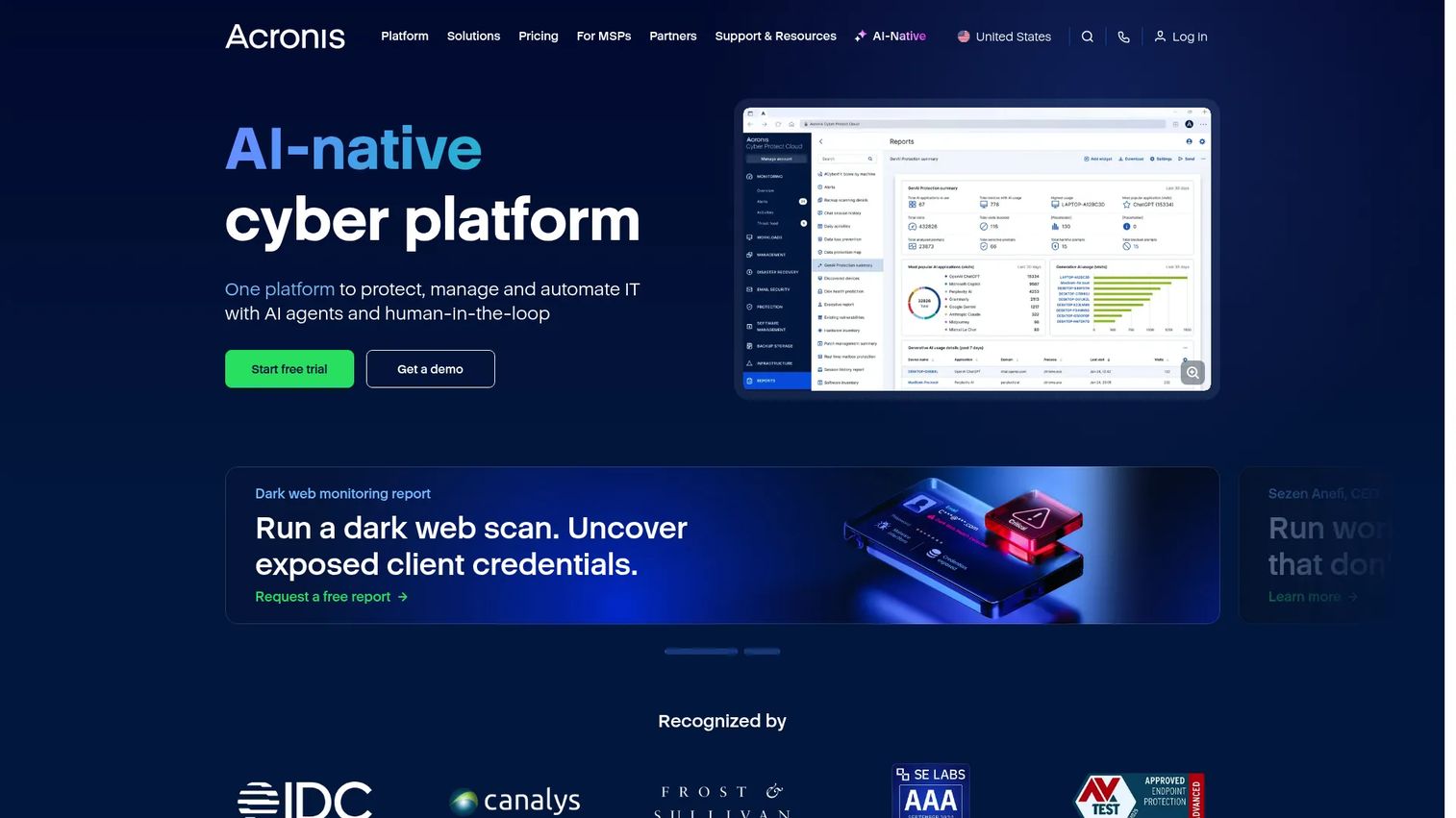
Acronis True Image combines full-image backup, disk cloning, cloud replication, and cybersecurity protection in a single subscription. It backs up an entire system image, not just files, so recovery means getting a machine fully operational rather than just restoring individual documents. The Advanced and Premium tiers add Microsoft 365 backup, anti-malware protection, and vulnerability assessments.
Best for: Individuals and home-office users who want backup and security bundled rather than managed as two separate tools.
Key features
- Full-image backup and system recovery
- Active disk cloning for migration or replacement
- Cloud backup with local replication for 3-2-1 coverage
- Anti-ransomware and anti-malware protection (Advanced and Premium)
- Vulnerability assessments and patch management
Why choose Acronis True Image: Acronis covers both the backup and the cyber-protection angle in one subscription. For a founder who wants stronger endpoint resilience than file-only backup and doesn't want to manage separate security software, it's a compact option.
Acronis True Image pricing: Essentials starts at $49.99/year for one computer with local backup and anti-ransomware. Advanced runs $72.99/year with cloud storage and Microsoft 365 backup included. Premium costs $124.99/year with expanded cloud storage and blockchain certification.
G2 rating: 4.3/5
5. CrashPlan
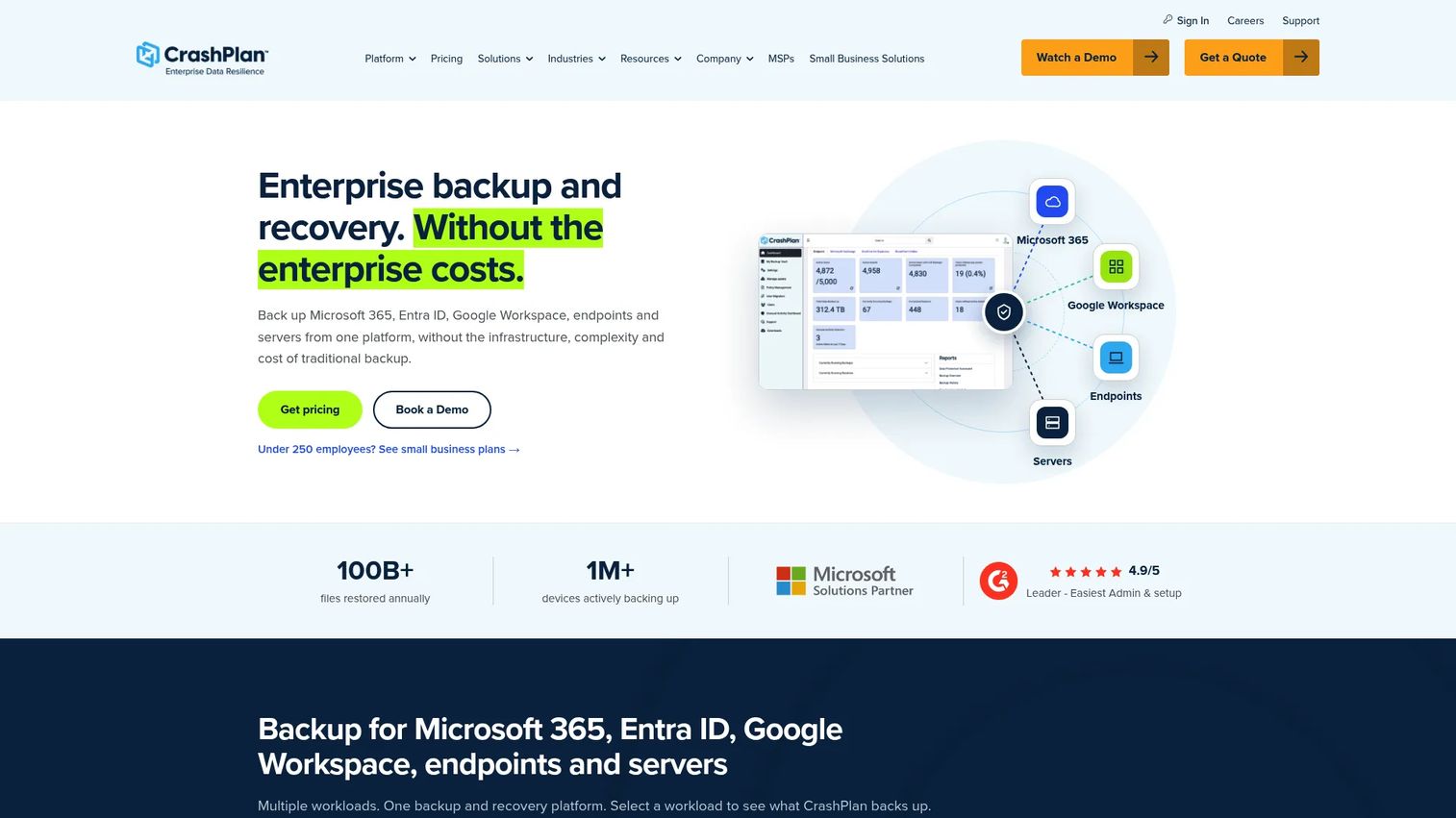
CrashPlan is a cloud-native backup platform built for IT and security teams protecting business endpoints, servers, and SaaS applications. It runs continuous backup rather than scheduled jobs, capturing changes as they happen. The admin console gives visibility into which machines are protected, what versions are retained, and which restores have been tested.
Best for: Series B companies that have hired a Head of IT or Ops and need centralized backup ownership rather than individual employee compliance.
Key features
- Continuous endpoint backup with no scheduled windows
- Backup and recovery for Microsoft 365 and Google Workspace
- Unlimited retention, versioning, and restores
- Built-in legal hold, indexed search, and audit logging
- Admin management console with device-level visibility
Why choose CrashPlan: CrashPlan fits the moment when backup stops being a founder problem and becomes a process owned by IT. The retention depth and audit logging also matter for SOC 2 preparation and security questionnaires.
CrashPlan pricing: Endpoint backup for small businesses costs $7.33/user/month, billed annually at $88 per year per user. Server backup runs $15.75/server/month. Microsoft 365 and Google Workspace backup both start at $2.50/user/month. A 14-day free trial is available. Enterprise plans use custom pricing.
G2 rating: 4.9/5
6. Livedrive
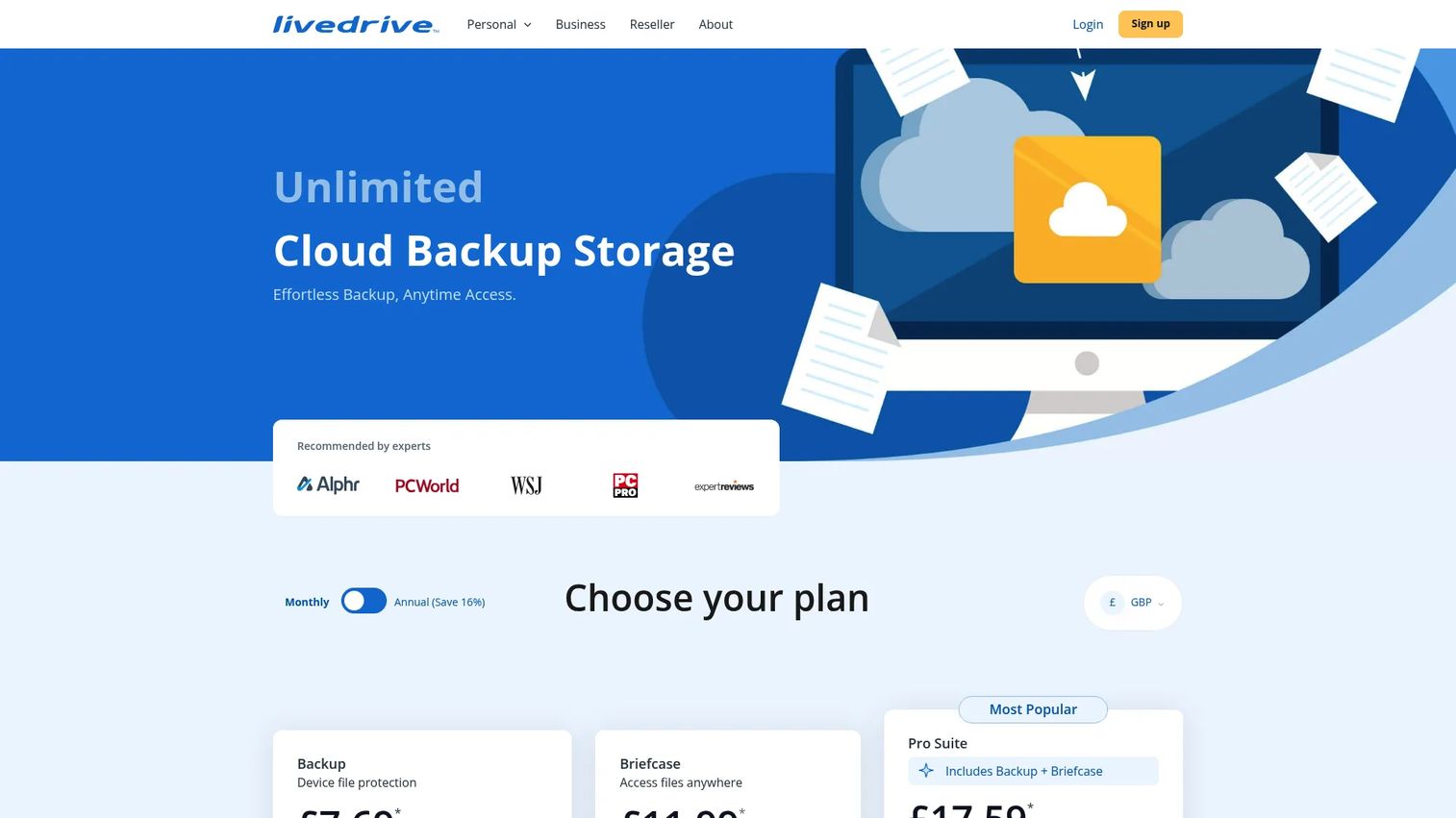
Livedrive is a personal and family cloud backup service that also includes briefcase-style file access for syncing and sharing documents across devices. It covers computer backup on its standard plans, with mobile apps for iOS and Android. Livedrive sits in the consumer-first segment of the backup market.
Best for: Founders protecting personal devices and home-office machines, not teams requiring a centralized backup policy.
Key features
- Online computer backup with automatic scheduling
- Briefcase cloud storage for file access and sync
- Mobile apps for iOS and Android
- File sharing with shared links
- Multi-device coverage on higher plans
Why choose Livedrive: Livedrive works when personal or home-office backup is the goal. It is not designed for centralized team management, so it makes more sense as a personal tool than a company policy.
Livedrive pricing: Check the Livedrive website directly for current Backup, Briefcase, and Pro Suite plan prices before committing.
G2 rating: 4.0/5
7. OpenDrive
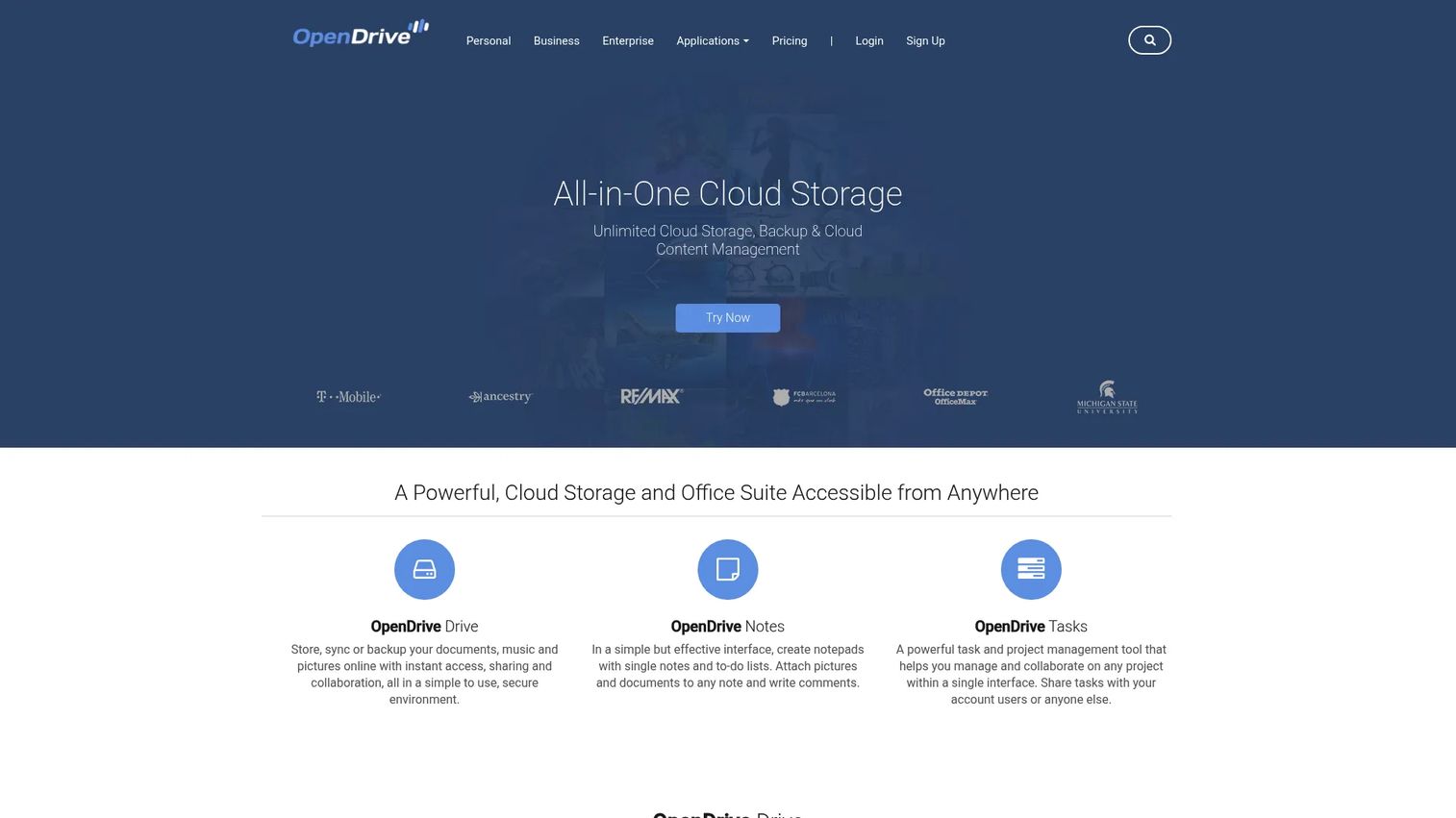
OpenDrive is a cloud storage, backup, synchronization, and file-sharing platform that blends collaboration features with backup-like protection. It includes an online office suite for creating and editing documents and supports custom storage and bandwidth options on business plans. Version history and backup scheduling are part of the service.
Best for: Small teams that want storage collaboration and backup-like file protection in one service rather than two separate subscriptions.
Key features
- Cloud storage with file backup and synchronization
- File sharing and shared-folder collaboration
- Online document, spreadsheet, and presentation editor
- Unlimited storage on Personal and Business plans
- Custom storage and bandwidth for Enterprise accounts
Why choose OpenDrive: OpenDrive is a reasonable pick when a small team wants storage access, sharing, and backup-adjacent protection without paying for separate tools. Keep in mind that sync and backup serve different purposes; versioned backup depth matters most when recovering from a deletion or ransomware event.
OpenDrive pricing: A free tier is available. Personal plans cost $12.95/month or $129/year. Business plans run $29.95/month or $299/year. Enterprise plans start at $599/year.
G2 rating: 3.9/5
8. Arq 7 Backup
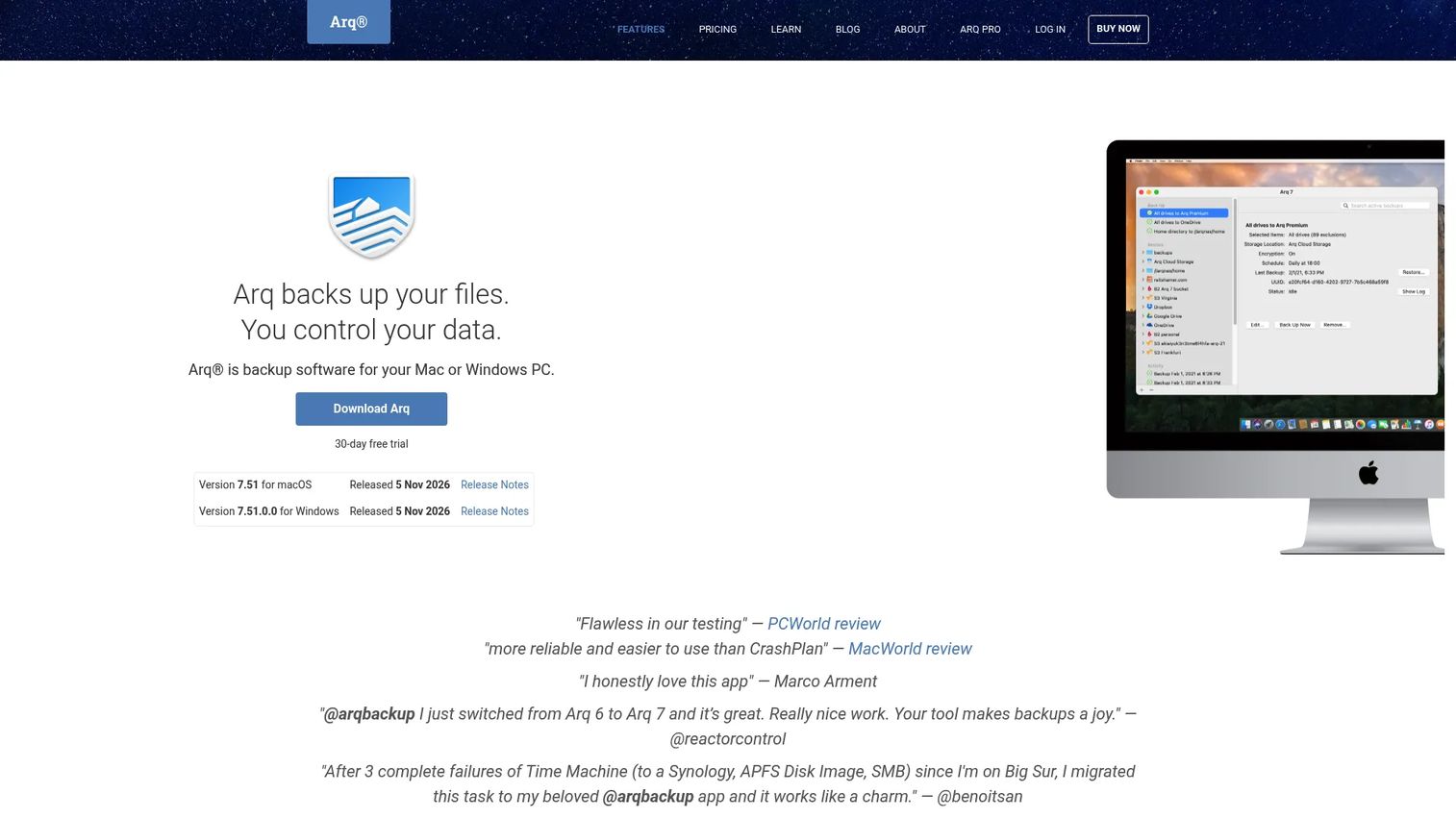
Arq 7 Backup is backup software for Mac and Windows that lets users choose where their backups go. Amazon S3, Backblaze B2, Google Drive, SFTP servers, NAS devices, and local attached drives are all supported destinations. Arq encrypts data before it leaves the machine, compresses it, and uses block-level incremental backups to minimize storage consumption.
Best for: Technical founders and IT leads who understand cloud storage economics and want full control over encryption keys and storage destinations.
Key features
- End-to-end encrypted backups before upload
- Bring-your-own storage destination (S3, B2, SFTP, NAS, local)
- Versioned, point-in-time file recovery
- Compression and block-level deduplication
- Advanced retention rules per backup set
Why choose Arq 7 Backup: Arq gives technical teams more control than any all-in-one cloud backup service. The trade-off is that it requires more judgment: You choose the storage, you manage the costs, and you test your own restores. It is not the right pick for a team that wants backup to run invisibly.
Arq 7 Backup pricing: The app costs $59.99 as a one-time purchase per computer. Arq Premium, which includes the app, 1 TB of bundled storage, and support for up to 5 computers, runs $6.99/month or $69.99/year. A 30-day free trial is available.
G2 rating: 4.4/5
9. Dropbox Backup
Dropbox Backup is a device backup feature built into Dropbox plans. It backs up selected folders from a computer or external drive to Dropbox, so the files can be restored to a new machine if the original fails or is lost. It is distinct from Dropbox's core sync functionality: Sync keeps files consistent across devices, while Backup preserves a recoverable copy.
Best for: Teams already standardized on Dropbox that need a basic backup layer for key folders without adopting a separate backup tool.
Key features
- Computer folder and external drive backup to Dropbox
- Restore backed-up files to a new computer
- Scheduled automatic backup
- Backup status view and management within Dropbox
- Included with Dropbox paid plans
Why choose Dropbox Backup: If Dropbox is already approved and in use, adding backup for key folders requires no new vendor, no new contract, and no new employee training. The coverage is not as deep as a dedicated backup platform, but it removes the "we have no backup" risk for the most important folders.
Dropbox Backup pricing: Dropbox Backup is included with Dropbox Standard ($15/user/month, billed monthly) and Advanced ($24/user/month, billed monthly) plans. The free Basic plan includes Dropbox access with 2 GB of storage, which limits practical backup use.
G2 rating: 4.4/5
10. MSP360 Managed Backup
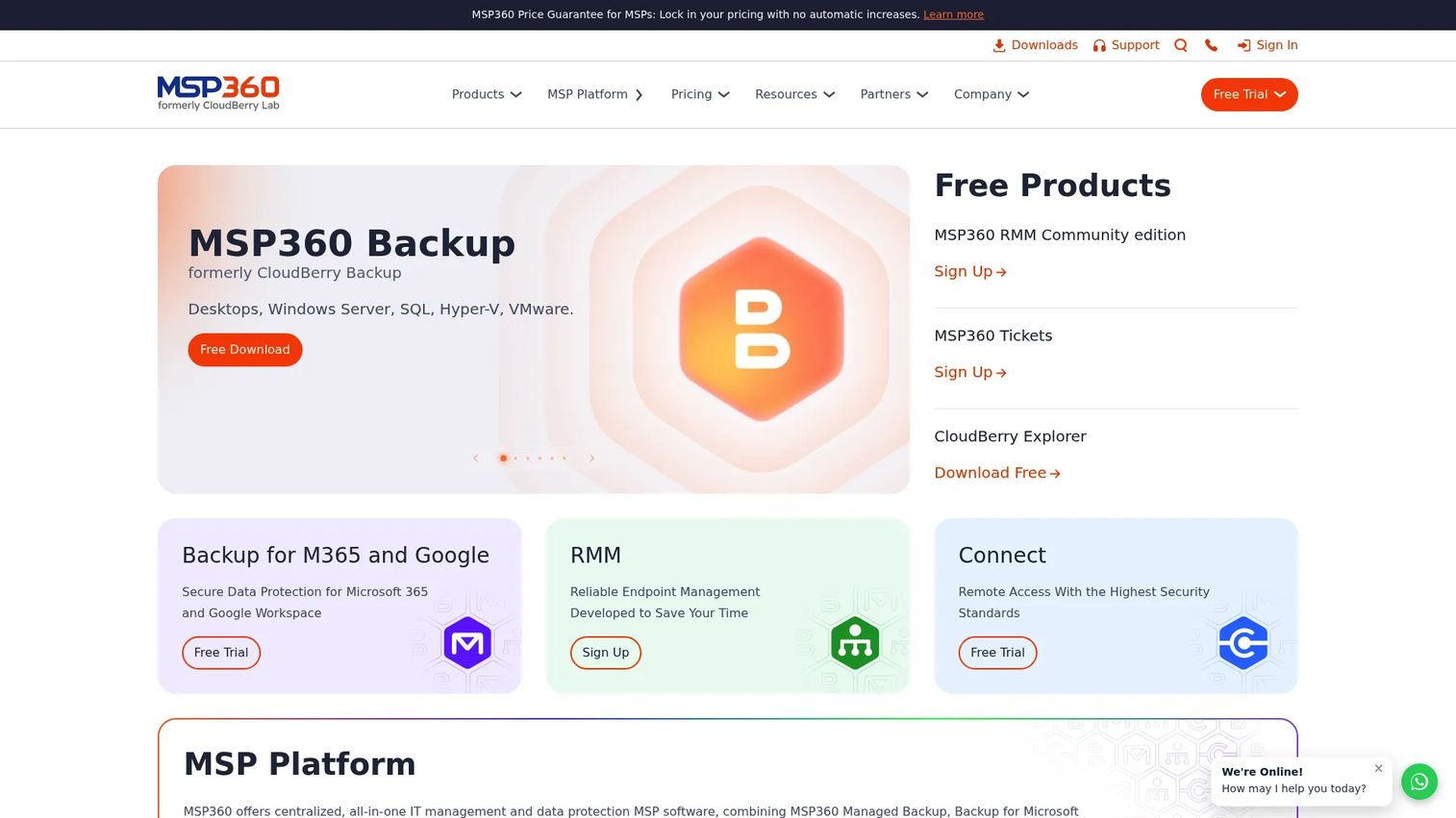
MSP360 Managed Backup is a centralized backup management platform designed for MSPs and IT teams protecting multiple endpoints, servers, and cloud workloads. The web console gives administrators visibility across all protected devices and supports deployment to Windows, macOS, and Linux machines. MSP360 is flexible on storage targets, working with Amazon S3, Backblaze B2, Microsoft Azure, Google Cloud, and others.
Best for: Series B companies that are handing backup ownership to IT or an external managed service provider.
Key features
- Centralized web console for multi-endpoint management
- File-level and image-based backup
- Server, VM, SQL Server, and Microsoft 365 backup support
- Object Lock immutability for ransomware-proof copies
- Restore verification to confirm backups are actually recoverable
Why choose MSP360 Managed Backup: When backup becomes a process owned by IT rather than a founder concern, MSP360 gives the team the management layer to do it at scale. The restore verification feature is particularly useful before an audit or diligence process, since it proves the backups work rather than assuming they do.
MSP360 Managed Backup pricing: Desktop Backup starts at $2.50/month. Server Backup runs $10/month. VM Backup costs $36/month. Microsoft 365 and Google Workspace backup costs $1.10/user/month. Enterprise plans use custom pricing and volume discounts.
G2 rating: 4.5/5
11. EaseUS Todo Backup
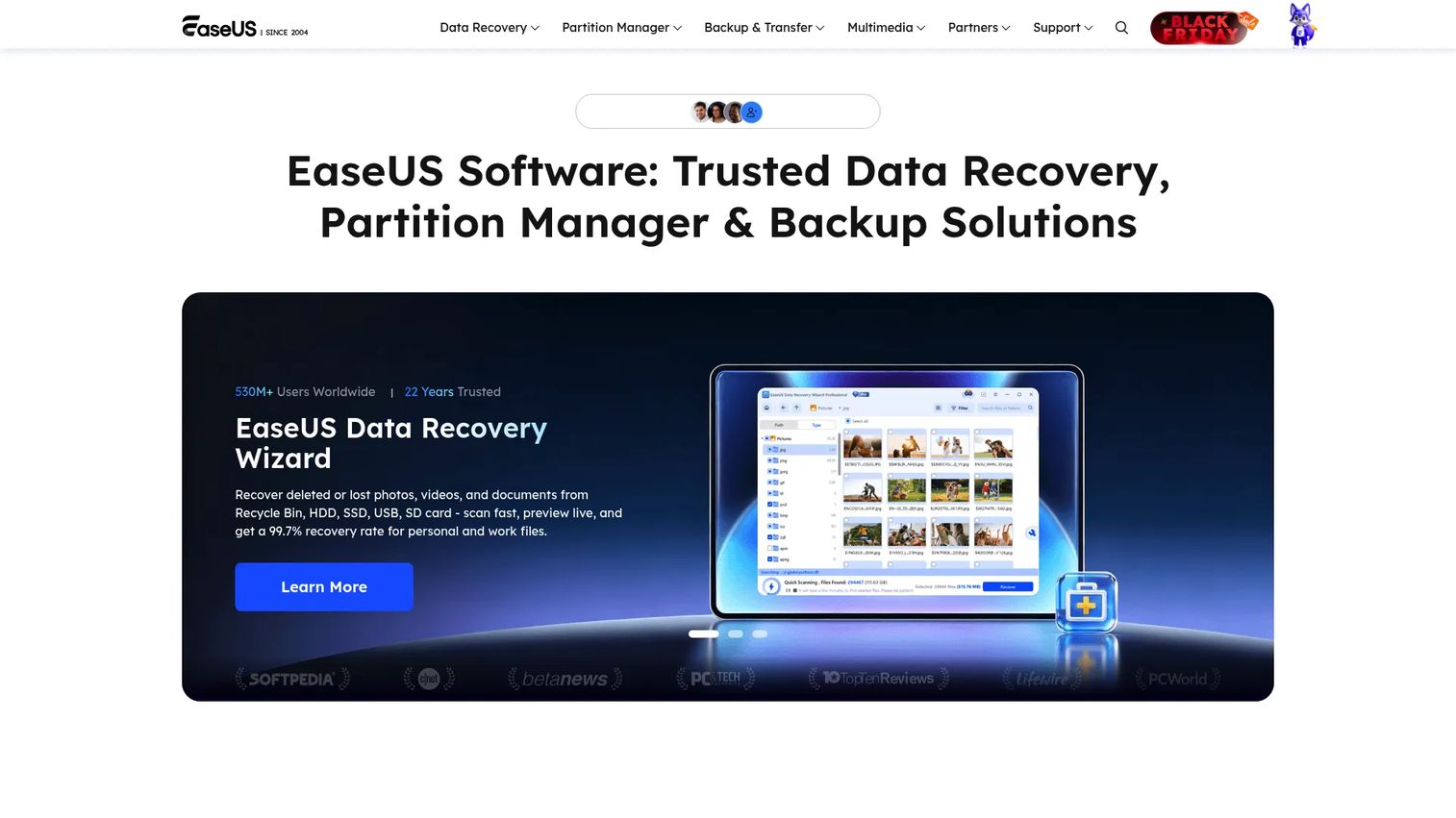
EaseUS Todo Backup is Windows backup software that handles system images, file backup, disk cloning, and cloud backup from a single application. It creates bootable recovery media so a machine can be restored even if the operating system won't start. The free edition covers basic backup; paid editions add additional cloud destinations and business server support.
Best for: Windows-heavy environments where local disk imaging and system-level recovery matter alongside cloud copies.
Key features
- System image, disk partition, and file-level backup
- Full, incremental, and differential scheduled backups
- Disk cloning for machine migration or replacement
- WinPE bootable recovery media creation
- Security Zone protection to isolate backups from ransomware
Why choose EaseUS Todo Backup: EaseUS shines in Windows-first environments where full-machine recovery and cloning are part of the IT toolkit. It is not a cloud-first backup service, so pair it with a cloud destination if you need an offsite copy.
EaseUS Todo Backup pricing: A free edition is available. The Home edition costs $39.95. The Enterprise edition runs $49.00. Exact billing terms were not specified on the pricing page; verify current payment structure before purchase.
G2 rating: 4.8/5
12. Aomei Backupper
Aomei Backupper is a Windows backup, recovery, synchronization, and disk-cloning tool. It covers system backup, file and folder backup, partition backup, and disk cloning, plus scheduled full, incremental, and differential jobs. Cloud backup support is available via integration with cloud storage destinations on paid editions.
Best for: Budget-conscious Windows teams that need recovery basics, disk imaging, and cloning without paying for a full cloud backup service.
Key features
- System, disk, partition, and file backup
- Disk and partition cloning for migration or hardware replacement
- Scheduled full, incremental, and differential backups
- Bootable media for recovery when Windows won't start
- File synchronization across folders and drives
Why choose Aomei Backupper: Aomei delivers solid Windows backup fundamentals at a low annual cost. The free Standard edition handles basic backup for personal use, and the Professional edition adds scheduled tasks and cloud support for small teams.
Aomei Backupper pricing: A free Standard edition is available. Professional runs $39.95/year. Workstation edition costs $49.95/year. The Technician edition, designed for IT professionals managing multiple machines, runs $499.00/year.
G2 rating: 4.3/5
13. Retrospect
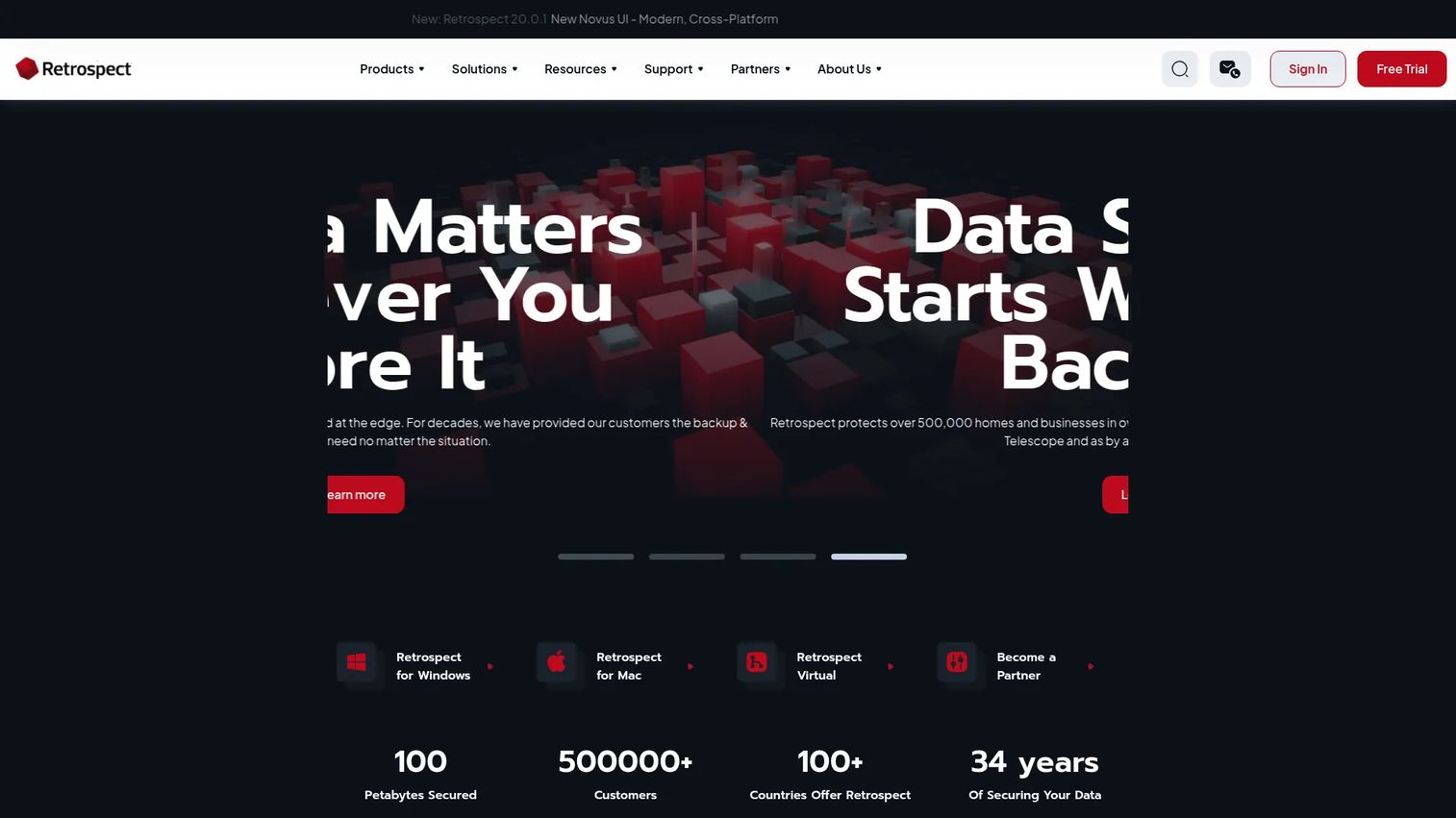
Retrospect is a long-running backup and recovery platform for desktops, servers, and mixed physical and virtual environments. It supports local backup, more than 20 cloud storage providers, and Retrospect's own cloud. Backup scripts let administrators build tailored strategies for different machine types and retention requirements.
Best for: Small and midsize organizations that need IT-managed backup across servers, endpoints, and mixed operating system environments.
Key features
- Server protection with file-level and system-level restore
- Endpoint backup for desktops and laptops
- Cloud backup to Retrospect Cloud or third-party providers
- Backup scripts for custom retention strategies
- Centralized management across multiple machines
Why choose Retrospect: Retrospect suits IT-led backup rather than founder-managed self-service. If your company runs a mix of Windows servers, macOS workstations, and virtual machines, Retrospect handles the complexity that cloud-first services often skip.
Retrospect pricing: The Solo plan costs $4/month. Desktop runs $9/month. Single Server 5 is $39/month. Plans scale to Multi Server at $179/month. Perpetual licenses are also available from the Retrospect store.
G2 rating: 3.0/5
14. pCloud
pCloud is a secure cloud storage platform that includes file backup, versioning, synchronization, and sharing. Its lifetime plan pricing makes it unusual in the subscription-heavy backup market. A client-side encryption add-on (pCloud Encryption) adds zero-knowledge privacy so the vendor cannot read stored files. pCloud is storage-first; it is not a full endpoint backup system.
Best for: Founders and individuals who want secure, long-term file storage with backup-like features and prefer a one-time payment over recurring subscriptions.
Key features
- File backup, recovery, and version restoration
- Client-side encryption with zero-knowledge privacy (add-on)
- Cross-device sync and offline access
- Password-protected file sharing and branded links
- Built-in photo, document, music, and video management
Why choose pCloud: pCloud's lifetime plans eliminate subscription fatigue for personal file storage. The encryption add-on makes it more credible for sensitive documents. For full endpoint protection across a team, pair pCloud with a dedicated backup tool.
pCloud pricing: Lifetime plans start at $159 for 500 GB (one-time). Premium Plus 2 TB costs $379 as a one-time payment. The 10 TB Ultra plan runs $1,099 as a one-time payment. Annual subscription options are also available.
G2 rating: 4.3/5
15. Sync.com
Sync.com is a privacy-focused cloud storage and file collaboration platform built on end-to-end encryption. It includes file version history, recovery windows, real-time backup and synchronization, and admin controls for teams. Sync.com is storage and sync first; it covers the recovery angle through version history rather than continuous data protection.
Best for: Privacy-conscious teams that need encrypted file storage, sharing, and version recovery, and are comfortable with its sync-centric model.
Key features
- End-to-end encryption on all files and metadata
- File versioning and deleted-file recovery window
- Sync Vault and CloudFiles for cloud-only file access
- Role-based admin controls and permission delegation
- File requests, secure sharing, and document previews
Why choose Sync.com: Sync.com works well when encrypted storage and team file access matter more than full-system backup. The admin controls and team plans make it defensible for a company that processes sensitive documents and needs clean access governance.
Sync.com pricing: Teams 1 TB costs $8/user/month, or $6/user/month billed annually. Teams 2 TB runs $12/user/month, or $9/user/month billed annually. Teams 10 TB costs $18/user/month, or $15/user/month billed annually. All team plans require a minimum of 3 users. A 5 GB free tier is available.
G2 rating: 4.3/5
Considerations when choosing online backup software
Backup depth versus file sync
Sync keeps teams productive; backup protects against deletion and device failure. If a bad deletion syncs everywhere, versioned backup is the only thing that saves the day. Before buying any tool, confirm it stores recoverable versions with a retention window you can actually use, not just the most recent copy of each file.
Restore speed and recovery options
Ask how long it would take to recover 500 GB, a full laptop, or a single critical folder. Download restores work for small files; large machine restores may need a drive-shipment option or local backup copy. Test one restore before you trust the system. Only 35% of IT professionals surveyed by Kaseya in 2025 said their organizations could recover data in under a day after a disaster.
Security, encryption, and private keys
AES-256 encryption in transit and at rest is table stakes. Private encryption keys go further: You hold the key, and the vendor cannot read your data. The trade-off is real: Losing a private key can make recovery impossible. Document the key storage policy before turning it on.
Device, server, and SaaS coverage
A 50-person SaaS company may need laptops, finance machines, NAS devices, Microsoft 365, Google Workspace, and servers all protected differently. Map your workloads before choosing a plan. Some tools handle all of these; others are strong on endpoints and weak on servers or cloud apps.
Introductory pricing and renewal cost
Many backup services show promotional first-year pricing. The renewal rate is what you will actually pay. Compare storage caps, device limits, and version history retention at the renewal price, not the signup price, before committing.
Conclusion
For most founders building a backup policy from scratch, IDrive is the broadest starting point: It covers personal devices, teams, servers, and cloud apps without requiring a migration to enterprise infrastructure. Backblaze is the cleaner pick if the goal is unlimited computer backup at a predictable flat rate.
Carbonite handles the "make backup happen with minimal IT involvement" scenario. Acronis True Image bundles backup and cyber protection for buyers who want both in one subscription. CrashPlan and MSP360 fit the moment when backup ownership moves to IT or an external managed service provider.
pCloud and Sync.com serve the storage-first use case with strong security and recovery features, but they are not substitutes for full endpoint backup on a team of 30 or more.
Pick the tool based on what you need to restore, not where you want to store files. Assign one owner, test one restore, and document the recovery path before the next board cycle.
For other software your operations team is evaluating, see our guides to best endpoint protection software, best password manager software, and best business intelligence software.
FAQs
IDrive is the broadest pick for most users, covering personal devices, teams, servers, NAS, and cloud apps in one product family. Backblaze is the strongest choice for unlimited computer backup at a simple flat rate. Acronis True Image works for buyers who want backup and cyber protection bundled. The right answer depends on device count, storage volume, and whether IT or the founder owns the policy.
Online backup copies files to remote infrastructure for recovery purposes. It preserves previous versions and restore points so you can roll back after deletion, ransomware, or hardware failure. Cloud storage focuses on file access, sync, and sharing. Sync propagates changes across all connected devices, which means a bad deletion or ransomware encryption can propagate too. Backup keeps a recoverable copy that sync cannot touch.
The best services encrypt data in transit and at rest using AES-256. Some providers also offer private encryption keys, meaning only you can decrypt the data. Beyond encryption, look for multi-factor authentication, admin access controls, and audit logging. No tool eliminates all risk, but those controls together make unauthorized access or account compromise much harder to exploit.
Yes, if the file is still within the provider's retention window. Most services hold deleted files for 30 days on entry plans, with longer windows on paid tiers. Some products offer unlimited retention. Verify the specific window for the plan you choose, and test a deleted-file restore before you depend on the tool.
For active business devices, automatic daily backup is the minimum. Continuous Data Protection is better for files that change frequently throughout the day, such as financial models or working documents. Match backup frequency to the cost of losing a day of work. For a laptop containing board materials or investor data, continuous backup is worth the extra cost.
Often yes. These platforms sync files and provide version history up to a point, but they are not full backup systems. Local folders outside the sync scope are not protected. Version history limits vary by plan and may not go back far enough after a ransomware event. A dedicated backup tool with longer retention and full-system recovery is a more complete answer for a company with real recovery requirements.
The 3-2-1 rule means three copies of data, stored on two different media types, with one copy held offsite. Online backup satisfies the offsite requirement. A local backup on an attached drive and the original device together satisfy the other two. For business-critical machines, following the 3-2-1 rule is the most reliable way to survive hardware failure, ransomware, or accidental deletion at the same time.
Start by mapping what actually needs to be recoverable: Founder and executive laptops, finance machines, cloud app exports, shared drives, and server data. Then choose a tool based on restore reliability, encryption controls, and admin ownership at the team size you are running now. Test one restore before trusting the tool for board readiness or diligence. The final step is assigning one owner, documenting the recovery path, and reviewing renewal pricing before the first subscription renews.