Static help articles and video tutorials have a fundamental problem: users read or watch, then have to figure out how to actually do the thing. Interactive product documentation flips that model by letting users click, explore, and learn inside the content itself.
This guide covers what interactive documentation actually means and when it makes sense for your team. It also reviews 11 tools handling different use cases, from API playgrounds to embedded product walkthroughs.
What's inside
This guide covers 11 interactive product documentation tools for 2026, picked based on creation speed, interactivity features, analytics, and user reviews. You'll find a clear definition of interactive documentation, when it makes sense, and how to compare tools for your workflow.
Definition and types: What separates interactive documentation from static help articles
Tools covered: 11 platforms spanning guided walkthroughs, API playgrounds, and embedded demos
Selection criteria: No-code editing, personalization, engagement tracking, and integration depth
TL;DR
Interactive product documentation lets users click, explore, and learn by doing rather than reading static text. The best tools combine fast creation with personalization and analytics so you can see what actually helps users.
Guided walkthroughs work well for onboarding new users and can drive
API playgrounds serve developer audiences who want to test code in context
Embedded demos let prospects and users experience your product without logging in
Guideflow stands out for teams that want to create interactive experiences quickly and track engagement across the funnel
What is interactive product documentation and how does it work
Interactive product documentation is a format that lets users actively engage with content rather than passively reading. Instead of static screenshots or text-heavy help articles, interactive documentation includes clickable walkthroughs and embedded videos. It also features live code editors and guided product experiences that respond to user input.
The difference matters because 70% of new users stop using software within three months.
Users retain information better when they learn by doing, and support teams see fewer repetitive tickets when documentation answers questions through hands-on exploration.
Traditional documentation works for reference material and detailed specifications. But interactive product documentation shows users how something works instead of just telling them. Showing beats telling.
Documentation type | User experience | Best for |
|---|---|---|
Static text and screenshots | Passive reading | Reference material, policies |
Video tutorials | Watch and follow | Visual learners, complex workflows |
Interactive walkthroughs | Click and explore | Onboarding, feature adoption |
Live code editors | Test and experiment | Developer documentation |
Embedded demos | Experience the product | Pre-sales, self-serve evaluation |
Types of interactive documentation software
Guided product walkthroughs
Guided walkthroughs are step-by-step overlays that move users through product features in sequence. You've probably seen them as tooltips or hotspots that appear when you first log into a new tool.
They work well for onboarding new users and can drive 42% higher feature adoption.
The best walkthrough tools let you embed guides in-app or on marketing pages without engineering help. Look for branching logic so different user types can follow different paths.
API playgrounds and live code editors
Developer documentation increasingly includes environments where users run code samples directly in the browser. Instead of copying code into a local IDE, developers test endpoints and see responses immediately.
This format reduces context-switching and helps developers understand your API faster. If your product serves a technical audience, API playgrounds often become the most-used part of your documentation because 82% of organizations are API-first.
Embedded interactive demos
Embedded demos are clickable product replicas you can place in help centers, landing pages, or emails. Users experience your product's interface and workflow without creating an account or scheduling a call.
Interactive demos work particularly well for product marketing teams who want prospects to see value before committing. They also help support teams deflect tickets by showing users exactly how to complete tasks.
Video tutorials with clickable hotspots
Some documentation combines video with interactive elements like embedded CTAs, branching paths, or clickable annotations. This format works for visual learners and complex multi-step workflows.
The tradeoff: videos require re-recording when your UI changes. Text-based and screenshot-based documentation typically updates faster.
Knowledge base platforms with built-in interactivity
Knowledge base platforms combine traditional articles with interactive elements like collapsible sections, tabbed content, embedded demos, and live code snippets. This approach to interactive product documentation works well for teams consolidating all documentation in one place.
When to use interactive documentation
Onboarding new users to complex products
If your product has multiple features or configuration steps, interactive documentation reduces time-to-value. Users learn by doing rather than reading, which can help users onboard 2x faster.
Customer success teams often see the biggest impact here. Instead of scheduling onboarding calls for every new account, you can point users to guided walkthroughs that cover the basics.
Reducing repetitive support tickets
How many of your support tickets start with "How do I..."? Interactive documentation answers questions before users submit them. Embed clickable guides in your help center so users can follow along step-by-step.
Teams that implement interactive help content typically see ticket volume drop for covered topics. That frees support staff to handle complex issues that actually require human judgment.
Enabling self-serve feature discovery
Product teams can ship interactive release notes or feature documentation that users explore at their own pace. This approach works better than changelog emails that get ignored or blog posts that users never find.
When you launch a new feature, an embedded walkthrough shows users exactly how it works in context. No scheduling, no waiting, no friction.
Supporting multiple user personas
If your product serves different roles (admins vs. end users, technical vs. non-technical), interactive documentation can branch based on who's viewing. One piece of content adapts to multiple audiences.
Static documentation forces you to either write separate guides for each persona or create one-size-fits-all content that serves no one well.
How to choose the right documentation software
Creation speed and no-code editing
Evaluate how quickly your team can create and update documentation without developer help. The best tools offer browser-based capture, drag-and-drop editors, and template libraries that get you from idea to published guide in minutes.
If every documentation update requires a sprint ticket, you'll fall behind. Look for tools that let product, marketing, and support teams work independently.
Personalization and role-based content
The best documentation software lets you tailor content by user role, industry, or account. Dynamic variables and conditional logic mean one guide can serve multiple audiences.
This matters especially for B2B products where different stakeholders care about different features. A CFO viewing your documentation wants different information than a developer.
Analytics and engagement tracking
Interactive product documentation platforms that show what users click, where they drop off, and which content drives action help you improve over time. Without this data, you're guessing about what works.
Look for session-level tracking, completion rates, and the ability to connect documentation engagement to downstream outcomes like activation or support ticket reduction.
Integration with existing documentation platforms
Interactive documentation tools work best when they embed into your existing help center, knowledge base, and website. Check for embed codes, CMS integrations, and API access before committing.
You probably don't want to replace your entire documentation stack. You want to add interactivity to what you already have.
Maintenance and update workflows
Documentation decays as products change. Every UI update, new feature, or workflow change can break existing guides. Look for tools that make updates fast through in-place editing, bulk changes, and version control.
The best tool is one your team will actually keep current. If updates are painful, your documentation will rot.
Security compliance and access controls
Enterprise teams require SSO, role-based permissions, and data residency options. If your documentation contains sensitive information or serves regulated industries, compliance requirements matter.
Check security certifications and access control features before your IT team asks about them.
Interactive documentation tools comparison table
# | Product | Intent | Key use case | Pricing | G2 rating |
|---|---|---|---|---|---|
1 | Guideflow | Create product walkthroughs fast | Interactive demos for marketing and support | Free + paid from $40/mo | 4.8/5 |
2 | Mintlify | AI-powered developer docs | Modern documentation with conversational search | Free + paid from $150/mo | 4.8/5 |
3 | GitBook | Docs-as-code collaboration | Technical documentation with Git sync | Free + paid from $8/mo | 4.7/5 |
4 | Document360 | Self-service knowledge base | Help centers with search analytics | From $149/mo | 4.7/5 |
5 | ReadMe | Interactive API documentation | Developer portals with live testing | From $99/mo | 4.7/5 |
6 | Scribe | Auto-generate step-by-step guides | Process documentation from screen capture | Free + paid from $15/mo | 4.8/5 |
7 | Whatfix | Enterprise digital adoption | In-app guidance for complex software | Custom pricing | 4.6/5 |
8 | Tango | Visual how-to guides | Internal documentation and training | Free + paid from $20/mo | 4.7/5 |
9 | Loom | Video-based documentation | Async walkthroughs and explanations | Free + paid from $15/mo | 4.7/5 |
10 | Notion | Flexible workspace docs | Internal wikis and lightweight documentation | Free + paid from $10/mo | 4.7/5 |
11 | Zendesk Guide | Integrated help center | Support documentation for Zendesk users | Included in Suite plans | 4.3/5 |
Interactive product documentation tools reviewed
The following tools were selected based on creation speed, interactivity features, analytics capabilities, integrations, and user reviews. Each serves a different primary use case, so the right choice depends on your team's specific workflow.
1. Guideflow
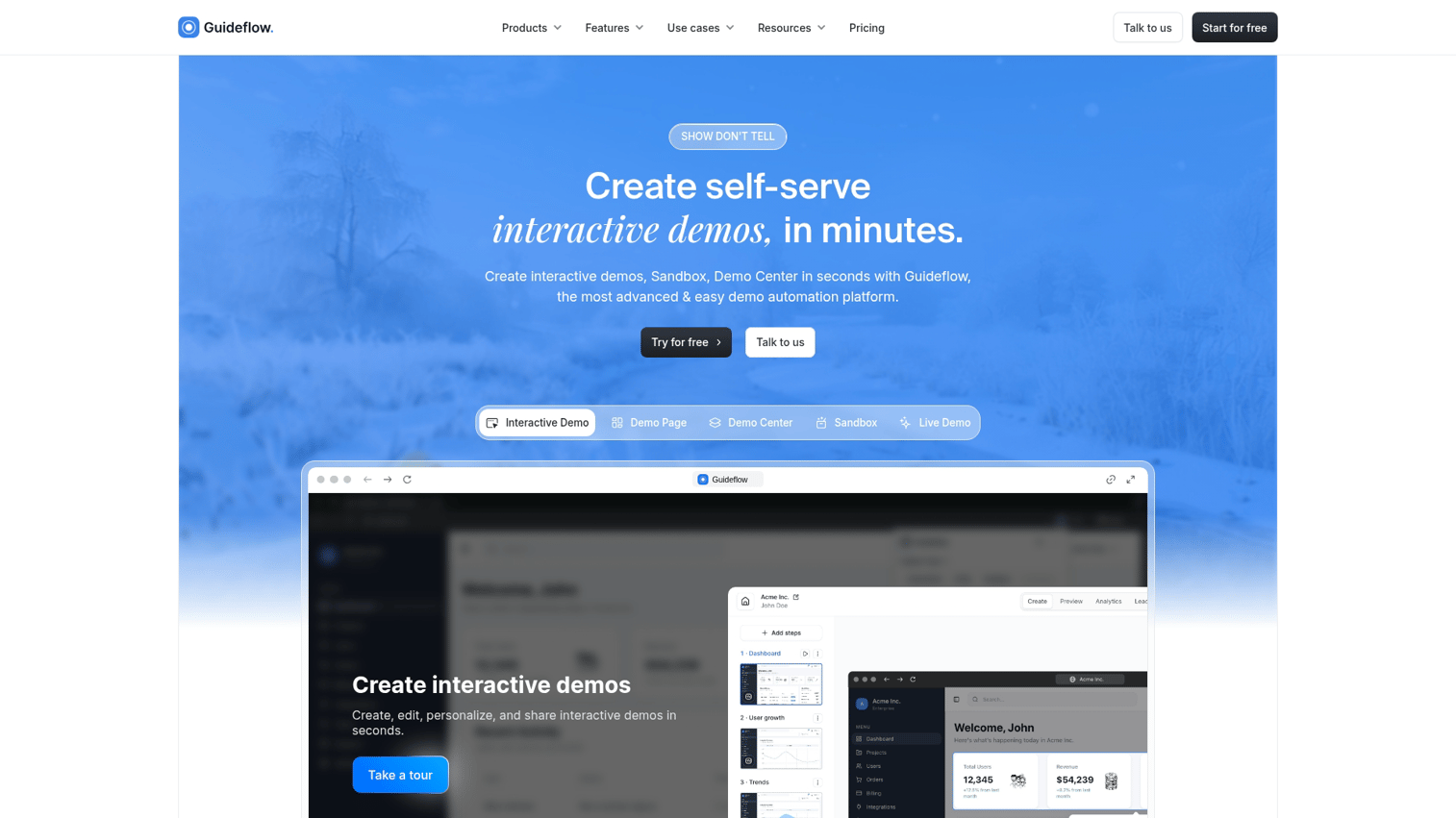
Guideflow is a demo automation platform that turns your product into clickable, guided experiences you can embed anywhere. The platform uses browser-based capture technology to record your actual product interface as you navigate. It creates an interactive replica that users can explore without needing login credentials or a live environment.
You capture your product flow directly from your browser in minutes. Then use a visual editor to add annotations, customize branding, insert dynamic variables, and create branching paths—all without writing code.
Best for: Product marketing teams building interactive demos for landing pages and campaigns. Also ideal for pre-sales teams qualifying prospects and customer success teams creating onboarding walkthroughs that reduce time-to-value.
Key strengths
Browser-based capture: Record your product as you click through it, then refine with a drag-and-drop editor
Personalization at scale: Tailor content by persona, role, or account using dynamic variables
Engagement analytics: Track what users click, where they drop off, and which guides drive action
Flexible distribution: Embed in help centers, landing pages, emails, or share via link
AI-assisted editing: Auto-generate steps, translations, and voiceovers to speed up production
Why choose Guideflow: Unlike traditional documentation tools, Guideflow combines the "show don't tell" approach of interactive demos with the distribution flexibility of documentation. You create once and use across marketing, sales, and support.
Pricing: Free tier available. Paid plans start at $40/month for individuals, with team and enterprise options scaling from there.
Start your journey with Guideflow today!
2. Mintlify
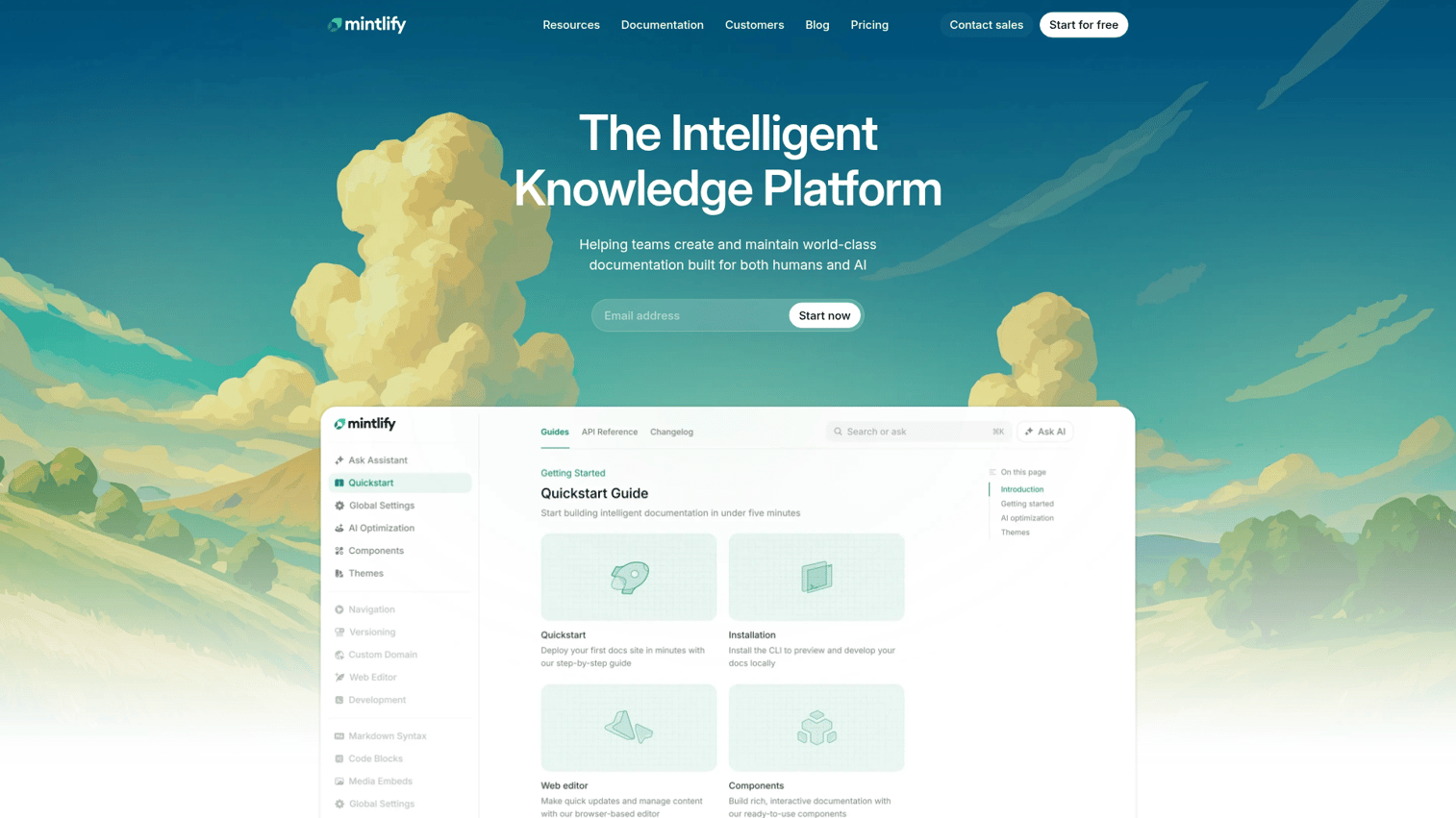
Mintlify is an AI-powered documentation platform built specifically for developer-facing products. It combines traditional documentation structure with conversational AI search, letting developers ask questions in natural language instead of hunting through navigation menus.
The platform automatically generates intelligent knowledge bases that understand context. A search for "authentication" surfaces not just the auth docs but related setup steps, code examples, and common troubleshooting issues.
Best for: API-first companies, developer tool providers, and technical products where traditional keyword search falls short. Ideal when developers need instant answers without reading through multiple pages.
Key strengths
AI-powered search: Users ask questions in natural language and get relevant answers from your docs
Auto-updating content: Documentation stays in sync with your codebase through integrations
Developer-first design: Clean reading experience optimized for technical content
Enterprise compliance: SOC 2 certification and access controls for regulated industries
Why choose Mintlify: If your documentation serves developers and you want AI-native search that actually works, Mintlify delivers a modern experience. Static docs can't match it.
Pricing: Free tier for small projects. Paid plans start at $150/month for teams.
3. GitBook
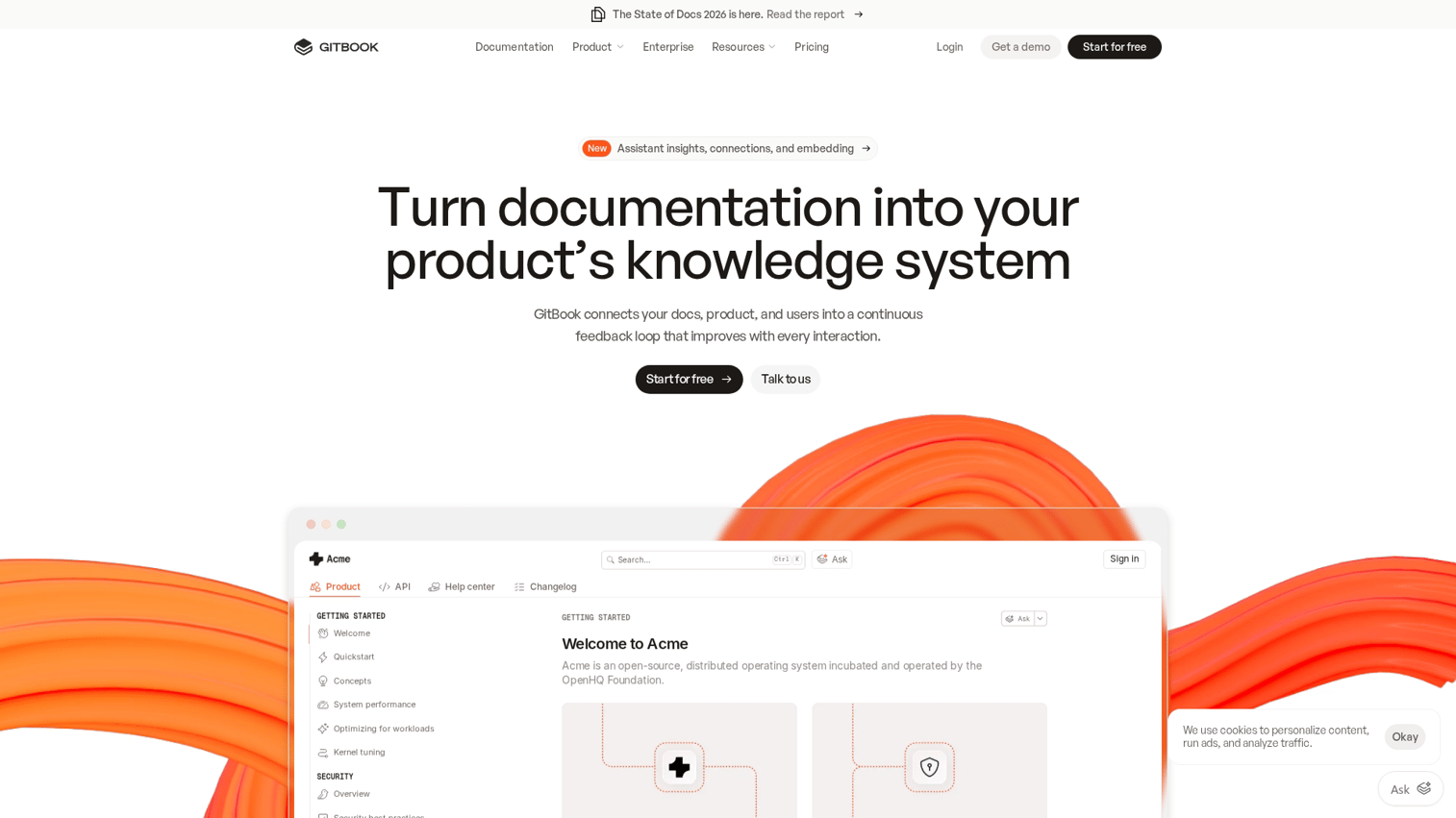
GitBook is an online documentation platform that treats documentation like code through Git-based version control and real-time collaborative editing. Teams write in a clean, distraction-free editor that feels more like Notion than a traditional docs tool. Every change syncs bidirectionally with GitHub or GitLab repositories.
Documentation updates flow through the same review and approval process as code changes. Pull requests, branch protection, and merge workflows all apply to your docs.
Best for: Engineering teams who want documentation versioned alongside code releases and product teams managing technical specs. Also suits open-source projects where community contributions need structured approval workflows before going live.
Key strengths
Git synchronization: Docs live alongside code and update through familiar version control
Collaborative editing: Multiple team members work on documentation simultaneously
API documentation support: Built-in features for documenting endpoints and code samples
Clean reading experience: Minimal design that puts content first
Why choose GitBook: If your team already uses Git workflows and wants documentation that follows the same patterns, GitBook fits naturally into existing processes.
Pricing: Free for individuals and small teams. Paid plans start at $8/user/month.
4. Document360
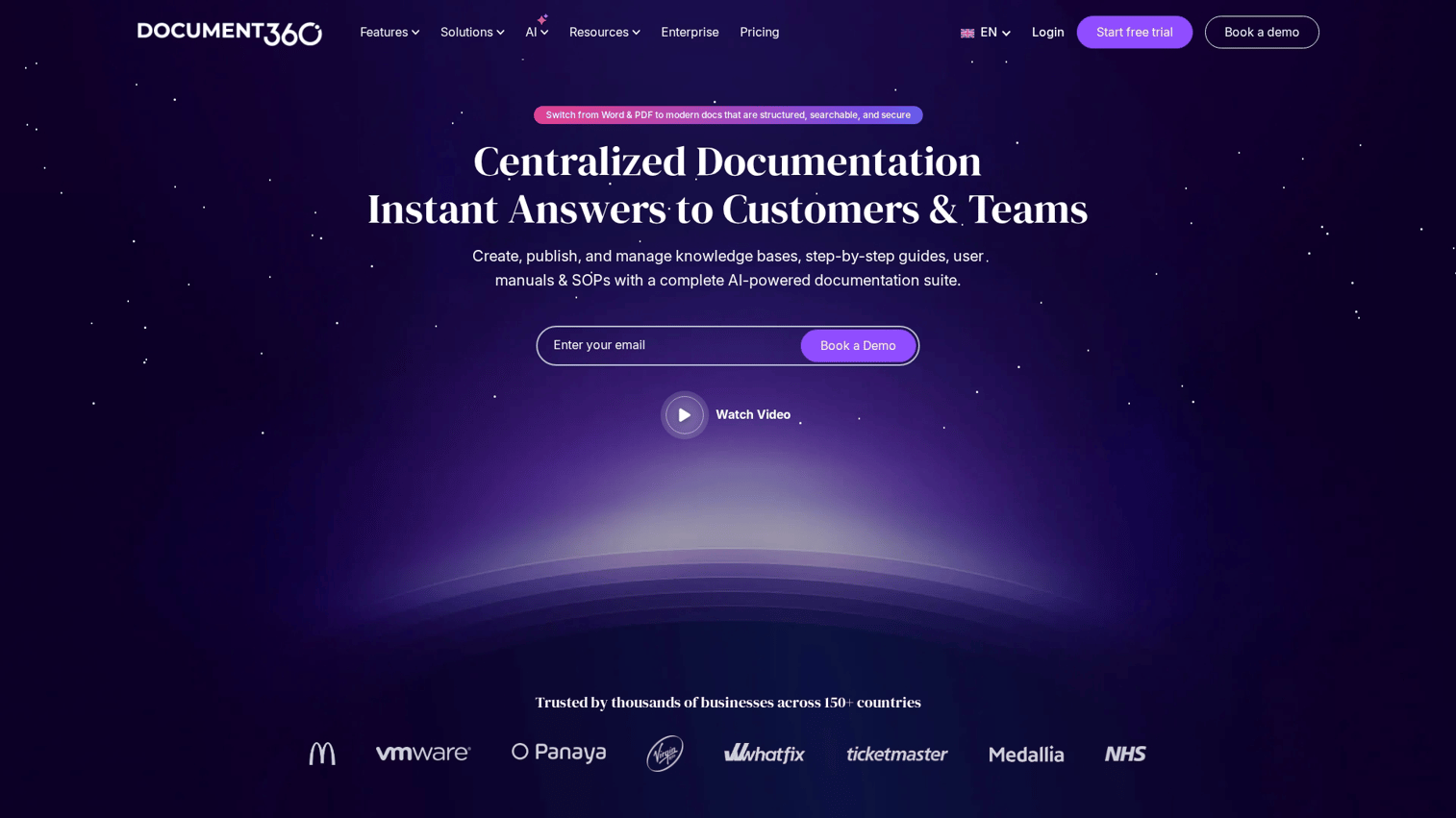
Document360 is a knowledge base platform built specifically for creating customer-facing help centers and internal documentation portals. It provides a structured authoring environment where teams can write, organize, and publish articles without technical expertise.
Built-in search analytics reveal what users are looking for and which content gaps exist. The platform emphasizes content organization through nested categories, version control for tracking changes, and multi-language support for global teams.
Best for: Customer support teams building comprehensive help centers with hundreds of articles and IT departments documenting internal processes. Also suits product teams managing technical documentation that requires frequent updates and version tracking.
Key strengths
Category management: Organize large documentation sets with nested categories and tags
Search analytics: See what users search for and which queries return no results
Version control: Track changes and roll back when needed
Multi-language support: Manage documentation in multiple languages from one platform
Why choose Document360: When you want a dedicated help center platform with strong search and organization features, Document360 handles scale well.
Pricing: Plans start at $149/month for the standard tier.
5. ReadMe
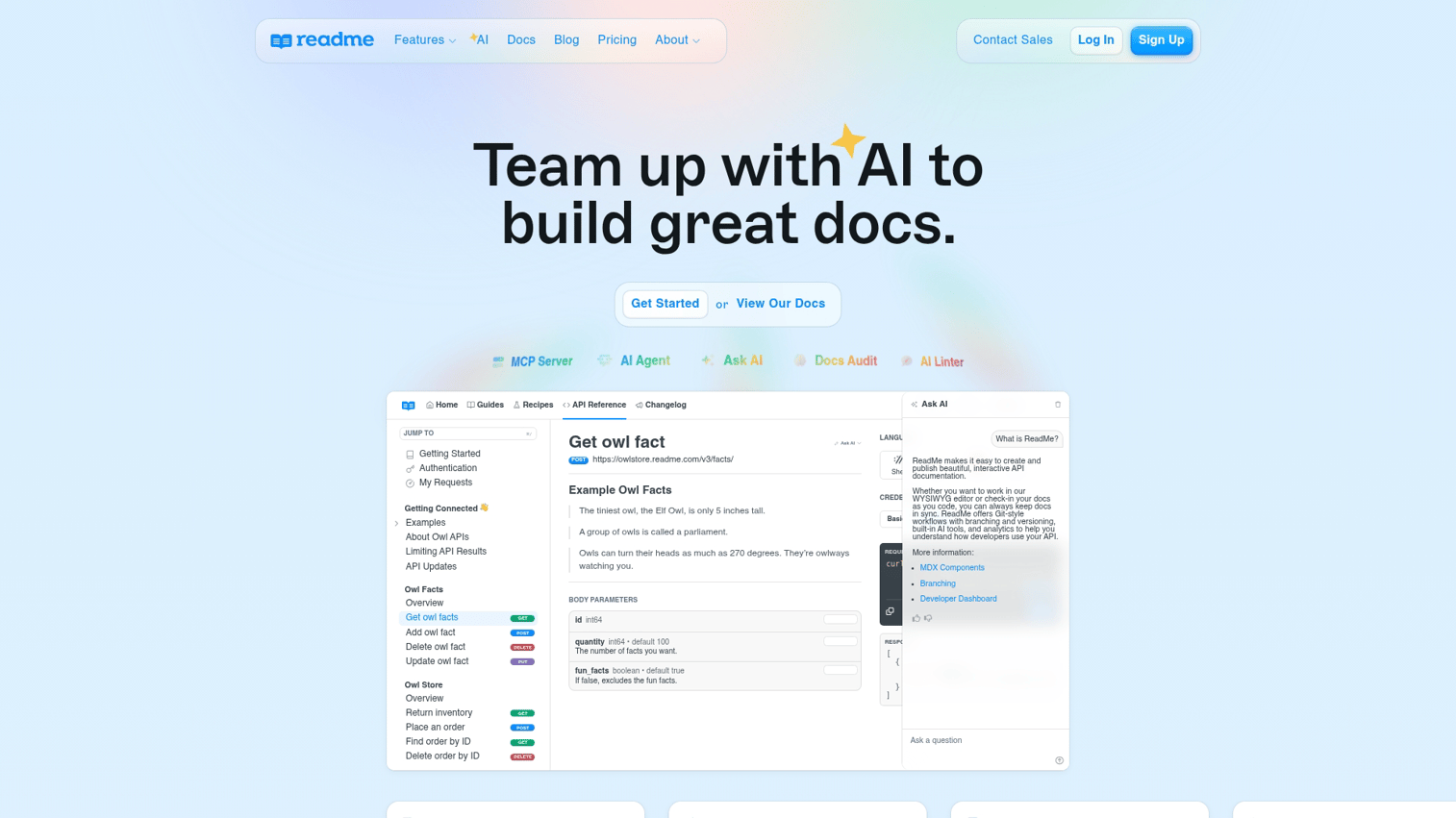
ReadMe is an API documentation platform built around an interactive API explorer. Instead of copying code snippets into Postman or a terminal, developers authenticate once with their API keys and test endpoints directly within the documentation.
They can modify request parameters, see live responses, and understand how your API behaves without context-switching. ReadMe also personalizes the documentation experience by showing code examples in the user's preferred language and displaying their specific API credentials in sample requests.
Best for: API-first companies, developer platforms, and SaaS products with REST or GraphQL APIs. Ideal for teams that want to reduce time-to-first-call and improve developer onboarding through hands-on testing.
Key strengths
Interactive API explorer: Developers make test calls and see responses without leaving docs
Personalized documentation: Content adapts based on the user's API keys and settings
Changelog management: Keep users informed about API updates in context
Developer metrics: Track which endpoints get the most attention and where users struggle
Why choose ReadMe: If your documentation is primarily API reference with code samples, ReadMe's interactive testing makes the learning curve shorter.
Pricing: Plans start at $99/month for small teams.
6. Scribe
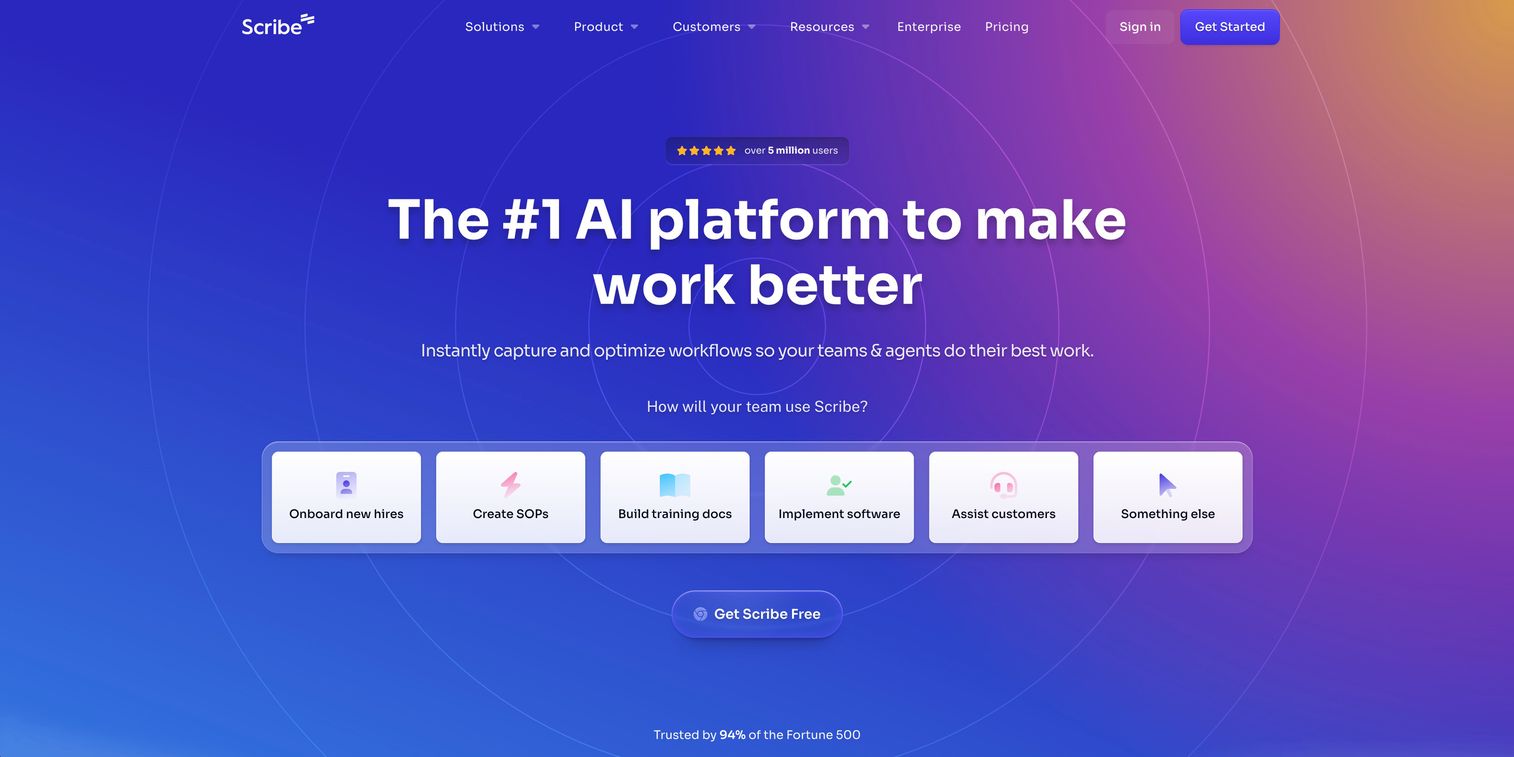
Scribe is a screen capture tool that auto-generates step-by-step guides from your clicks. You turn on the browser extension, perform a workflow once, and Scribe automatically creates written documentation with annotated screenshots, numbered steps, and text descriptions. The platform captures every click, form input, and navigation action, then formats everything into a shareable guide without manual editing.
Best for: Operations teams documenting internal processes and enablement teams creating training materials at scale. Also suits support teams building quick how-to guides without dedicated technical writers or design resources.
Key strengths
Auto-capture: Record your screen and get a formatted guide with annotated screenshots
Browser extension: Capture workflows directly from Chrome without additional software
Template editing: Customize generated guides with your branding and additional context
Team sharing: Distribute guides across your organization with permissions
Why choose Scribe: When you want to document internal processes fast and don't want to manually capture screenshots, Scribe removes the tedious work.
Pricing: Free tier available. Pro plans start at $15/user/month.
7. Whatfix
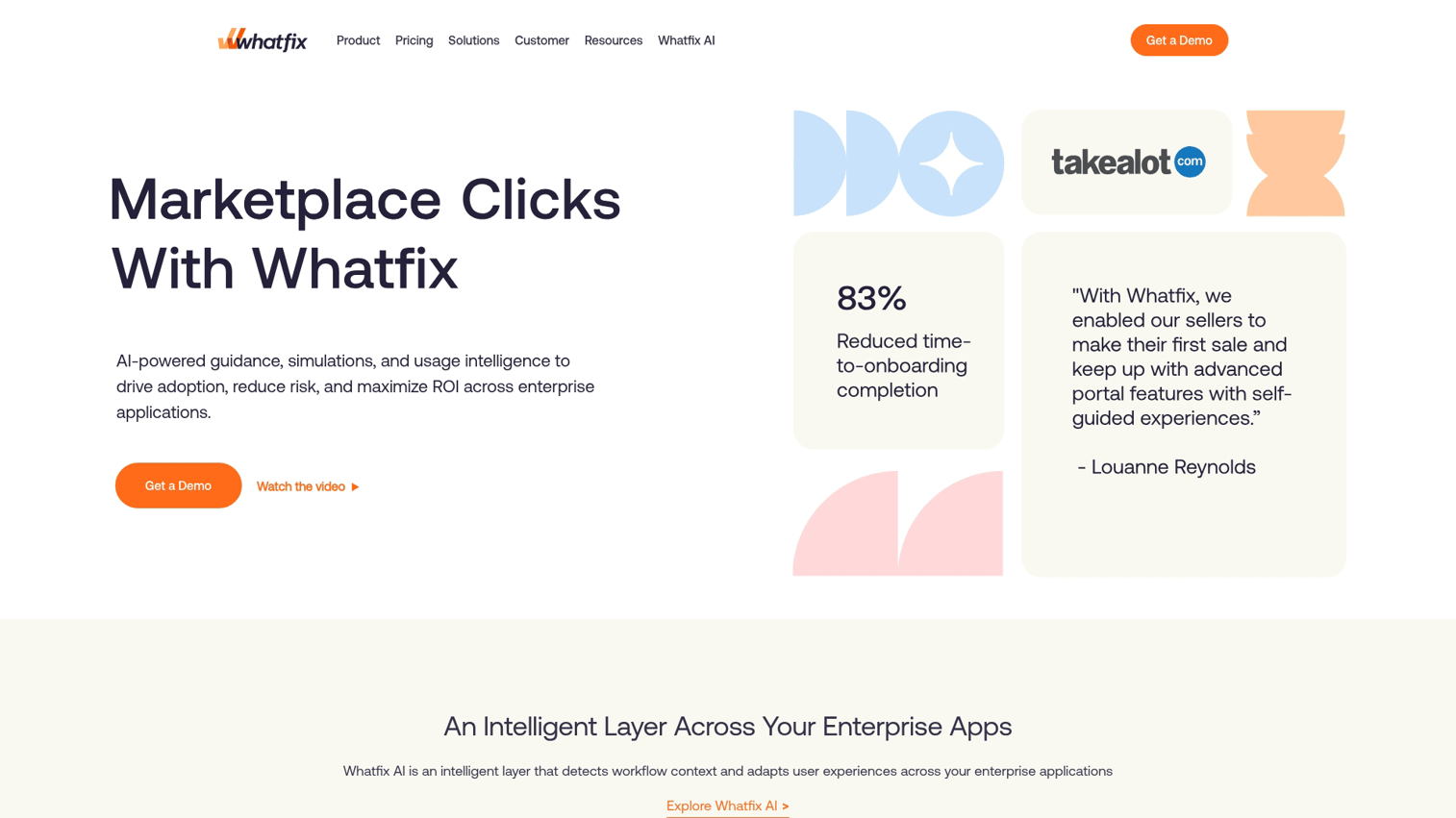
Whatfix is a digital adoption platform that layers interactive guidance directly onto enterprise applications. Instead of separate documentation, Whatfix creates in-app walkthroughs, tooltips, and self-help widgets that appear contextually as users work. The platform targets complex software rollouts where traditional training falls short - think ERP systems, CRM platforms, or custom enterprise tools with steep learning curves.
Best for: Enterprise companies deploying new internal software across large user bases and IT teams managing change management for system migrations. Also suits SaaS vendors serving Fortune 500 clients who need white-labeled onboarding at scale.
Key strengths
In-app walkthroughs: Guide users through tasks without leaving the application
Task lists: Help users complete multi-step processes with progress tracking
Self-help widgets: Embed searchable help content directly in your application
Analytics dashboard: Track adoption metrics and identify where users struggle
Why choose Whatfix: If you want a full digital adoption platform beyond documentation, Whatfix provides enterprise-grade features for complex rollouts.
Pricing: Custom enterprise pricing based on usage and features.
8. Tango
Tango is a browser extension that captures your clicks and automatically generates visual step-by-step guides with annotated screenshots. Unlike text-heavy documentation, Tango creates visual walkthroughs that show exactly where to click, what to fill in, and how to navigate through workflows. It's similar to Scribe in auto-capture functionality but emphasizes visual clarity with prominent screenshot annotations and a cleaner reading experience.
Best for: Teams creating quick internal documentation, onboarding materials, and training guides without dedicated technical writers or design resources.
Key strengths
Auto-capture: Record clicks and get a visual guide with annotated screenshots
Screenshot editing: Blur sensitive information and add annotations after capture
Sharing options: Distribute via link, embed, or export to PDF
Integrations: Connect with tools like Notion, Confluence, and Slack
Why choose Tango: When you want fast, visual documentation for internal processes and prefer something lightweight, Tango delivers without complexity.
Pricing: Free tier available. Paid plans start at $20/user/month.
9. Loom
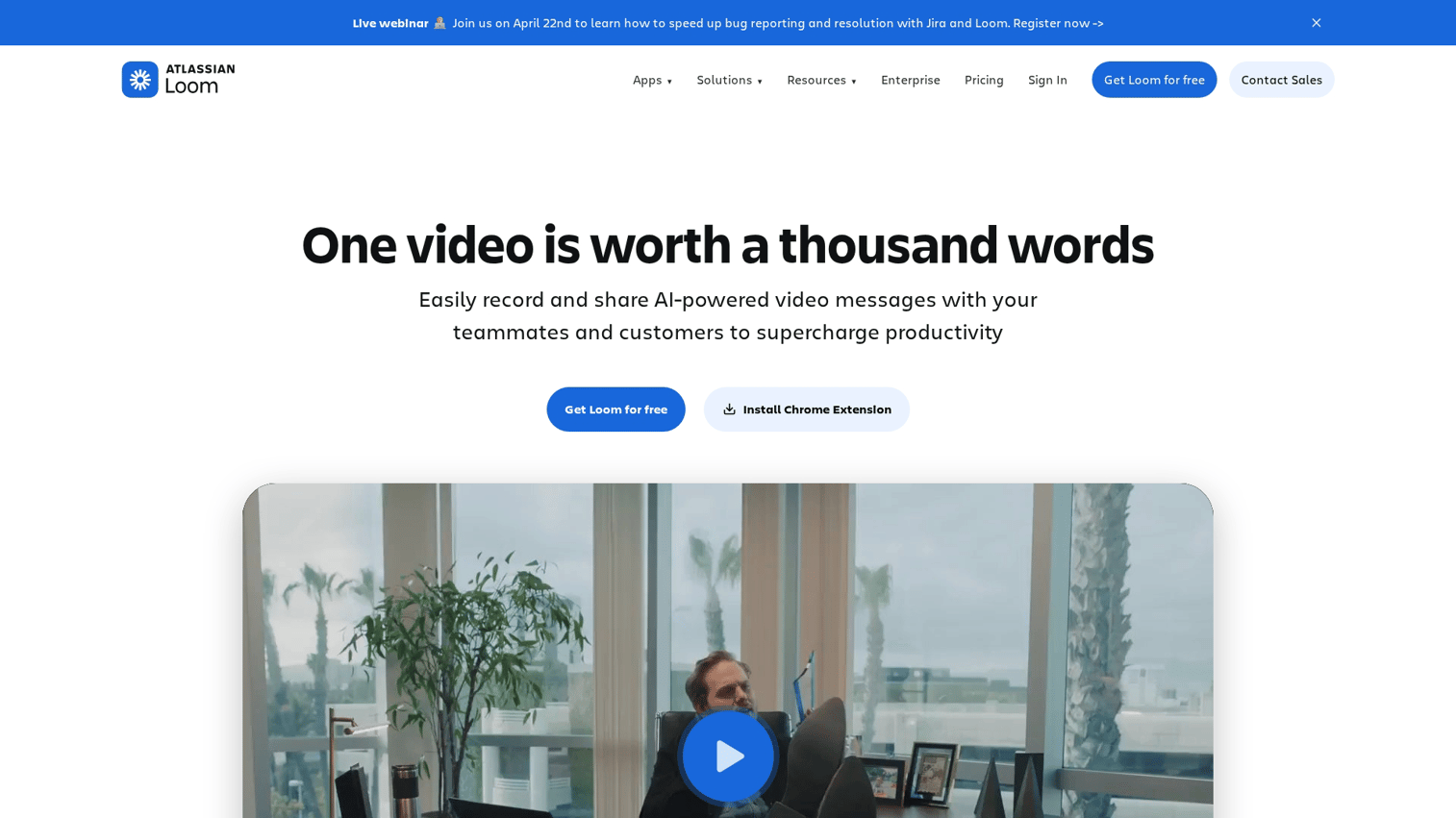
Loom is a video messaging platform that records your screen, camera, or both simultaneously. You click record, walk through a process or explain a concept, and get a shareable link immediately.
Loom videos aren't interactive in the same way as clickable walkthroughs. They're widely used for documentation because they show exactly how something works with the added context of voice narration.
Best for: Teams who prefer video-based documentation for complex visual workflows and async communication across time zones. Ideal when tone and context matter as much as the steps themselves.
Key strengths
Quick recording: Capture screen, camera, or both with one click
Automatic transcription: Searchable transcripts make video content findable
Viewer analytics: See who watched, how much they watched, and where they dropped off
Embed options: Add videos to help centers, wikis, and websites
Why choose Loom: When video explains something better than text, Loom makes recording and sharing simple. Keep in mind that videos require re-recording when your UI changes.
Pricing: Free tier available. Business plans start at $15/user/month.
10. Notion
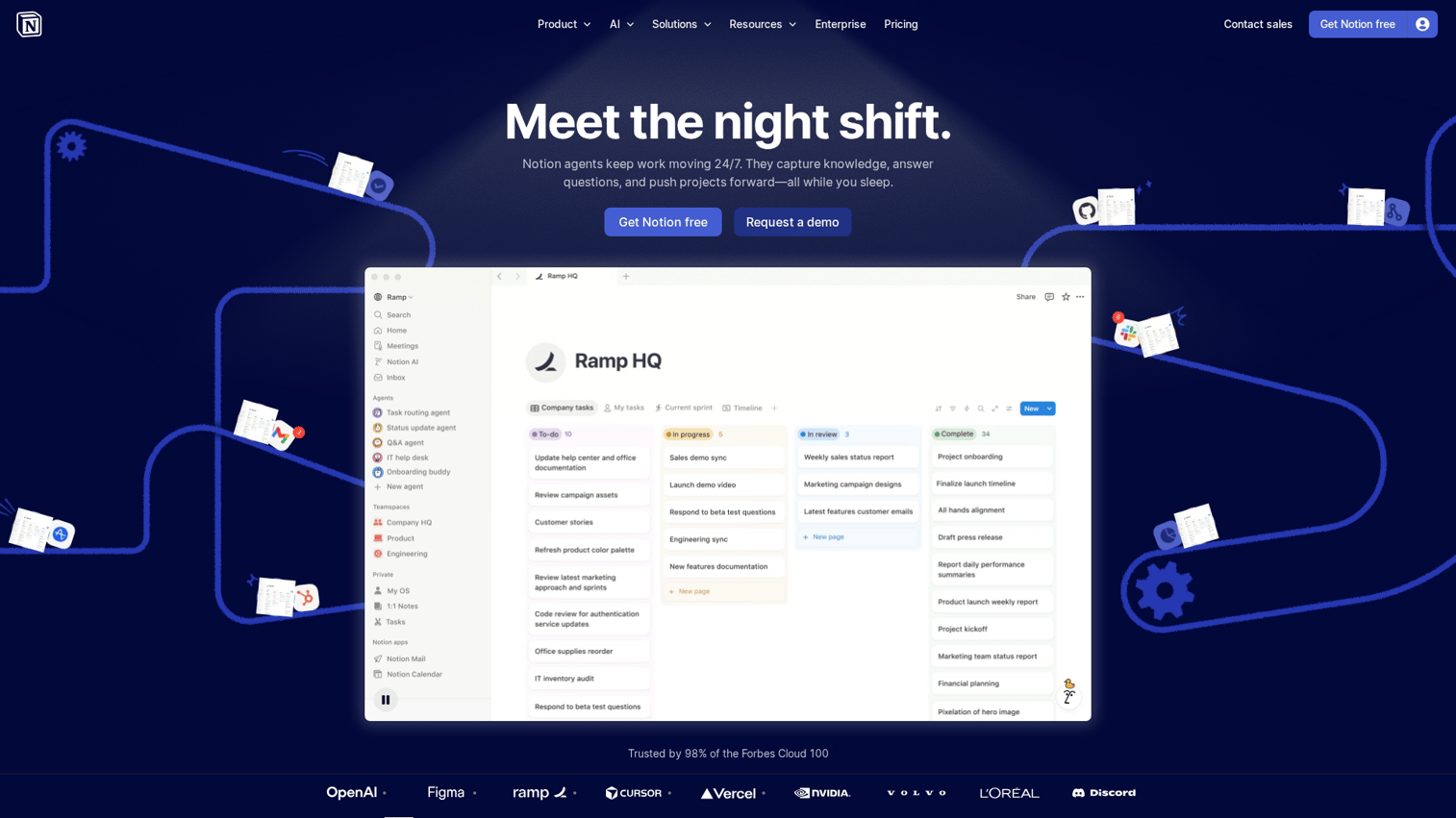
Notion is an all-in-one workspace that combines docs, wikis, databases, and project management in a flexible block-based editor. While it wasn't designed specifically for product documentation, teams use it to build internal knowledge bases, process documentation, and lightweight help centers. The platform's strength lies in its versatility - you can embed videos, link related pages, create database views of documentation, and organize content hierarchically.
Best for: Startups and small teams already using Notion for project management or internal wikis. Ideal for those who want to consolidate documentation in the same workspace without adding another tool.
Key strengths
Flexible blocks: Build pages with text, tables, embeds, and databases
Embedded media: Add videos, images, and interactive content from other tools
Database views: Organize documentation with filters, sorts, and linked content
Templates: Start from pre-built structures for common documentation formats
Why choose Notion: If your team already lives in Notion, adding documentation there avoids tool sprawl. Analytics are limited and it's not built for external-facing help centers.
Pricing: Free for individuals. Team plans start at $10/user/month.
11. Zendesk Guide
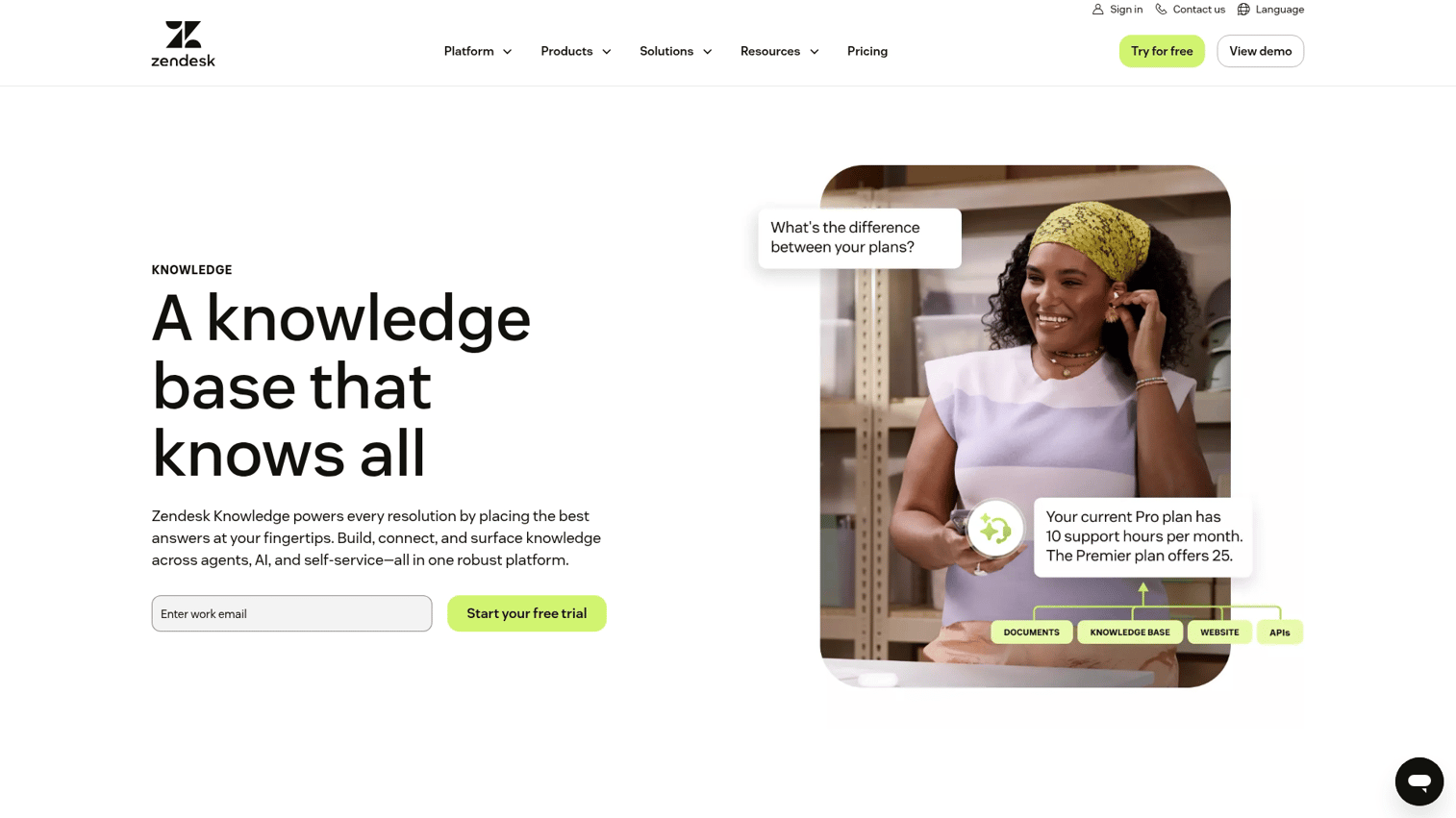
Zendesk Guide is a help center platform built into Zendesk's support suite. It creates customer-facing knowledge bases that integrate directly with your support tickets, agent workspace, and customer data. When users search for help or submit tickets, Guide surfaces relevant articles automatically and tracks which content reduces support volume.
Best for: Support teams already using Zendesk who want documentation that connects to ticket workflows and suggests articles during conversations. Ideal for teams that need deflection metrics without adding another platform.
Key strengths
Ticket deflection: Suggest relevant articles when users submit tickets
Article suggestions: AI recommends content based on ticket content
Multi-brand support: Manage help centers for multiple products from one account
Search optimization: Built-in search with analytics on what users look for
Why choose Zendesk Guide: If you're already in the Zendesk ecosystem, Guide connects documentation directly to your support workflow. Interactivity is limited compared to dedicated tools.
Pricing: Included in Zendesk Suite plans starting at $55/agent/month.
What interactive documentation cannot replace
Interactive documentation works well for many use cases, but it has limits worth acknowledging.
Deep technical reference: Clickable walkthroughs complement but don't replace detailed API specs, code samples, and reference documentation. Developers still want searchable, comprehensive reference material.
Live human support: Complex edge cases and situations requiring judgment still benefit from human interaction. Interactive docs handle the repeatable questions, not the exceptions.
Hands-on evaluation: Interactive documentation qualifies interest but doesn't replace a full sandbox or live demo.
Structured training programs: Interactive docs support self-serve learning but don't replace certification programs or instructor-led training for complex skills.
Turn your product into self-serve documentation
The best interactive product documentation helps users experience value faster. Whether you're onboarding new customers, reducing support tickets, or helping prospects evaluate your product, interactive content outperforms static alternatives.
Start with one high-impact use case. Maybe it's a feature walkthrough for your help center, an embedded demo on your pricing page, or a guided tour for new signups. Measure engagement and expand from there.
The tools in this guide each serve different workflows. For teams building interactive product documentation, Guideflow combines the "show don't tell" approach with distribution flexibility. Modern teams can create once and use across marketing, sales, and support.
Start your journey with Guideflow today!
FAQs about interactive product documentation
A product tour is one type of interactive documentation, typically an in-app overlay that guides new users through features. Interactive documentation is broader and includes help center content, embedded demos, API playgrounds, and video tutorials with clickable elements.
Pricing ranges from free tiers for basic tools to enterprise contracts for full-featured platforms. Most documentation software offers tiered plans based on users, page views, or features. Expect to pay $15-150/month for team plans, with enterprise pricing often custom-quoted.
Yes. Most modern documentation tools offer no-code editors and browser-based capture so product, marketing, and support teams can create and update content independently. Some advanced features like custom integrations may still require developer help.
Track ticket volume for topics covered by interactive docs before and after publishing. Measure help center search-to-article engagement and compare deflection rates. Most documentation platforms include analytics that show which content users engage with and where they drop off.
The four common types are: developer documentation (APIs, SDKs, code references), project documentation (specs, roadmaps, requirements), marketing and sales documentation (collateral, demos, case studies), and end-user documentation (help articles, guides, tutorials). Each type serves a distinct audience and purpose.
Most interactive documentation tools provide embed codes, iframe options, or native integrations with help center platforms like Zendesk, Intercom, or custom CMS setups. You typically copy a code snippet and paste it into your existing article or page.