The file problem starts small. A contract sits in one folder, the latest board deck lives elsewhere, and Finance needs a dataset stored on someone’s laptop.
Growth makes that mess expensive. More employees bring more devices, storage systems, security expectations, and leadership handoffs. A process that worked for ten people becomes operating risk at 100.
Cloud adoption also keeps rising. Eurostat reported in 2026 that 52.7% of EU enterprises used paid cloud services in 2025. Among those companies, 71.5% used cloud services for file storage.
The hard part is choosing the right operating model. A desktop utility, cloud document platform, peer-to-peer network, and self-hosted server can all sync files. They solve different problems.
Your shortlist should start with the workflow creating risk today, plus the person who will own it after implementation.
What’s inside
This guide compares 17 file sync software options for founders and operators building a more dependable SaaS stack.
We assessed each file sync tool using practical buying criteria:
- Sync coverage: Local folders, cloud storage, NAS, servers, or remote devices
- Control: Conflict handling, version recovery, delete propagation, and permissions
- Operating model: Hosted cloud, self-hosted, peer-to-peer, desktop, or command line
- Business fit: Ownership burden, security controls, pricing, and team adoption
- Evidence: Vendor documentation, current pricing pages, and live G2 listings
The goal is simple: Find a product that removes operational risk without creating another system nobody owns.
TL;DR
- Best free desktop sync: FreeFileSync handles local folders, external drives, and network shares
- Best privacy-first peer-to-peer sync: Syncthing moves files directly between trusted devices
- Best business sync and backup: GoodSync supports scheduled jobs across servers, NAS, and cloud storage
- Best cloud document sync: Dropbox, Google Drive, or OneDrive fits established office stacks
- Best enterprise control: Egnyte or Tresorit supports security-heavy collaboration and governance
- Best technical utility: rclone or rsync suits teams comfortable with scripts and command-line workflows
What is file sync software?
File sync software keeps files and folders consistent across devices, storage locations, users, or servers by detecting changes and copying updates.
The category includes several operating models. Local folder sync moves data between drives or directories. Cloud file sync software connects desktop folders with hosted storage.
Peer-to-peer file sync sends changes directly between trusted devices. Server file sync software handles remote systems, while NAS sync software supports network storage.
Backup-first products combine synchronization with recoverable copies. Enterprise platforms add document collaboration, governance, and administrative controls.
The right data synchronization software depends on where files live and how people use them. A technical team may want a scriptable file synchronization utility. Finance may need controlled document sync software with version recovery.
Key features to look for
- One-way backup: Copies changes toward a protected destination
- Two-way synchronization: Propagates approved changes in both directions
- Selective sync: Keeps chosen folders available on specific devices
- Conflict detection: Flags simultaneous or incompatible edits
- Version history: Preserves earlier copies for recovery
- Delete propagation controls: Manage how removals spread between locations
- Rename detection: Recognizes moved files without recopying everything
- Bandwidth throttling: Limits network use during large transfers
- Encryption and access control: Protects files in transit and storage
- Scheduling and monitoring: Runs jobs automatically or watches for changes
Sync and backup serve different purposes. Synchronization keeps locations aligned. Backup preserves recoverable copies after deletion, corruption, or another incident.
A mistaken deletion can spread across every synchronized endpoint. Version history and restore policies reduce that risk, but they don’t replace a defined backup plan.
Many scaling teams need both. Use synchronization for current working files and backup for recovery.
When to use file sync software
Keep files consistent across devices
Use file synchronization software when employees work across laptops, desktops, and shared folders. Executive materials and operating documents shouldn’t depend on one person’s local drive.
A repeatable sync model also makes leadership handoffs cleaner. Your new VP should inherit an operating system, rather than reconstruct scattered folders during week one.
Automate backups to local, NAS, or cloud storage
Scheduled jobs reduce the manual work behind server copies, external drive backups, and NAS replication. The best products let operators define direction, timing, filters, and recovery behavior.
Sync supports business continuity, but your backup policy still needs independent copies. Test restoration before an incident forces the question.
Control collaboration without losing data ownership
Self-hosted platforms and peer-to-peer tools help teams retain infrastructure control. Encrypted cloud products add managed sharing without exposing every document through a basic drive link.
This matters during customer security reviews and investor diligence. Know where files live, who can access them, and how administrators revoke permissions.
File sync software comparison
This table separates free file synchronization utilities from cloud collaboration platforms and enterprise products.
Pricing reflects vendor information supplied for this 2026 review. G2 ratings appear only where a current product listing was verified. “N/A” means no suitable live rating was found.
| # | Product | Best for | Key differentiator | Pricing | G2 rating |
|---|---|---|---|---|---|
| 1 | FreeFileSync | Free desktop folder sync | Open-source local and network synchronization | Free, Business €20 per device | N/A |
| 2 | Syncthing | Private peer-to-peer sync | Decentralized device architecture | Free | N/A |
| 3 | GoodSync | Business sync and backup | Scheduled server, cloud, and NAS jobs | Free, paid from $59.95/year | N/A |
| 4 | Resilio Sync | Peer-to-peer file sync | Distributed transfer without central cloud storage | Free | 4.3/5 |
| 5 | SyncBack | Windows backup and sync | Configurable backup, mirror, and sync profiles | Free, paid perpetual licenses | N/A |
| 6 | Beyond Compare | Comparison before synchronization | Visual inspection and merge tools | From $35/user once | 4.6/5 |
| 7 | Unison | Technical two-way sync | Cross-platform conflict detection | Free | N/A |
| 8 | rclone | Cloud and object storage sync | Command-line support for many storage backends | Free | N/A |
| 9 | rsync | Linux and server sync | Efficient delta transfer | Free | N/A |
| 10 | Nextcloud | Self-hosted collaboration | Private cloud productivity platform | From €42/user/year | 4.4/5 |
| 11 | Seafile | Self-hosted team sync | Fast library-based file collaboration | Free, paid from $48/user/year | 4.4/5 |
| 12 | Dropbox | Cloud document sync | Familiar sharing and desktop adoption | Free, paid from $9.99/month | 4.4/5 |
| 13 | Google Drive | Google Workspace teams | Workspace-native collaboration | Free, business from $7/user/month | N/A |
| 14 | OneDrive | Microsoft-centric teams | Microsoft 365 storage and device backup | Free, paid from $19.99/year | N/A |
| 15 | Egnyte | Enterprise file governance | Collaboration with security controls | From $22/user/month annually | 4.4/5 |
| 16 | Tresorit | Encrypted team file sync | Zero-knowledge end-to-end encryption | Custom pricing | 4.5/5 |
| 17 | Syncovery | Advanced sync automation | Granular scheduling and storage support | From $39.90 once | N/A |
Best 17 file sync software tools for 2026
1. FreeFileSync
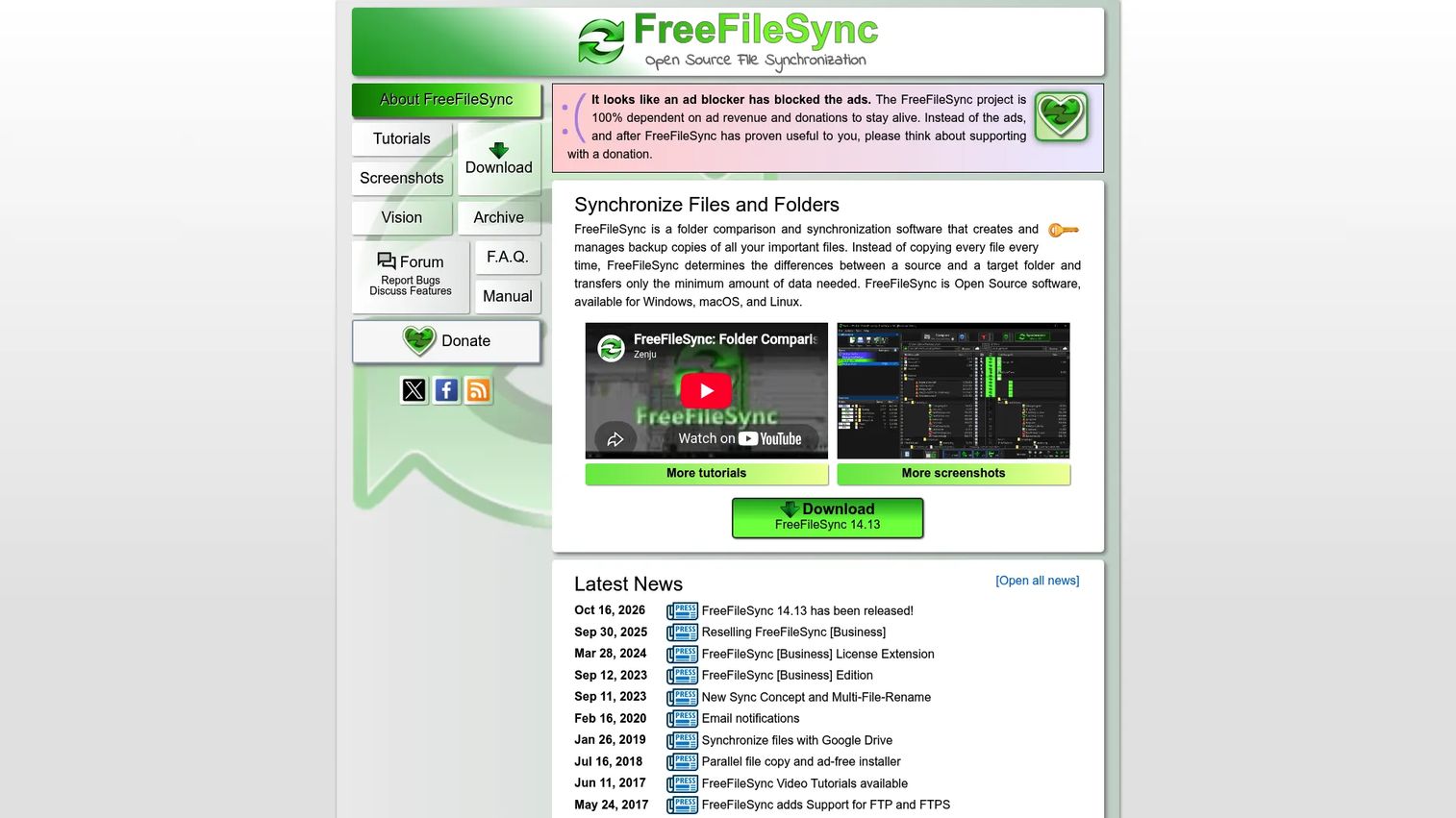
FreeFileSync is an open-source file synchronization utility for comparing folders and moving changes between storage locations. It supports local disks, network shares, cloud folders, and mobile devices.
The visual comparison view helps operators inspect proposed changes before running a job. That visibility matters when syncing executive materials or customer data.
Best for: Founders and technical operators seeking freeware file sync without adopting a cloud collaboration suite.
Key features
- Two-way, mirror, update, and custom modes
- Visual folder comparison
- Batch jobs and scheduled automation
- File versioning and deleted-file history
- Windows, macOS, and Linux support
Why choose FreeFileSync: It offers strong control without a recurring subscription. Pick it for folder-level movement rather than team document governance.
FreeFileSync pricing: Standard is free for private use. Business costs €20 per device as a one-time purchase.
G2 rating
N/A
2. Syncthing
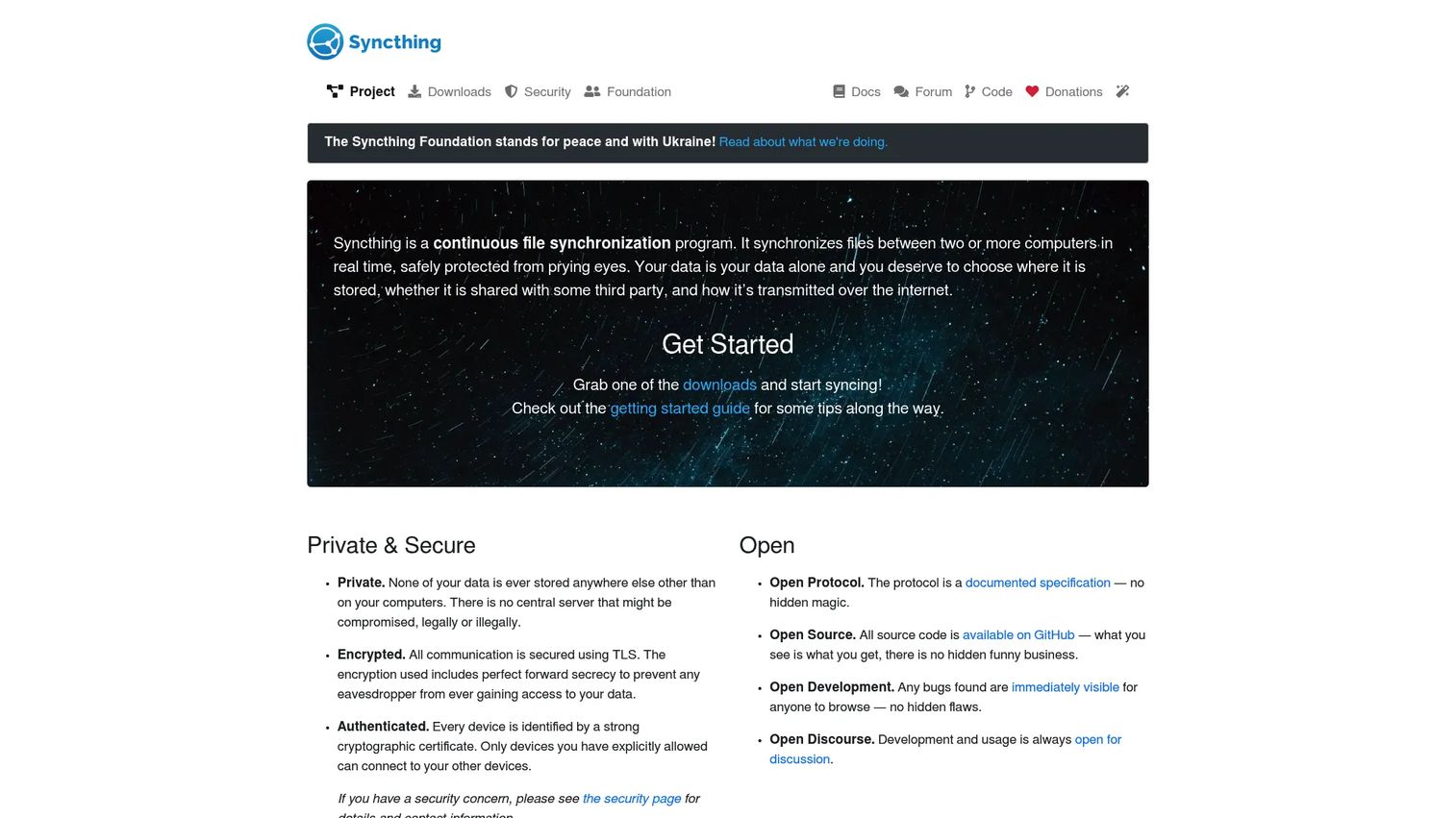
Syncthing continuously synchronizes files between trusted computers. Data moves directly between devices rather than residing with a central cloud storage provider.
The software uses encrypted communication and cryptographic device certificates. A browser interface handles device connections and folder configuration.
Best for: Technical teams that want privacy-first peer-to-peer sync across devices they control.
Key features
- Peer-to-peer file synchronization
- TLS-encrypted communication
- Cryptographic device authentication
- Browser-based administration
- LAN and internet synchronization
Why choose Syncthing: It gives your team direct control over storage locations. The model fits privacy-sensitive workflows with internal technical ownership.
Syncthing pricing: Syncthing is free and open source. The project accepts donations.
G2 rating
N/A
3. GoodSync
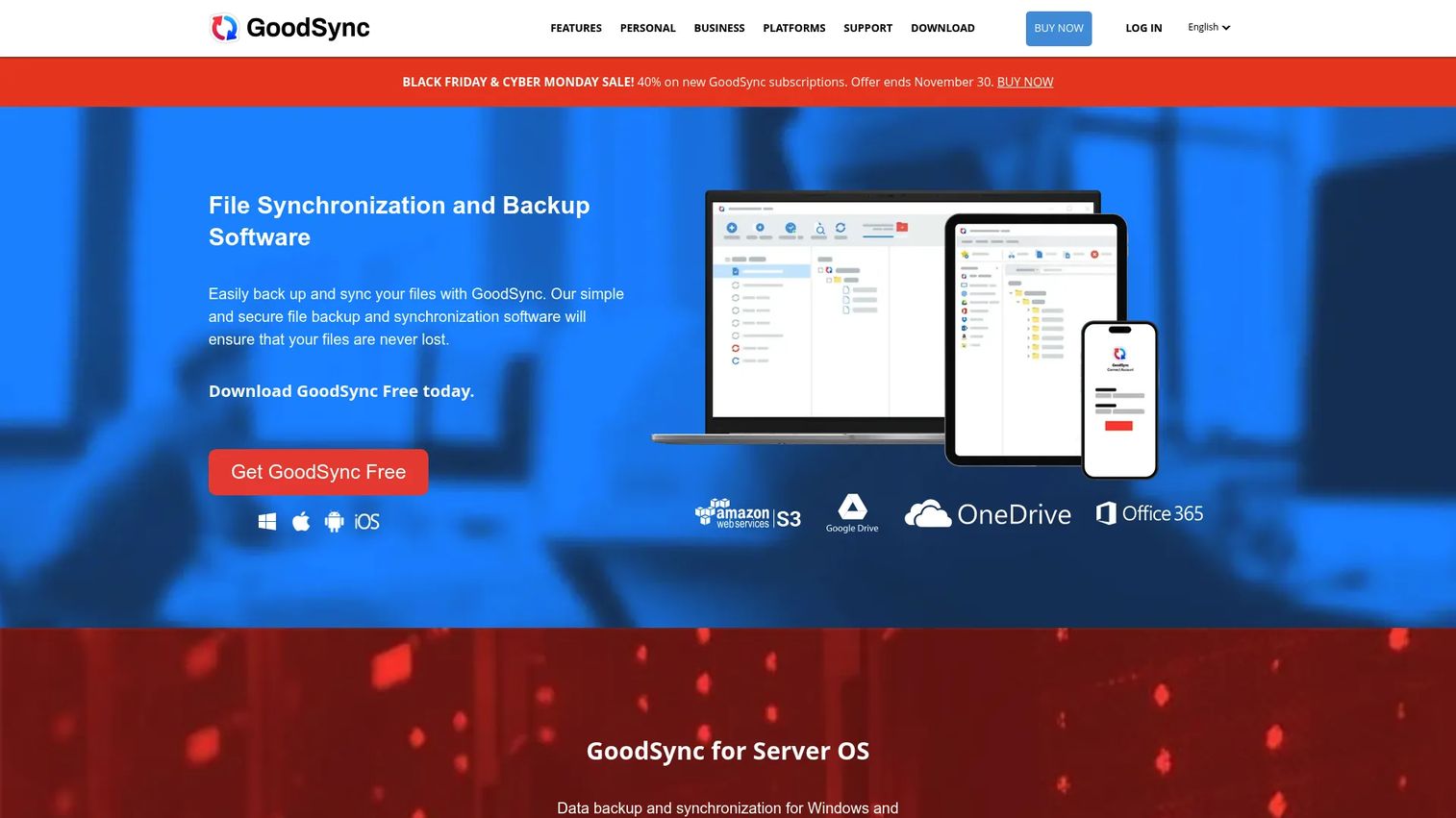
GoodSync combines file synchronization with backup across computers, servers, NAS devices, and cloud services. Teams can configure scheduled jobs or monitor locations for changes.
It supports both one-way backup and two-way file synchronization. That breadth suits companies replacing several isolated scripts with one managed product.
Best for: Businesses needing scheduled sync and backup across mixed storage environments.
Key features
- Automated and scheduled jobs
- One-way backup
- Two-way synchronization
- Block-level data transfer
- AES-256 end-to-end encryption
Why choose GoodSync: It brings business packaging to a workflow often handled by separate utilities. Consider it when your new IT owner needs repeatable jobs across varied infrastructure.
GoodSync pricing: A free personal version supports three jobs and 100 files. Workstation starts at $59.95 yearly, while Server costs $499.95 yearly.
G2 rating
N/A
4. Resilio Sync
Resilio Sync uses peer-to-peer architecture to synchronize files across personal devices. Transfers avoid a central cloud store and work across major desktop and mobile platforms.
Selective Sync creates placeholder files, then downloads content when requested. Bandwidth controls help teams manage large transfers across distributed endpoints.
Best for: Teams moving large files between offices, personal devices, or remote locations.
Key features
- Peer-to-peer file transfer
- Selective Sync placeholders
- Folder permission controls
- Bandwidth scheduling
- Desktop and mobile support
Why choose Resilio Sync: It suits large distributed transfers where cloud upload bottlenecks cause delays. Media and engineering workflows are natural fits.
Resilio Sync pricing: Sync Free costs $0. Sync v3 includes features previously sold through Sync Pro at no charge.
G2 rating
4.3/5
5. SyncBack
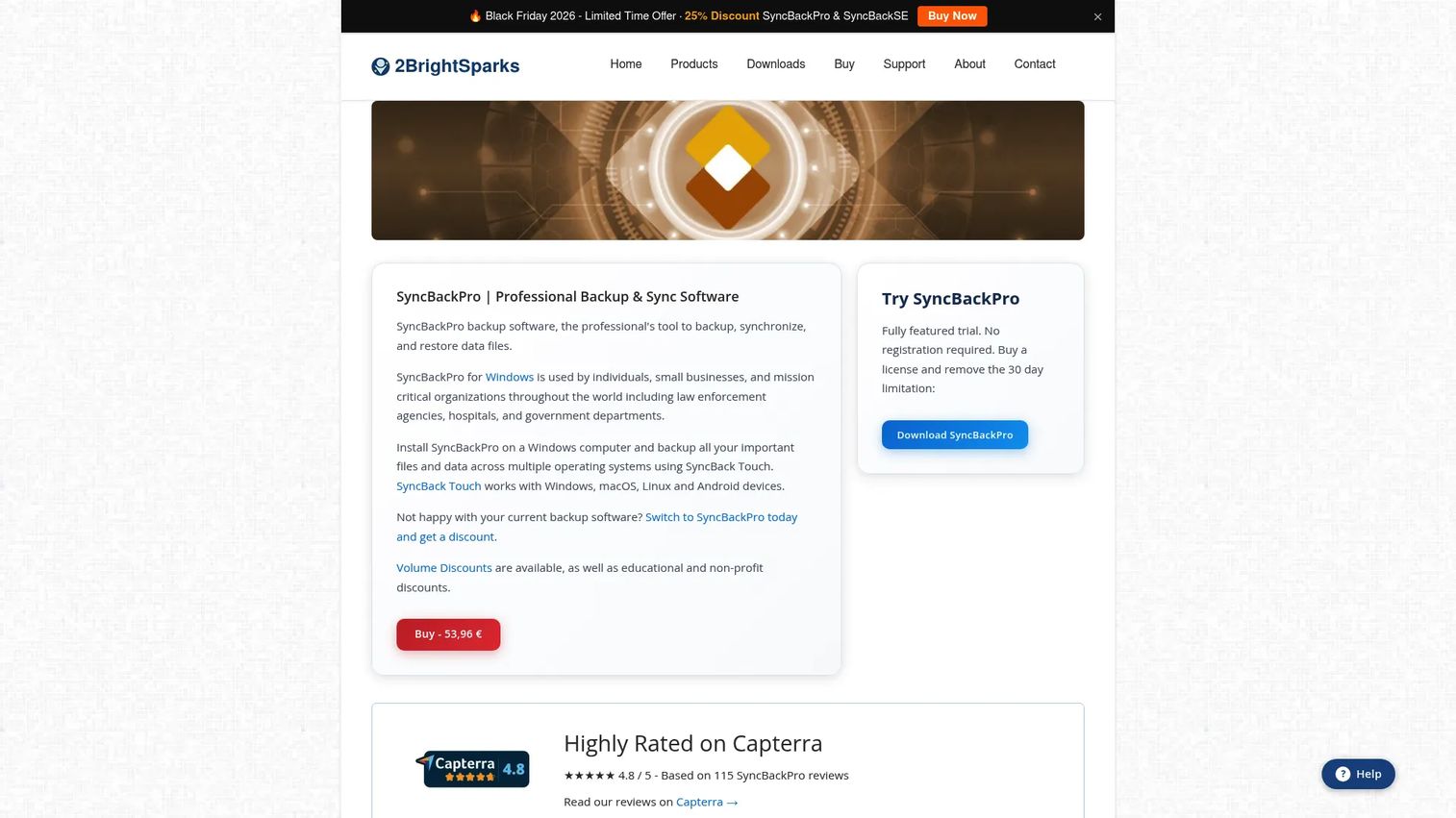
SyncBack is Windows backup and synchronization software built around configurable profiles. Each profile can define a backup, mirror, synchronization, or restore workflow.
Paid editions add cloud storage connections, scripting, and more advanced controls. The product fits Windows-heavy environments that want configuration without writing every job from scratch.
Best for: Teams standardizing repeatable sync and backup routines across Windows machines.
Key features
- Backup and mirror profiles
- Scheduled synchronization
- Versioning and compression
- FTP and SFTP connections
- Scripting in SyncBackPro
Why choose SyncBack: Its profile model gives operators granular control over recurring jobs. It has a narrower platform fit than cross-platform alternatives.
SyncBack pricing: SyncBackFree is free. SyncBackSE and SyncBackPro use paid perpetual licenses.
G2 rating
N/A
6. Beyond Compare
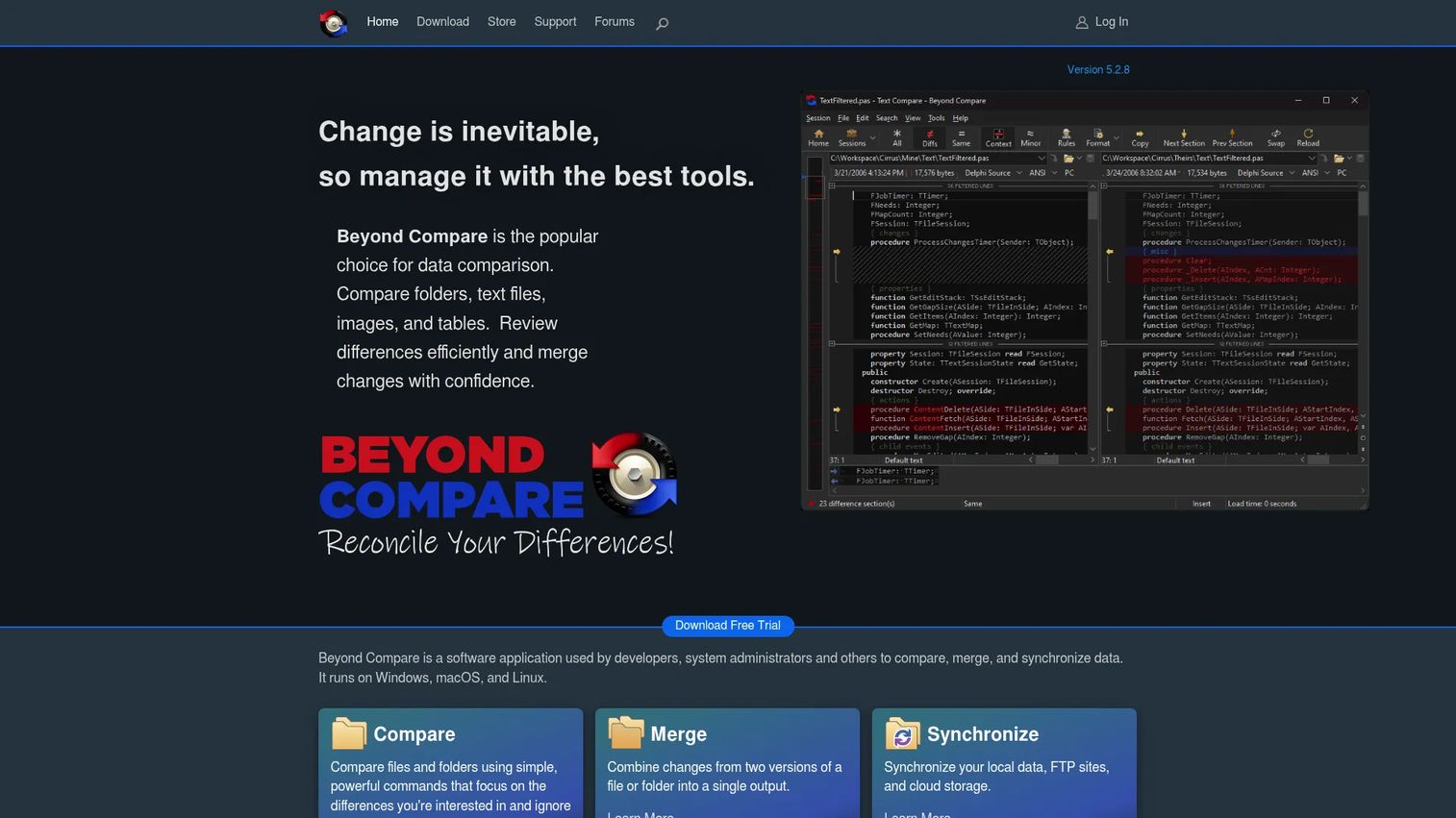
Beyond Compare compares files and folders before merging or synchronizing them. Its side-by-side interface helps users inspect differences instead of copying changes blindly.
Beyond Compare also handles images, table data, archives, and binary files. Pro adds three-way merging alongside other advanced functions.
Best for: Developers and operators who need visual confirmation before synchronizing important changes.
Key features
- Side-by-side folder comparison
- File comparison and reporting
- Two-way and three-way merging
- Local and remote synchronization
- Specialized data views
Why choose Beyond Compare: Choose it when the main risk is approving the wrong version. It prioritizes inspection over unattended infrastructure automation.
Beyond Compare pricing: Standard costs $35 per user once. Pro costs $70 per user once, and evaluation access is available.
G2 rating
4.6/5
7. Unison
Unison is a free file synchronization utility for keeping two replicas aligned. It runs across Windows, Unix, macOS, and other compatible systems.
The software propagates changes in both directions and detects conflicting edits. Transfers can run over SSH or direct TCP connections.
Best for: Technical teams needing precise two-way synchronization across operating systems.
Key features
- Bidirectional file synchronization
- Conflict detection
- SSH and TCP transport
- Bandwidth-efficient transfers
- Filesystem monitoring mode
Why choose Unison: It provides direct cross-platform control without a hosted service. Your team must be comfortable owning configuration and maintenance.
Unison pricing: Unison is free under the GNU General Public License, Version 3.
G2 rating
N/A
8. rclone
rclone is open-source command-line software for managing files across local systems and cloud storage. It can copy, move, check, sync, or mount supported storage backends.
Teams use rclone for infrastructure automation, migrations, encrypted backups, and cloud-to-cloud data movement. A web interface is available, though the command line remains central.
Best for: Technical operators syncing files across multiple cloud or object storage services.
Key features
- Copy, sync, move, and check commands
- Cloud storage mounting
- Client-side encryption option
- Bandwidth controls
- HTTP, WebDAV, FTP, and SFTP serving
Why choose rclone: Its broad storage coverage makes it useful for infrastructure work. Choose another product if nontechnical teams need shared document workflows.
rclone pricing: rclone is free and open source. The project accepts donations.
G2 rating
N/A
9. rsync
rsync is an open-source utility for incremental file transfer and synchronization. Its delta-transfer algorithm sends changed file sections instead of retransmitting each complete file.
Engineering teams commonly use it inside scripts for server backups, directory mirroring, and remote transfers. It works through SSH, direct sockets, or rsync daemons.
Best for: Engineering teams managing Linux servers, remote folders, and scripted infrastructure jobs.
Key features
- Delta-transfer algorithm
- SSH and socket transport
- Directory tree synchronization
- Metadata preservation
- Scriptable command-line operation
Why choose rsync: It delivers efficient server-level movement with little overhead. It assumes technical ownership and provides no mainstream collaboration interface.
rsync pricing: rsync is free under the GNU General Public License.
G2 rating
N/A
10. Nextcloud
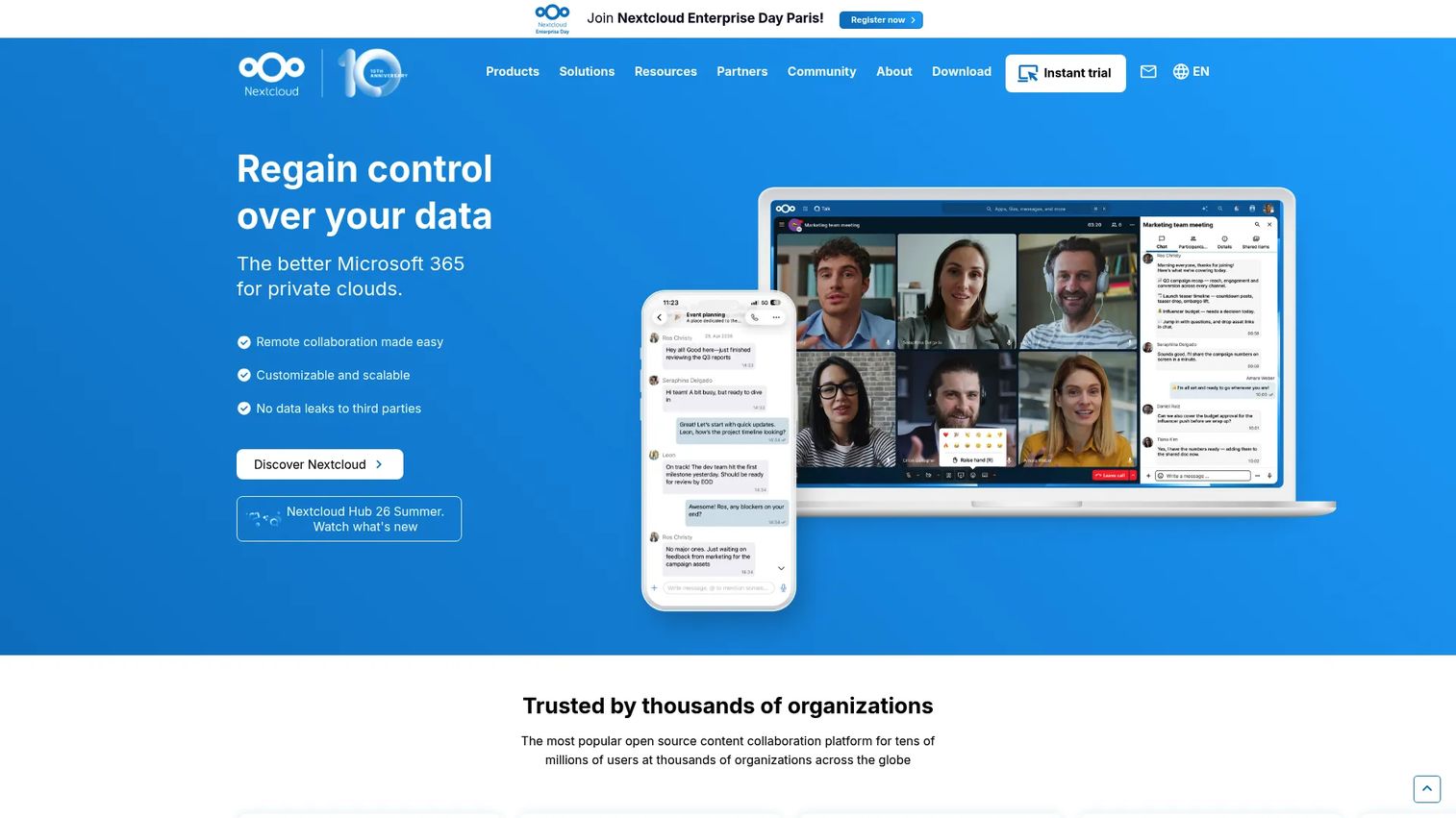
Nextcloud is a self-hosted collaboration platform with file storage and synchronization at its core. Web, desktop, and mobile clients connect users to privately controlled infrastructure.
The platform extends beyond file sync into document editing, communication, and workflow tools. Administrators also get access controls, audit logs, and directory integrations.
Best for: Organizations wanting private cloud collaboration with infrastructure ownership.
Key features
- Web, desktop, and mobile clients
- File sharing and synchronization
- Collaborative document editing
- Access controls and audit logs
- Directory service integration
Why choose Nextcloud: It can replace several cloud productivity components under a self-hosted model. Budget for infrastructure administration and ongoing ownership.
Nextcloud pricing: Enterprise subscriptions start at €42 per user yearly. Published plans for at least 100 users start at €71.29 per user yearly.
G2 rating
4.4/5
11. Seafile
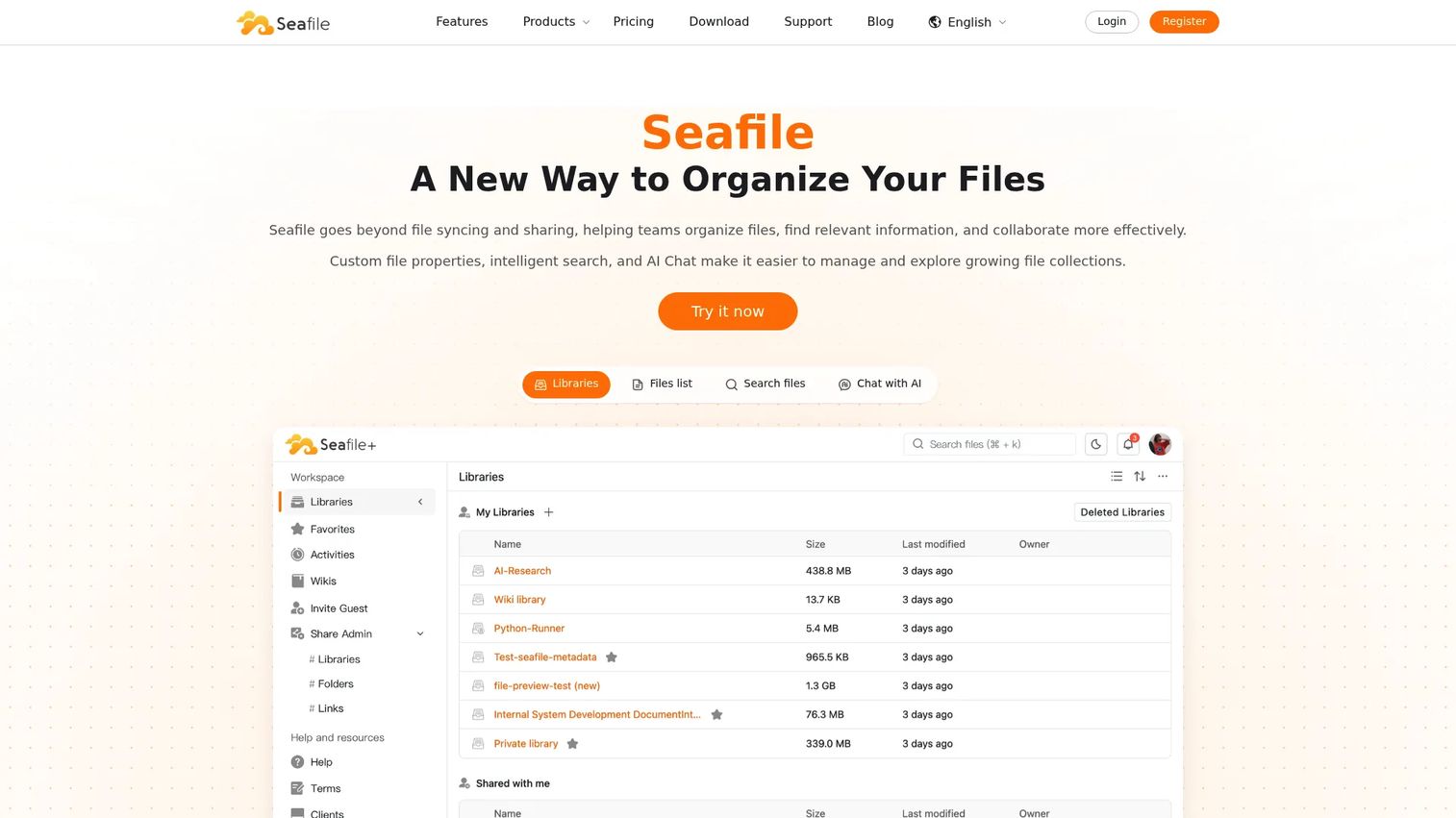
Seafile combines file synchronization, storage, sharing, and document collaboration. Teams organize content into libraries, then assign granular file or folder permissions.
Deployment options include self-hosting and cloud plans. Version history and audit logs support controlled collaboration across business teams.
Best for: Teams seeking fast, self-hosted file sync with library-based collaboration.
Key features
- Cross-platform file synchronization
- File libraries
- Granular sharing permissions
- Version history and audit logs
- Client-side encryption
Why choose Seafile: It fits teams prioritizing file performance and controlled sharing. Its scope stays more focused than a broad productivity suite.
Seafile pricing: Community Edition is free. Professional is free for three users, then starts at $48 per user yearly for 10 to 249 users.
G2 rating
4.4/5
12. Dropbox

Dropbox is a cloud storage platform for syncing, sharing, backing up, and collaborating on files. Its familiar desktop experience reduces adoption work for distributed business teams.
Dropbox also includes file recovery, transfer tools, content collaboration, and team administration. It works well when the company wants managed document sync without running infrastructure.
Best for: Teams that value familiar cloud document sync and quick employee adoption.
Key features
- Cloud storage and file sync
- Shared folders
- File backup and recovery
- Team administration
- Content collaboration
Why choose Dropbox: It gives a new leader a familiar system on day one. Check whether it replaces current storage before adding another content repository.
Dropbox pricing: Basic is free with 2 GB. Plus starts at $9.99 monthly, while Standard costs $15 per user monthly.
G2 rating
4.4/5
13. Google Drive
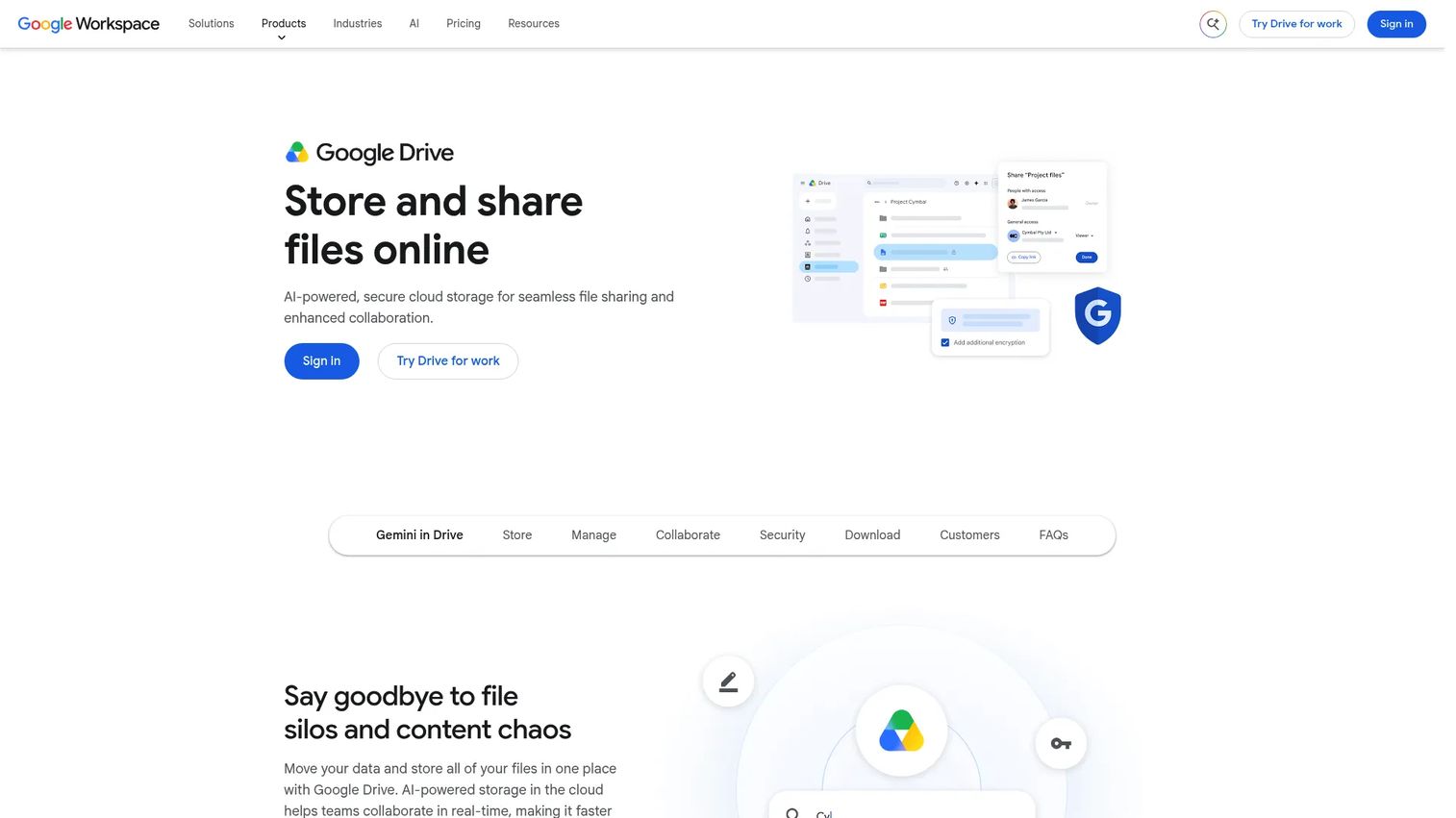
Google Drive provides cloud storage and file collaboration through Google Workspace. Drive for desktop synchronizes or streams content across Windows and macOS computers.
Shared drives keep team files separate from individual ownership. Native editing supports Google documents alongside Microsoft Office files, PDFs, and other common formats.
Best for: Companies already using Google Workspace as their document system.
Key features
- Drive for desktop
- Shared drives
- File streaming
- Configurable sharing permissions
- Native document collaboration
Why choose Google Drive: Existing Workspace teams avoid another login and permission model. It fits everyday collaboration better than server automation.
Google Drive pricing: Personal accounts include 15 GB free. Workspace Business Starter costs $7 per user monthly, while Standard costs $14.
G2 rating
N/A
14. OneDrive
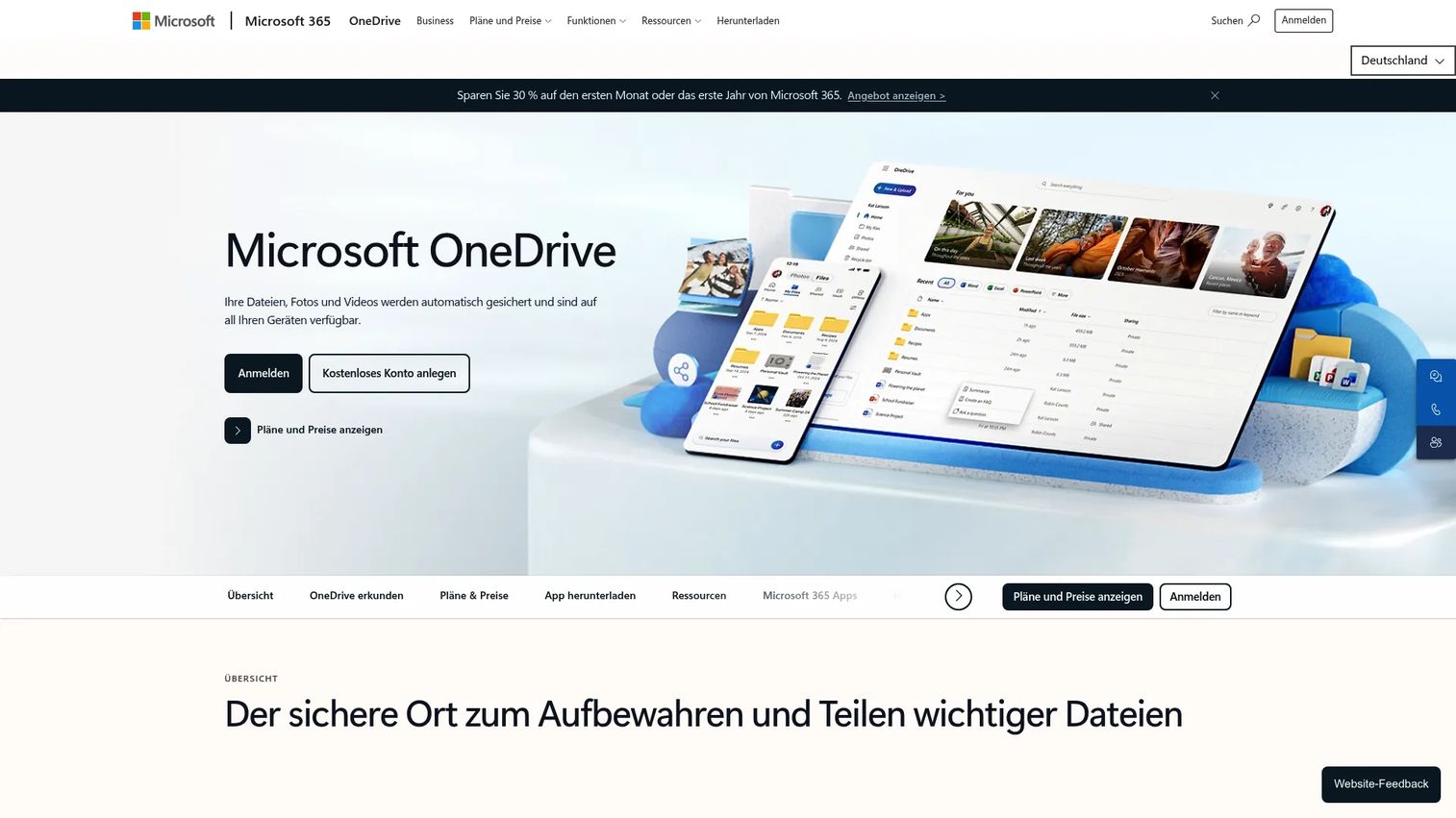
OneDrive is Microsoft’s cloud storage service for accessing and sharing files across devices. It fits naturally into Microsoft-centric working environments.
The service includes device backup, file recovery, and collaborative sharing. Personal Vault adds identity-verified protection for sensitive files.
Best for: Teams already standardized on Microsoft products and Windows devices.
Key features
- Cross-device file backup
- File sharing and collaboration
- Ransomware detection
- File recovery
- Personal Vault protection
Why choose OneDrive: It keeps document storage within an existing Microsoft account model. This can reduce stack sprawl for companies already paying for Microsoft services.
OneDrive pricing: The free plan includes 5 GB. Microsoft 365 Basic costs $19.99 yearly, with a $1.99 monthly option.
G2 rating
N/A
15. Egnyte

Egnyte combines enterprise file collaboration with security and governance controls. Its scope includes file sharing, ransomware detection, recovery, and content lifecycle management.
Granular permissions and audit reporting give administrators visibility beyond a basic cloud drive. That control fits teams facing customer diligence or regulated data requirements.
Best for: Scaling companies that need file sync inside a broader governance strategy.
Key features
- Secure file collaboration
- Granular permissions
- Audit reporting
- Ransomware detection
- Snapshot recovery
Why choose Egnyte: It gives security-conscious teams stronger administrative oversight. The added controls cost more than mainstream document sync products.
Egnyte pricing: Business starts at $22 per user monthly, billed annually. Enterprise Lite starts at $39, while Elite starts at $48.
G2 rating
4.4/5
16. Tresorit
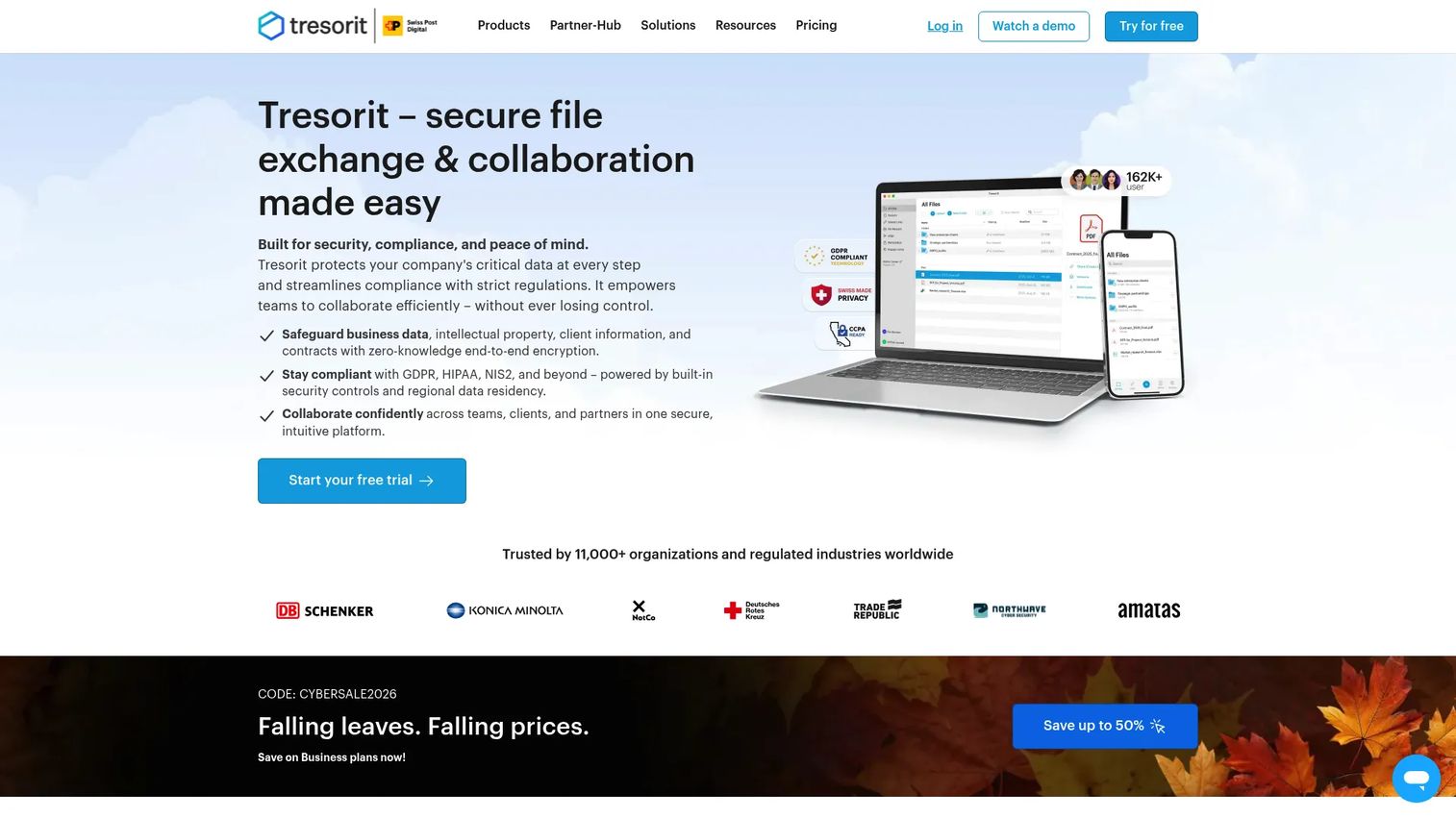
Tresorit is an encrypted cloud platform for storing, synchronizing, and sharing confidential files. Zero-knowledge end-to-end encryption protects content throughout its lifecycle.
Administrators can control sharing links, policies, SSO, and audit records. Version history and deleted-file restoration support recovery after accidental changes.
Best for: Teams prioritizing encrypted external sharing and administrative control.
Key features
- Zero-knowledge end-to-end encryption
- Controlled file sharing
- Data residency options
- Version history
- Administrative policies and audit logs
Why choose Tresorit: It fits security-heavy collaboration where basic shared links create concern. Assess migration work before replacing an established document platform.
Tresorit pricing: Custom pricing covers Professional, Business, Business Pro, and Enterprise plans. Business requires at least three users.
G2 rating
4.5/5
17. Syncovery
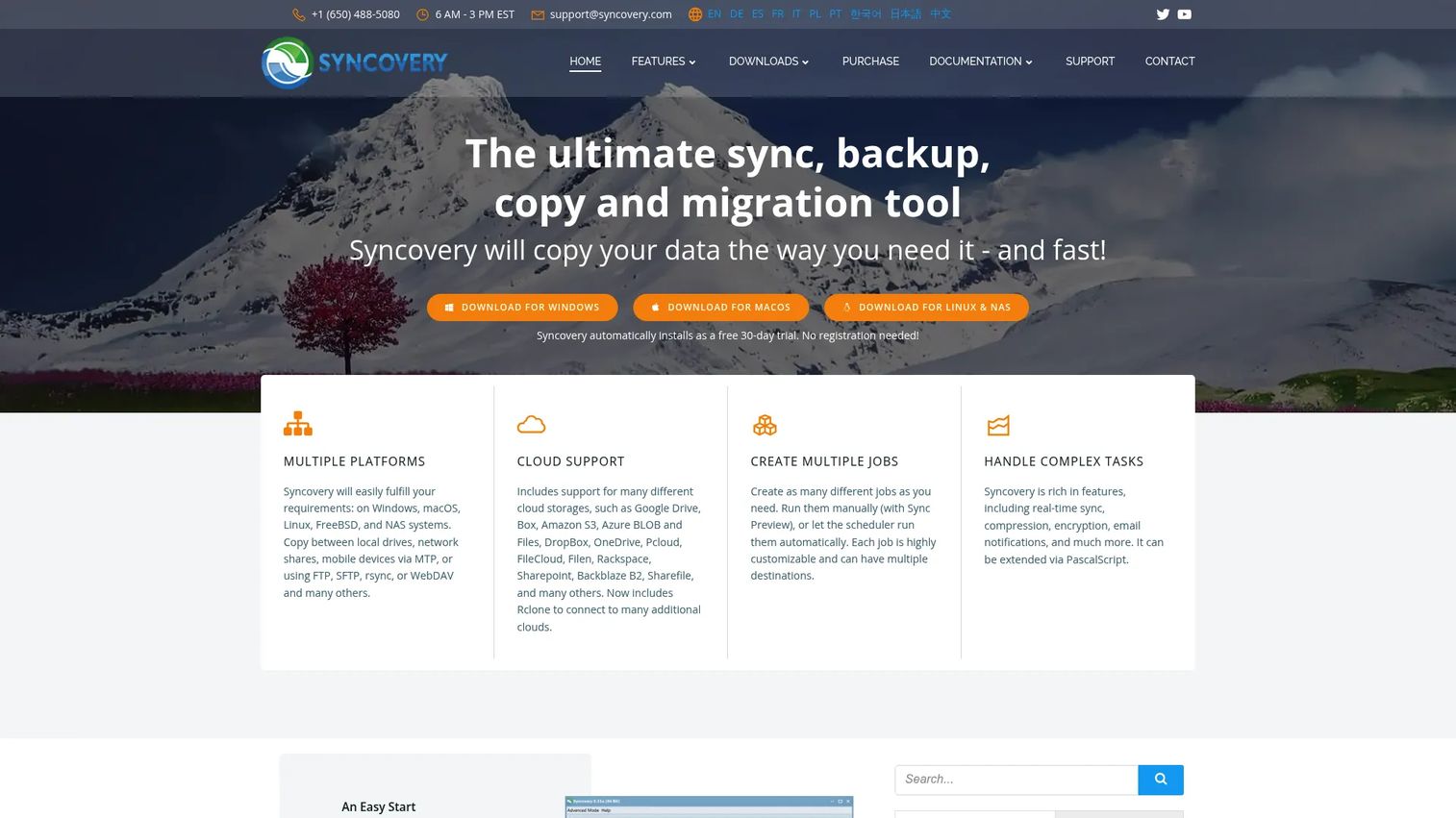
Syncovery handles file synchronization, backup, migration, and cloud-to-cloud copying. It supports computers, servers, NAS systems, and many cloud storage targets.
Operators can configure one-way jobs or two-way synchronization. SmartTracking and Exact Mirror modes provide deeper control over job behavior.
Best for: Technical operators who need granular automation across varied storage systems.
Key features
- One-way and two-way synchronization
- SmartTracking and Exact Mirror modes
- Scheduled and real-time jobs
- Cloud and network storage support
- FTP, SFTP, and WebDAV connections
Why choose Syncovery: It models workflows that a basic cloud drive cannot handle. Its configuration depth assumes a clear technical owner.
Syncovery pricing: Standard starts at $39.90 for private use or $99.90 for business use. A 30-day trial is available.
G2 rating
N/A
Considerations when choosing file sync software
Choose the sync model before the vendor
Map where files start, where they must go, and who edits them. Then choose between local folder sync, peer-to-peer movement, cloud collaboration, or an enterprise file platform.
This prevents buying a broad suite for a narrow backup job. It also avoids forcing a technical utility onto teams that need document collaboration.
Treat delete propagation as a business risk
Synchronization can spread mistakes quickly. Check version history, restore windows, deletion rules, and audit records before rollout.
Run a deletion test using noncritical data. Your recovery process should work without the founder calling the original implementer.
Check conflict handling before rollout
Learn how the system handles simultaneous edits, file locks, renames, and name collisions. These behaviors matter more than a polished interface once several teams share content.
Document the escalation path for unresolved conflicts. Ownership becomes critical during finance closes or board preparation.
Decide who owns the data
Compare vendor-hosted storage with self-hosting or peer-to-peer architecture. Review encryption, administrator access, endpoint trust, and residency requirements.
The buying decision should survive investor diligence and customer security review. Record the reasoning instead of leaving it in someone’s memory.
Price the operating cost, not only the license
Include storage fees, bandwidth, support time, backup policy, and employee training. A free tool becomes expensive when only one engineer understands it.
Ask what the product replaces. The best choice should reduce tools while increasing operational clarity.
Conclusion
Start with the workflow creating risk today.
FreeFileSync is the strongest starting point for free desktop folder synchronization. Syncthing and Resilio Sync fit peer-to-peer movement without central cloud storage.
GoodSync, SyncBack, and Syncovery cover backup and automation across mixed infrastructure. Technical teams can use rclone or rsync for scriptable storage jobs.
For everyday document sync, choose the platform that already matches your office stack. Dropbox supports broad adoption, while Google Drive and OneDrive align with their respective productivity environments.
Egnyte adds governance around enterprise content. Tresorit emphasizes encrypted storage and controlled external sharing.
Before buying, identify the files that create the most operational risk. That may be customer documents, investor materials, server backups, or shared team folders.
Then assign an owner, test recovery, and document the operating model. The right file sync software should work without founder intervention and remain understandable to the next leader.
FAQs
There’s no universal winner. FreeFileSync fits local folder synchronization, while Syncthing handles private device-to-device movement.
A cloud document platform usually works better for general team collaboration. Choose the product that matches the files and locations creating risk.
File sync keeps two or more locations aligned. If someone deletes a synchronized file, that deletion may spread to every connected location.
Backup preserves recoverable copies from earlier points in time. Most businesses need synchronization for daily work and backup for recovery.
FreeFileSync is a strong graphical option for local or network folders. Syncthing fits privacy-first device synchronization.
rclone and rsync serve command-line workflows, while Unison supports technical bidirectional sync. Choose according to interface needs, platform coverage, and internal skill.
Peer-to-peer architecture reduces dependence on a central cloud storage provider. Files move directly between trusted devices.
Security still depends on endpoint protection, device authentication, access discipline, and backups. Architecture alone doesn’t make the whole workflow safe.
GoodSync and Syncovery support NAS-oriented backup and synchronization workflows. rclone or rsync also fits technical environments with supported protocols.
Check scheduling, locked-file behavior, bandwidth controls, and recovery before committing. Compatibility varies across NAS operating systems and storage configurations.
Start with the files that create operating risk. Map where they live, who edits them, and how quickly the company must recover them.
Then evaluate ownership, permissions, version recovery, and leadership handoffs. A tool should reduce dependency on the person who first configured it.
Yes. Cloud storage products count when desktop clients keep local files aligned with hosted copies.
These platforms are collaboration-first. Utilities such as rsync and FreeFileSync focus more directly on data movement between defined locations.
Prioritize conflict handling, access control, version recovery, and selective synchronization. Administrative visibility and automation also matter as the company grows.
Check delete propagation before rollout. A sync engine that spreads mistakes quickly needs strong recovery controls.