You want to draw. Instead, you spend an afternoon installing apps, hitting export walls, and discovering the tool you liked does not run on your device. Then you start over.
That friction is real, and it costs more than time. The global digital drawing and sketching software market was valued at roughly USD 6.5 billion in 2023 and is projected to reach USD 13.8 billion by 2032 at an 8.5% CAGR, according to DataIntelo (2024). More tools ship every year, which sounds great until you have to actually pick one. Choice without a filter is just noise.
The filter is simple once you name it. The right drawing software depends on four things: what you pay, what device you draw on, how your files export and move between tools, and whether the app fits sketching, digital painting, illustration, or lighter browser-based work. Get those four right and the app disappears into the background, which is exactly what you want.
This guide compares seven drawing programs against those criteria. Whether you need free drawing software, a browser tab you can open on any machine, or a pro-grade digital art software workflow, the goal is to help you choose based on how you actually work, not on a feature list nobody reads. If you evaluate software the way you evaluate the rest of your stack, you already know the drill: does it fit, does it export cleanly, and does it replace something you already run. That same discipline works for digital adoption tools and it works here too.
What's inside
This list compares seven drawing software tools chosen for affordability, cross-device compatibility, core drawing controls, export support, collaboration, and the strength of each community and support ecosystem. It is written for people evaluating software for sketching, digital art, illustration, and lightweight online drawing.
We looked at how each tool prices its plans, which devices and styluses it supports, how brushes and layers behave, which file formats it exports, and how easy it is to share or collaborate on a drawing. Each pick names who it fits best so you can skip the ones that do not match your workflow.
TL;DR
- Best free and open-source option: Krita, for serious digital painting with deep brushes and no license fee.
- Best browser-based option: Sketchpad, for quick drawings you open in a tab on any machine.
- Best premium pro tool: Clip Studio Paint, for illustration, comics, and animation with cross-device support.
- Best iPad and mobile-first option: Procreate, for a smooth Apple Pencil workflow on the go.
- Best for design-team workflows: Canva Draw, for freehand sketching and annotation inside a broader design platform.
- Best beginner-friendly pick: Sketchbook, for a clean interface that gets you drawing fast on desktop or mobile.
What is drawing software?
Drawing software is a digital tool that lets you create artwork, sketches, illustrations, and paintings using brushes, layers, and editing controls on a computer, tablet, or phone. It replaces pen and paper with a canvas you can undo, resize, layer, and export.
Most drawing programs fall into a few categories. Raster painting apps work pixel by pixel and suit digital painting and detailed illustration. Vector-leaning tools keep lines crisp at any size. Sketching apps prioritize speed and a natural stylus feel. Browser-based drawing tools run in a tab with nothing to install. Lightweight online tools handle quick edits, annotations, and simple graphics without the depth of a full painting suite.
Whatever category you choose, expect a core set of capabilities:
- Brushes and pen controls: pressure, tilt, and stabilizers that make lines feel natural.
- Layers and editing tools: blend modes, masks, and non-destructive edits so you can rework without starting over.
- File import and export: PNG, JPEG, PDF, and often PSD or SVG so your work moves between tools.
- Device and stylus support: desktop, tablet, phone, and pen input like Apple Pencil or Wacom.
- Save, share, and collaboration features: cloud sync, shareable links, and in some tools real-time co-editing.
The mix you need depends on the work. A comic artist wants deep layers and panel tools. A marketer sketching a quick diagram wants a browser tab and a share link. Both are drawing software; they just live at different ends of the same category.
When to use drawing software
Not every project needs the same tool. Match the app to the job and you stop fighting the software.
For digital painting and illustration
Reach for a full-featured painting app when you care about brush depth, layer control, and serious creative output. Detailed character work, concept art, book covers, and finished illustrations all benefit from many brush engines, blend modes, and high-resolution canvases. If you plan to sell or print the work, you also want strong export options and color control. This is where tools like Krita, Clip Studio Paint, and Procreate earn their place.
For quick sketching and browser-based work
Sometimes you just need a canvas open in ten seconds. A lightweight online tool wins when you want no install, fast access from any machine, and a simple share link. Think of jotting a visual idea between meetings, marking up a screenshot, or teaching a concept live. You open a tab, draw, export a PNG, and move on. Sketchpad and Canva Draw fit this pattern well, especially when you need to hand the file to someone else fast.
For cross-device or mobile-first creation
Where you draw changes what you should pick. If you sketch on an iPad on the couch and finish on a desktop, cross-device support and cloud sync matter more than any single feature. Stylus support becomes the deciding factor: Apple Pencil, Wacom, or Surface Pen. Mobile-first artists who live on a tablet want an app built for touch and pressure, not a desktop tool squeezed onto a small screen. Procreate, Adobe Fresco, and Sketchbook all lean into this.
Comparison table
The list below is ordered by broad relevance to how people search for drawing software, not by raw popularity. Pricing and ratings reflect each vendor's current published information; confirm the latest figures before you commit.
| # | Product | Intent | Key use case | Pricing | G2 rating |
|---|---|---|---|---|---|
| 1 | Krita | Free / open-source | Digital painting and 2D animation with deep brushes | Free | 4.4/5 |
| 2 | Sketchpad | Browser-based | Quick drawings and graphics in a browser tab | Free web app; $4.99 desktop | 4.3/5 |
| 3 | Clip Studio Paint | Pro illustration | Illustration, comics, and animation workflows | From $0.99/month | 4.4/5 |
| 4 | Canva Draw | Collaborative | Freehand sketching inside a design platform | Free | 4.7/5 |
| 5 | Adobe Fresco | Tablet-first | Stylus painting with raster and vector brushes | Free; premium via Creative Cloud | 4.5/5 |
| 6 | Procreate | iPad-first | Mobile illustration with Apple Pencil | One-time App Store purchase | 4.9/5 |
| 7 | Sketchbook | Beginner-friendly | Lightweight sketching on desktop and mobile | Free; one-time premium bundle | - |
1. Krita
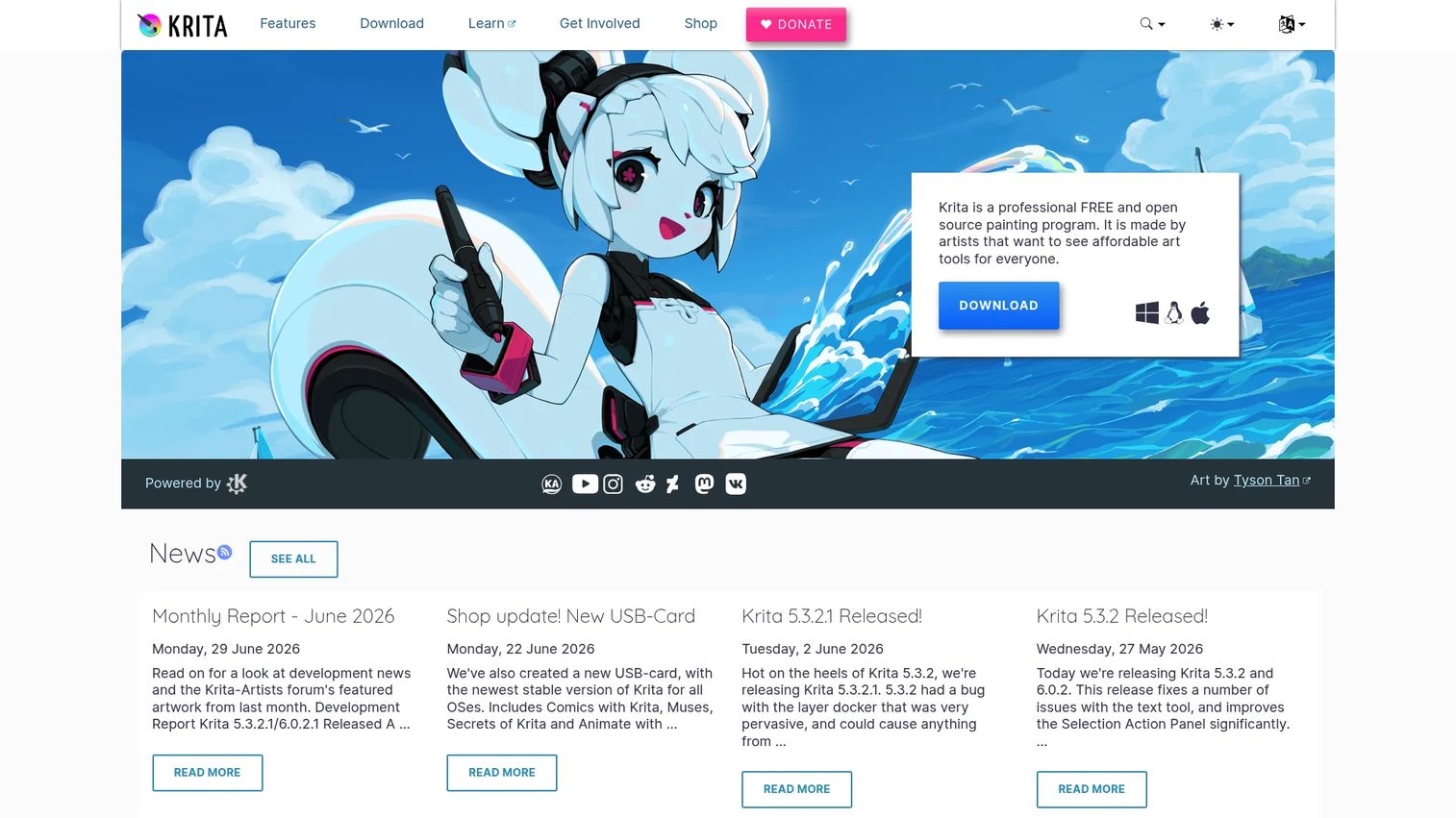
Krita is free and open-source digital painting and 2D animation software built by and for artists. It has been in active development for years, funded by a community and foundation rather than a subscription model. That means no license fee, no upsell prompts, and a customizable interface you can bend around the way you paint. It runs on Windows, macOS, and Linux, which makes it one of the few serious painting tools that does not leave Linux users out.
Best for: Digital artists who want professional painting and basic animation tools without paying a license fee.
Key strengths
- Deep brush engines: Many brush engines and stabilizers let you dial in exactly how a line feels, from inking to textured painting.
- Full layer and animation support: Layers, blend modes, masks, plus a timeline with onion skinning and audio for 2D animation.
- Truly free and cross-platform: No paywall on core features, and native builds for Windows, macOS, and Linux.
Why choose Krita: If you want a full painting suite and refuse to pay a subscription, Krita is the strongest option on this list. It suits illustrators, concept artists, and animators who value control and are comfortable learning a rich toolset. The trade-off compared to a polished commercial app is a slightly steeper first hour, but the community tutorials close that gap fast.
Krita pricing: Krita is free to download from the official site and free to use, including for commercial work. The project also offers paid builds on some app stores as a way to support development, but the core software costs nothing. There is no gated pro tier, so every brush and animation feature is available from day one.
2. Sketchpad
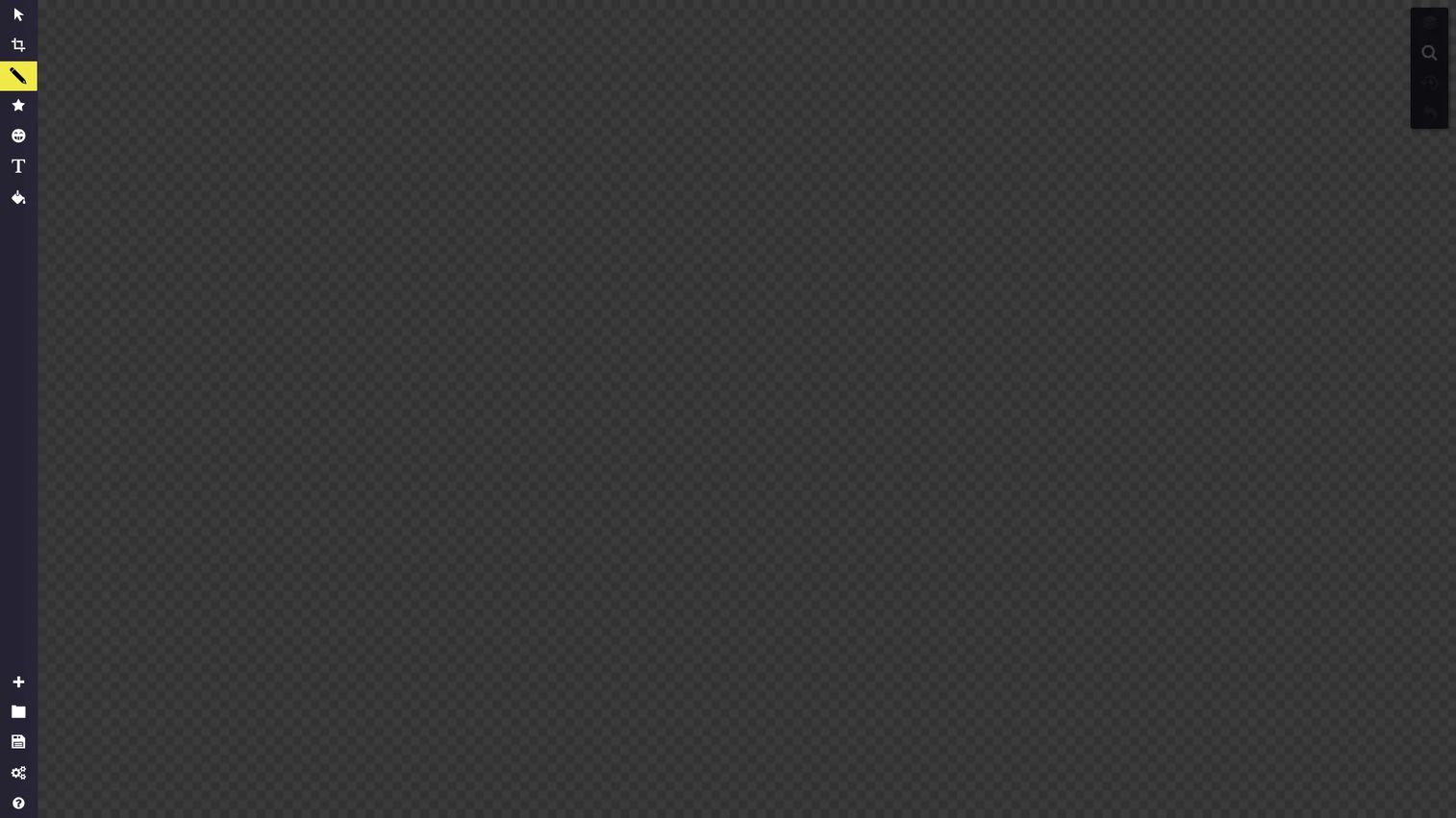
Sketchpad is a web-based drawing and design tool for creating graphics, infographics, drawings, and simple artwork. It runs in the browser, so there is nothing to install and nothing to update. You open a tab, drag in an image or start from a blank canvas, and get to work with brushes, shapes, text, and clipart. For quick jobs and teaching, that zero-friction access is the whole point.
Best for: Teachers, students, and anyone who wants a simple browser-based drawing tool with no setup.
Key strengths
- Full browser workflow: Brushes, shapes, text, clipart, and drag-and-drop image uploading, all in a tab.
- Layers and blend modes: Layers, history, colors, gradients, patterns, and blend modes give you more depth than most online tools.
- Clean export options: Export and share in PDF, PNG, and JPEG so your file moves wherever it needs to go.
Why choose Sketchpad: Choose Sketchpad when access speed matters more than brush depth. It fits classrooms, quick markups, and anyone who works across shared or locked-down machines where installing software is not an option. It is not built to replace a full painting suite, and it does not try to be. It nails the fast, shareable end of the workflow.
Sketchpad pricing: The web-based app is free and ad-free, which covers most casual and classroom use. A desktop app is available for a one-time fee of $4.99 and adds offline saving. There is no subscription, so once you buy the desktop version you own it.
3. Clip Studio Paint
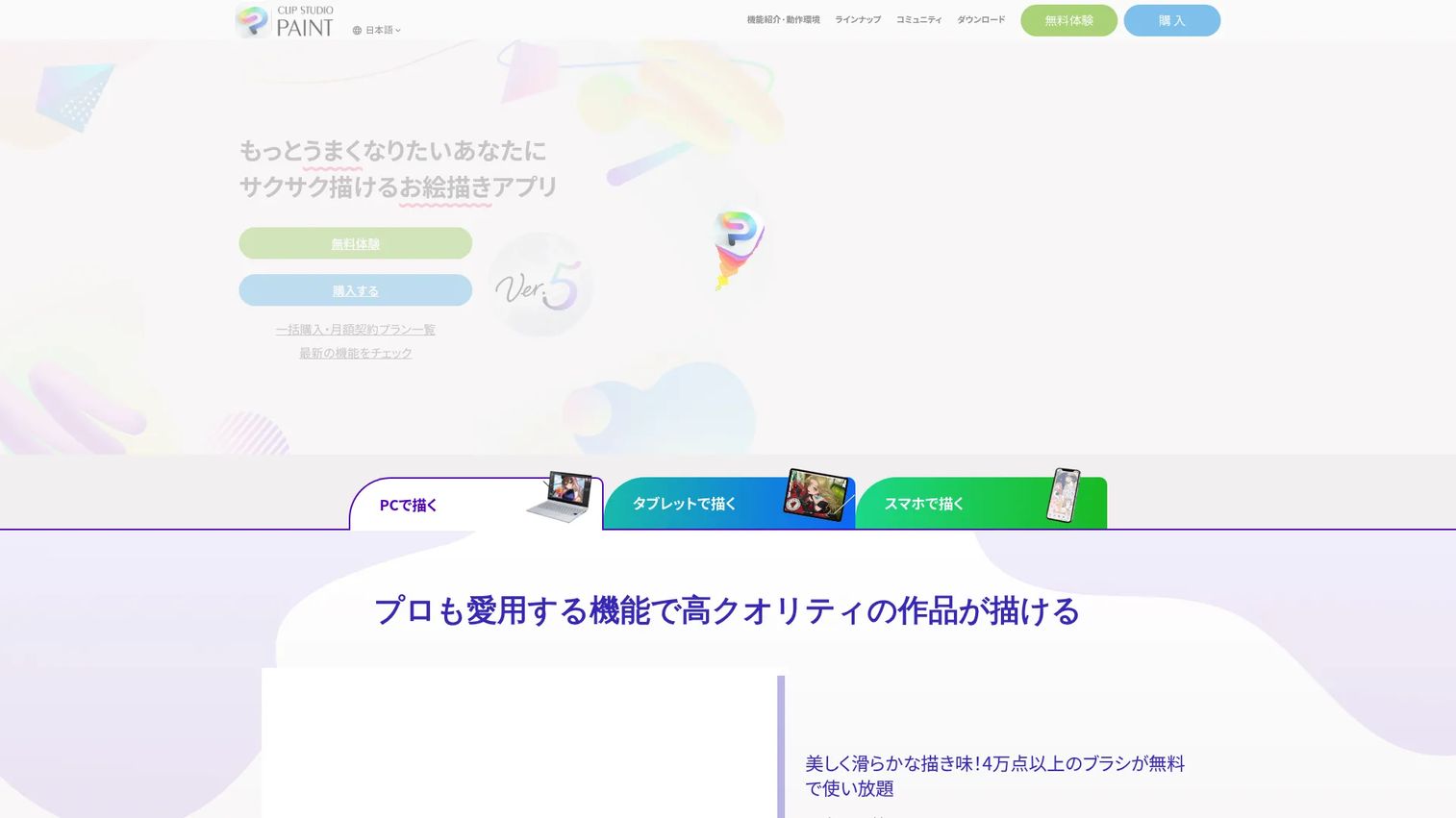
Clip Studio Paint is digital art software built for illustration, comics, animation, and design. It is the tool many professional illustrators and manga artists reach for because it pairs a deep brush system with dedicated tools for multi-page projects and paneling. If your work involves comics, webtoons, or animation on top of standalone illustrations, it covers all of it in one place.
Best for: Artists and studios creating illustration, comics or webtoons, and animation who want pro workflow tools.
Key strengths
- Brush-based painting depth: A rich set of drawing and painting tools with fine control over pressure and texture.
- Comic and multi-page tools: Panel, page, and manga-specific features purpose-built for comics and webtoons.
- Animation and storyboarding: Timeline animation and storyboard tools so you can move from still art to motion.
Why choose Clip Studio Paint: Choose it when illustration is your job, not just a hobby, and you want one app that spans comics, animation, and finished art. It runs across desktop and tablet, and the broader asset store and community give you brushes, materials, and tutorials to speed up production. If you only sketch occasionally, a lighter tool may fit better, but for serious illustration work the depth pays off.
Clip Studio Paint pricing: Plans start from $0.99 per month, with monthly and annual subscription options. You can also buy a 12-month license: US$26.99 for PRO and US$76.99 for EX. Perpetual licenses are available too, at US$63.00 for PRO Ver. 5.0 and US$277.00 for EX Ver. 5.0. A free tier lets you try the software before committing.
4. Canva Draw
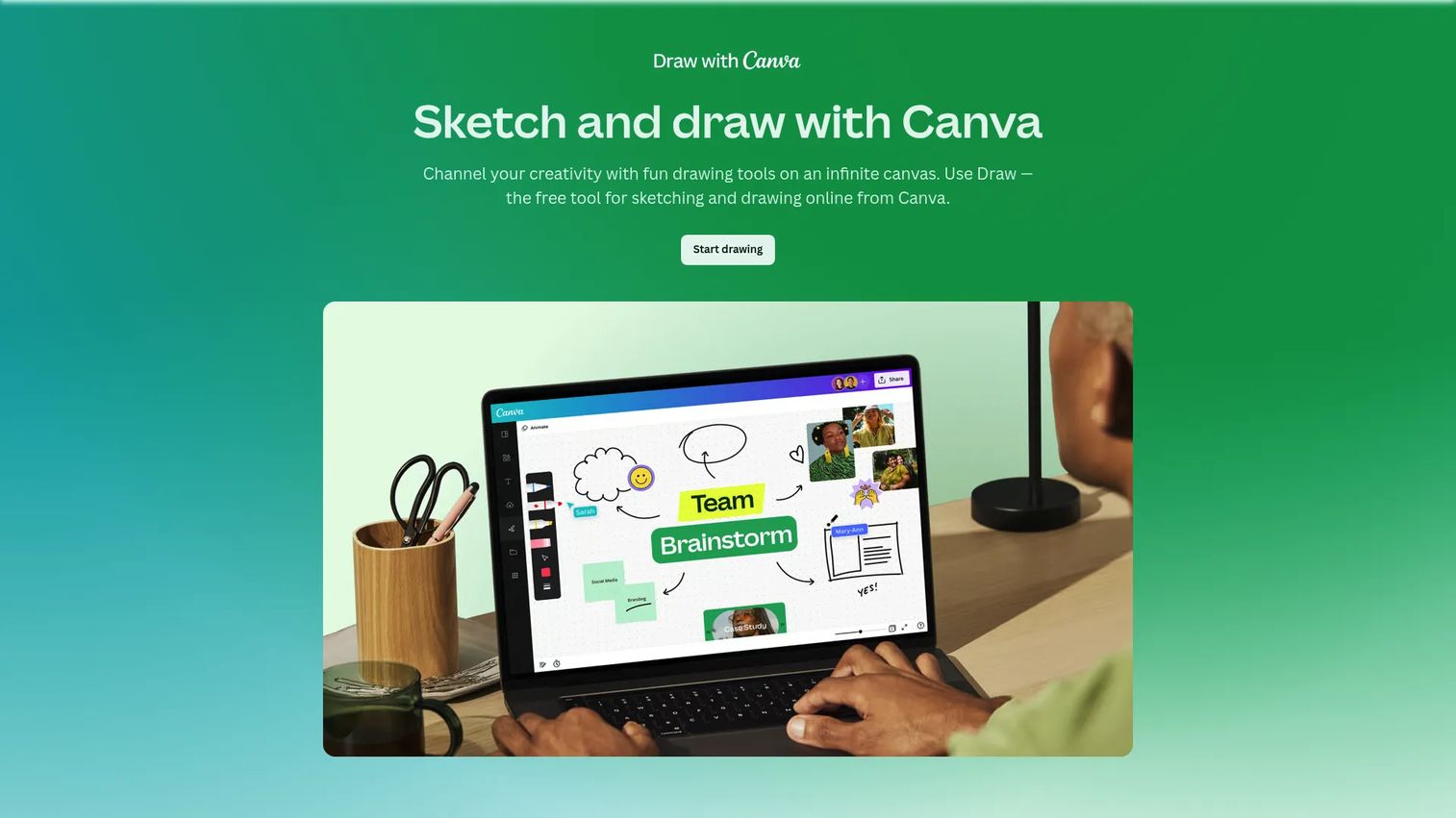
Canva Draw is Canva's free online drawing tool for sketching, annotating, and collaborating on an infinite canvas. It lives inside the broader Canva platform, so drawing sits next to templates, design assets, and everything else your team already uses. For quick freehand work, diagrams, and marking up designs, it removes the step of switching to a separate app.
Best for: Teams, students, and marketers who want quick freehand sketching and annotation inside their design workflow.
Key strengths
- Simple drawing tools: Pen, marker, highlighter, and eraser cover sketching, note-taking, and markup without a learning curve.
- Shape Assist: Smooths hand-drawn shapes into clean lines, which is handy for diagrams and flowcharts.
- Real-time collaboration: Multiple people can draw and annotate together, with export to PNG, JPG, and PDF.
Why choose Canva Draw: Choose it when collaboration and speed matter more than brush complexity. It fits marketers sketching a campaign idea, teams annotating a design, and students building visual notes. It is not a replacement for a dedicated painting suite, but if your work already lives in Canva, drawing in the same place is the easiest possible path.
Canva Draw pricing: Draw is free for all Canva users. The wider Canva platform offers paid plans if you need more: Pro runs US$144 per year, and Business is US$250 per year per person, with a free tier that covers most basic use. You do not need a paid plan to use Draw itself.
5. Adobe Fresco
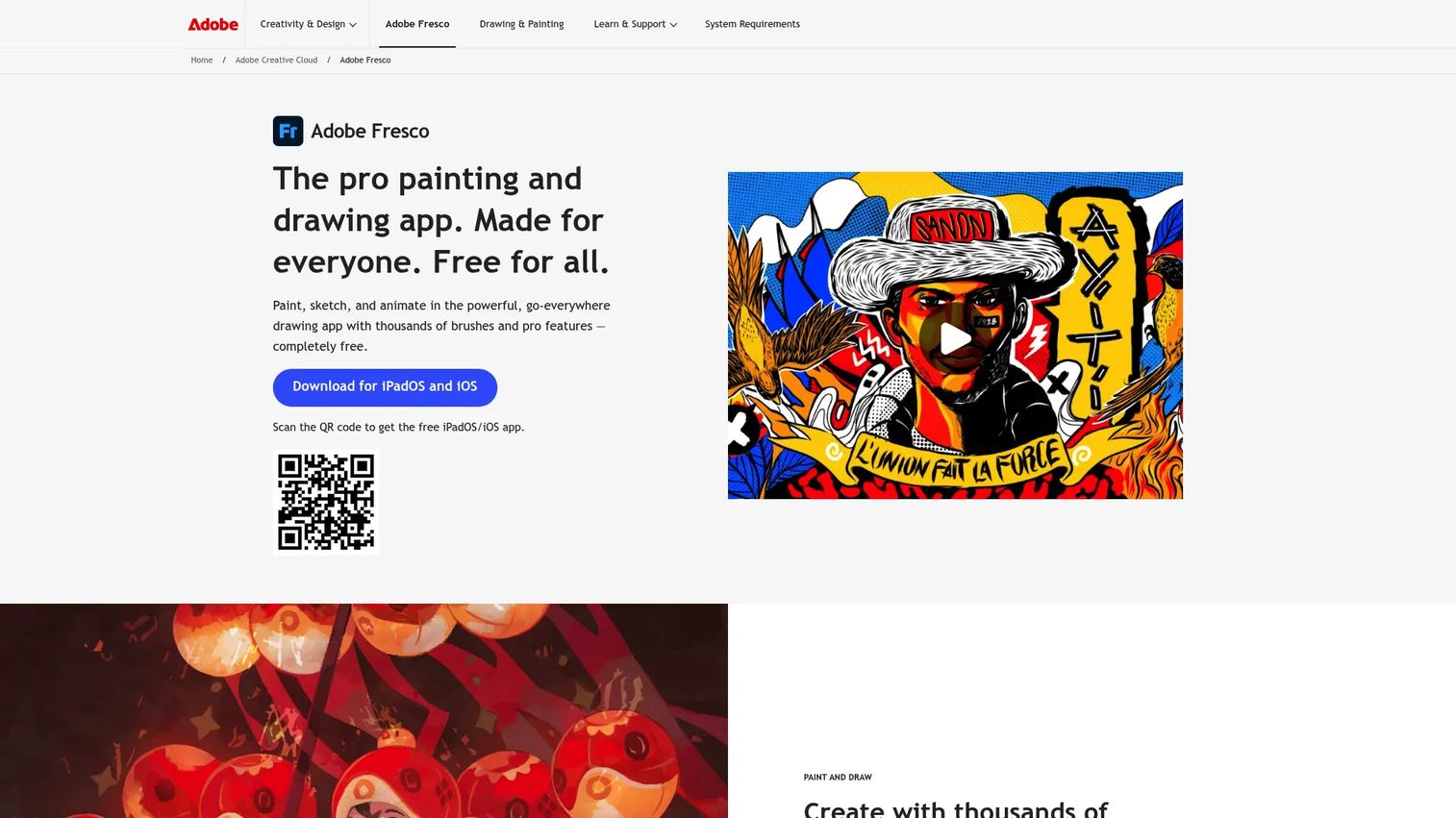
Adobe Fresco is Adobe's digital painting and drawing app built for touch and stylus devices. It is designed around the feel of drawing, with a huge brush library and tight integration into the Adobe ecosystem. If you already work in Photoshop or Illustrator, Fresco slots into that workflow through cloud documents and shared file support.
Best for: Illustrators and digital artists who want a stylus-first drawing app with premium brush and animation tools.
Key strengths
- Massive brush range: Thousands of raster, vector, and Live Brushes that react like real paint and ink.
- Built-in animation: Frame-by-frame and motion-path animation tools inside the same canvas.
- Adobe cloud continuity: Cloud documents plus Photoshop and Illustrator workflow support keep files moving across apps and devices.
Why choose Adobe Fresco: Choose it if you already live in Creative Cloud or you want a drawing feel tuned for Apple Pencil and other styluses. The cloud continuity means you can start on an iPad and open the same file on desktop. For artists outside the Adobe world, the ecosystem lock-in is worth weighing, but the drawing experience itself is excellent.
Adobe Fresco pricing: Fresco is free to start, with premium brushes and features unlocked through Creative Cloud plans. Individual plans run US$69.99 per month, students and teachers pay US$19.99 per month, and team plans are US$99.99 per month, each billed annually. The free version is enough to test whether the drawing feel suits you before paying.
6. Procreate
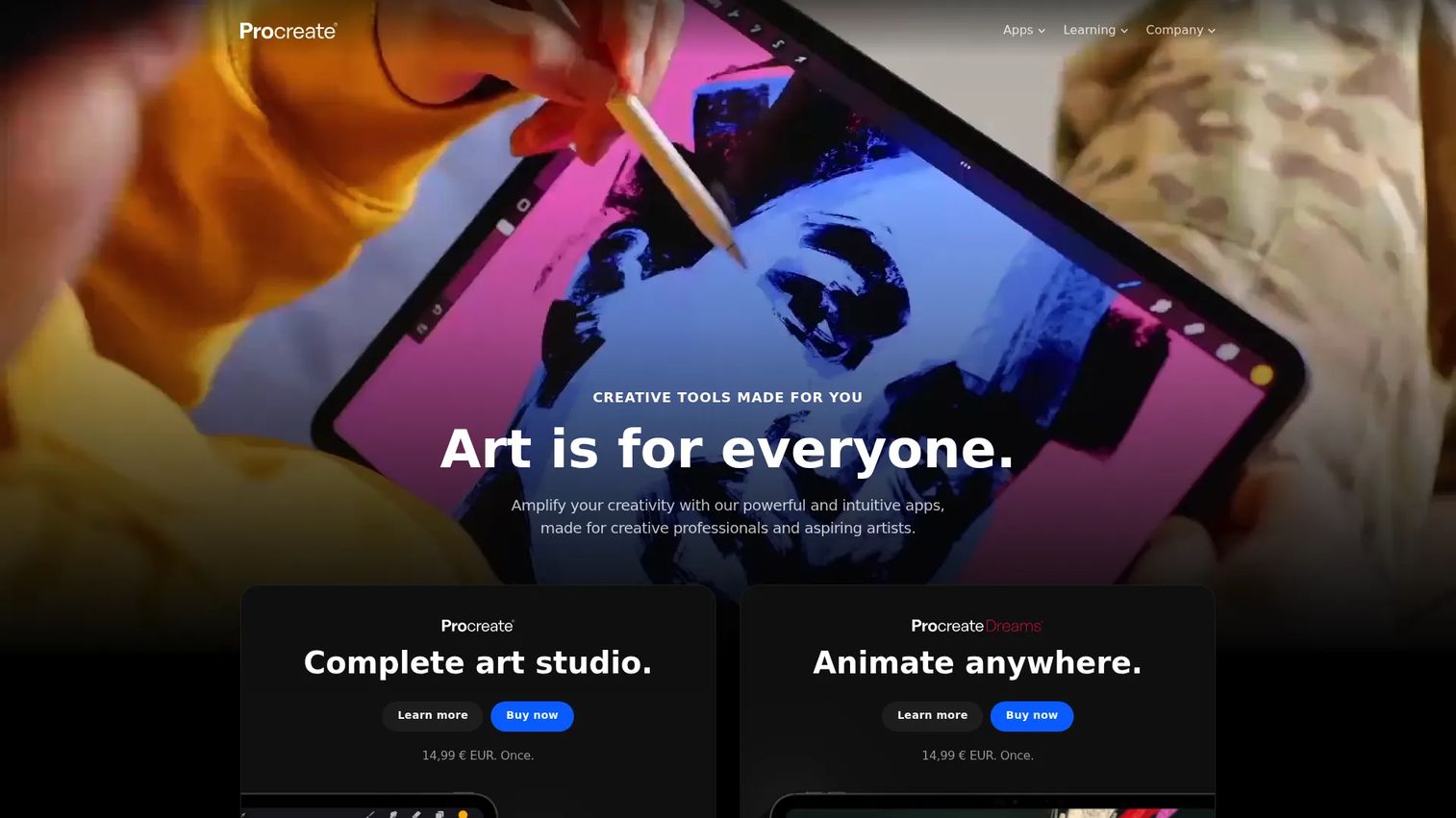
Procreate is iPad-first digital drawing and painting software with a devoted following among illustrators. It is built specifically for the iPad and Apple Pencil, which is why the drawing feel is so responsive. The interface stays out of the way, so you spend your time drawing rather than hunting through menus. For mobile-first artists, few tools match its combination of power and portability.
Best for: Independent artists and illustrators who create on an iPad and want a fast, portable workflow.
Key strengths
- Handcrafted brush library: Over 300 built-in brushes covering inking, painting, and texture, plus custom brush support.
- Apple Pencil tuning: Deep pressure and tilt response designed around the Apple Pencil for a natural feel.
- Animation and 3D: Animation Assist and 3D painting support extend it well beyond flat illustration.
Why choose Procreate: Choose it if the iPad is your main canvas and you want a smooth, distraction-free workflow you can take anywhere. The catch is platform: Procreate for iPad is exclusive to the App Store, so it is not a fit if you work primarily on Windows or Android. For iPad artists, that limitation is a non-issue and the app is hard to beat.
Procreate pricing: Procreate for iPad is a one-time purchase from the App Store with no subscriptions. You pay once and own it, including future updates within the version. That one-time model is a major reason artists favor it over subscription-based alternatives.
7. Sketchbook
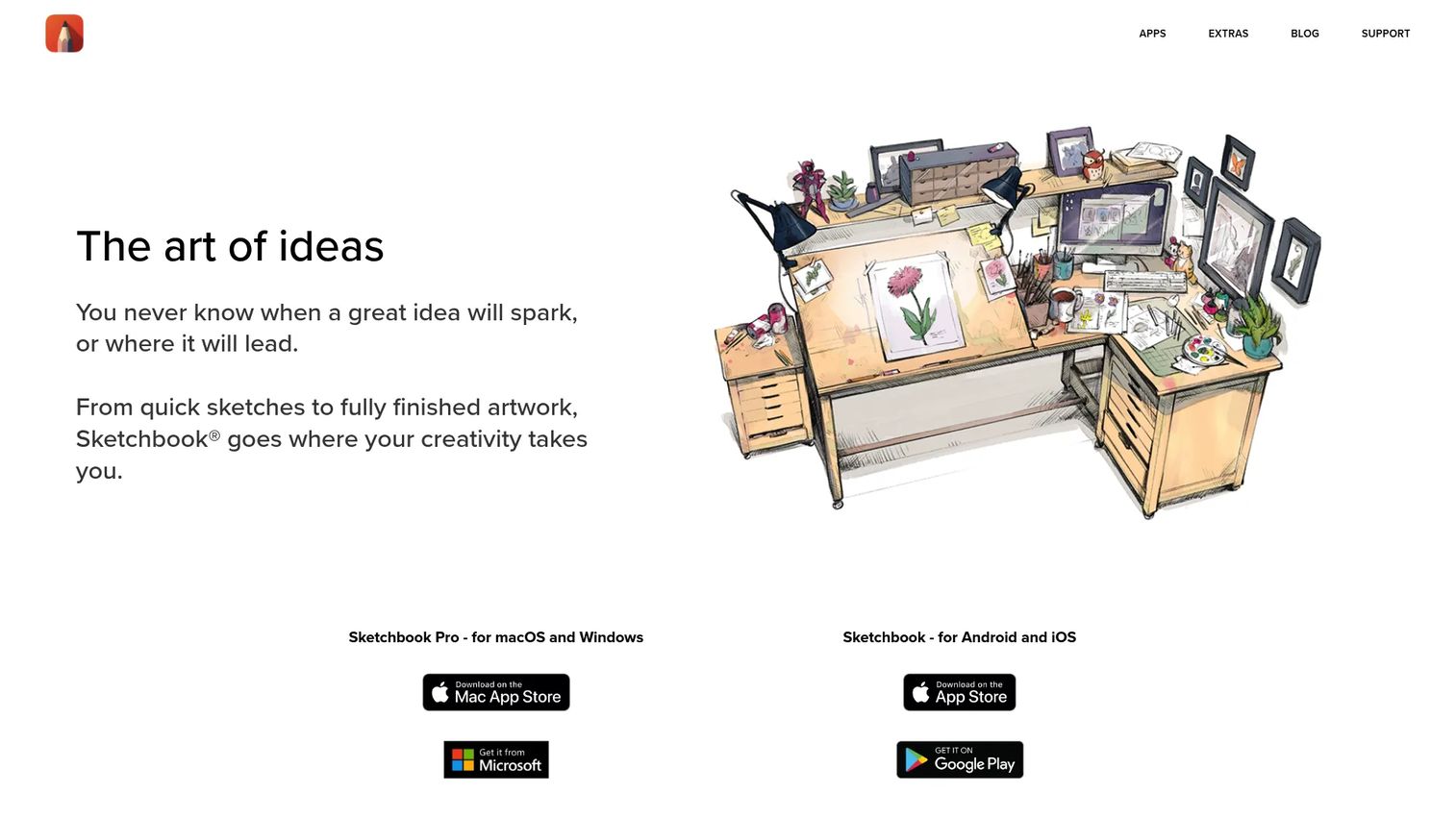
Sketchbook is a digital drawing and painting app for desktop and mobile that keeps things clean and approachable. It strips away clutter so the canvas is the focus, which makes it one of the friendlier tools for people new to digital art. Underneath the simple interface sits a capable set of brushes, rulers, and layer tools that grow with you as your skills improve.
Best for: Artists and beginners who want a lightweight sketching and drawing app across desktop and mobile.
Key strengths
- Natural stylus feel: Pressure and tilt support that makes drawing feel close to pen on paper.
- Precision tools: Customizable brushes, rulers, symmetry, and stroke tools for clean lines and structured sketches.
- Layers and blend modes: Layer support and blend modes let you build up sketches and paintings without a steep learning curve.
Why choose Sketchbook: Choose it when you want to start drawing without wrestling a complex interface. It suits beginners, hobbyists, and anyone who wants a fast sketching flow on a laptop or phone. Experienced artists sometimes want more depth than it offers, but as a clean, approachable everyday tool it is hard to fault.
Sketchbook pricing: The mobile app is free to download and use. Advanced features unlock through a one-time Premium Bundle in-app purchase on iOS and Android, so there is no recurring subscription. That makes it an easy, low-commitment way to move from paper to digital.
Considerations before you choose
The list narrows the field. These criteria help you make the final call based on how you actually work.
Free vs paid
Free drawing software has come a long way. Krita, Sketchpad's web app, Canva Draw, and the free tiers of Fresco and Sketchbook cover a lot of real work at zero cost. Free is enough when you are learning, sketching casually, or need a tool for a specific short project. Paid tools make sense when you need deeper workflow features, guaranteed support, or specialized tools like comic paneling and advanced animation. If you draw for income, a paid tool often pays for itself in saved time.
Platform compatibility
The best pick changes with your device. Krita and Clip Studio Paint span Windows, macOS, and Linux or tablet. Procreate is iPad only. Sketchpad and Canva Draw run in any browser. If you split work between a tablet and a desktop, prioritize cloud sync and cross-device support so files follow you. Stylus support matters too: check that your Apple Pencil, Wacom, or Surface Pen is fully supported before you commit.
Export and file formats
Export is where workflows break or flow. PNG and JPEG cover most sharing. PDF suits print and documents. SVG keeps vector art crisp. PSD matters if you move files into Photoshop or hand them to a collaborator. Before you settle on a tool, confirm it exports the formats your workflow and your teammates need. Import support matters just as much when you inherit files from someone else.
Collaboration and sharing
For solo art, brush depth wins. For team work, sharing wins. Canva Draw's real-time collaboration and simple export make it strong for teams marking up visuals together. Sketchpad's share links suit quick handoffs. If you send work to clients or teammates for feedback, a clean share and export flow saves more time than any single brush feature.
Community and support
A strong community shortens the learning curve. Krita and Clip Studio Paint have deep libraries of tutorials, brushes, and forums. Procreate has a huge creator community sharing techniques. Official documentation, active forums, and third-party tutorials all reduce the time between installing a tool and making something you are proud of. When two tools are close on features, the healthier community is often the tiebreaker.
Conclusion
There is no single best drawing software, only the best fit for your budget, device, and the kind of work you make. Krita is the strongest free and open-source pick for serious painting. Sketchpad and Canva Draw win when you want browser-based access and easy sharing. Clip Studio Paint is the pro choice for illustration, comics, and animation. Procreate leads for iPad-first artists, Adobe Fresco suits stylus users in the Creative Cloud world, and Sketchbook is the friendliest place to start.
The practical next step is simple. Pick the one tool that matches your primary workflow, whether that is device, budget, or the type of art you make. Draw with it for a week, then test how it exports and whether it moves cleanly between your devices. If the files flow and the app disappears into the background, you have found your tool. If not, you have narrowed the list and lost nothing.
FAQs
For beginners who want serious depth, Krita is the strongest free option because it offers professional painting tools at no cost. If you want something simpler to start, Sketchbook's free mobile app and Canva Draw both have gentle learning curves. All three let you learn without spending money, so you can upgrade only if your work outgrows them.
Procreate is the standout iPad app, built specifically for the device and Apple Pencil with a smooth, responsive feel. Adobe Fresco is a strong alternative on iPad, especially if you use other Adobe apps and want cloud continuity. Both give you pressure-sensitive drawing and deep brush libraries tuned for touch.
Krita, Clip Studio Paint, and Procreate all excel at digital painting thanks to deep brush engines, layers, and blend modes. Krita is free, Clip Studio Paint adds pro illustration and comic tools, and Procreate leads on iPad. Your choice comes down to budget and which device you paint on.
Yes. Sketchpad runs entirely in the browser with brushes, layers, and PDF, PNG, and JPEG export, so there is nothing to install. Canva Draw also works in the browser inside Canva and adds real-time collaboration. Both are ideal for shared or locked-down machines where you cannot install software.
Clip Studio Paint and Krita both export widely, covering common raster formats plus project files that preserve layers. Sketchpad exports to PDF, PNG, and JPEG, and Canva Draw exports to PNG, JPG, and PDF. Before committing, confirm the tool exports PSD if you plan to move files into Photoshop or hand them to a collaborator.
Yes. Krita is open-source and used by professional illustrators, concept artists, and animators for finished, commercial work. It offers many brush engines, full layer support, and 2D animation without any license fee. The main trade-off is a slightly steeper learning curve, which community tutorials help close quickly.
Check pressure and tilt support first, then confirm your specific stylus is supported, whether that is Apple Pencil, Wacom, or Surface Pen. Procreate and Adobe Fresco are tuned for stylus input, and Sketchbook and Krita offer strong pressure control too. A natural stylus feel matters more than any single brush, so test the drawing response before you commit.