Camtasia works well when the job is a software tutorial with a timeline editor. But product marketing teams often outgrow that workflow. Launch cadences accelerate, UI changes break existing recordings, sales asks for enablement assets prospects can share, and leadership wants engagement data, not video view counts.
The best Camtasia alternatives for 2026 span two categories: Tools that do a better job of recording and editing video, and tools that change the format entirely. Guideflow, our product and the featured pick for interactive demos, lets prospects click through a product story instead of watching a passive recording. For teams that need a better video tool, Loom handles quick async updates, Descript handles transcript-led editing, and ScreenFlow is the strongest Mac-native direct replacement.
This list covers all 14 options across interactive demos, async video, screen recording, lightweight capture, and professional editing. The category label next to each tool tells you which job it does, so you can skip to the right comparison for your workflow.
TL;DR
- Best interactive demo upgrade: Guideflow, for PMMs who need buyers to explore a product story at their own pace. Free plan available; Solo starts at $35 per user per month (annual).
- Best async video pick: Loom, for fast narrated recordings with face and voice. Free Starter plan; Business from $18 per user per month.
- Best AI-assisted editing pick: Descript, for transcript-led editing and audio cleanup. Free plan available; Hobbyist from $16 per person per month.
- Best free recording pick: OBS Studio, open-source and free with no watermarks or feature limits.
- Best professional editor: DaVinci Resolve has a strong free version; Studio license is a one-time $236 purchase.
- Best Mac direct replacement: ScreenFlow, a one-time purchase starting at $199, for Mac teams replacing Camtasia directly.
- Best lightweight social and launch clip option: CapCut, free plan available, Pro at $19.99 per month.
What's inside
- What Camtasia does and what category it belongs to
- Why PMMs compare alternatives and the five most common reasons
- How we picked the 14 tools and how the category labels work
- A 14-row comparison table with category, G2 ratings, free-plan status, and prices
- Ranked cards for all 14 tools, each with pricing and shortfalls from reviewer sources
- Use-case picks by workflow, free-option routing, and when to stay with Camtasia
What is Camtasia?
Camtasia is screen recording and video editing software from TechSmith, built for creating tutorials, training videos, software demonstrations, and customer education content. It captures screen, webcam, microphone, and system audio simultaneously, then passes the recording into a timeline editor with drag-and-drop effects, annotations, transitions, and caption tools.
TechSmith's pricing page shows three plans: Starter at $39 per year, Essentials at $179.88 per year, and Create at $249 per year. A free version is available with watermarked exports. Camtasia holds a 4.6 on G2.
Its strengths are real: Recording and editing live in one desktop application, the asset library works well for repeat tutorial formats, and the AI text-based editing on the Create plan lets users cut and rearrange content from a transcript. Teams that have invested in Camtasia templates and project files get genuine mileage from those assets over time.
Why teams look for Camtasia alternatives
Teams compare Camtasia alternatives when the workflow changes, not simply because Camtasia stopped working.
Re-recording every time the product changes
Product launches and UI updates arrive faster than video editors can keep up. Recording a new video for each changed screen is a fixed cost per release. G2 reviewers of Camtasia note that editing is time-consuming when product updates require significant portions of a tutorial to be redone from scratch.
Video alone does not give buyers a product experience
A narrated recording shows the product. An interactive demo lets a buyer click through it. For PMMs building launch pages, sales leave-behinds, and self-serve onboarding, the distinction matters: 82% of video marketers say video delivers good ROI (Wyzowl, 2026), but ROI depends on what the audience does after watching. Passive video ends at the final frame; a clickable demo generates step-level signals about where buyers focused and where they dropped off.
Pricing and watermark limits
Camtasia's free version exports with a watermark, and full editing capability sits behind paid plans. Teams that need a free recording engine point to OBS Studio; teams that need a free editor with watermark-free exports point to DaVinci Resolve.
Platform fit
ScreenFlow, Screen Studio, and Final Cut Pro are Mac-only. OBS Studio, Descript, Loom, and CapCut run cross-platform. PMMs with mixed teams frequently need a tool that works regardless of whether a rep is on Windows or Mac.
Wanting engagement data, not video plays
Camtasia exports a video file. It does not, by default, tell you which part of a tutorial a prospect rewatched, where a sales leave-behind lost attention, or which team members opened an enablement asset. That gap sends PMMs toward tools with step-level analytics or viewer-identity features.
How we picked these Camtasia alternatives
Fourteen tools made this list based on real capability overlap with the jobs Camtasia users are leaving behind: Screen recording, timeline editing, async sharing, and interactive product exploration. Pricing comes from each vendor's official pricing page. G2 ratings come from each tool's live G2 listing. Where a rating was not publicly confirmable, the line is omitted. The list includes both video and recording tools and interactive demo tools, labeled by category so you can tell a like-for-like swap from a category upgrade. According to Mordor Intelligence (2025), the screen-recording software market was valued at $2.10 billion, which reflects how fragmented the category actually is.
Camtasia alternatives at a glance
Guideflow is the top pick for interactive demos; Loom, Descript, ScreenPal, OBS Studio, and DaVinci Resolve cover the video and recording spectrum. The table below labels each tool's category and lists its starting price with the correct billing unit.
| Tool | Category | Best for | G2 rating | Free plan | Starting price |
|---|---|---|---|---|---|
| Guideflow | Interactive demo | PMMs building clickable product stories | 5.0 | Yes | $35/user/month (annual) |
| Camtasia | Screen recording and video editing | Tutorial and training video teams | 4.6 | Watermarked | $39/year |
| Loom | Async video | Quick narrated updates and recordings | 3.5 | Yes | $18/user/month |
| Descript | AI video editing | Transcript-led editing and audio cleanup | 4.6 | Yes | $16/person/month |
| ScreenPal | Screen recording and tutorial hosting | Educators and teams making simple lessons | 4.5 | Yes | $4/month (annual) |
| OBS Studio | Screen recording and streaming | Free advanced recording and livestream capture | n/a | Yes | Free |
| DaVinci Resolve | Professional video editor | Color, effects, audio, and pro editing | n/a | Yes | Free (Studio: $236 one-time) |
| Wondershare Filmora | Video editing | Template-based editing with AI tools | 4.4 | Yes | $49.99/year |
| ScreenFlow | Screen recording and video editing (Mac) | Mac users replacing Camtasia directly | 4.5 | Trial | $199 one-time |
| Screen Studio | Screen recording (Mac) | Mac creators making polished product videos | 4.5 | No | $9/month (annual) |
| Snagit | Capture and annotation | Screenshots, short clips, visual documentation | 4.7 | Trial | Contact TechSmith for USD pricing |
| Adobe Premiere Pro | Professional video editor | Teams in Adobe Creative Cloud workflows | n/a | 7-day trial | Contact Adobe for USD pricing |
| Final Cut Pro | Professional video editor (Mac) | Mac teams wanting one-time pro editing software | n/a | 30-day trial | $299.99 one-time |
| CapCut | Video editing | Short-form launch clips and lightweight edits | n/a | Yes | Free (Pro: $19.99/month) |
The best Camtasia alternatives in 2026
1. Guideflow (interactive demo)
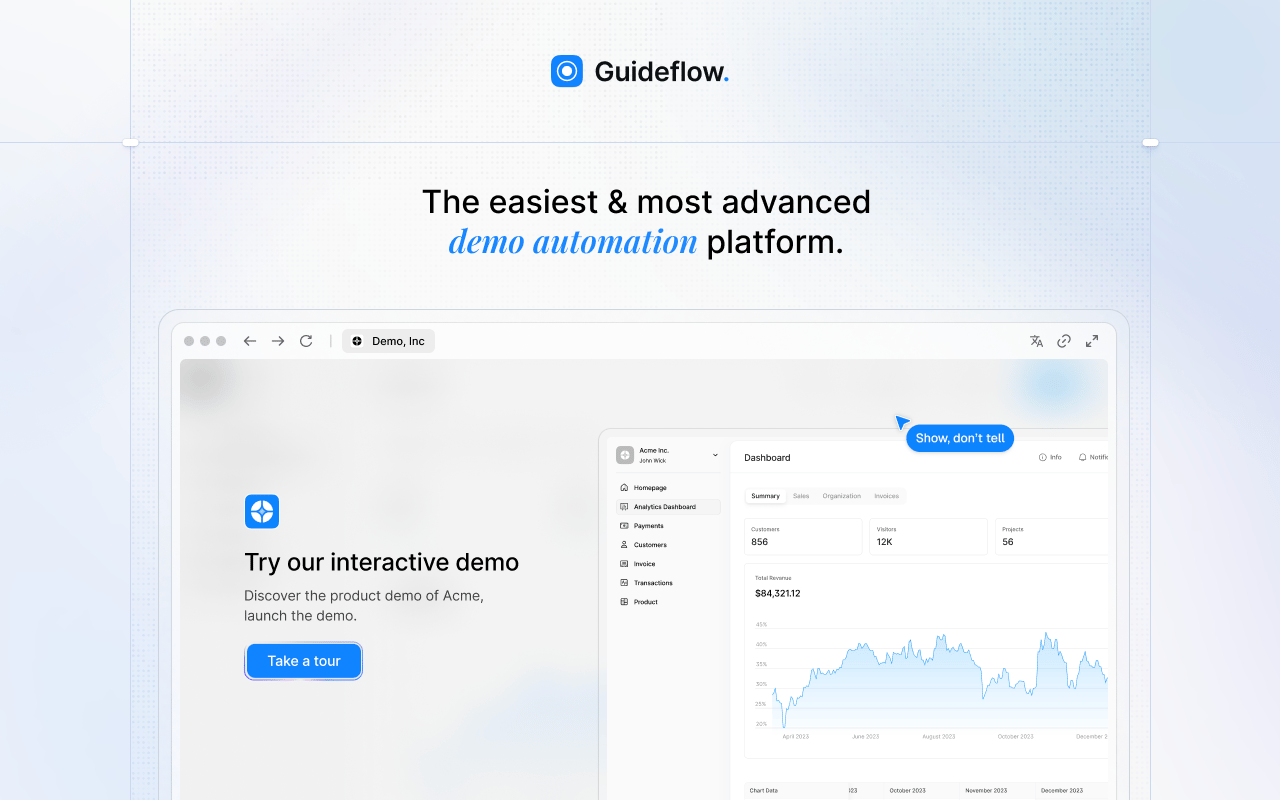
Guideflow is a demo automation platform for PMMs who need buyers, sales reps, or customers to click through a product story rather than watch it. The output is not a video file. It is an interactive demo that runs in a browser, captures engagement at every step, and updates when the product changes.
Best for: Product marketing teams building reusable, clickable product stories for launches, sales enablement, onboarding, and self-serve buyer education.
What it is: Guideflow is a demo automation platform that produces six demo formats: Interactive demos, demo pages, demo centers, sandboxes, live demos, and mobile demos. Capture runs through the Chrome extension or the native app using screenshot, HTML, or video modes. Step content and CTAs are written automatically. The editor supports text, images, graphs, and branching. Translation covers more than 30 languages.
Key features:
- Capture through the Chrome extension or the native app
- Step-level analytics covering completion, drop-off, and viewer flow
- Company-level visitor identification; CRM records created when a viewer identifies via a form or personalized link
- Integrations with HubSpot, Salesforce, Pipedrive, Zoho, and Marketo
- AI voiceover and translation into more than 30 languages
Where Guideflow falls short: Keep a dedicated video editor if the final output must be a polished cinematic file with multi-track timelines, motion graphics, or color grading. Guideflow is purpose-built for buyer-facing product demos, so teams whose primary job is long-form video production will want a separate tool for that work.
Pricing: Free plan available. Solo: $35 per user per month (annual). Growth: $499 per month (annual). Advanced: $1,499 per month (annual). Enterprise: From $2,999 per month (annual), adding SSO, advanced governance, and enterprise security.
G2 rating: 5.0
How it compares to Camtasia: Camtasia is the right call when the final deliverable is a polished video file for training or education. Guideflow fits when the deliverable is a clickable product experience with step-level engagement data.
2. Camtasia (screen recording and video editing)
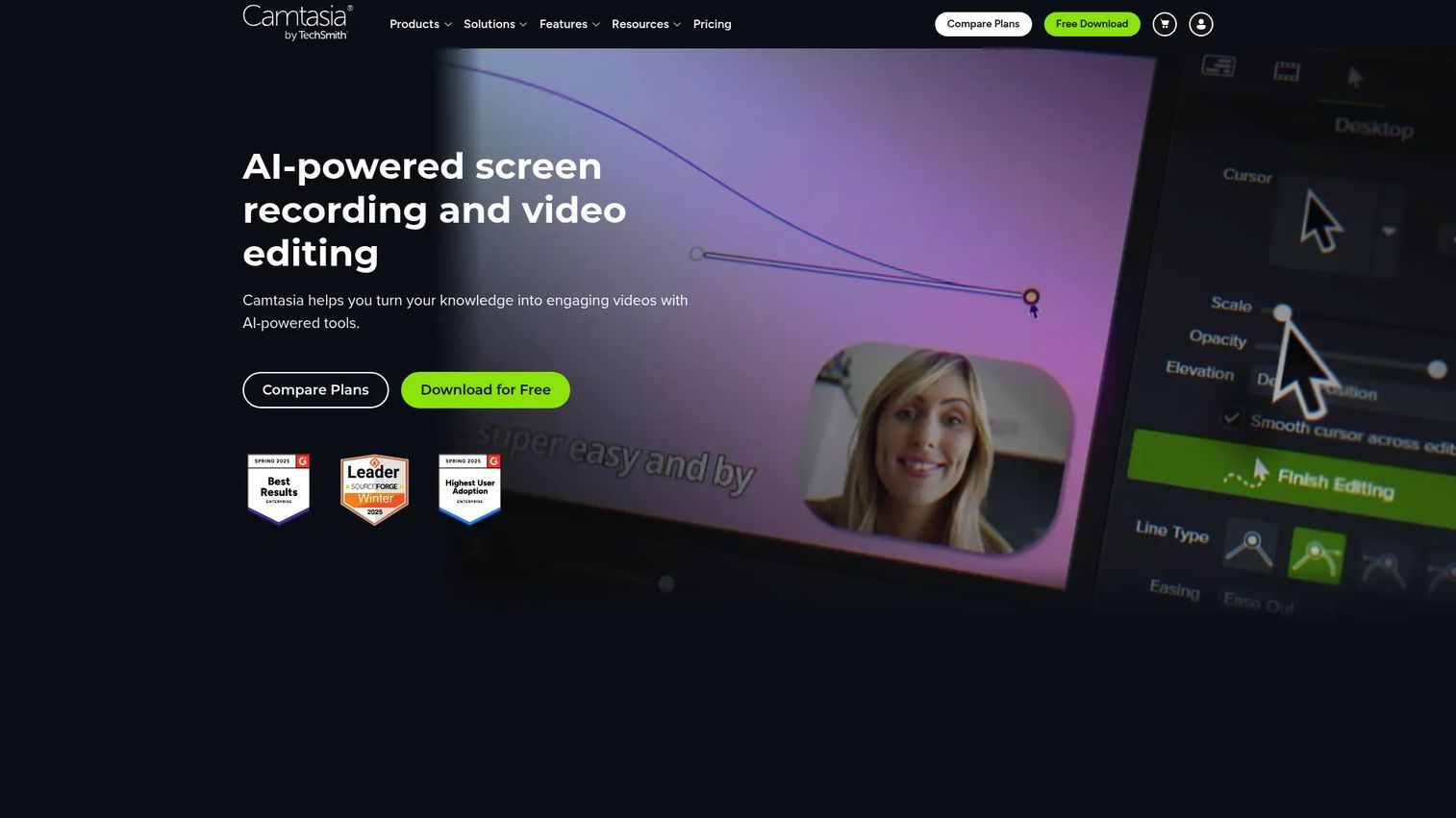
Camtasia sits on this list because the reader comparing alternatives needs to know when staying makes more sense than switching. It is not a straw man. For teams doing structured software tutorials with established templates, it is a defensible choice.
Best for: Teams creating screen-based training, tutorials, software demonstrations, and customer education content.
What it is: Camtasia combines screen recording (screen, webcam, microphone, and system audio) with a multitrack timeline editor, drag-and-drop effects, annotations, transitions, and AI-assisted text-based editing on the Create plan. It is one of the few tools that keeps recording and editing in a single desktop application.
Key features:
- Screen, webcam, and audio capture in one recording session
- Multitrack timeline editor with effects, transitions, and callout tools
- AI text-based video editing and transcription (Create plan)
- Templates and asset library for repeat tutorial formats
- Export to MP4, GIF, and web sharing options
Where Camtasia falls short: G2 reviewers report that the editing workflow can feel heavy for quick turnaround clips, and the subscription pricing frustrates teams that prefer a one-time license. Collaboration is limited compared to cloud-first tools, and interactive buyer exploration is not part of its design.
Pricing: Starter: $39 per year. Essentials: $179.88 per year. Create: $249 per year. Free version exports with watermark.
G2 rating: 4.6
How it compares to Camtasia: This is the baseline. Every alternative below either replaces the recorder, upgrades the editor, reduces the editing workflow, or changes the format entirely.
3. Loom (async video)
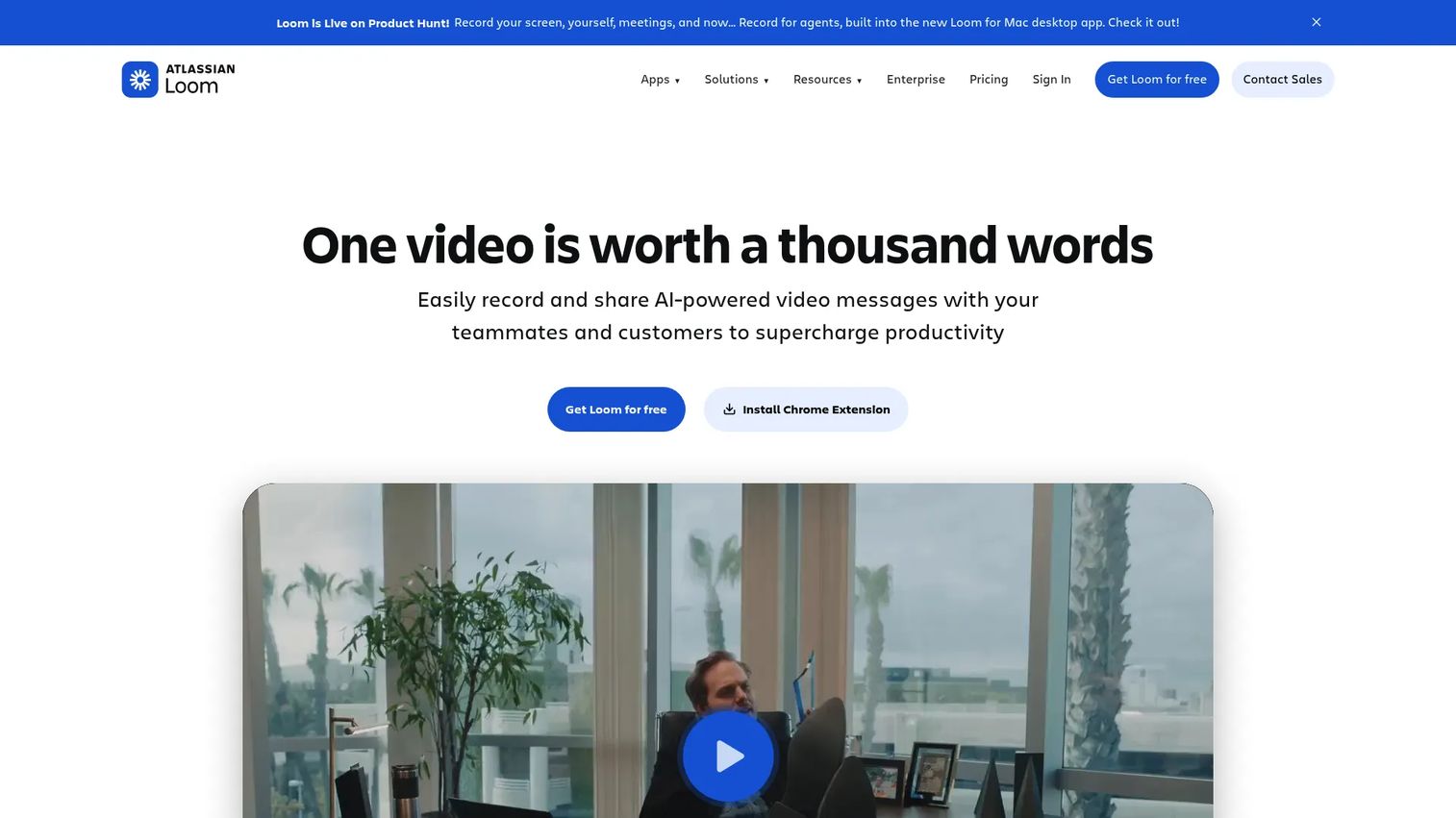
Loom is the clearest like-for-like swap for PMMs who use Camtasia mainly to send quick recorded explanations to stakeholders, customers, or the sales team. The job Loom does is async communication, not tutorial production.
Best for: Teams that need a recorded screen or camera message shared as a link, without an editing session in between.
What it is: Loom is an async video messaging tool, now part of Atlassian, for recording screen, camera, or both. Viewers receive a link, can leave comments and reactions, and see an auto-generated transcript. The Business plan removes recording limits and adds workspace organization.
Key features:
- Screen and camera recording with link-based sharing
- AI-generated titles, chapters, summaries, and calls to action
- Viewer engagement analytics on paid plans
- Video trimming and basic editing controls
- Captions and transcript generation
Where Loom falls short: Loom's editing depth is limited compared to dedicated timeline editors. G2 reviewers note that advanced controls and analytics require a paid plan, and the free Starter plan caps recordings at 25 videos with a five-minute limit. Loom is not built for clickable product exploration or step-level engagement data.
Pricing: Starter: Free (25 videos, 5-minute cap). Business: $18 per user per month. Business + AI: $24 per user per month. Enterprise: Contact sales.
G2 rating: 3.5
How it compares to Camtasia: Loom removes the editing session entirely in exchange for a shareable link the moment recording stops. Camtasia is the stronger pick when the output needs timeline polish.
4. Descript (AI video editing)
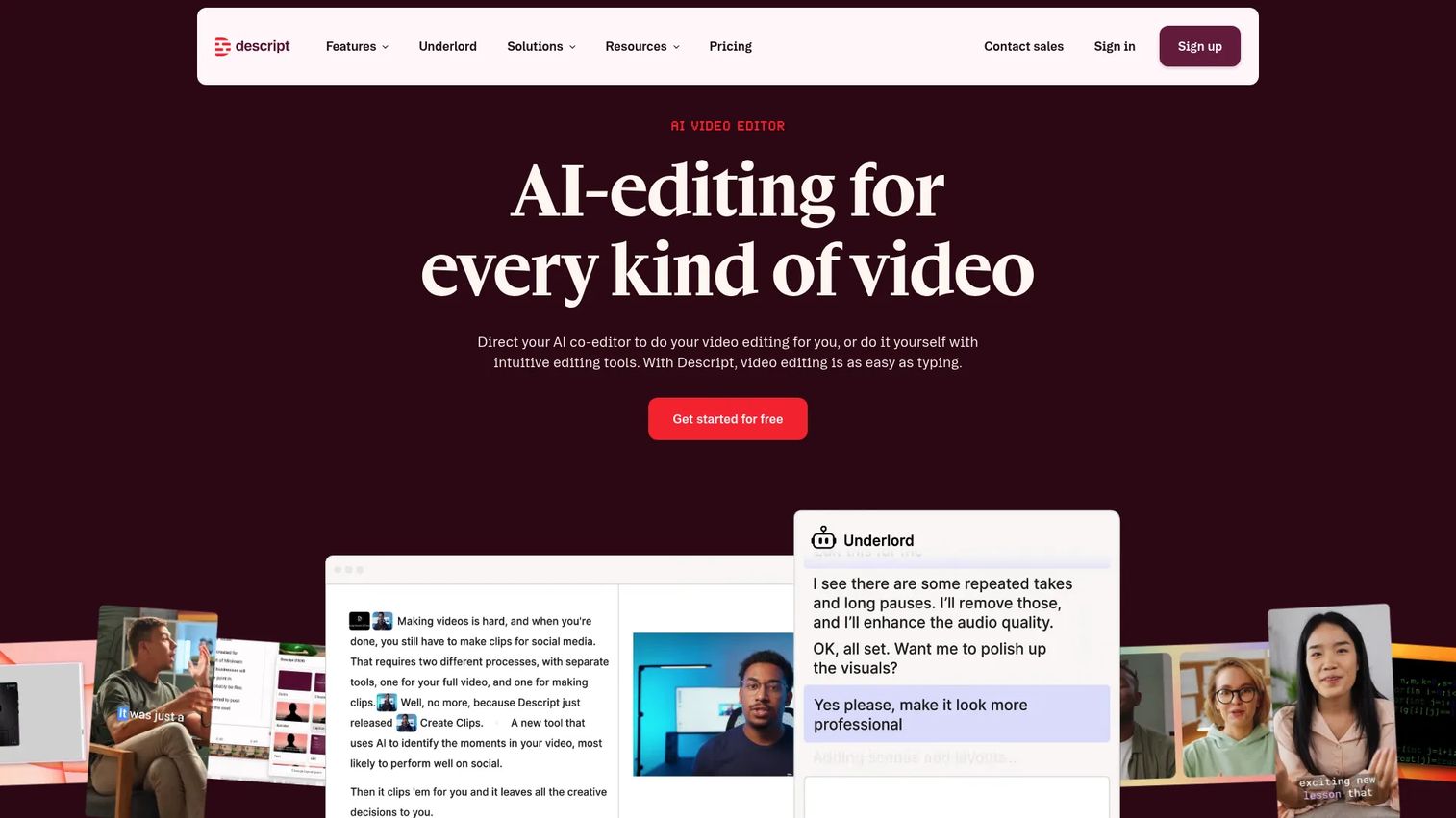
Descript rewrites how editing works. Instead of a timeline, users edit a transcript and the video follows. For PMMs producing webinar recordings, explainer videos, or repurposed recorded content, it removes a significant portion of the manual cut-and-trim process.
Best for: Creators and teams editing tutorials, webinars, explainers, and podcasts from text rather than a timeline.
What it is: Descript is an AI-assisted audio and video editing platform where the transcript is the edit surface. Its AI co-editor, called Underlord, handles filler-word removal, silence trimming, eye contact correction, background cleanup, and caption generation.
Key features:
- Text-based video and audio editing from the transcript
- Filler-word and silence removal
- Studio Sound for audio cleanup
- Screen recording and remote 4K multitrack recording
- Captions, translation, and video clipping
Where Descript falls short: G2 reviewers with traditional timeline editing experience report a learning curve. Processing and export issues appear in reviews for high-volume users, and the media-hour limits on lower plans can create friction for teams producing large volumes of content.
Pricing: Free: $0 (1 media hour per month). Hobbyist: $16 per person per month. Creator: $24 per person per month. Business: $50 per person per month. Enterprise: Custom pricing.
G2 rating: 4.6
How it compares to Camtasia: Descript is the stronger pick when editing starts from a transcript and AI cleanup is part of the workflow. Camtasia is closer to a traditional screen recording and timeline editing environment.
5. ScreenPal (screen recording and tutorial hosting)

ScreenPal targets educators and teams that need straightforward screen recording, light editing, video hosting, and sharing without a heavy desktop application. Its interactive quiz and poll features are a differentiator for customer education workflows.
Best for: Educators, support teams, and small training teams creating lessons, support videos, and simple screen recordings.
What it is: ScreenPal is an all-in-one screen capture, video creation, editing, hosting, and sharing platform. Its Max plan adds AI features including AI narration, video generation, and AI-generated quizzes and summaries.
Key features:
- Screen and webcam recording
- Video editing and secure video hosting
- Interactive quizzes, polls, and buttons (paid plans)
- AI-generated captions, transcripts, and chapter markers
- AI narration and background removal on Max plan
Where ScreenPal falls short: G2 reviewers note that advanced editing depth does not match dedicated editors, and some users report interface performance issues. Feature access is gated across plans, with key AI and interactive features reserved for the Max tier.
Pricing: Free: $0. Deluxe: $4 per month (annual). Max: $10 per month (annual). Team Business: $8 per user per month (annual).
G2 rating: 4.5
How it compares to Camtasia: ScreenPal is more focused for basic recording and lesson workflows with hosting built in. Camtasia offers a more established editing suite and broader effect options.
6. OBS Studio (screen recording and streaming)
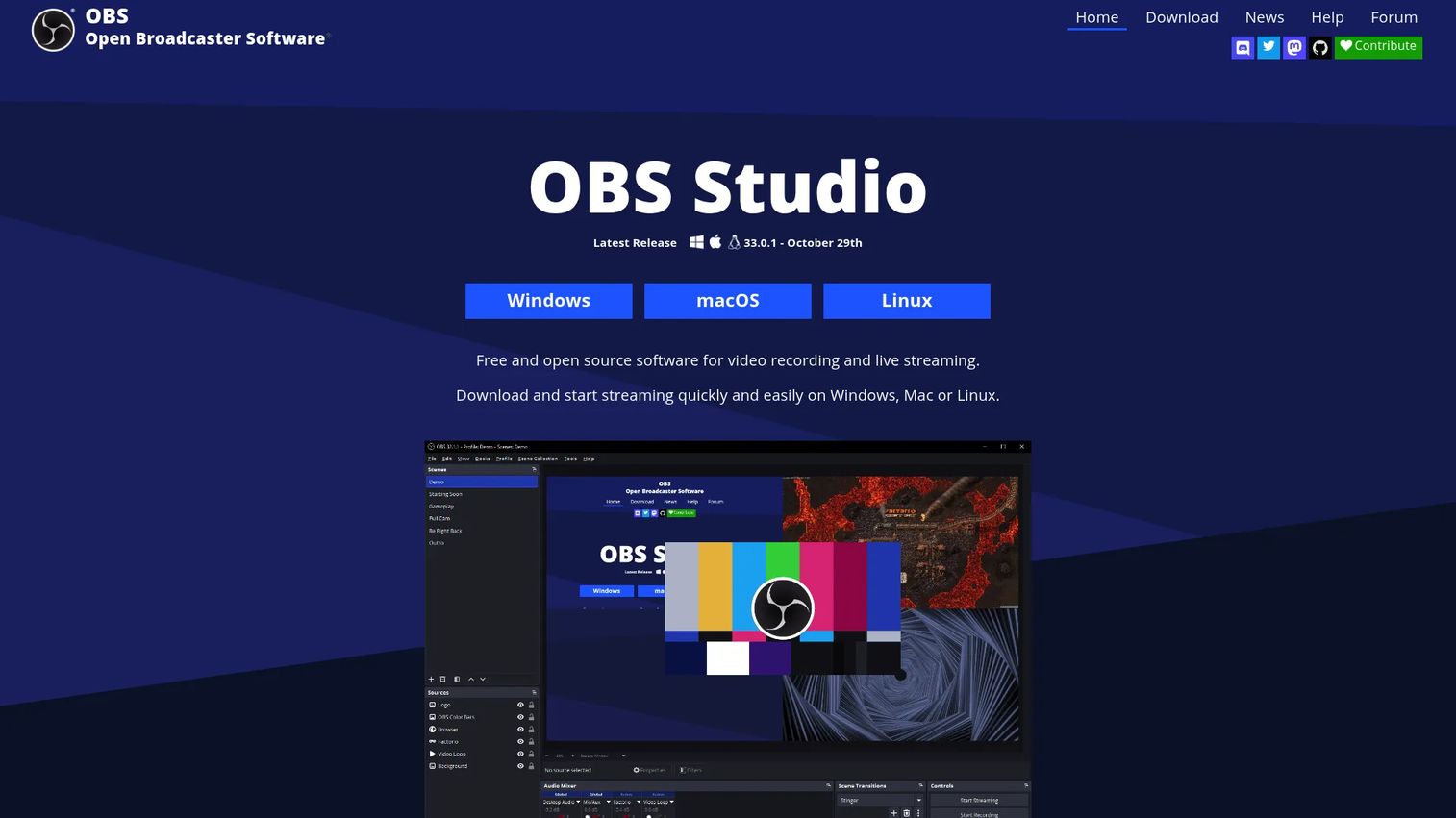
The dealbreaker is the price: OBS Studio is free, open-source, and places no watermarks, feature limits, or commercial-use restrictions on its output. For teams that need a powerful recording engine without paying for it, nothing in this list matches that.
Best for: Content creators, educators, and teams that need configurable recording or streaming without a built-in editing workflow.
What it is: OBS Studio is free open-source software for video recording and live streaming. Users configure scenes, sources, and an audio mixer, and can extend functionality through a plugin ecosystem.
Key features:
- Real-time video and audio capture and mixing
- Scene-based production with multiple sources
- Studio Mode and Multiview for live production
- Audio mixer with per-source filters and VST plugin support
- Plugin and scripting support
Where OBS Studio falls short: OBS Studio has no native timeline editor. Users who want to edit after recording need a separate application. Setup can overwhelm non-technical users unfamiliar with scenes and sources. Cloud-based sharing and collaboration require additional tools.
Pricing: Free.
How it compares to Camtasia: OBS Studio replaces Camtasia's recording engine but not its editing workflow. Pair it with DaVinci Resolve or Descript if polished tutorials are the goal.
7. DaVinci Resolve (professional video editor)
DaVinci Resolve's free version is the strongest free editing option in this list. For PMMs producing high-production marketing videos, launch films, or polished product footage, the free version covers editing, color, visual effects, and audio post-production without a subscription.
Best for: Teams needing advanced editing, color correction, visual effects, and audio post-production.
What it is: DaVinci Resolve is a professional video editing and post-production application from Blackmagic Design. The free version includes editing, color grading, Fusion visual effects, and Fairlight audio. The Studio version adds AI tools, noise reduction, higher frame rates, and resolutions beyond 4K.
Key features:
- Professional timeline editing
- Color correction and HDR grading
- Fusion visual effects and motion graphics
- Fairlight audio post-production
- Multi-user local collaboration via Blackmagic Cloud (free version)
Where DaVinci Resolve falls short: The learning curve is steep for teams accustomed to screen-recording-focused tools. Hardware demands are high for intensive projects. Screen recording is not part of DaVinci Resolve's design; pair it with OBS Studio or ScreenPal if capture is also needed.
Pricing: Free version: $0. DaVinci Resolve Studio: $236 one-time purchase.
How it compares to Camtasia: DaVinci Resolve is far stronger for professional post-production. Camtasia is the more accessible pick for screen-recorded tutorials.
8. Wondershare Filmora (video editing)
Filmora sits between Camtasia and professional editors. It offers a timeline with templates, effects, and AI-assisted tools without requiring the depth of DaVinci Resolve or Adobe Premiere Pro. It suits PMMs producing short launch videos, product teasers, or training content that needs visual polish without a production team.
Best for: Creators and small teams wanting template-based video editing with AI tools and no steep learning curve.
What it is: Wondershare Filmora is a video editing tool with timeline editing, AI-powered features (including speech-to-text, audio denoising, and AI video generation), creative effects, and stock assets.
Key features:
- Timeline editing with keyframing, color correction, and masking
- AI-powered auto-captions and speech-to-text
- Screen recording and multi-source recording
- Creative effects, templates, filters, and transitions
- Audio denoising and music generation
Where Wondershare Filmora falls short: G2 reviewers note that the free and trial versions include watermarks on exported video. Advanced professional editing capabilities fall short of DaVinci Resolve or Adobe Premiere Pro. Some reviewers flag that add-ons and AI credit packs raise the effective cost beyond the base subscription price.
Pricing: Basic: $49.99 per year. Advanced: $59.99 per year. Perpetual: $79.99 one-time purchase.
G2 rating: 4.4
How it compares to Camtasia: Filmora is better for stylized video content with templates and effects. Camtasia is closer to tutorial recording and software training with its annotation and callout toolset.
9. ScreenFlow (screen recording and video editing, Mac)
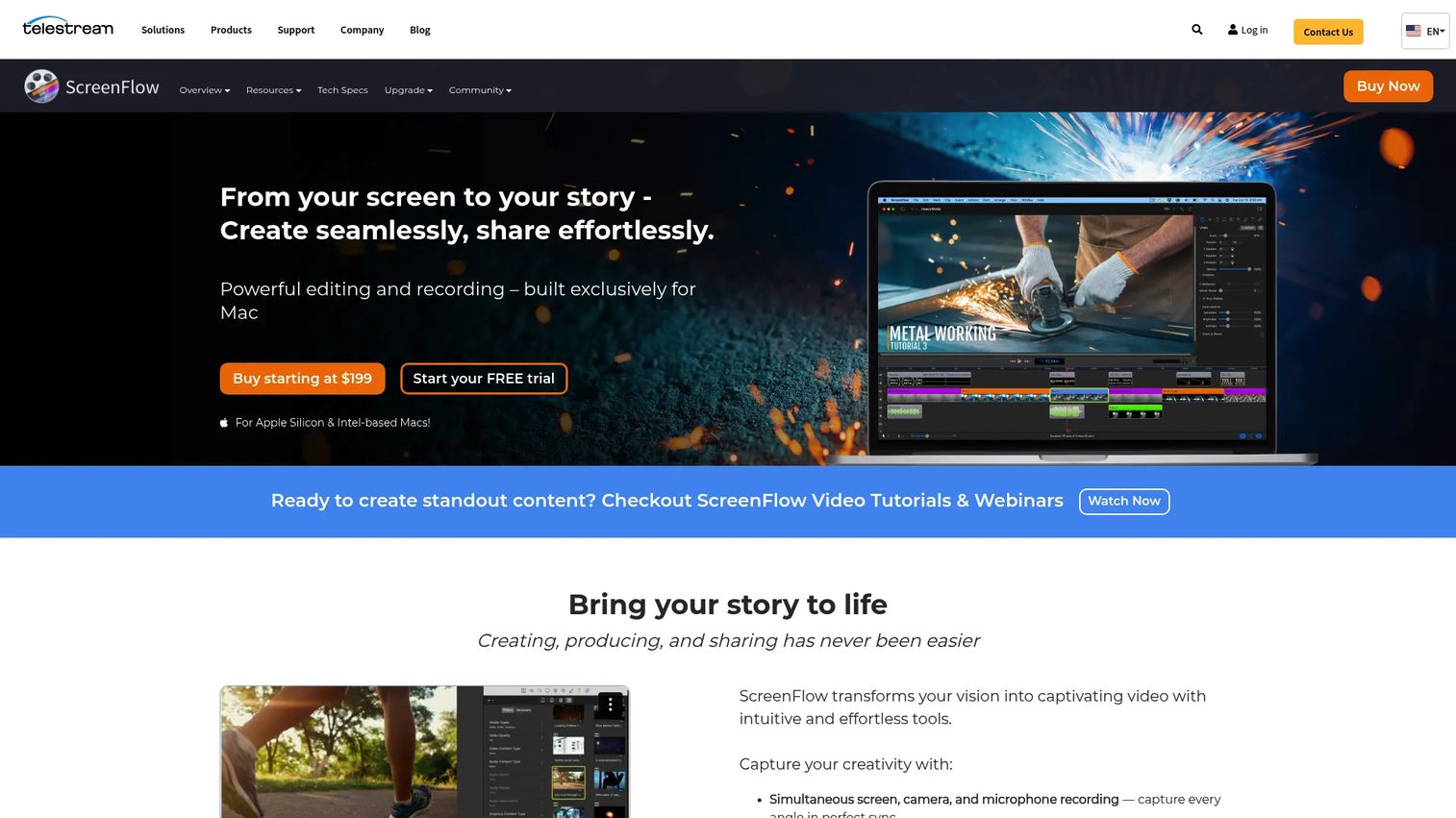
For Mac teams, ScreenFlow is the most direct like-for-like Camtasia replacement. It records screen, camera, and audio simultaneously, then opens the recording in a timeline editor built for tutorials, demos, and training content. The one-time purchase model is a strong draw for teams that prefer not to pay ongoing subscriptions.
Best for: Mac users creating screen recordings, tutorials, training videos, and edited product demos.
What it is: ScreenFlow is Mac-exclusive software for screen recording and video editing from Telestream. It captures iOS screens alongside desktop recordings, includes a built-in stock media library on higher bundles, and exports animated GIFs, APNG, ProRes, and MP4.
Key features:
- Simultaneous screen, camera, and microphone recording
- Video editing with transitions, text animations, and callout tools
- iOS screen recording
- Animated GIF and APNG export
- Closed-caption support
Where ScreenFlow falls short: Mac-only availability is a hard limit for Windows users on the team. G2 reviewers note collaboration constraints for cloud-first teams, and ScreenFlow does not support interactive buyer exploration or demo analytics.
Pricing: ScreenFlow: $199 one-time. Super Pak (includes stock media library): $275 one-time. Free trial available with watermarked exports.
G2 rating: 4.5
How it compares to Camtasia: ScreenFlow is the strongest Mac-native substitute for the recording-plus-editing workflow. Camtasia has broader cross-platform recognition and a subscription pricing model.
10. Screen Studio (screen recording, Mac)
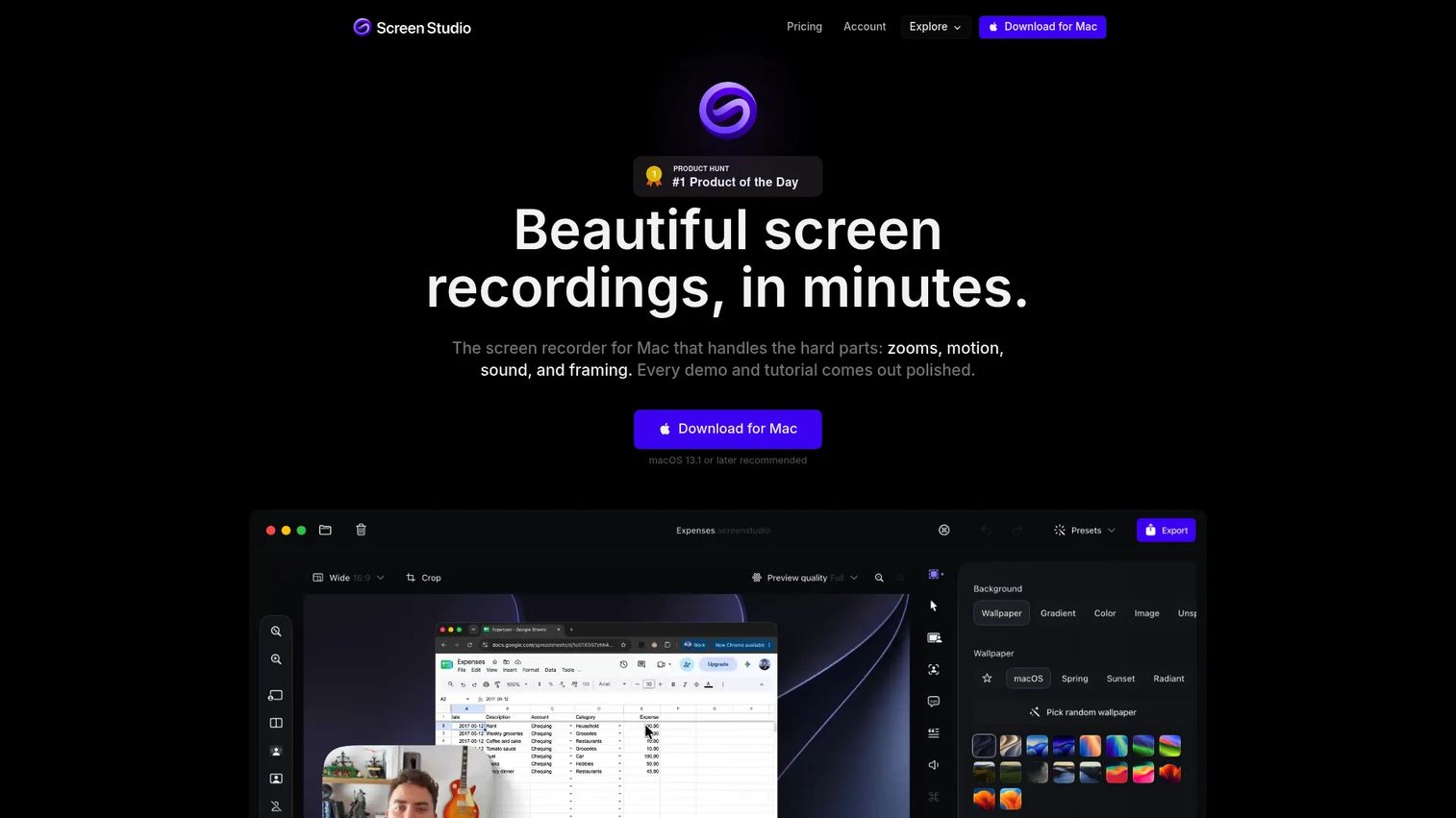
Screen Studio does one thing particularly well: It makes screen recordings look polished without post-production. Automatic zoom, cursor smoothing, and clean export presets handle the visual work that most screen recorders leave to manual editing.
Best for: Mac creators and PMMs producing polished product videos from screen recordings without a full editing workflow.
What it is: Screen Studio is a macOS screen recorder that applies automatic and manual zooms, face tracking, camera layouts, transcript-based editing, and aspect-ratio adaptation. Output reaches 4K at 60 fps. Every feature is included in both listed plans.
Key features:
- Automatic and manual zoom with smart framing
- Screen, webcam, microphone, and system-audio recording
- Transcript-based editing and filler-word removal
- Camera cutout and face tracking
- Shareable links and exports up to 4K at 60 fps
Where Screen Studio falls short: Mac-only. No free tier; video-file export requires an active subscription. It is not a full professional editor, so teams needing multi-track post-production or motion graphics need a separate tool.
Pricing: Yearly: $9 per month (billed annually). Monthly: $29 per month.
G2 rating: 4.5
How it compares to Camtasia: Screen Studio is built for polished Mac product recordings with minimal setup. Camtasia offers a broader tutorial editing suite and cross-platform availability.
11. Snagit (capture and annotation)
Snagit is the lighter TechSmith tool. Where Camtasia handles video production, Snagit covers screenshots, annotations, short clips, and step-by-step guides for documentation, support, and internal communication.
Best for: Teams creating screenshots, step-by-step guides, short screen clips, and annotated visual documentation.
What it is: Snagit is capture and annotation software from TechSmith. Its Step Capture feature automatically creates guides from click-through workflows. Smart Redact identifies and redacts sensitive information across captures. It also supports scrolling capture of long webpages and documents.
Key features:
- Screenshot and scrolling capture
- Screen recording for short clips
- Annotation and markup tools
- Step Capture for automatic guide creation
- Smart Redact for sensitive information
Where Snagit falls short: Snagit is not a full video editor. G2 reviewers note it is limited for long-form tutorials or complex video production. It does not support interactive demos or step-level engagement analytics.
Pricing: Individual: Approximately €39.56 per user per year. Business plans are available; enterprise pricing is custom. Contact TechSmith for current USD pricing.
G2 rating: 4.7
How it compares to Camtasia: Snagit handles the quick visual documentation job. Camtasia handles video production. Teams often run both for different output types.
12. Adobe Premiere Pro (professional video editor)
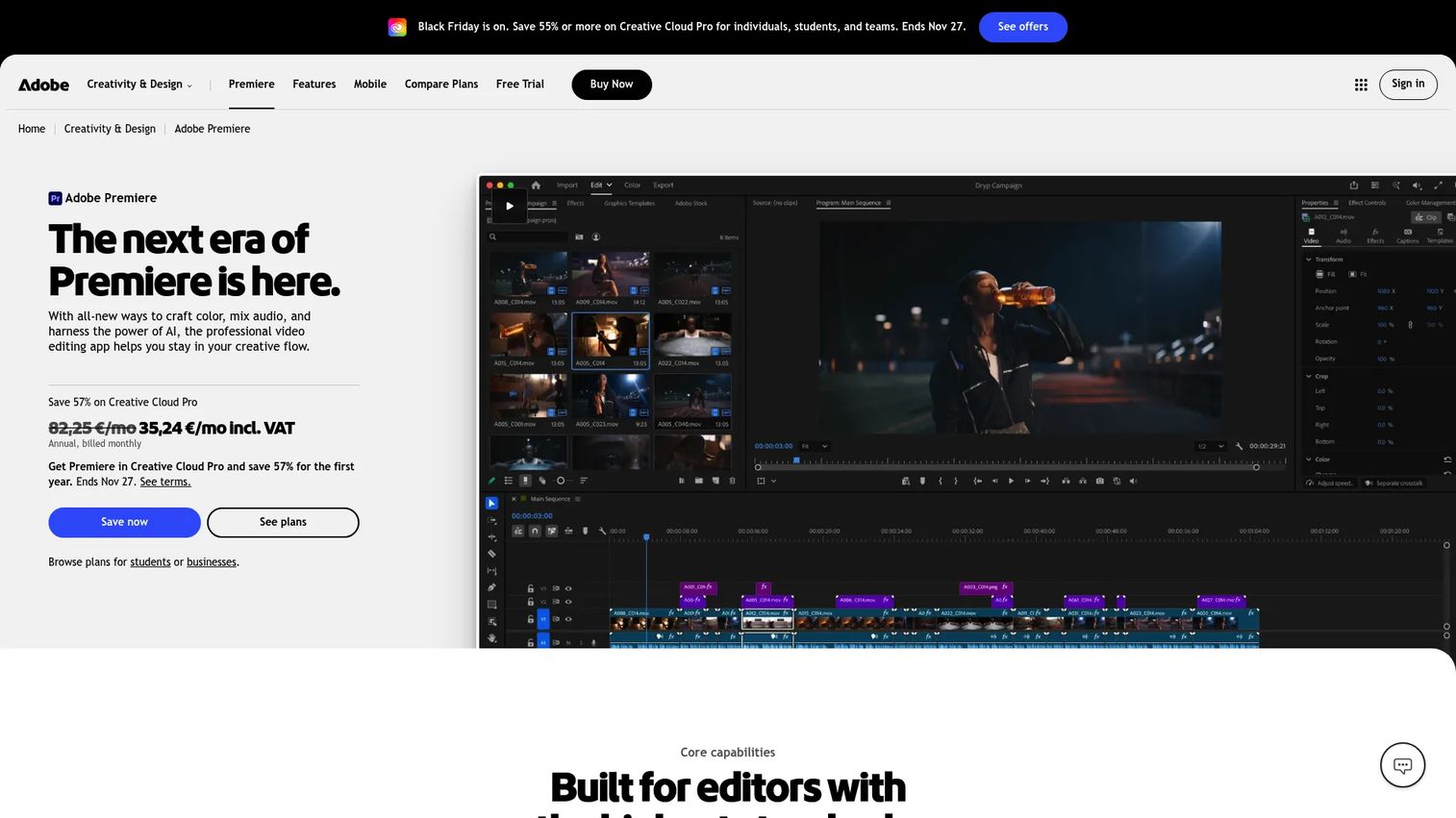
Adobe Premiere Pro is the right pick for teams already inside the Creative Cloud ecosystem who need professional editing for marketing videos, launch films, webinar content, and campaign clips. It is not a screen recorder, so capture requires a separate tool.
Best for: Professional video editors and content teams needing deep editing, color, audio, and Creative Cloud integration.
What it is: Adobe Premiere Pro is professional video editing software with text-based editing, AI-assisted transcription, captioning, translation, color grading, audio mixing, and graphics workflows.
Key features:
- Text-based editing and AI transcription
- Color grading, audio mixing, and advanced effects
- AI caption generation and translation
- Creative Cloud integration with After Effects and Audition
- Team collaboration features
Where Adobe Premiere Pro falls short: G2 reviewers cite a steep learning curve for teams new to professional editing. Screen recording requires a separate application. The subscription cost is higher than many alternatives on this list, and it is more tool than most tutorial-focused teams need.
Pricing: Contact Adobe for current USD pricing. A single-app plan is available alongside Creative Cloud Pro; a seven-day free trial is offered.
How it compares to Camtasia: Premiere Pro is better for professional post-production on marketing and launch video. Camtasia is better when the work starts with screen recording and tutorial production in one application.
13. Final Cut Pro (professional video editor, Mac)
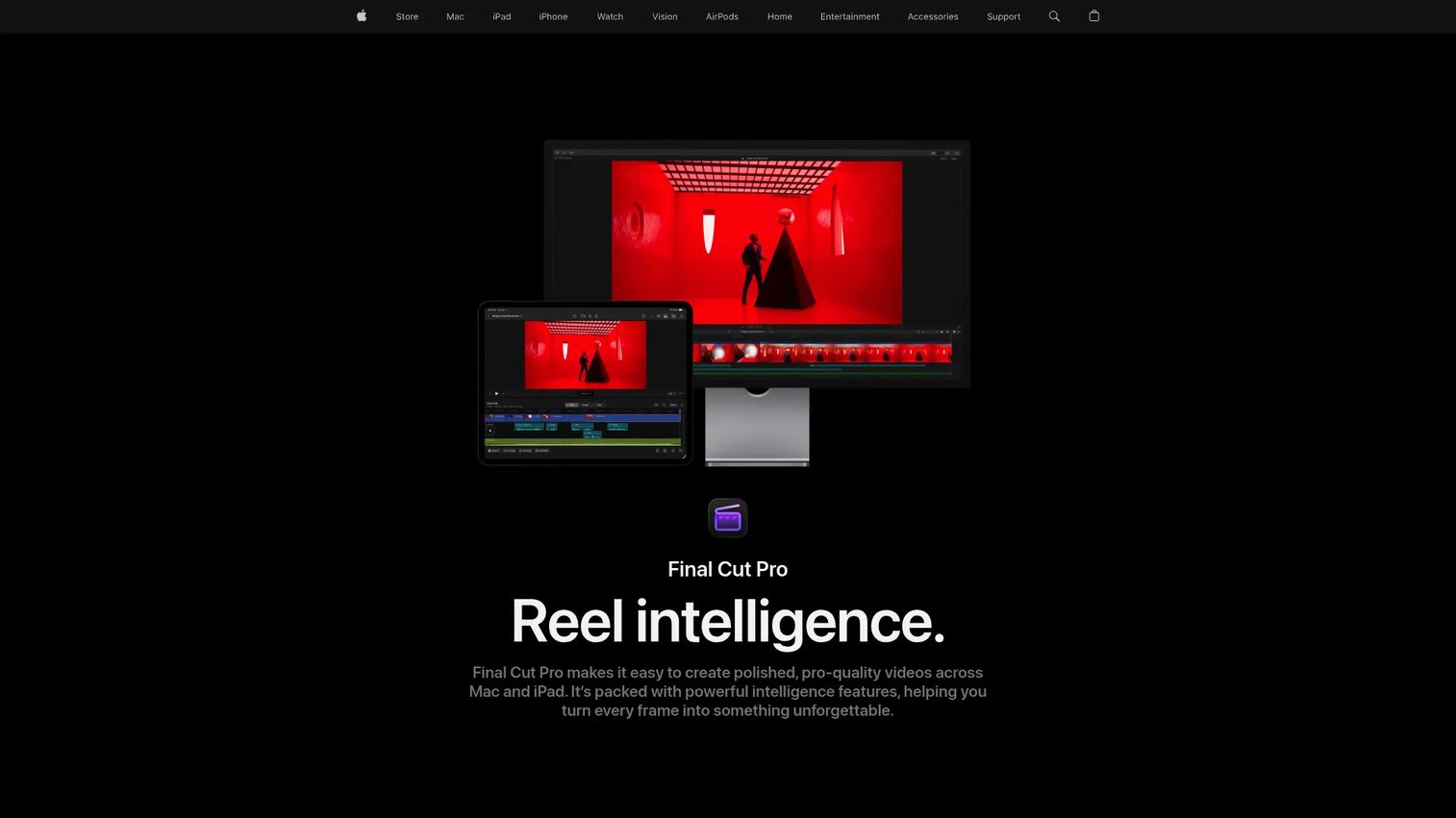
Final Cut Pro is Apple's professional editor for Mac teams. Its Magnetic Timeline, optimized Apple Silicon performance, and one-time pricing model make it a strong choice for PMMs producing polished video who prefer to pay once rather than subscribe.
Best for: Professional and advanced video editors on Mac who want one-time purchase pricing.
What it is: Final Cut Pro is Apple's professional video editing application for Mac, used for multicam editing, motion graphics workflows, color grading, HDR, and advanced export formats. Logic Pro plug-ins work inside Final Cut Pro's audio editor.
Key features:
- Magnetic Timeline editing with Mac optimization
- AI-powered Magnetic Mask and caption generation
- Multicam editing and media organization
- Color grading, HDR, and professional format support
- Audio editing with Logic Pro plug-ins
Where Final Cut Pro falls short: Mac-only. No native screen recording capability; screen capture requires a separate tool. The learning curve can challenge teams accustomed to simpler tutorial-focused editors.
Pricing: One-time purchase: $299.99. Available through Apple Creator Studio subscription at $12.99 per month or $129 per year, which includes additional creative apps. A 30-day free trial is available.
How it compares to Camtasia: Final Cut Pro is stronger for professional Mac video editing and production. Camtasia is better when the workflow starts with screen recording and tutorial-focused editing.
14. CapCut (video editing)
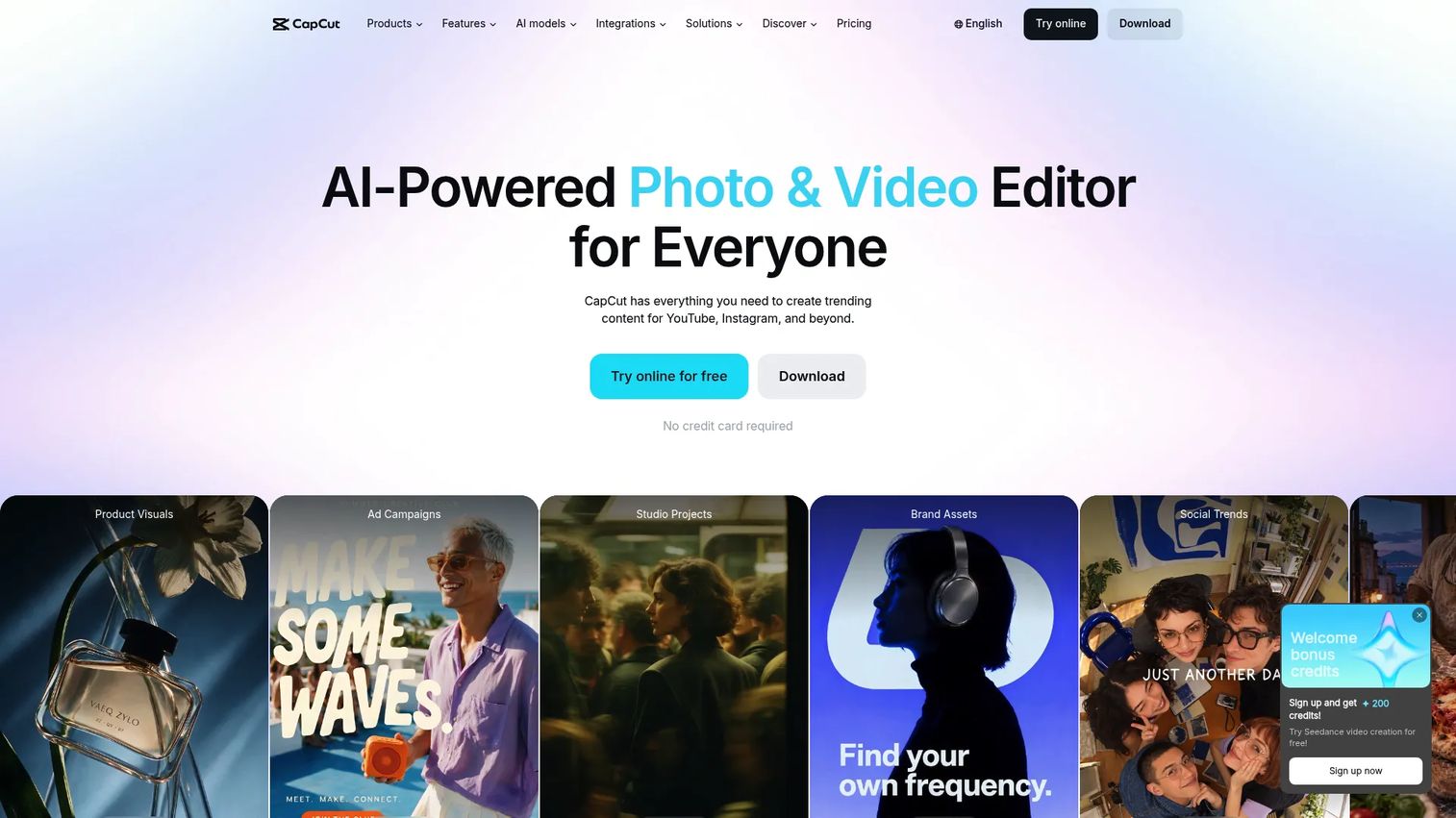
CapCut is the lightest option on this list. Its free plan, template library, and social-export formats make it useful for PMMs producing short launch clips, feature teasers, and campaign content without a dedicated video editor on the team.
Best for: Creators and marketers producing short-form social video, launch clips, and lightweight campaign content.
What it is: CapCut is an AI-powered video editing and content creation platform available on desktop, web, and mobile. Its free plan covers basic editing, templates, and auto captions. Pro and Ultra plans add AI credits, premium assets, and exclusive AI features.
Key features:
- AI video generation and auto caption generation
- Timeline editing with templates, effects, and transitions
- Desktop, web, and mobile editing
- Social export formats and aspect-ratio presets
- Teams plan with brand kit and collaboration features
Where CapCut falls short: CapCut is not a dedicated screen recording suite. Team governance and permissions may not meet the requirements of larger GTM teams managing shared assets. Advanced post-production controls fall short of DaVinci Resolve, Premiere Pro, or Final Cut Pro.
Pricing: Free: $0. Pro: $19.99 per month. Ultra: $79 per month. Teams: $12.49 per seat per month.
How it compares to Camtasia: CapCut is better for short social content and fast campaign clips. Camtasia is better for structured software tutorials that require recording and editing to live together.
Which Camtasia alternative is best for interactive product demos?
Guideflow is the right pick when the goal is a clickable product experience rather than a video.
PMMs can deploy interactive demos across product launch pages, outbound sequences, sales leave-behinds, onboarding flows, partner enablement, and customer education, without re-recording every time the UI changes. Buyers explore at their own pace and the platform surfaces step-level completion and drop-off data so teams can see which parts of the product story land and which lose attention.
Which Camtasia alternative records the most polished product videos?
Screen Studio is the strongest pick for polished Mac screen recordings. Loom fits when the job is a quick narrated async clip.
Screen Studio's automatic zoom and cursor effects do most of the visual work without a post-production session. Loom removes the editing step entirely and delivers a shareable link immediately. If the team needs Windows support as well, Descript or ScreenPal cover both platforms.
What is the best free Camtasia alternative?
OBS Studio for free recording; DaVinci Resolve for free editing.
OBS Studio handles advanced recording with no watermarks and no commercial-use restrictions. DaVinci Resolve covers professional editing and color grading in its free version. Neither fully replaces Camtasia for users who want recording and editing in one application, but combining them covers both jobs without a subscription.
Which Camtasia alternative is best for professional video editing?
DaVinci Resolve, Adobe Premiere Pro, and Final Cut Pro are the three professional options.
DaVinci Resolve covers color, effects, audio, and editing with a free version and a one-time Studio license at $236. Premiere Pro fits teams already in Creative Cloud. Final Cut Pro at $299.99 one-time is the strongest pick for Mac teams that prefer Apple's editing environment. All three require a separate recorder if screen capture is part of the workflow.
What is the best Camtasia alternative for product marketing teams?
Guideflow for interactive product stories; Loom, Descript, and CapCut for video assets.
Guideflow fits the PMM workflow when the output needs to be shareable, self-serve, and measurable, covering launches, landing pages, sales enablement, and onboarding. Loom handles internal stakeholder updates and customer-facing async clips. Descript handles post-production editing for recorded webinars and explainers. CapCut handles short social content for campaign launches.
When should you stay with Camtasia?
Stay with Camtasia if screen recording and timeline editing need to live in one desktop application and the team already has an established library of Camtasia project files and templates.
Camtasia makes most sense for training and L&D teams with structured tutorial formats, users who need cursor effects and software annotations built into the same editor as the recorder, and teams where the final deliverable is always a video file rather than a shareable interactive experience. If the editing workflow is working and switching cost outweighs the benefit of a new tool, the case for staying is straightforward.
Why teams switch from Camtasia to Guideflow
PMMs who outgrow Camtasia usually share one frustration: They are rebuilding video assets every time the product ships a UI change. Guideflow changes the update equation. Captured screenshots and HTML renders can be edited directly, so a changed screen means updating a few steps rather than re-recording an entire sequence.
The capture process runs through the Chrome extension or the native app. Step content is written automatically. From there, the editor handles text, images, graphs, branching, and translation into more than 30 languages. The finished demo runs as a browser-based interactive experience, not a video file, which means buyers click through the product story on their own terms.
The distribution range is wider than a video link. A single interactive demo can appear on a product launch page, inside a sales outreach sequence, in a follow-up email, at a conference kiosk, or inside a help center article, all from the same asset. Engagement data covers step-level completion, drop-off, and viewer flow, and the integrations with HubSpot, Salesforce, Pipedrive, Zoho, and Marketo route those signals into the CRM for lead scoring and follow-up.
One limit to name: Keep a dedicated video editor alongside Guideflow if the final output requires cinematic color grading, motion graphics, or multi-track audio post-production. Guideflow is built for buyer-facing interactive demos, not video post-production.
Start your journey with Guideflow today!
FAQs
The answer depends on the job. Guideflow is the strongest pick for interactive product demos. Loom handles async video clips with face and voice. Descript is best for transcript-led editing. OBS Studio is the best free recorder, and DaVinci Resolve is the best free editor. ScreenFlow is the most direct Mac replacement for Camtasia's recording-plus-editing workflow.
OBS Studio is free with no watermarks or feature limits. DaVinci Resolve's free version covers professional editing and color grading. CapCut and Loom both offer free plans with specific limits on recording length and feature access. Camtasia itself offers a free version, but exports carry a watermark. Guideflow has a free plan available.
ScreenFlow is the most direct Mac native replacement at $199 one-time. Screen Studio is better for polished product screen recordings. Final Cut Pro at $299.99 one-time is the professional editing option for Mac teams. DaVinci Resolve, Loom, and Descript all run on Mac alongside Windows.
OBS Studio, Descript, ScreenPal, DaVinci Resolve, Wondershare Filmora, Loom, and CapCut all run on Windows. Guideflow runs in the browser and works across operating systems. ScreenFlow, Screen Studio, and Final Cut Pro are Mac-only and do not apply to Windows workflows.
Yes, for the right jobs. Interactive demos work well for product launch pages, sales leave-behinds, onboarding flows, partner enablement, and self-serve customer education, wherever the goal is for someone to experience the product rather than watch an explanation of it. Video still fits narrated tutorials, training courses, and storytelling that benefits from voice and on-camera presence.
ScreenPal, ScreenFlow, and Descript are strong for software tutorials. ScreenPal includes interactive quizzes for education use cases. ScreenFlow handles recording and editing natively on Mac. Descript is the pick when the editing workflow starts from a transcript. For tutorials intended to become a clickable experience rather than a linear video, Guideflow covers that job.
OBS Studio and DaVinci Resolve are free. CapCut and Loom have free plans with specific limits. ScreenPal's Deluxe plan starts at $4 per month on an annual subscription. Guideflow has a free plan. Among paid options, ScreenPal is the most affordable subscription and Wondershare Filmora's perpetual license at $79.99 is the lowest one-time price for a capable video editor.
Yes, and many teams do. A common workflow uses Camtasia for structured training videos and onboarding courses, then links to a Guideflow interactive demo for hands-on product exploration at the end of the video or within follow-up emails. The two formats serve different moments in the buyer or learner journey and complement each other well.