You need to paint a 3D model. Maybe it's a game asset that needs proper PBR textures. Maybe it's a quick prop for a school project. Maybe you're deep in a production pipeline and painting is just one stop on a longer road through sculpting, retopology, and UVs.
The problem is that "3D painting software" covers a huge range. Some tools are deep enough to run an entire studio workflow. Others are simple enough that a ten-year-old can add a sticker to a cartoon dog in five minutes. Pick the wrong one and you either drown in a UI built for professionals or hit a wall the moment your work gets serious.
That gap between too shallow and too complex is where most buying decisions go sideways.
The market signals point to real demand. The painting software market sat at roughly $2.5B in 2025 and is projected to reach $7.8B by 2033 at a 12% CAGR, with 3D painting and texturing called out as a fast-growing segment, according to Data Insights Market (2026). The broader 3D modeling software market is projected to grow from $35.81B in 2024 to $91.32B by 2033 at a 10.96% CAGR, per Business Research Insights (2026). More people are making 3D content, and more of them need a paint program that matches their actual skill level and output.
This guide cuts through that. If you build software product experiences instead of models, the same "match the tool to the job" logic applies to picking demo automation software or the right ai design tools for your stack. For everyone else, here is a short, decision-ready comparison of three tools that cover the major buying intents behind 3D painting.
What's inside
This guide compares three 3D painting tools chosen because each one owns a distinct slice of the market: full production depth, focused PBR texture painting, and beginner-friendly casual use.
We selected them based on four things that actually matter when you choose a 3D model painter:
- Workflow depth: how much sculpting, UV, and texturing the tool handles
- Ease of use: how fast a new user reaches a usable result
- Platform support: Windows-only versus cross-platform
- Painter-friendly features: brushes, layers, materials, and export options
The list spans beginner, intermediate, and advanced needs. Whatever your skill level and output goal, one of these three should fit.
TL;DR
- Best for full production workflow: 3DCoat. Sculpting, retopology, UV mapping, and painting live in one suite, so you never leave the app to finish a game-ready asset.
- Best for cross-platform PBR texture painting: ArmorPaint. A focused, GPU-accelerated, node-based painter that runs across platforms and prioritizes texture quality.
- Best for beginners and simple 2D plus 3D tasks: Paint 3D. A free, Windows-friendly app for stickers, doodles, quick edits, and basic 3D creation with almost no learning curve.
If you need depth, go 3DCoat. If you need clean textures and portability, go ArmorPaint. If you just need to paint something fast, go Paint 3D. The rest of this guide explains why.
What is 3D painting software?
3D painting software lets you paint colors, materials, and surface detail directly onto a 3D model instead of editing flat 2D texture maps in isolation. You work on the model in a live viewport, seeing exactly how each brush stroke lands on the surface.
The category overlaps with a few adjacent tasks, and the difference matters when you shop:
- Painting applies color and material to a model's surface (the core job here).
- 3D texturing software generates and manages the texture maps that define how a surface looks under light, including PBR maps like roughness, metalness, and normal.
- Sculpting creates or reshapes the geometry itself, adding detail to the mesh.
- Basic model editing covers simple moves like placing, resizing, or combining premade shapes.
Most tools do some blend of these. A pure 3D paint program focuses on surface color and materials. A full suite adds sculpting, UV work, and more.
Core capabilities to look for in any 3D painting tool:
- Brushes and layers: stackable, editable paint layers with adjustable brushes
- Materials and effects: PBR materials, smart materials, masks, and procedural effects
- 3D model import and editing: bring in your own meshes or use built-in models
- UV and texture workflow support: UV mapping so textures wrap correctly, plus clean map export
- Export compatibility: file formats that game engines and other 3D apps can read
Keep those five in mind as you read the sections below. They map directly to whether a tool fits your work.
When to use 3D painting software
Not every project needs the same depth. Here is how to match your situation to the right kind of tool.
Paint textures for game-ready assets
When you're building assets for a game engine, you need full texture control: proper UVs, PBR materials, layered masks, and clean map export. Rough coloring won't survive contact with a real-time renderer. This is where pro-grade tools like 3DCoat and ArmorPaint earn their keep. They give you the material accuracy and export options that game pipelines demand.
Create simple models or quick edits
Sometimes you just need to slap a texture on a shape, add a doodle, or make a quick 3D graphic for a slide or a school assignment. You don't need UV mapping or PBR workflows for that. A lightweight, beginner-friendly tool like Paint 3D handles casual 2D plus basic 3D work without a steep learning curve.
Build a broader production pipeline
If your work runs through sculpting, retopology, UV creation, and painting in sequence, jumping between separate apps burns time and invites file-format headaches. A single suite that covers the whole chain keeps everything in one place. That's the case for 3DCoat, which is built as an end-to-end production tool rather than a single-purpose painter.
Comparison table
Here's the shortlist at a glance, sorted by relevance to serious 3D painting and texturing work. Pricing and ratings reflect verified, publicly listed values at the time of writing; where a public rating wasn't available, the cell is left blank.
| # | Product | Intent | Key use case | Pricing | G2 rating |
|---|---|---|---|---|---|
| 1 | 3DCoat | Full production suite | Sculpting, retopology, UV, and texture painting in one app | From €379 one-time; free trial | 4.3/5 |
| 2 | ArmorPaint | Focused PBR texturing | Cross-platform, node-based PBR texture painting | From $19 one-time | - |
| 3 | Paint 3D | Beginner casual | Simple 2D drawing plus basic 3D creation on Windows | Free | - |
Read the sections below for the detail behind each row, including who each tool actually fits.
1. 3DCoat
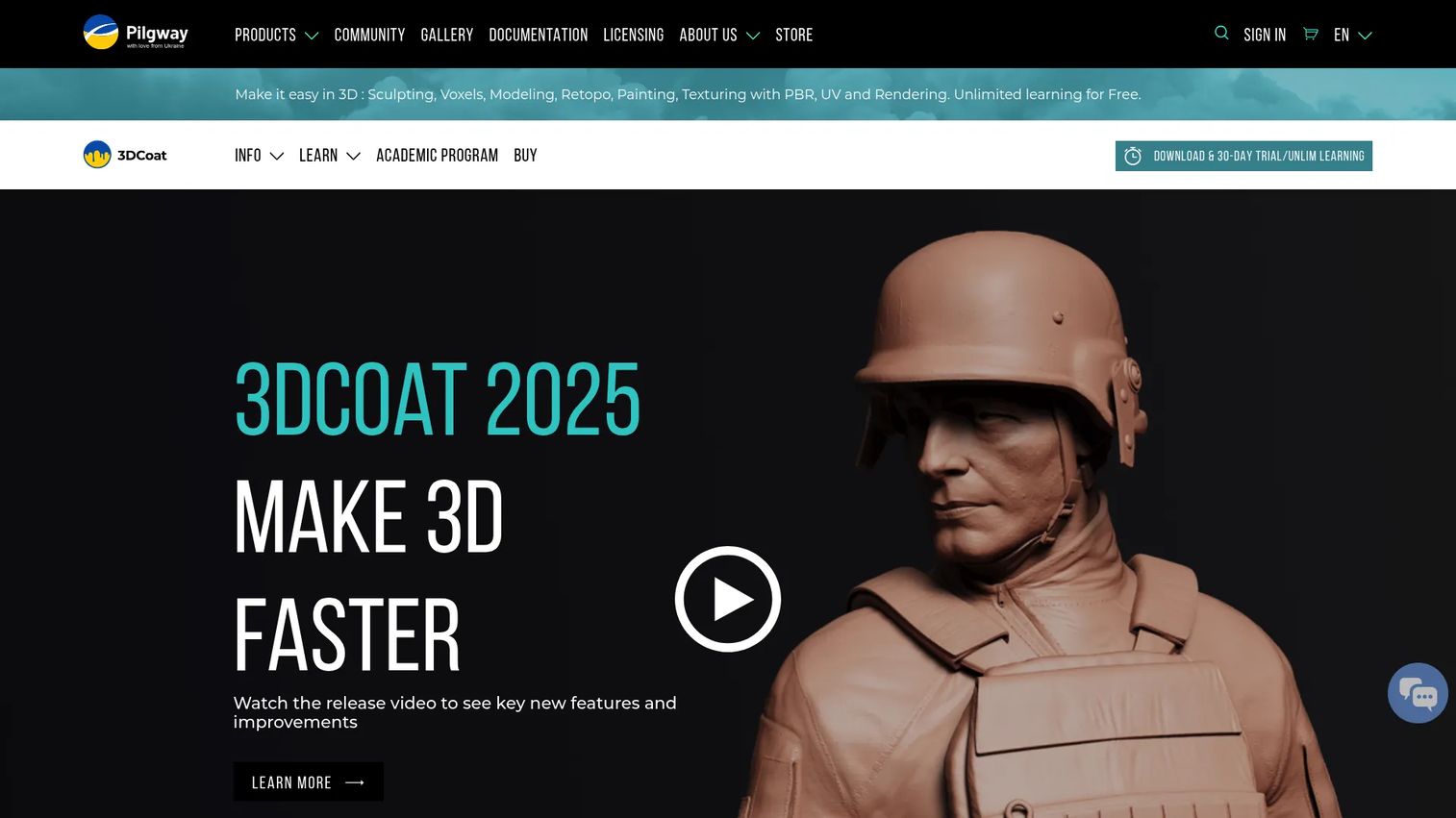
3DCoat is the deepest tool on this list. It's a full 3D production suite that handles sculpting, retopology, UV mapping, and texture painting inside a single application. Where other tools focus on one job, 3DCoat aims to carry a model from raw shape to finished, textured, game-ready asset without forcing you to bounce between separate programs.
That breadth is the whole point. If you sculpt a character, you can retopologize it, unwrap its UVs, and paint its textures in the same place. Fewer file transfers means fewer format problems and less time lost to round-tripping between apps.
Best for: 3D artists who need sculpting, retopology, UV mapping, and texture painting together in one production suite.
Key strengths
- Voxel and surface sculpting: build geometry freely with voxel sculpting, then refine it with surface tools, so you're never boxed in by topology early on.
- Retopology tools: turn dense sculpts into clean, animation-ready meshes without leaving the app.
- UV mapping and PBR texturing: unwrap UVs and paint physically based materials directly on the model, with the maps exporting cleanly for game engines and renderers.
Why choose 3DCoat: Choose it when your work spans the full pipeline, not just coloring. The all-in-one approach suits freelancers and small studios who don't want to license and learn a separate sculpting app, a separate retopo app, and a separate painter. It rewards users who want production depth and are willing to invest time learning a richer toolset, rather than those after quick one-off edits.
3DCoat pricing: 3DCoat uses a one-time license model. The public pricing page lists an Individual Node-locked permanent license starting at €379, with additional options for company, university and school, student and teacher, rent-to-own, monthly subscription, and one-year rent. There's a free download with trial access, so you can test the workflow before buying. On G2, 3DCoat holds a 4.3 out of 5 rating.
2. ArmorPaint
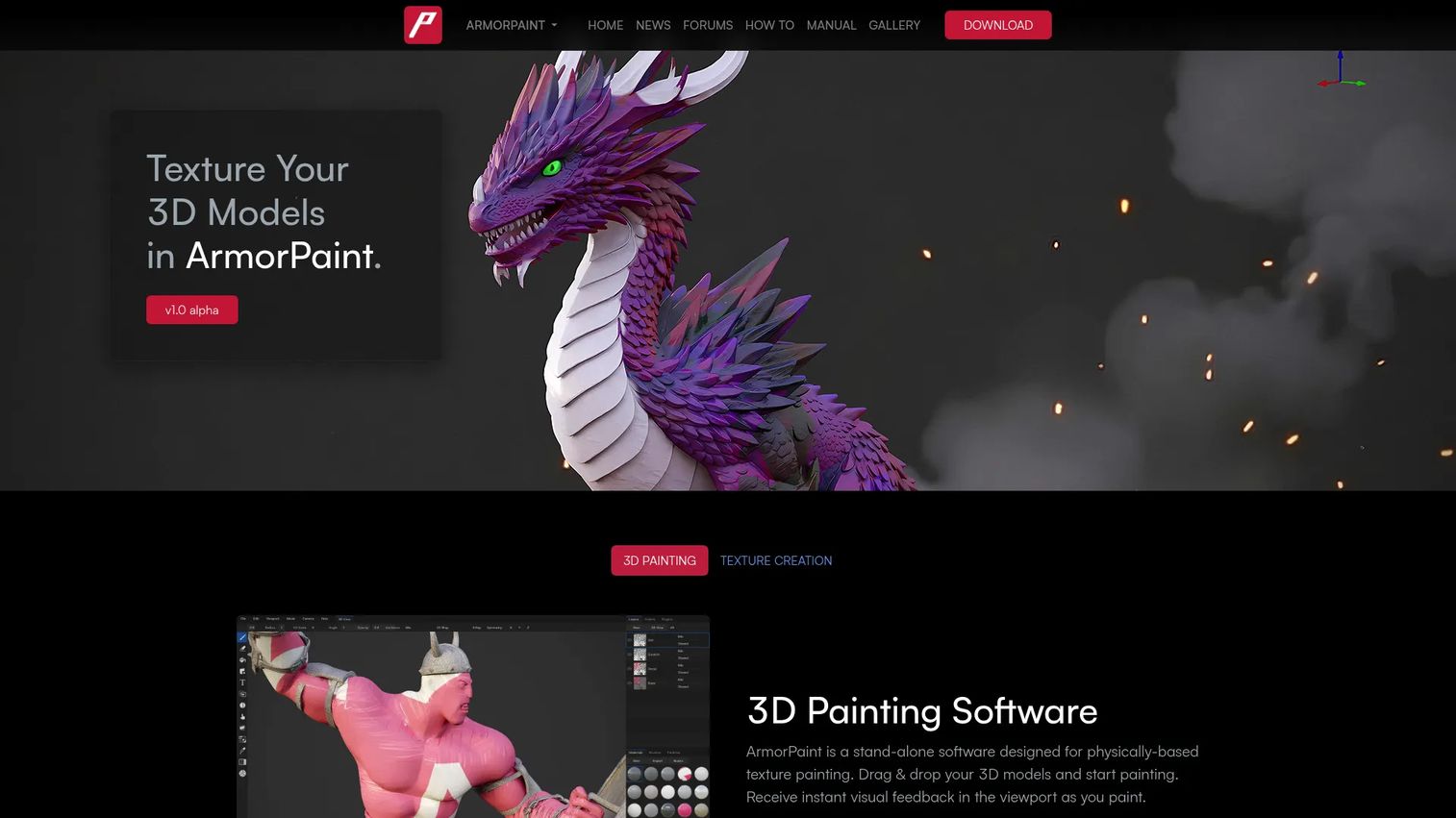
ArmorPaint is a standalone 3D PBR texture painting tool built for one job and built to do it well. It skips sculpting and modeling entirely and puts all its weight behind texture quality, GPU-accelerated performance, and a node-based procedural workflow. If you already have your meshes and UVs sorted and you just need to paint great textures, this is a focused fit.
The node-based approach is what sets it apart. Instead of stacking simple paint layers only, you build materials and brushes from connected nodes, which gives you procedural control over how surfaces look. Live viewport feedback means you see the result as you work, not after a bake.
Best for: artists who want a standalone PBR texturing tool with GPU-accelerated and procedural workflows, across multiple platforms.
Key strengths
- Node-based procedural materials and brushes: compose materials from connected nodes for repeatable, adjustable, high-fidelity surfaces.
- GPU-accelerated painting and baking: lean on the GPU for fast painting and quick bakes, keeping the viewport responsive on detailed models.
- Ray-traced baking, painting effects, and viewport rendering: bake maps and preview surfaces with ray-traced quality, so what you paint reads accurately under real lighting.
Why choose ArmorPaint: Choose it when texture quality and portability matter more than an all-in-one suite. Its cross-platform nature suits artists who move between operating systems or want a lean tool that does texturing and nothing else. It's a strong pick for people who already own their modeling and UV workflow and want the painting stage to be fast, procedural, and consistent.
ArmorPaint pricing: ArmorPaint uses a simple one-time buy model. The desktop alpha is listed at $19 as a one-time purchase, with free updates included. iOS and Android versions are marked as early access. That low, one-time price makes it an easy tool to try for anyone who wants dedicated texture painting without a subscription commitment.
3. Paint 3D
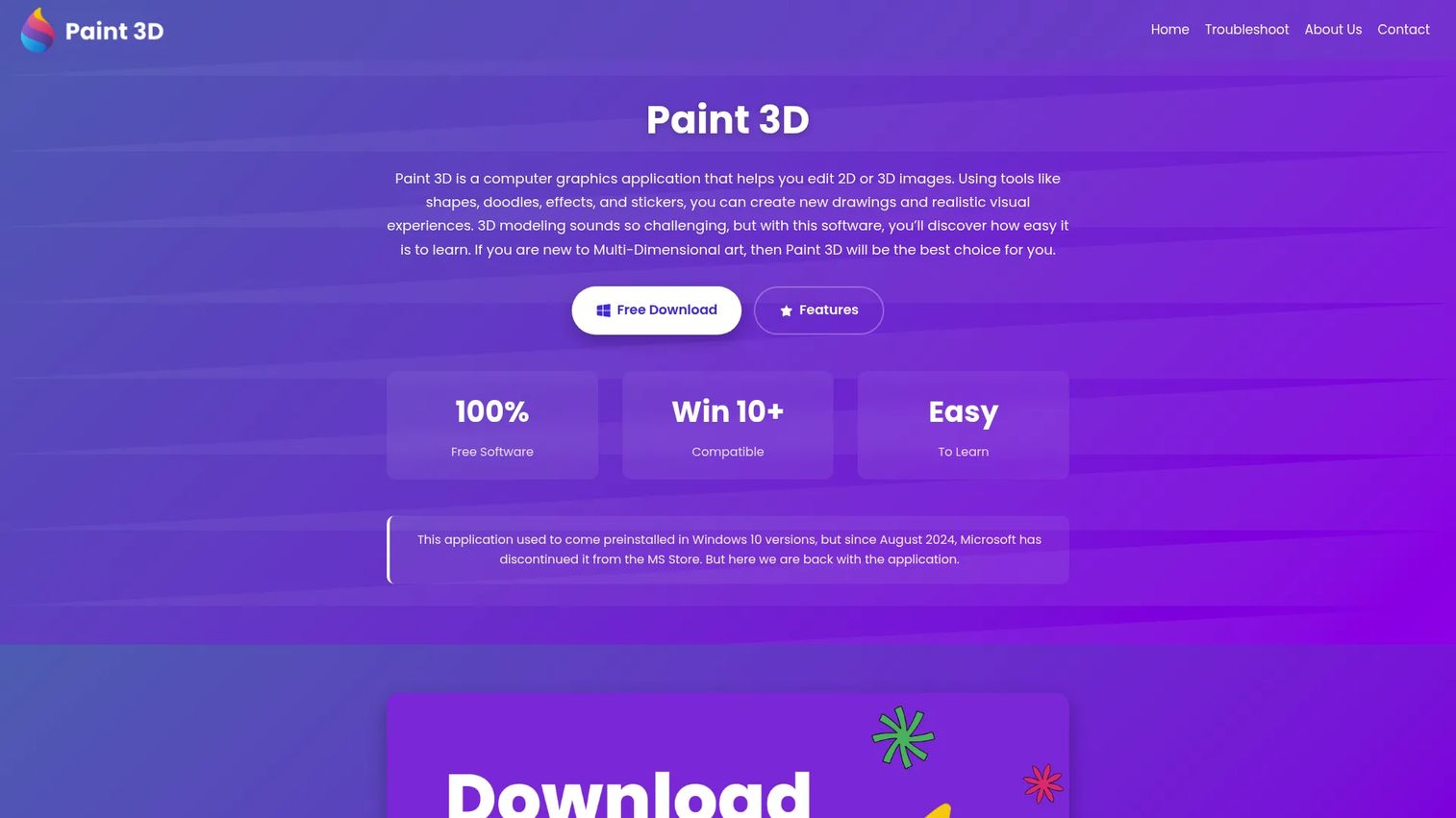
Paint 3D is the beginner-friendly option on this list, a free 2D and 3D design app for Windows aimed at casual creators. It's the tool you reach for when the goal is speed and simplicity, not production depth. Stickers, doodles, quick edits, built-in models, and a transparent canvas make it approachable for anyone who's never touched pro 3D software.
Where 3DCoat and ArmorPaint expect you to know UVs and PBR materials, Paint 3D expects nothing. You place a shape or pick from the built-in 3D model library, paint on it, add stickers or effects, and export. The Magic Select cutout tool lets you lift objects out of a 2D image with a few clicks. The whole experience is built to lower the barrier to entry.
Best for: beginners, students, and casual users who want simple 2D drawing plus basic 3D creation on Windows.
Key strengths
- 2D sketching and 3D editing together: draw in 2D and drop in editable 3D objects and doodles in the same canvas, no separate workflow to learn.
- Magic Select and stickers: cut objects out of images with Magic Select and dress models with stickers, effects, and textures for fast, playful results.
- Built-in model library and transparent canvas: start from ready-made 3D models and export with a transparent background for easy reuse in other projects.
Why choose Paint 3D: Choose it when you need something free, fast, and forgiving. It fits students, hobbyists, and anyone making quick 3D graphics who doesn't want to invest hours learning a professional suite. It's not built for game-asset texturing or deep pipelines, and that's fine, because its whole value is being the easiest on-ramp to basic 3D creation on Windows.
Paint 3D pricing: Paint 3D is free. The available information lists it as a free app with no paid tiers, so there's no cost barrier to trying it. Availability is tied to Windows, so check current Windows compatibility and system requirements for your machine before you rely on it for ongoing work.
Considerations
Before you commit, run through this short checklist. Matching the tool to your real needs saves money and frustration.
Workflow depth
Be honest about how much you actually need. If you only paint textures on existing meshes, a focused painter is enough. If your work runs through sculpting, retopo, UVs, and painting, a full suite pays off. Buying deep for a shallow use case wastes money and adds a learning curve you don't need. Buying shallow for a deep use case leaves you stuck mid-project.
Platform compatibility
Check where the tool runs before you buy. Paint 3D is tied to Windows, while ArmorPaint is cross-platform. This matters most in teams: if half your artists work on one operating system and half on another, a cross-platform tool keeps everyone on the same workflow and file formats.
Export and file support
Your textures and models have to leave the app cleanly. For game assets, confirm the tool exports the PBR maps and file formats your engine expects. A tool that paints beautifully but exports poorly creates handoff problems downstream in the pipeline. Pro tools like 3DCoat and ArmorPaint are built with production export in mind.
Learning curve
Depth and ease trade off. Paint 3D is the friendliest and fastest to pick up. 3DCoat is the richest and asks for the most time to master. ArmorPaint sits in between, focused enough to learn quickly if you already understand PBR texturing. Match the curve to how much time you can actually invest.
Pricing and licensing
The three tools cover three models. Paint 3D is free. ArmorPaint is a low one-time buy. 3DCoat uses one-time licenses with several tier options plus subscription and rent-to-own paths. Free trials or free versions exist across the list, so test before you commit.
Conclusion
The right 3D painting software comes down to one question: how much depth do you actually need?
If you need full production texturing across sculpting, retopology, UVs, and painting, 3DCoat is the pick. It carries a model from raw shape to finished asset in one app. If you already have your meshes and UVs and just want fast, portable, high-quality PBR texture painting, ArmorPaint is the focused, cross-platform choice at a low one-time price. If you just need simple 3D editing, stickers, and quick edits without a learning curve, Paint 3D is the free, beginner-friendly on-ramp on Windows.
Depth versus simplicity is the whole decision. Match the tool to the job in front of you, not the job you imagine you might do someday. Start with a free trial or the free tier, paint one real project, and you'll know within an hour whether the fit is right.
FAQs
Paint 3D is the simplest entry point for beginners. It's free, runs on Windows, and needs almost no prior knowledge. As a beginner, look for basic brushes, easy model placement, built-in models, and simple export, all of which Paint 3D offers without a steep learning curve.
For game assets, choose 3DCoat if you want a full pipeline that includes sculpting, retopology, UVs, and painting, or ArmorPaint if you only need focused PBR texture painting. Both handle UV mapping, PBR materials, and clean export so your textures survive contact with a real-time game engine.
Paint 3D is described as a free Windows app for 2D and 3D creation. Availability is tied to Windows, so check current Windows compatibility and system requirements for your machine before relying on it. If it's available for your setup, it remains a fast, free option for casual 3D work.
The core features are brushes and layers, materials and effects, 3D model import, UV mapping support, and export compatibility. These map directly to your buying criteria: brushes and materials control how the surface looks, UV support ensures textures wrap correctly, and export formats determine whether your work moves cleanly into other tools.
Some tools are Windows-only while others are cross-platform. Paint 3D is tied to Windows, whereas ArmorPaint runs across multiple platforms. Make platform support a decision factor, especially on a team where artists use different operating systems and need a shared workflow.
You only need sculpting if you're creating or reshaping geometry, not just painting existing meshes. A pure 3D texture painting workflow doesn't require it. If you build models from scratch, a suite with voxel sculpting like 3DCoat helps; if you paint pre-made meshes, a focused painter like ArmorPaint is enough.
For game engines and 3D pipelines, look for common mesh formats your target engine can import plus proper PBR texture map export, including color, roughness, metalness, and normal maps. Pro tools like 3DCoat and ArmorPaint are built with production export in mind, so they generally cover the formats real-time workflows expect.