Static documentation sits unread in help centers while your support queue grows. Users don't want to watch a 10-minute video and then try to remember the steps. They want to click through the actual workflow and learn by doing.
Interactive user guides solve this by turning product education into hands-on experiences. This guide covers what interactive user guides are, the types available, how to evaluate tools, and which 9 platforms stand out for SaaS teams in 2026.
What's inside
This guide covers everything you need to evaluate and choose interactive user guide software for your SaaS team. You'll learn what interactive user guides actually are, the different types available, how to evaluate tools, and which 9 platforms stand out in 2026. We also cover best practices for creating guides that users complete and metrics that prove ROI.
TL;DR
- Interactive user guides are dynamic, in-app resources with clickable elements, step-by-step walkthroughs, and contextual prompts that help users learn by doing rather than reading static documentation.
- They reduce support ticket volume, speed up onboarding, and scale customer education without adding headcount.
- The main types include walkthrough guides, tooltips, chatbot-assisted guides, resource centers, and branching decision trees.
- When evaluating tools, prioritize no-code creation speed, personalization depth, analytics, and integration with your existing stack.
- Guideflow lets teams capture any workflow directly from their browser and turn it into an interactive guide in minutes.
What is an interactive user guide
An interactive user guide is a digital, in-app resource featuring clickable elements, videos, and step-by-step walkthroughs designed to help users learn by doing. Unlike static PDFs or video tutorials where users passively watch, interactive guides let people click through actual product flows, receive contextual prompts, and complete tasks at their own pace.
You might also hear these called interactive user manuals, interactive manuals, or simply interactive guides. The core idea stays the same: show users what to do inside the product rather than telling them in a separate document.
- Step-by-step walkthroughs: Guided sequences showing users how to complete tasks in real time, with each step triggered by their actions
- Tooltips and hotspots: Small clickable or hoverable icons providing context without cluttering the screen
- Progress indicators: Checklists or progress bars that show users where they are in a flow and how much remains
- Embedded multimedia: GIFs, videos, or screen recordings illustrating actions visually when static instructions fall short
Benefits of interactive user guides for customer success teams
Customer success teams face a familiar tension: you want to provide high-touch support, but your account list keeps growing.
Reduced support tickets without adding headcount
When users can find answers inside the product, 61% of customers prefer self-service for basic how-to questions. That's time your CS team can redirect toward expansion conversations and at-risk accounts.
Faster time to value for new users
Interactive guides show users exactly what to click, reducing the confusion that typically slows onboarding. Instead of watching a 10-minute video and trying to remember the steps, users complete tasks while learning them. First success moments happen faster, which correlates directly with retention.
Scalable onboarding across customer segments
One well-built guide serves hundreds or thousands of users. You can segment and personalize guides for different roles or use cases without creating entirely new content each time. An admin sees different guidance than an end user, but both experiences come from the same underlying system.
Easier maintenance when your product changes
Digital formats allow instant updates. When workflows change, you update the guide once and every user sees the new version immediately. Compare this to re-recording videos or updating PDF screenshots across dozens of documents.
Types of interactive guides
The right type depends on your use case and how users typically interact with your product. Here's a quick map of the options before diving into specific tools.
Walkthrough guides
Step-by-step sequences that guide users through a specific task. Best for onboarding new users or introducing new features. This is the most common type in a segment holding 38.9% of the DAP market.
Tooltips and hotspots
Small contextual prompts attached to UI elements. Users hover or click to reveal information without leaving their current workflow. Best for providing quick explanations of complex features or unfamiliar terminology.
Chatbot-assisted guides
Conversational interfaces that answer questions and guide users based on their inputs. Best for support deflection and handling varied user queries where a linear walkthrough doesn't fit.
Resource center guides
Centralized hubs within the app that organize multiple guides, articles, and videos. Best for products with many features or user segments. Users search and browse rather than following a single path.
Pop-up and slideout modals
Announcements or micro-guides that appear based on triggers like first login or feature launch. Best for one-time announcements or directing attention to new capabilities without interrupting the main workflow.
Branching decision trees
Interactive flows where users choose their path based on their goals. Best for complex products where different users need different guidance. The guide adapts based on user selections.
How to evaluate interactive user guide software
Before comparing specific tools in a category projected to reach USD $4.37 billion by 2034, establish your evaluation criteria. Six factors separate tools that work from tools that create more problems than they solve.
No-code creation speed
Look for tools that let you create guides without engineering help. Browser-based capture (record your screen and clicks) is fastest. Ask: how quickly can a non-technical user publish a guide? If the answer involves sprints or developer tickets, keep looking.
Personalization and segmentation depth
Can you show different guides to different user segments? Look for dynamic variables, role-based targeting, and the ability to customize content per account or use case.
Analytics and engagement tracking
Good tools show which guides get completed, where users drop off, and which steps cause confusion. This data helps you improve guides over time. Without it, you're guessing.
Integration with your existing stack
Check whether the tool connects to your CRM, help desk, or analytics platform. Integrations let you trigger guides based on user data and sync engagement signals back to your systems.
Maintenance workflow
Products change. Look for tools that make it easy to update existing guides without rebuilding from scratch. Version control and collaborative editing help teams stay coordinated.
Pricing and scalability
Understand the pricing model (per seat, per guide, per MAU). Ensure the tool scales with your user base without unexpected cost spikes as you grow.
Interactive user guide tools comparison table
# | Product | Best for | Key differentiation | Pricing | G2 rating |
|---|---|---|---|---|---|
1 | Guideflow | Product-led SaaS teams | Browser capture + personalization | Free + $40/mo | 5.0/5 |
2 | UserGuiding | SMB onboarding | No-code builder + resource center | $69/mo | 4.6/5 |
3 | Whatfix | Enterprise DAP | Multi-app guidance + task automation | Custom | 4.6/5 |
4 | Apty | Process compliance | Validation rules + cross-app flows | Custom | 4.7/5 |
5 | WalkMe | Large enterprise | Deep customization + ActionBot | Custom | 4.5/5 |
6 | Userpilot | Product-led growth | Feature adoption + A/B testing | $249/mo | 4.6/5 |
7 | Pendo | Product analytics first | Retroactive analytics + guides | Custom | 4.4/5 |
8 | Scribe | Documentation | Auto-generated step-by-step docs | Free + $23/mo | 4.8/5 |
9 | Usetiful | Budget-conscious SMBs | Affordable tours + checklists | Free + $29/mo | 4.7/5 |
Best interactive user guide software for SaaS teams
The following 9 tools represent different approaches to interactive user guides. Each excels in specific scenarios, so match the tool to your team's actual needs rather than feature counts.
1. Guideflow
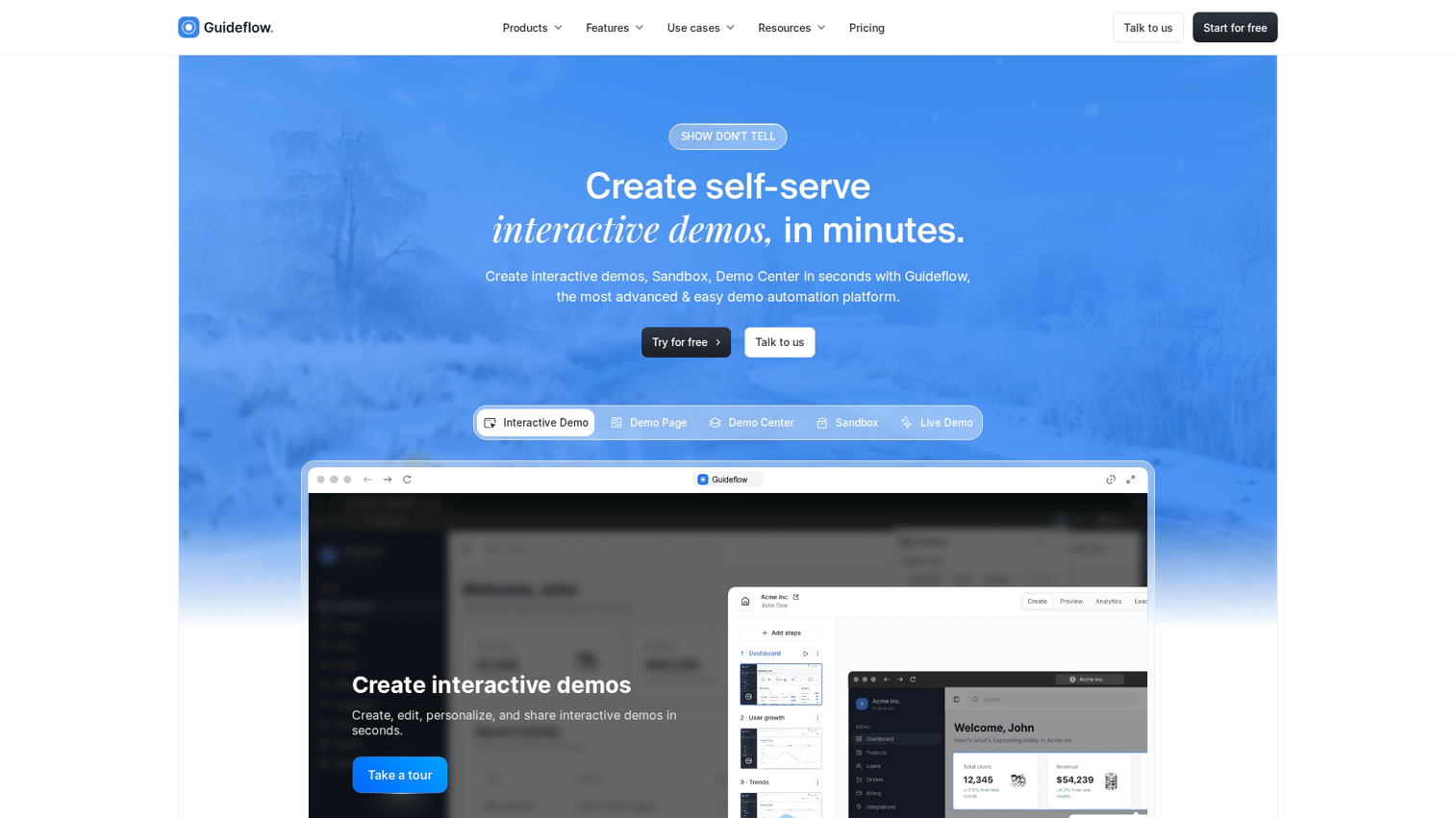
Guideflow is a demo automation platform that lets teams create interactive demos and user guides by capturing product flows directly from the browser. Instead of building guides from scratch, you click through your product as you normally would, and Guideflow generates a step-by-step interactive experience automatically.
This approach matters because traditional guide-building is slow. You're either recording videos, taking screenshots, or manually configuring each step. Guideflow eliminates that friction by turning real product usage into shareable, editable guides.
Best for: Product marketing, customer success, and presales teams who want to create interactive guides without engineering help or long production cycles.
Key strengths
- Browser extension capture: Record any workflow in clicks, then edit the generated guide without rebuilding
- Personalization with dynamic variables: Customize text, images, and paths for different user segments or accounts
- Step-level analytics: See completion rates, drop-off points, and time spent on each step
- Embed anywhere: Place guides in help centers, apps, websites, or share via link
- AI-assisted editing: Auto-generate steps, translations, and voiceovers to polish guides faster
Guideflow pricing
- Free: $0/month (5 guideflows, unlimited viewers, 7-day analytics)
- Solo: $40/month (unlimited guideflows, advanced analytics, lead forms, AI features)
- Growth: $499/month
- Advanced: $1,499/month
- Enterprise: From $2,999/month
Start your journey with Guideflow today!
2. UserGuiding
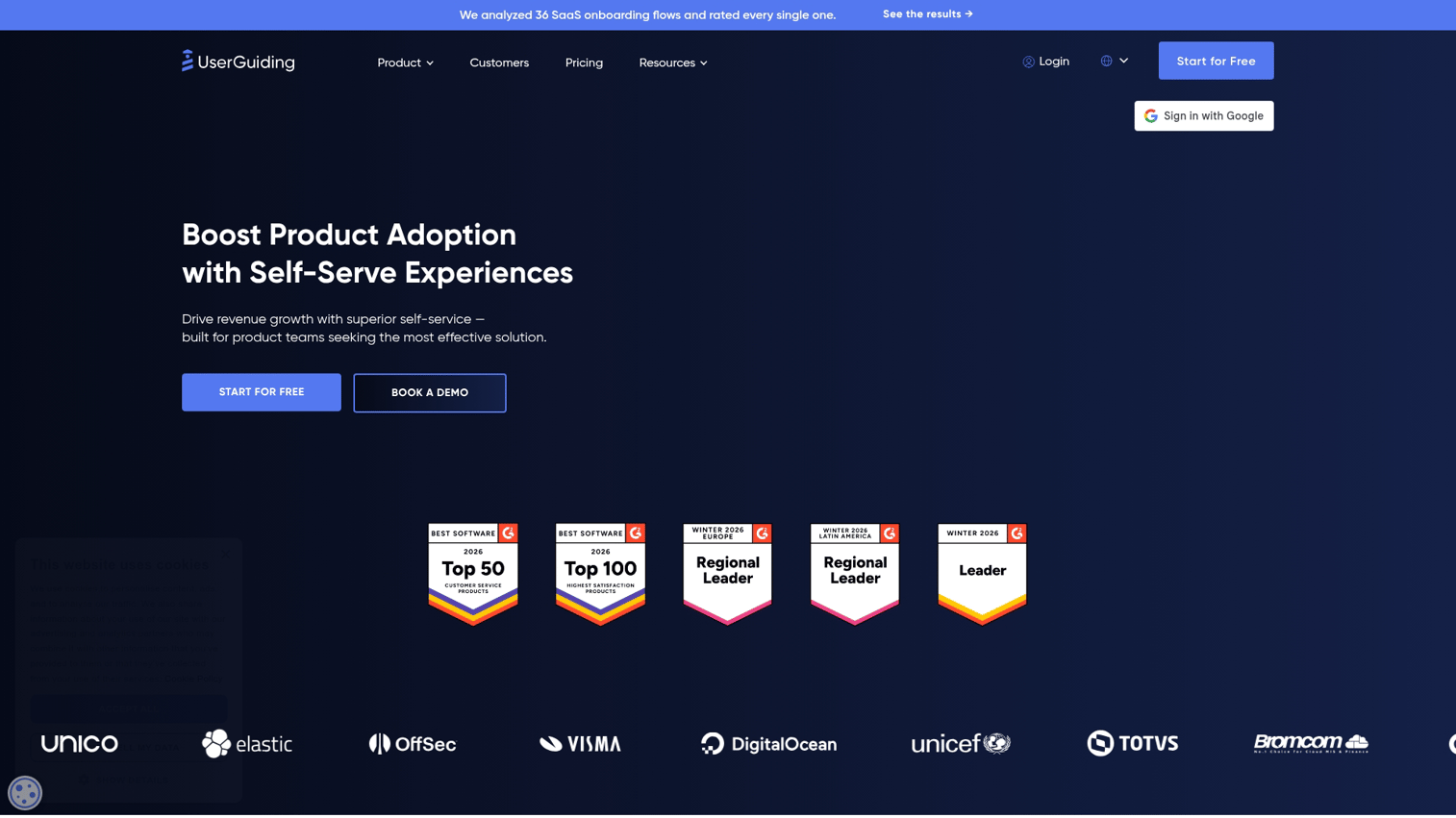
UserGuiding is a no-code platform focused on in-app onboarding experiences. You get walkthrough guides, tooltips, checklists, and a resource center without writing code or involving developers.
The platform works well for teams that want a full onboarding suite with minimal implementation. You can segment users by behavior or attributes and trigger different experiences based on where they are in their journey.
Best for: SMB SaaS teams who want comprehensive onboarding tools without heavy technical lift.
Key strengths
- No-code builder: Create walkthroughs, checklists, and hotspots with a visual editor
- Resource center: Centralized help hub users can search and browse
- User segmentation: Target guides by behavior, attributes, or custom properties
- Integrations: Connects with analytics and CRM tools for data sync
UserGuiding pricing
Starter plans begin at $69/month for up to 1,000 MAU. Professional and Corporate tiers scale with usage and features.
3. Whatfix
Whatfix is an enterprise digital adoption platform (DAP) that provides in-app guidance across multiple applications. For teams needing hands-on product experiences, consider how sandbox demos complement interactive guides for sales teams.
The platform requires more implementation time than lighter tools but delivers deeper customization for complex enterprise environments. You can guide users across different applications and automate repetitive tasks.
Best for: Large organizations with complex software stacks who need guidance across multiple enterprise applications.
Key strengths
- Multi-application guidance: Guide users across different tools in your stack
- Task automation: Reduce manual steps by automating repetitive actions
- Advanced analytics: Track user behavior and adoption patterns in detail
- Accessibility and localization: Multi-language support and accessibility compliance
Whatfix pricing
Custom pricing based on organization size and requirements. Contact sales for quotes.
4. Apty
Apty is a digital adoption platform with a focus on process compliance and enterprise workflows. Beyond guidance, it enforces specific user paths and validates data entry to ensure users follow correct procedures.
The platform excels when you need users to complete tasks in a specific way, not just learn how to use features. Validation rules catch errors before they cause downstream problems.
Best for: Organizations that need to enforce process compliance and ensure correct data entry across enterprise applications.
Key strengths
- Process compliance enforcement: Ensure users follow required steps and procedures
- Cross-application guidance: Guide users across multiple enterprise tools
- Validation rules: Catch incorrect data entry before submission
- Enterprise security: Governance features for regulated industries
Apty pricing
Custom pricing based on enterprise requirements. Contact sales for details.
5. WalkMe
WalkMe is one of the original digital adoption platforms, built for large enterprises with complex customization needs. You get extensive configuration options, an ActionBot for conversational guidance, and a large partner ecosystem for implementation support.
The platform requires significant implementation investment but delivers deep customization for organizations willing to make that commitment. Most deployments involve dedicated DAP teams or implementation partners.
Best for: Large enterprises with dedicated DAP teams who need extensive customization and are willing to invest in implementation.
Key strengths
- Extensive customization: Configure complex workflows and conditional logic
- ActionBot: Conversational guidance for user questions
- Insights dashboard: Detailed adoption analytics and reporting
- Partner ecosystem: Large network of implementation partners
WalkMe pricing
Custom enterprise pricing. Contact sales for quotes.
6. Userpilot
Userpilot combines onboarding, feature adoption, and user feedback in a product growth platform. You get in-app experiences, surveys, and analytics without engineering involvement for most use cases.
The platform emphasizes experimentation with A/B testing for onboarding flows. You can test different approaches and optimize based on actual completion and adoption data.
Best for: Product-led growth teams who want to experiment with onboarding and track feature adoption.
Key strengths
- No-code in-app experiences: Build flows, tooltips, and modals without developers
- Feature tagging: Track adoption of specific features automatically
- Built-in surveys: Collect NPS and feedback without additional tools
- A/B testing: Experiment with different onboarding approaches
Userpilot pricing
Starter plans begin at $249/month. Growth and Enterprise tiers add features and scale with usage.
7. Pendo
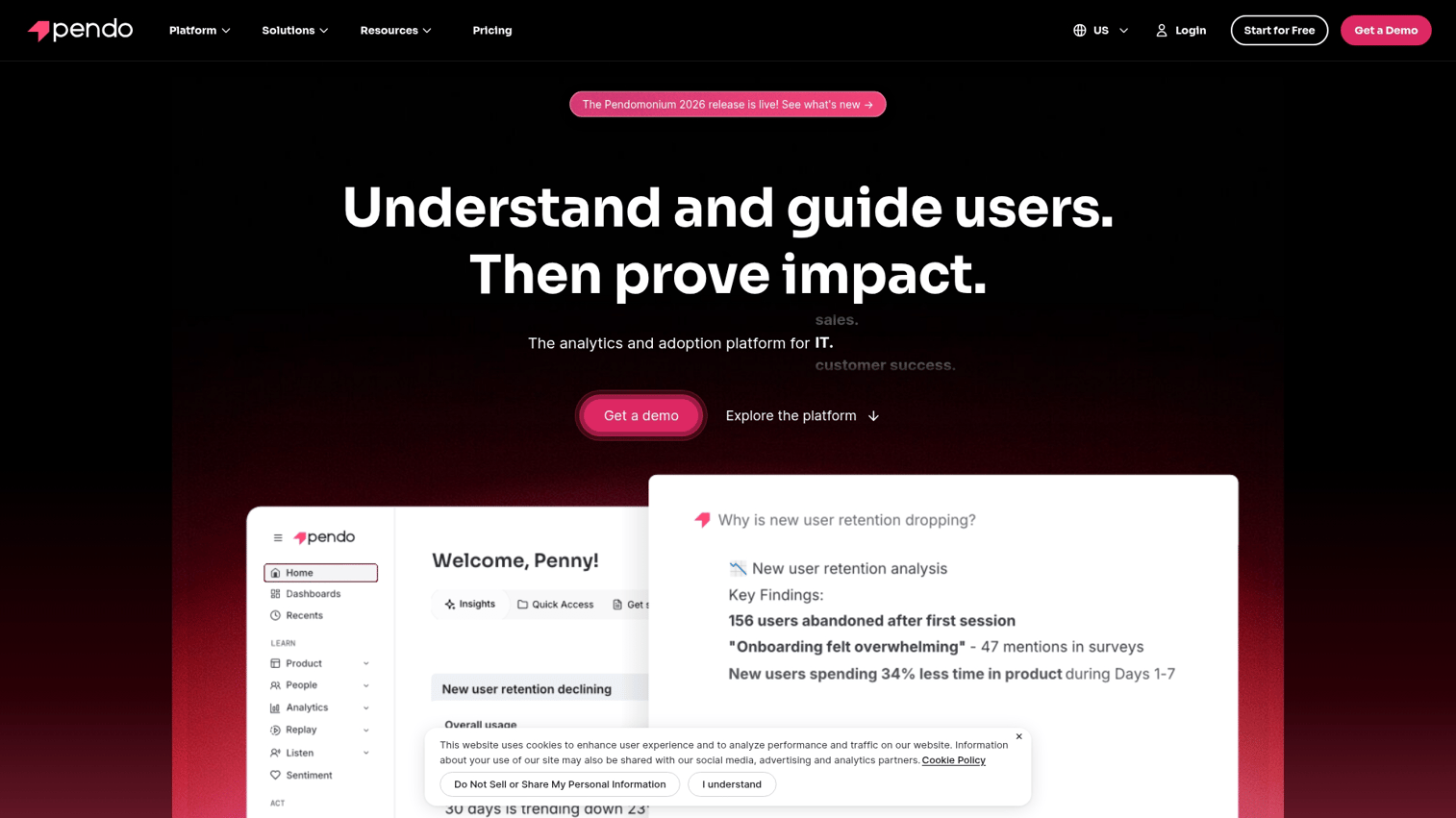
Pendo is primarily a product analytics platform that also offers guidance capabilities. The analytics-first approach means you get retroactive data capture and detailed behavioral insights alongside in-app guides.
The platform works well for teams who want analytics as the foundation and guidance as a complement. You can trigger guides based on behavioral data and measure their impact on product usage.
Best for: Product teams who prioritize analytics and want guidance capabilities integrated with their data.
Key strengths
- Retroactive analytics: Capture data without pre-defining events
- Behavior-triggered guides: Launch guides based on user actions and patterns
- Resource center: Self-serve content hub for users
- Feedback and roadmap: Collect input and prioritize features
Pendo pricing
Custom pricing based on usage and features. Contact sales for quotes.
8. Scribe
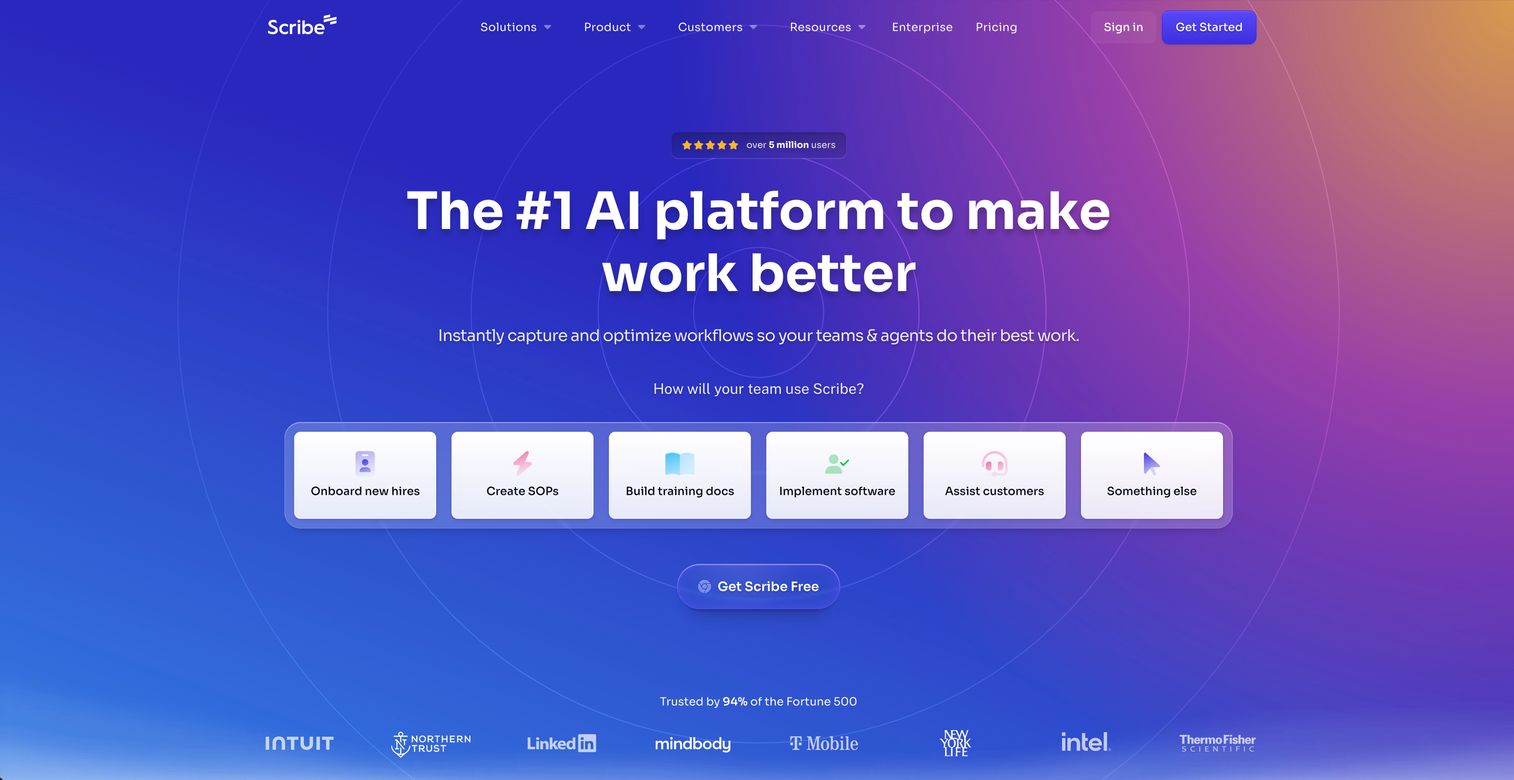
Scribe focuses specifically on creating step-by-step documentation. The browser extension captures your clicks and automatically generates written guides with screenshots. It's lighter weight than full DAP platforms but excels at its specific use case.
The tool works well for teams who need to document processes quickly for internal training or customer support. You capture a workflow once and get a shareable guide immediately.
Best for: Teams who need to document processes quickly for internal or customer use without building full interactive experiences.
Key strengths
- Automatic guide generation: Capture clicks and get written steps with screenshots
- Screenshot and annotation: Visual documentation included automatically
- Export options: Share as PDF, HTML, or embed in other tools
- Fast adoption: Lightweight tool with minimal learning curve
Scribe pricing
Free plan available with basic features. Pro plans start at $23/month per user.
9. Usetiful
Usetiful offers product tours, checklists, and tooltips at budget-friendly pricing. The platform covers core onboarding needs without enterprise complexity or enterprise pricing.
The tool works well for startups and SMBs who want basic interactive guides without significant investment. You get the essentials without paying for features you won't use.
Best for: Startups and SMBs who want core onboarding features at accessible pricing.
Key strengths
- Affordable pricing: Lower cost than enterprise alternatives
- Product tours and checklists: Core onboarding features included
- No-code setup: Visual builder without developer requirements
- Basic analytics: Track completion and engagement
Usetiful pricing
Free plan available with limited features. Paid plans start at $29/month.
Best practices for creating effective interactive user guides
Building the guide is only half the work. The following practices help ensure users actually complete your guides and learn from them.
1. Keep each step focused on one action
Don't combine multiple actions in one step. Users perform better when each step has a single, clear instruction. One click, one field, one decision per step.
2. Add progress indicators to show completion
Progress bars or step counts help users know how much remains. This reduces abandonment and sets expectations.
3. Use contextual help based on user behavior
Trigger guides based on what users are doing, not just where they are. If a user hovers on a button multiple times without clicking, they might need a tooltip.
4. Test guides with real users before launch
Watch users go through your guides before publishing widely. Identify confusing steps and fix them before they cause support tickets.
5. Track drop-off points and iterate weekly
Use analytics to find where users abandon guides. Review data weekly and improve the weakest steps continuously.
How to measure interactive user guide performance
Metrics connect your guides to business outcomes. Track the following to prove ROI and identify improvement opportunities.
Completion rate by guide and step
The percentage of users who finish each guide. Low completion on a specific step signals confusion or friction at that point. Step-level data helps you pinpoint exactly where to improve.
Support ticket deflection rate
Compare ticket volume before and after launching guides on specific topics. Look for reduction in repetitive how-to questions. This is often the clearest ROI metric for customer success teams because self-service costs $1.84 per contact versus $13.50 for assisted channels.
Time to first key action
How long it takes new users to complete their first meaningful action after starting a guide. Faster is better. Compare guided users to unguided users to measure impact.
Feature adoption lift
Track whether users who complete guides use the related feature more than users who don't. Guides that don't drive behavior change aren't working, regardless of completion rates.
Interactive user guide examples that drive adoption
- Onboarding walkthrough: A SaaS tool uses a 5-step guide to help new users set up their first project. Completion rate data guides product improvements.
- Tooltip example: An analytics platform adds contextual tooltips to explain complex metrics. Users hover to learn without leaving their workflow.
- Resource center example: A CRM organizes guides by user role (sales, support, admin) so each persona finds relevant help fast.
- Feature launch example: A project management tool triggers a slideout guide when users first see a new feature, showing how to use it in context.
When to use interactive guides vs other onboarding methods
Interactive guides work well for specific scenarios but aren't always the right choice. Here's how they compare:
Method | Best for | Limitations |
|---|---|---|
Interactive guides | Task-based learning, in-app onboarding, self-serve support | Requires tool investment, needs maintenance |
Video tutorials | Complex concepts, visual demonstrations | Passive, hard to update, no tracking |
Live training | High-touch accounts, complex setups | Doesn't scale, expensive |
Static documentation | Reference material, detailed specs | Low engagement, often ignored |
Email sequences | Drip education over time | Not contextual, low completion |
Most teams combine methods. Interactive guides handle the in-app moments where users need to take action. Videos and documentation support deeper learning. Live training serves high-value accounts where the investment makes sense.
Start with your first interactive user guide today
Interactive user guides reduce support load, speed up onboarding, and scale customer education without adding headcount. The right tool depends on your team size, product complexity, and budget.
Start with one high-impact guide. Pick your most common support question or the first task new users complete. Build a guide, measure completion, and track whether support tickets decrease. That data tells you whether to expand.
Start your journey with Guideflow today!
FAQs about interactive user guides
With browser-based capture tools like Guideflow, you can create a basic interactive guide in minutes. More complex guides with branching or personalization may take a few hours to refine, but the capture step itself typically takes less time than recording a video.
Yes, most modern interactive guide tools offer no-code builders that let anyone with product knowledge create and publish guides. The shift toward browser-based capture has made guide creation accessible to customer success, marketing, and support teams without engineering involvement.
Interactive user guides teach existing users how to use features inside the product. Interactive product demos show prospects what the product does before they sign up or buy. The same underlying technology often powers both, but the audience and intent differ.
Completion rates vary by guide length and complexity. Well-designed guides with 5-7 steps often see higher completion than video tutorials or documentation because users learn by doing.
Update guides whenever the related product workflow changes. Teams with frequent releases often review guides monthly to ensure accuracy. Some tools offer alerts when underlying UI changes, making maintenance easier to track.
Yes, most tools allow segmentation by user attributes. You can show different guides to admins, end users, or specific customer segments. Dynamic variables let you customize content (like company name or user name) without creating separate guide versions.
Capabilities vary by tool. Some platforms offer native mobile SDKs for iOS and Android. Others support responsive web experiences that work on mobile browsers. Check whether your chosen tool supports your specific mobile requirements before committing.
Most tools provide embed codes or iframe options that let you place guides directly in help articles, knowledge bases, or support portals. Some integrate with help desk platforms like Zendesk or Intercom for seamless embedding.