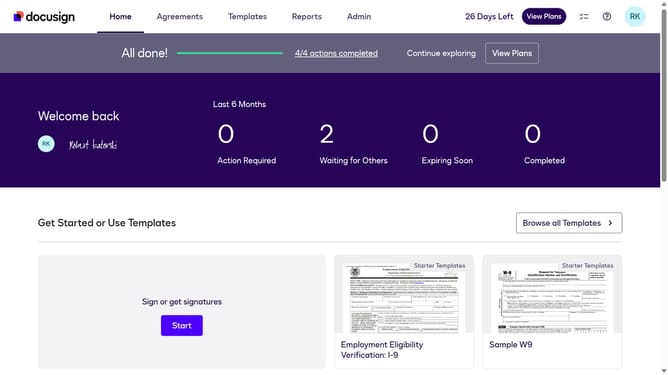
How to trigger events when a workflow fails in DocuSign
Here is how to trigger events when a workflow fails in docusign
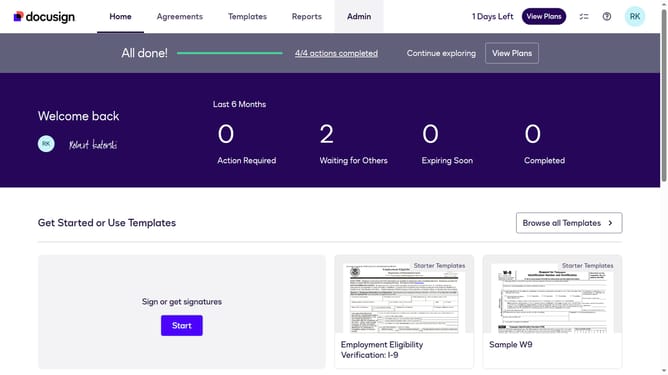
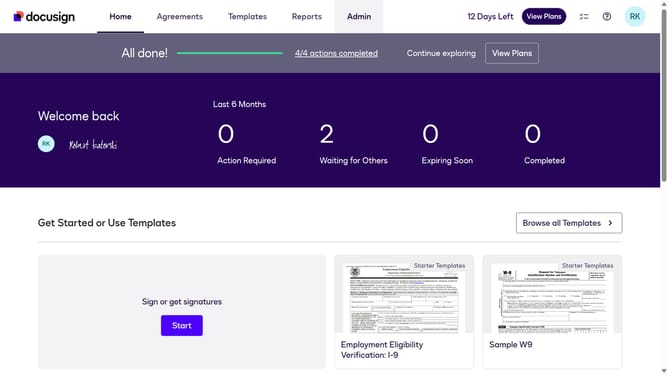
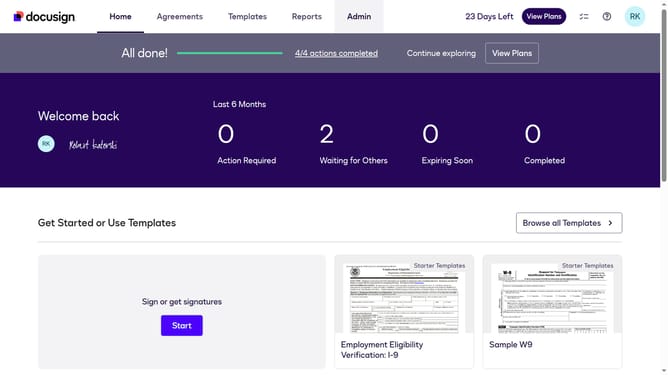
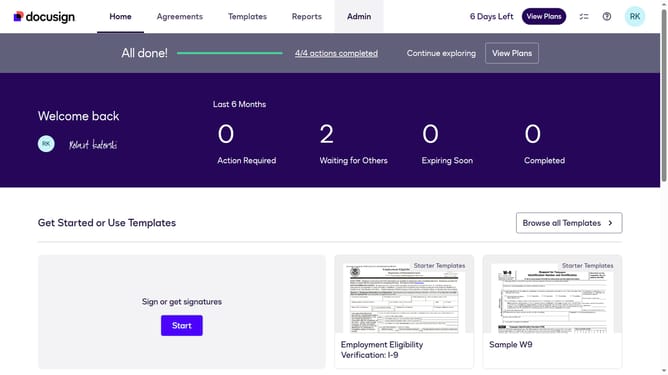
- First click on the "Admin" tab in the top navigation menu
- Then click on the scrollbar to scroll down the page
- Next click on the "Connect" option in the left sidebar under the INTEGRATIONS section
- Then click on the "Actions" dropdown button next to a custom configuration in the configurations table
- Next select the "Edit" option from the Actions dropdown menu
- Then scroll down the page using the scrollbar to view more configuration options
- Next click on the "Maestro" trigger event section to expand it
- Then click on the "Workflow Failed" checkbox to enable this trigger event
- Continue scrolling down to reach the bottom of the configuration form
- Finally click on the "Save Configuration" button to save the changes
Why should you trigger events when a workflow fails in DocuSign
DocuSign is a leading electronic signature platform that streamlines document management and approval processes.
One of its powerful features is the ability to trigger events when a workflow fails, ensuring you're always in the loop on your document processes. This proactive approach allows you to deal with issues swiftly, maintaining operational efficiency.
Moreover, by automating alerts for unsuccessful workflows, you minimize downtime and prevent minor snags from turning into significant disruptions. Such automation enhances reliability and keeps your business moving seamlessly.
Last update