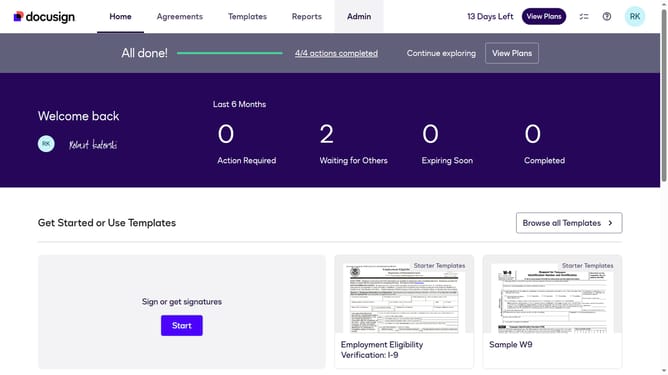
How to append attachments to a document using the attachment field in DocuSign
Here is how to append attachments to a document using the attachment field in docusign
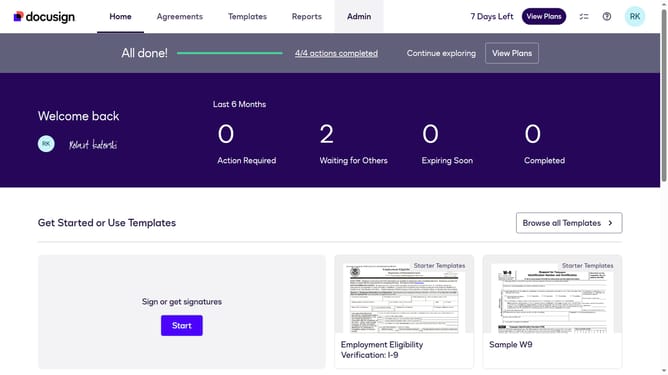
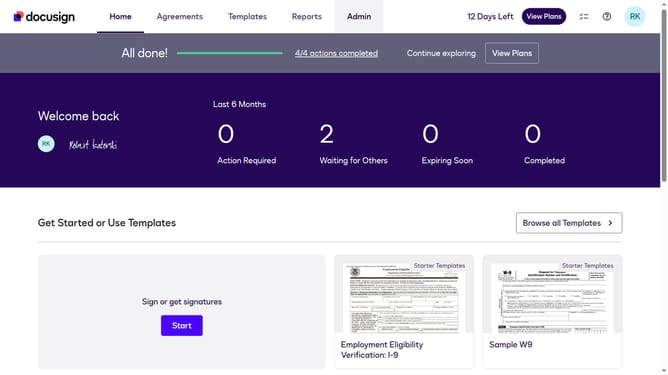
- First click on the "Admin" tab in the top navigation menu
- Then scroll down the page to view more admin settings options
- Next click on "Sending Settings" link in the left sidebar under the "SIGNING AND SENDING" section
- Then click on the checkbox for "Enable signer attachment field" to enable this feature
- Next click on the checkbox for "Append attachments to the document with the attachment field" to enable this option
- Then scroll down the page to view additional settings and the save button
- Finally click on the "Save Changes" button to save the updated sending settings
Why should you append attachments to a document using the attachment field in DocuSign
DocuSign streamlines the process of signing and managing documents digitally with ease and efficiency.
Appending attachments to a document using DocuSign's attachment field is a seamless way to ensure all pertinent information travels with your primary document.
This feature enhances document integrity by allowing easy inclusion of additional files, ensuring that everything you need is in one place.
By centralizing documents and their attachments, you enhance collaboration and expedite decision-making processes.
Last update