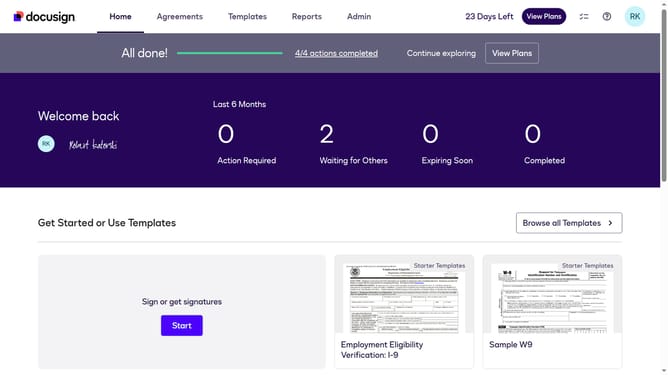
How to hide the name column in permission profiles in DocuSign
Here is how to hide the name column in permission profiles in docusign
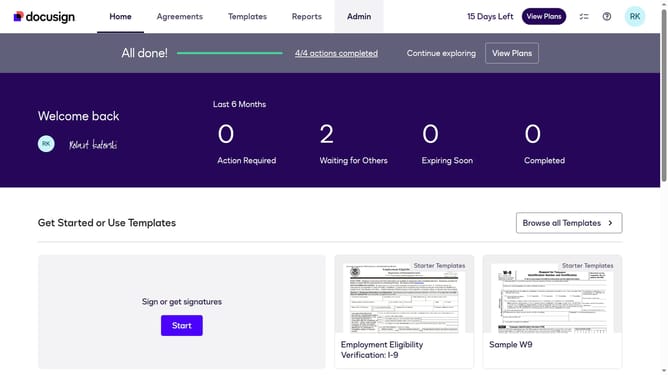
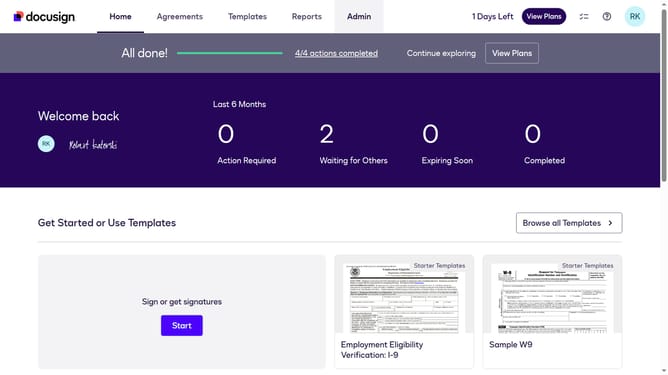
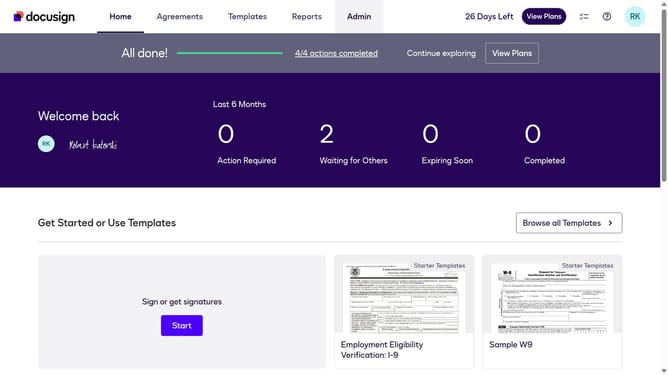
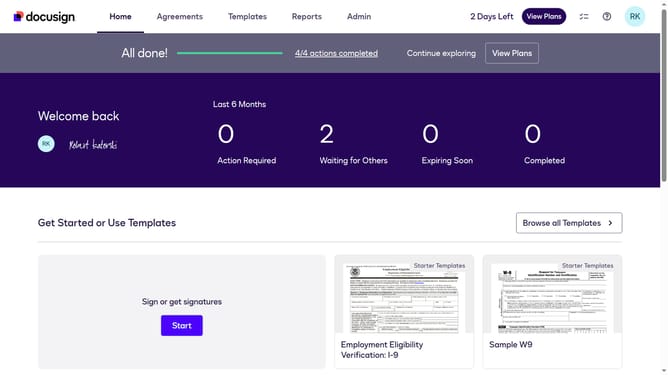
- First click on the "Admin" link in the top navigation menu
- Then scroll down the page to view the sidebar menu options
- Next click on "Permission profiles" under the USERS AND GROUPS section
- Then click on the settings icon (gear icon) in the top right area of the Permission Profiles table
- Then click on the "Name" checkbox to deselect it in the "Permission Profile Column Setting" dialog
- Finally click on the "Apply" button again to confirm the column visibility settings
Why should you hide the name column in permission profiles in DocuSign
DocuSign empowers users with swift, secure electronic signature solutions to streamline agreements and transactions.
One of its notable features includes the ability to hide the name column in permission profiles. This feature enhances privacy by limiting visible information to only those who need it, fostering a more secure document management experience.
By controlling the visibility of permissions, organizations can maintain order and discretion, ensuring that sensitive information remains accessible exclusively to authorized personnel. This adds an extra layer of confidentiality and is a benefit in managing teams and sensitive projects efficiently.
Last update