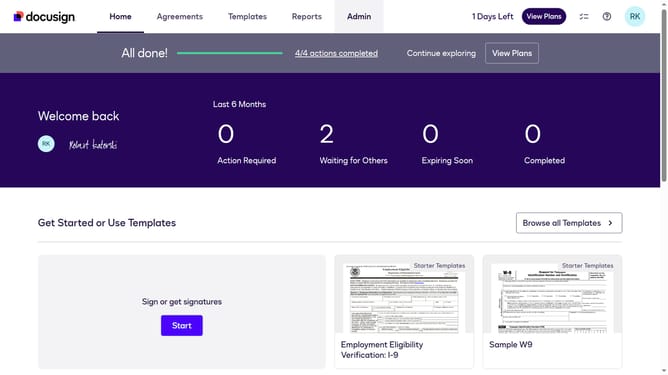
How to hide the name column under the users section in DocuSign
Here is how to hide the name column under the users section in docusign
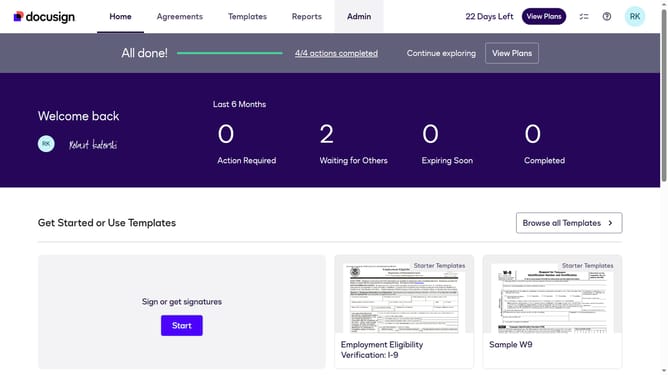
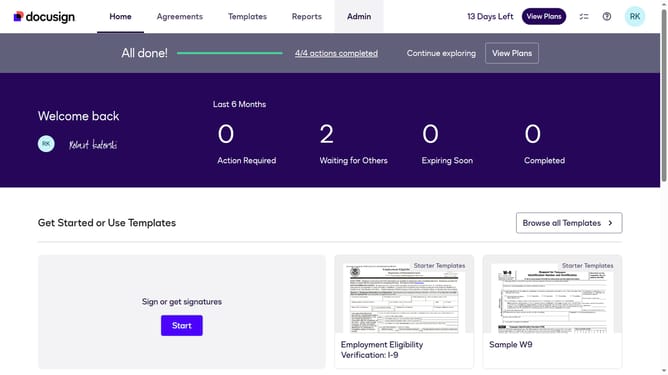
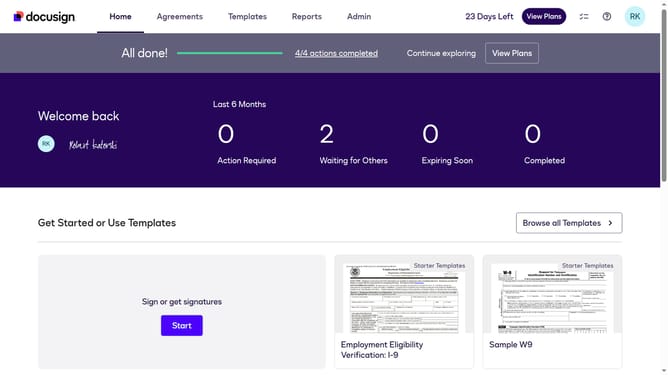
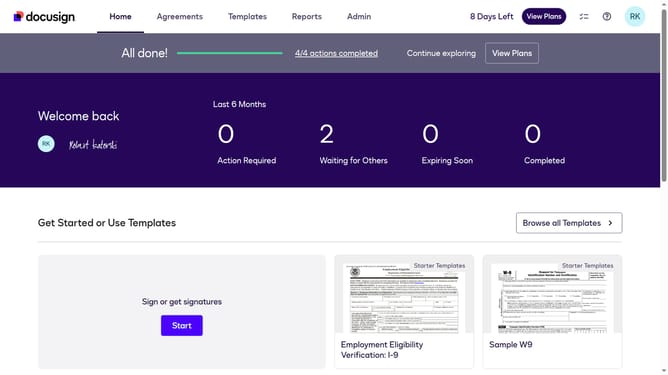
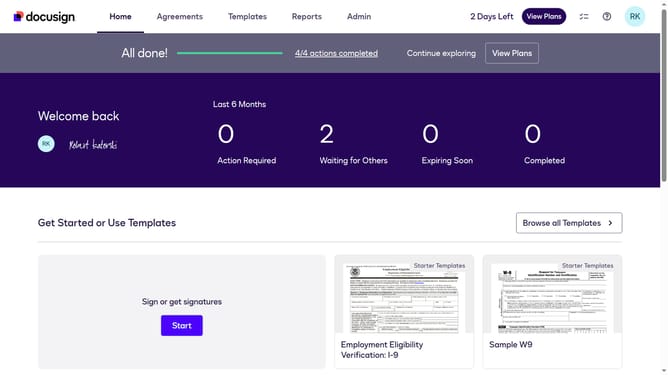
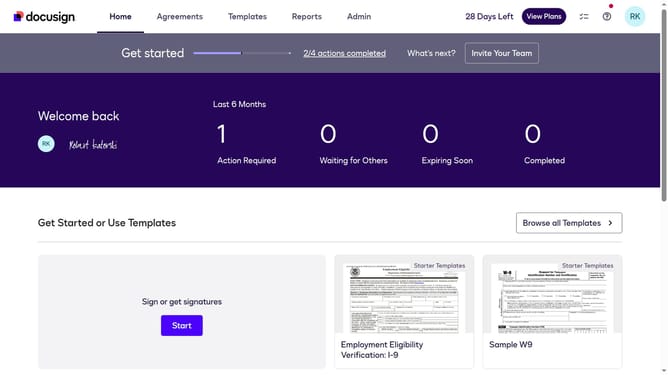
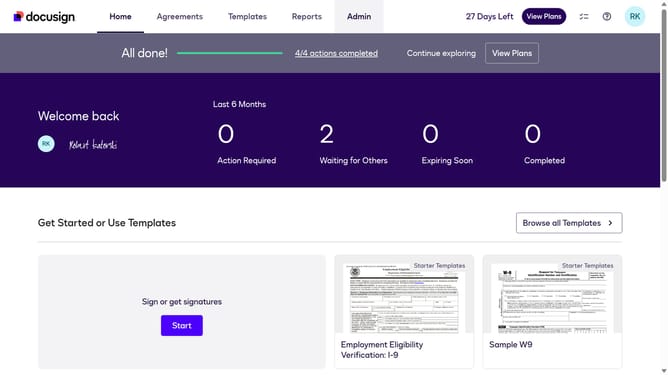
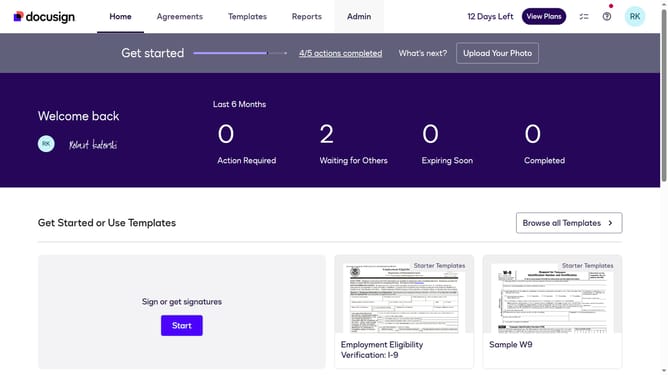
- First click on the "Admin" link in the top navigation menu
- Then scroll down the page to view the sidebar menu options
- Next click on the "Users" link in the left sidebar navigation
- Then click on the settings icon (gear icon) in the top right corner of the Users table
- Next uncheck the "Name" checkbox to deselect it in the Show/Hide Columns dialog
- Finally click on the "Apply" button to save the column visibility changes
Why should you hide the name column under the users section in DocuSign
DocuSign is a leader in electronic signature solutions, streamlining document management for businesses of all sizes.
Enhancing your management of user data, hiding the name column under the users section in DocuSign offers a practical feature for maintaining privacy and focus.
This feature is particularly beneficial for administrators who need to protect sensitive information or streamline the interface by minimizing distractions.
By focusing on context-appropriate columns, users can ensure a more efficient and secure management experience tailored to their organizational needs.
Last update