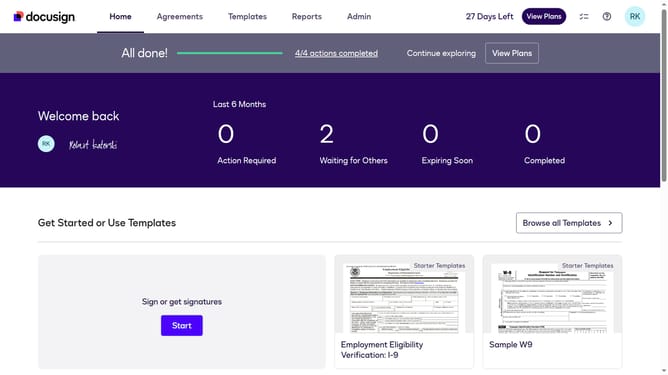
How to use the shared address book only in a permission profile in DocuSign
Here is how to use the shared address book only in a permission profile in docusign
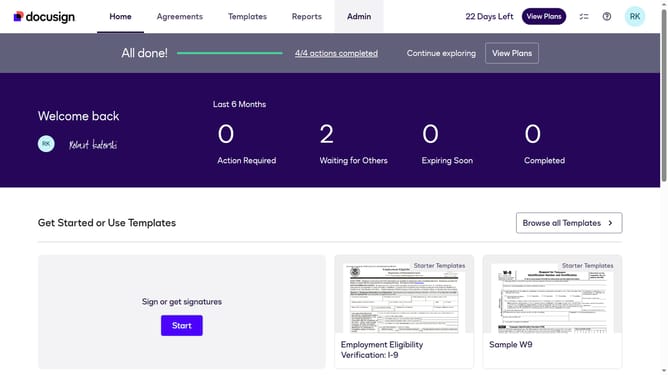
- First click on the "Admin" link in the top navigation menu
- Then scroll down the page to view the sidebar menu options
- Next click on the "Permission Profiles" link in the left sidebar under the "USERS AND GROUPS" section
- Then click on the "Actions" dropdown button next to a permission profile
- Next click on the "Edit" option from the dropdown menu
- Then scroll down the "Edit Permission Profile" dialog box to view more options
- Next click on the "Address Book" dropdown and select "Use Shared Only" option
- Finally click on the "Save" button to save the changes to the permission profile
Why should you use the shared address book only in a permission profile in DocuSign
DocuSign streamlines digital transactions by providing a secure and efficient way to manage electronic agreements.
One of its standout features is the ability to use the shared address book only within a specific permission profile. This ensures that only authorized users have access to critical contact information, enhancing data security and maintaining confidentiality.
The shared address book feature allows for streamlined collaboration among team members, making it easy to access and send documents to verified contacts without compromising privacy.
Overall, this feature optimizes workflow while safeguarding sensitive information, making DocuSign an invaluable tool for businesses prioritizing both efficiency and security.
Last update