How to show the viewed tab in PandaDoc
Here is how to show the viewed tab in pandadoc
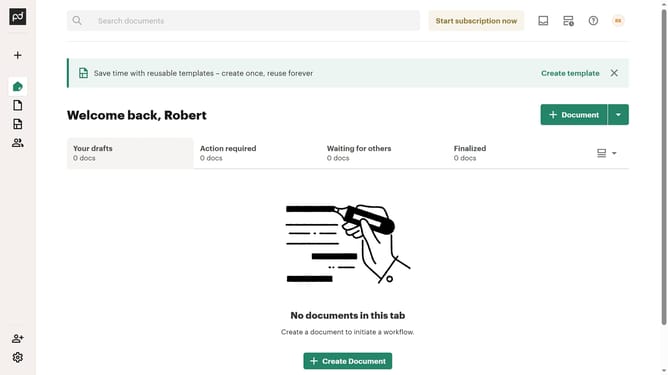
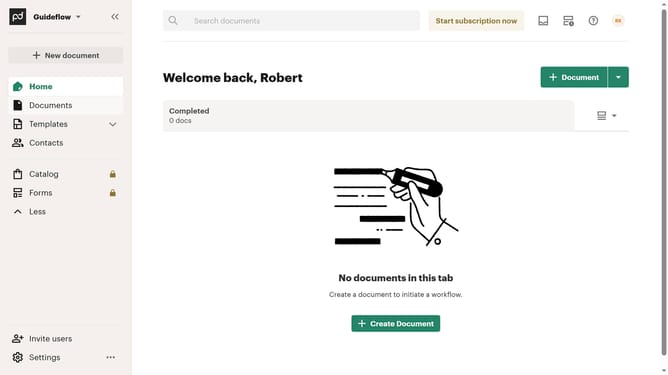
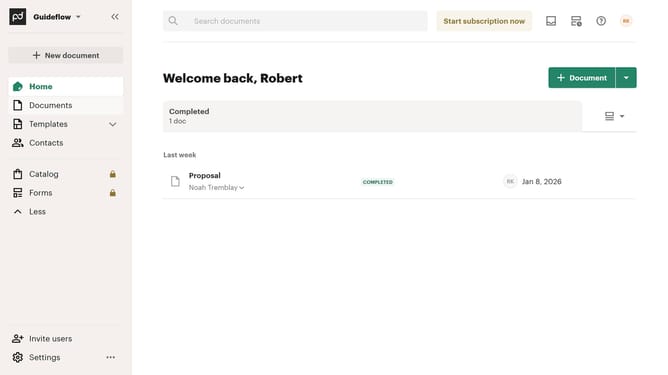
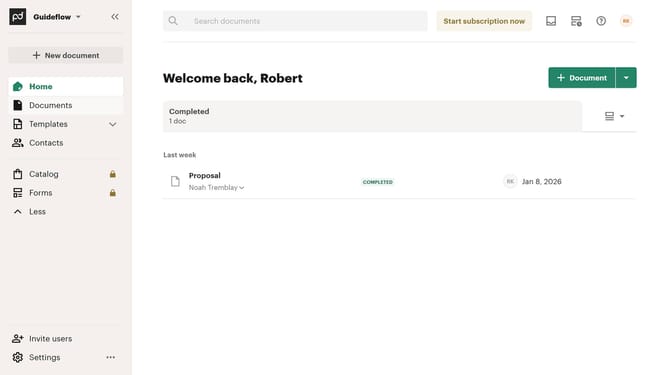
- First click on the view options button in the top right section of the main content area
- Then click on the "Customize tabs" option from the dropdown menu that appears
- Next scroll down in the "Customize" dialog to view more tab options in the TABS section
- Then click on the "Viewed" checkbox to enable this tab option
- Finally click on the "Apply" button at the bottom right of the dialog to save the changes
Why should you show the viewed tab in PandaDoc
PandaDoc is a powerful platform designed to streamline how you create, share, and sign documents online with ease.
The "Viewed" tab in PandaDoc is a feature that allows you to effortlessly track when your documents have been viewed by recipients. This visibility is invaluable, as it provides immediate insight into recipient engagement, enabling timely follow-ups.
By using this feature, you can improve communication and enhance efficiency, ultimately ensuring your document processes are as effective as possible.
Last update