How to hide the declined tab in PandaDoc
Here is how to hide the declined tab in pandadoc
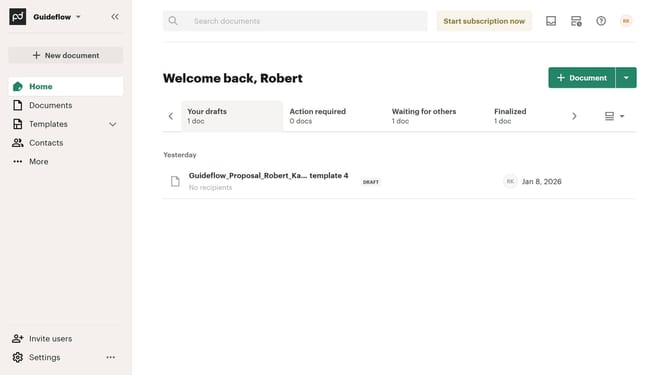
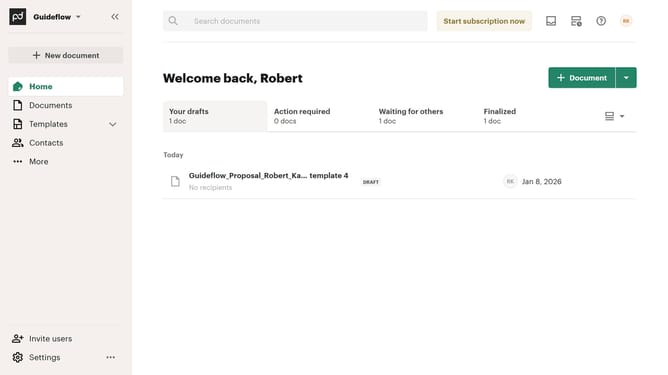
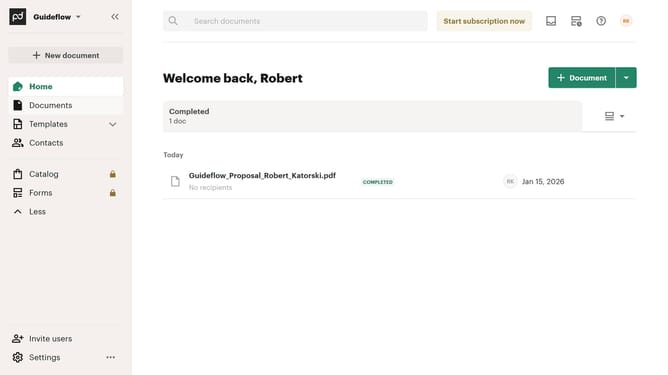
- First click the view options dropdown button in the top right corner of the main content area
- Then click on the "Customize tabs" option from the dropdown menu that appears
- Next scroll down in the "Customize" modal dialog to view more tab options
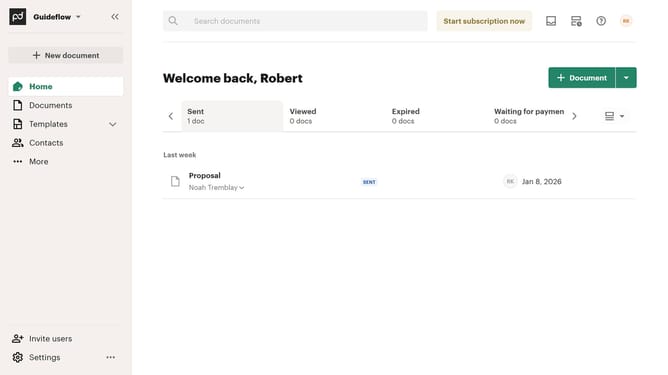
- Then click on the "Declined" checkbox to deselect it from the visible tabs
- Finally click on the "Apply" button at the bottom right of the modal dialog to save the changes
Why should you hide the declined tab in PandaDoc
PandaDoc is a comprehensive tool designed to simplify the creation, management, and tracking of documents.
The "hide declined tab" feature in PandaDoc offers a streamlined document management experience by allowing users to remove unnecessary clutter from their workspace.
By hiding the declined tab, users can focus better on active and pending documents, making workflows more efficient.
This feature helps enhance productivity by ensuring your document interface remains clean and organized, allowing you to prioritize essential tasks.
Last update