How to show the expired tab in PandaDoc
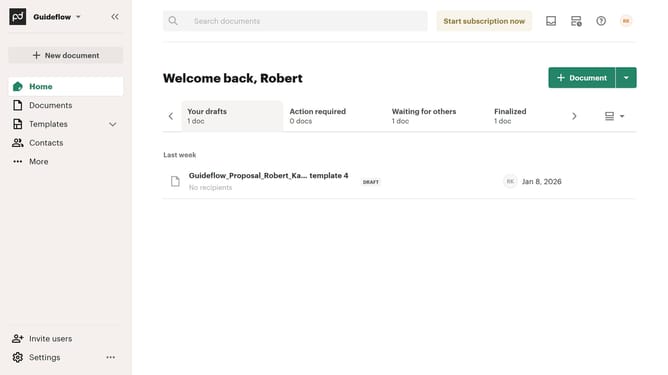
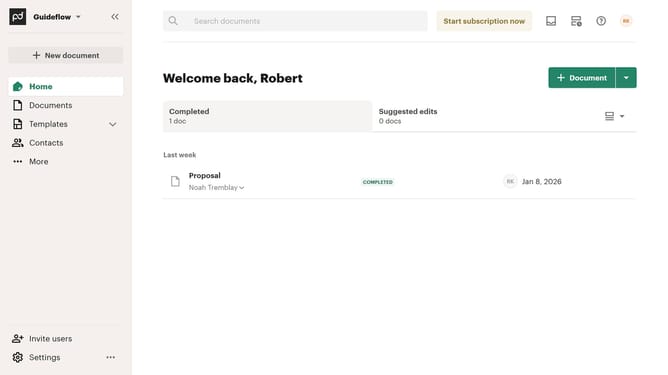
Here is how to show the expired tab in pandadoc
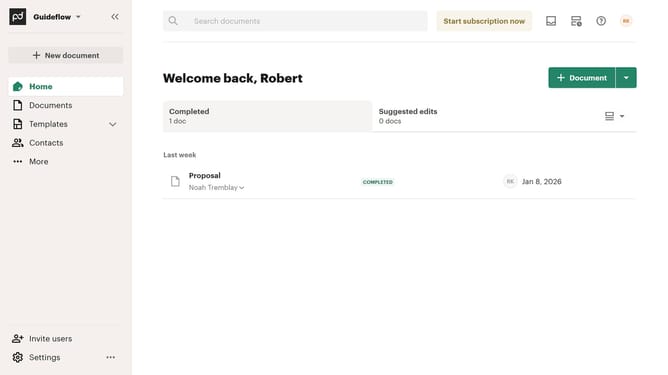
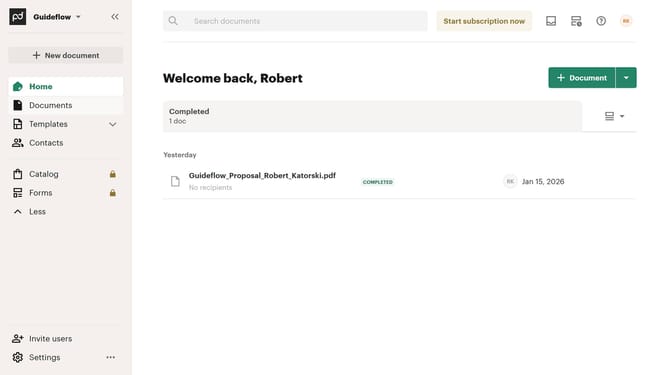
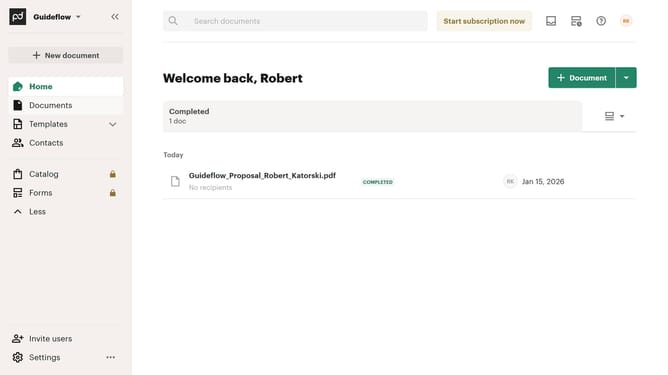
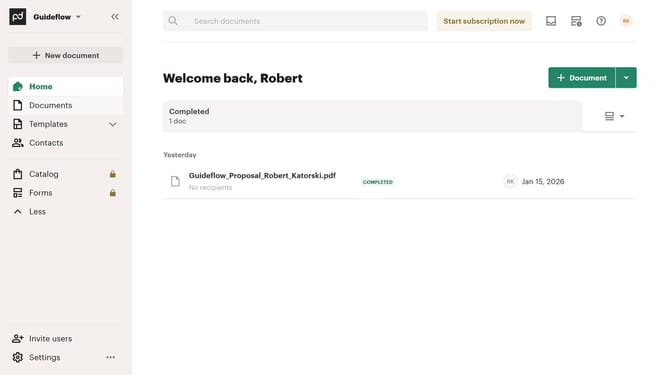
- First click on the view more options button in the top right corner of the main content area
- Then click on the "Customize tabs" option from the dropdown menu that appears
- Next scroll down in the "Customize" dialog to view more tab options
- Then click on the "Expired" checkbox to enable this tab option
- Finally click on the "Apply" button at the bottom right of the dialog to save the changes
Why should you show the expired tab in PandaDoc
PandaDoc offers a seamless platform for businesses to create, manage, and e-sign digital documents efficiently.
Accessing the expired tab in PandaDoc ensures you never lose track of your document's lifecycle, enhancing transparency in your workflow.
This feature allows you to quickly review expired documents, helping you to take necessary actions and maintain organized records effortlessly.
Utilizing the expired tab improves time management and aids in effective document tracking, crucial for maintaining business integrity.
Last update