How to move a template to a different folder in PandaDoc
Here is how to move a template to a different folder in pandadoc
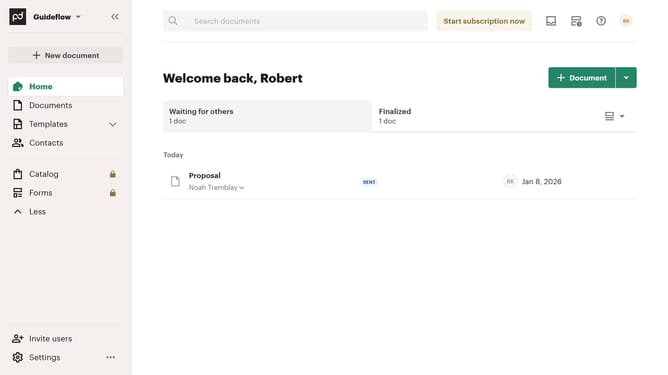
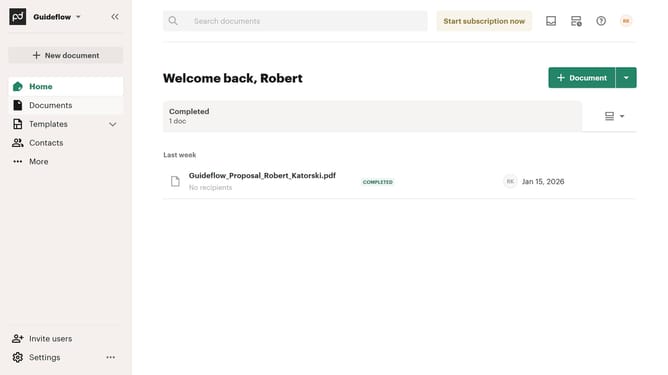
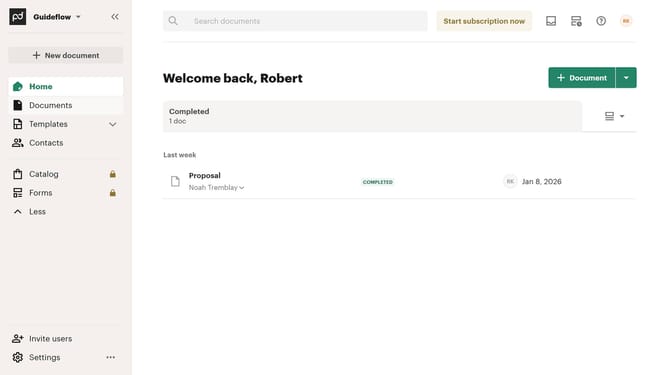
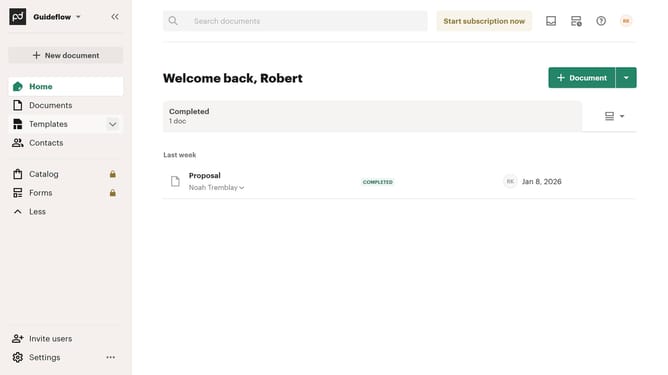
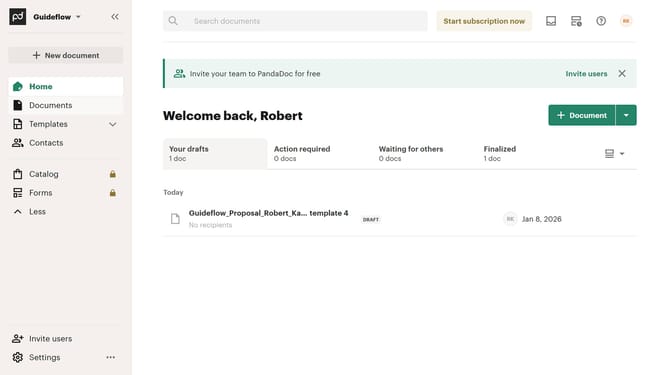
- First click on the dropdown arrow next to "Templates" in the left sidebar to expand the menu
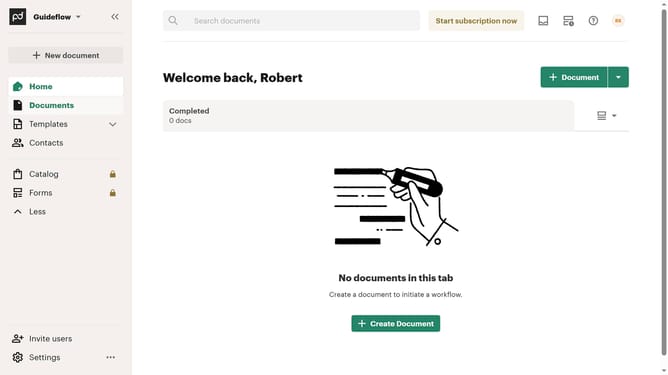
- Then click on "My templates" option in the expanded Templates submenu in the left sidebar
- Next click on the three-dot menu button on the right side of the template that you want to move to a different folder
- Then click on "Move" option in the dropdown menu that appears
- Next, click on the folder where you want to move the template in the dialog box
- Finally click on the "Move here" button at the bottom right of the move dialog to confirm the action
Why should you move a template to a different folder in PandaDoc
PandaDoc streamlines document workflows by offering efficient document management solutions.
One powerful feature in PandaDoc is the ability to move templates between folders, enhancing your organizational efficiency. This feature allows users to categorize templates in a way that suits their workflow, ensuring that the right documents are always at your fingertips.
By easily relocating templates, users can maintain a clutter-free workspace. This helps in quickly accessing necessary templates, reducing time spent searching and boosting overall productivity.
Last update