How to set board visibility to private in Trello
Here is how to set board visibility to private in trello
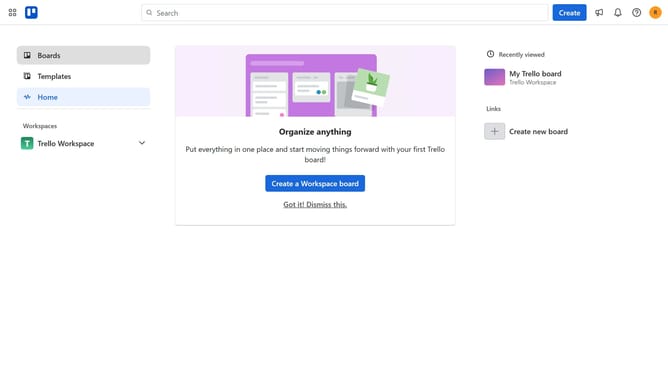
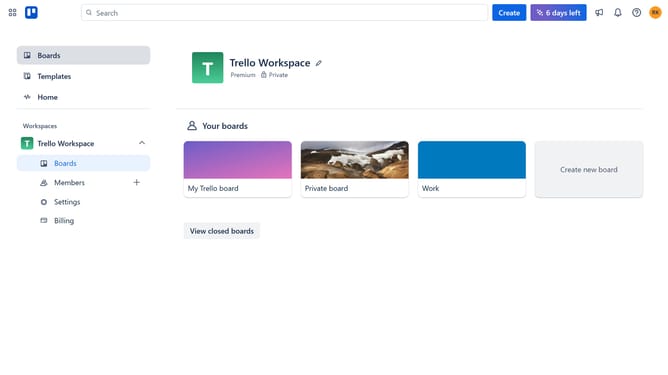
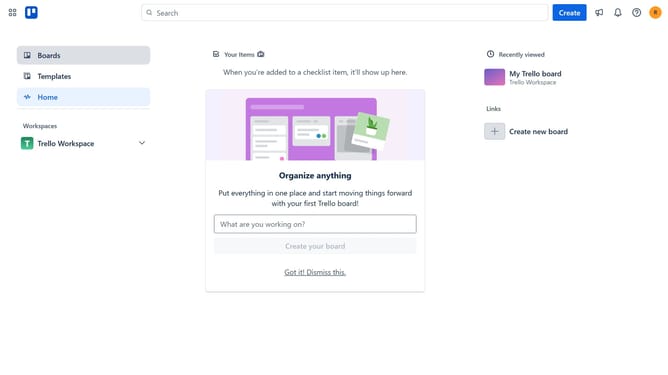
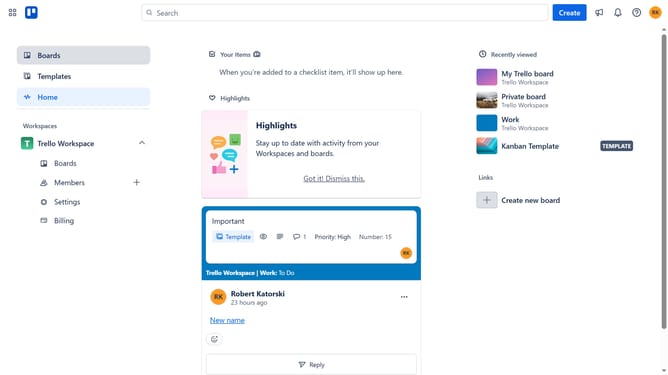
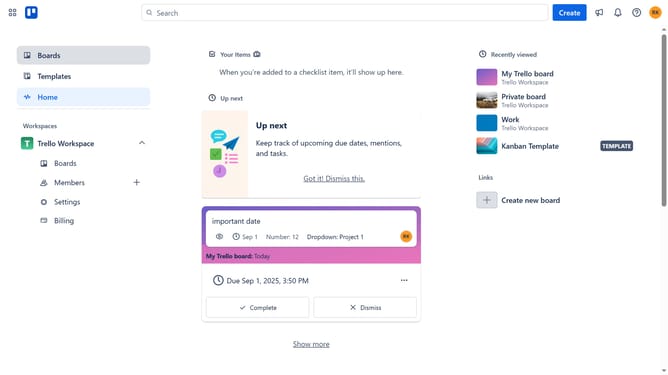
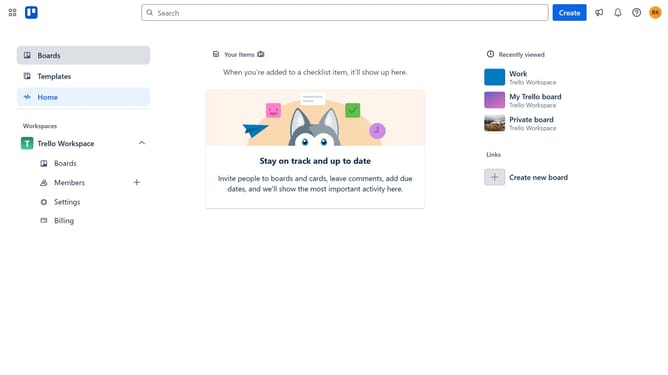
- First click on the "Boards" option in the left sidebar menu
- Then click on the "Work" board tile in the workspace section
- Click on the three dots menu button in the top right
- Next click on the "Visibility: Workspace" option in the right sidebar menu
- Finally select the "Private" option from the visibility dropdown menu
Why should you set board visibility to private in Trello
Trello is a dynamic tool designed for managing and organizing projects effortlessly through boards, lists, and cards.
Setting a board's visibility to private in Trello ensures that only invited members can access it, enhancing security and confidentiality. This feature is particularly beneficial for teams handling sensitive projects or data.
Private boards offer peace of mind and focus by limiting distractions from external inputs, fostering a secure environment for collaboration and creative discussion among team members.
With controlled access, team members can work more efficiently, knowing that their work remains confidential and undisturbed by outside influences.
Last update