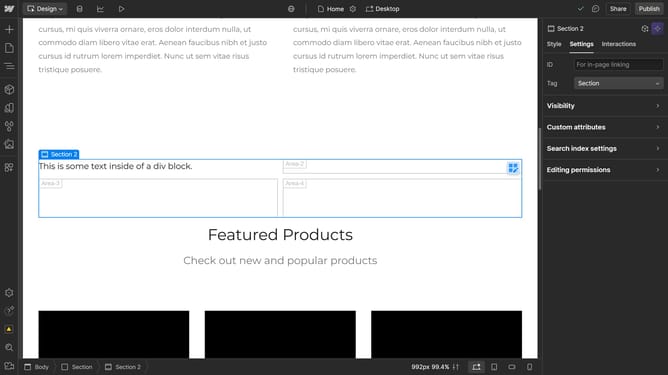
How to play an animation when it scrolls in and out of view in Webflow
Here is how to play an animation when it scrolls in and out of view in webflow
- First click on the Lottie Animation element in the content area
- Then click on the "Interactions" tab in the right sidebar
- Click the "+" button in the Element trigger section
- Select "Scroll into view" from the trigger options dropdown
- Click on "Select an action..." dropdown in the When scrolled into view section
- Choose "Lottie playback" from the action options list
- Click "Select an action..." dropdown in the When scrolled out of view section
- Select "Lottie playback" from the available actions
- Finally, enable the "Reverse" checkbox in the scroll out settings
Why should you play an animation when it scrolls in and out of view in Webflow
Webflow empowers creators with a no-code platform to design stunning, responsive websites effortlessly.
Animating elements as they scroll into and out of view in Webflow can seamlessly enhance the storytelling aspect of a webpage. This capability breathes life into static content, capturing user attention effectively.
By employing this feature, web designers can create more dynamic and engaging user experiences, encouraging visitors to explore deeper into the site.
Ultimately, it adds a professional touch that reinforces brand narratives and ensures content is both memorable and engaging.
Last update