How to adjust column size in a grid in Webflow
Here is how to adjust column size in a grid in webflow
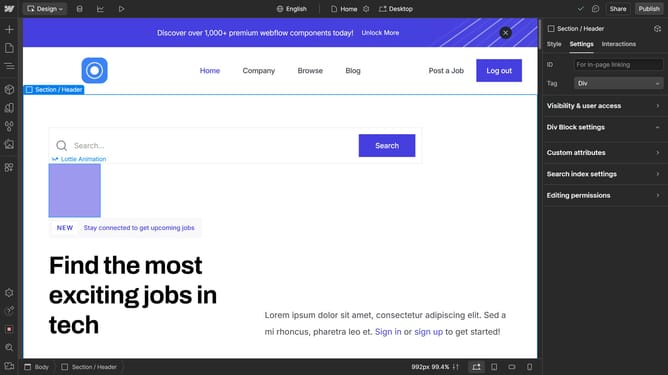
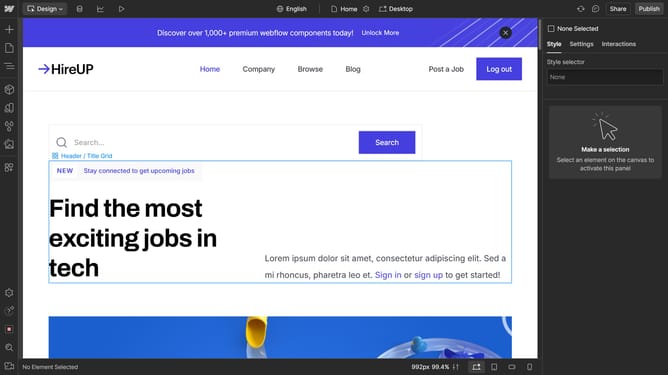
- First, click on the element with the grid layout applied
- Then click on the "Style" tab in the sidebar
- Next click on the "Layout" option in the right sidebar settings panel
- Then click on the Grid settings icon in the Layout section
- Next click on the column setting in the Grid settings panel
- Finally adjust the column sizing slider to the desired value in the Grid settings panel
Why should you adjust column size in a grid in Webflow
Webflow is a powerful platform that empowers creators to design, build, and launch visually stunning websites without coding.
Adjusting column size in a grid in Webflow is a seamless feature that enhances design flexibility, allowing you to modify layouts effortlessly.
By customizing column sizes, you ensure your content is displayed precisely and attractively, improving how users interact with your site.
This feature not only saves time but also boosts creativity, enabling you to tailor your website’s design to fit your unique vision perfectly.
Last update