How to put text over an image in Webflow
Here is how to put text over an image in webflow
- First, identify the image you want to overlay text on
- Next, open the "Add Elements" panel from the left sidebar
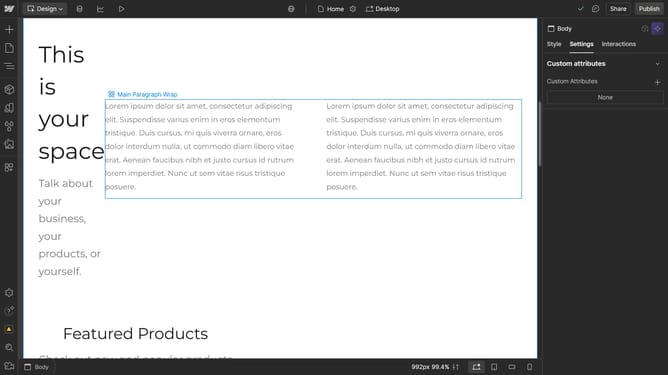
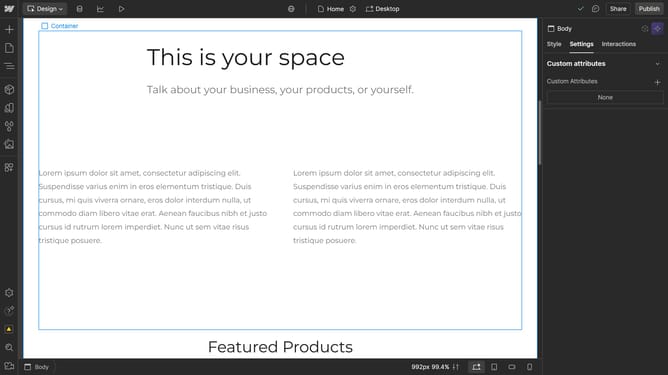
- Add a Div Block or Container to act as a wrapper for the image
- Go to the "Navigator" panel on the left
- Drag the image into the wrapper to ensure it is properly contained within it
- Now insert a Text Block inside the same wrapper as the image
- Make sure both the image and text block are within the wrapper
- In the "Position" settings in the right sidebar, set the wrapper to Relative
- Next, select the text block
- Go to the properties panel in the same setting
- And change the position to "Absolute"
- Select the wrapper again
- Go to the Layout section in the right sidebar, set the Display to "Flex"
- Finally, use the alignment options to center or position the text as needed
- Your text is now successfully placed over the image
Why should you put text over an image in Webflow
Webflow is a powerful platform designed to craft visually stunning websites with ease and precision. Elevate your design by overlaying text on images, giving your website a modern and engaging look. This feature allows you to create striking visual narratives, attract viewer attention, and enhance branding. Simply combine text and imagery seamlessly for a polished, professional appearance, ensuring your content stands out while conveying key messages effectively.
Last update