How to add icon to button Webflow?
Here is how to add icon to button webflow
- First head to the Google Fonts website and navigate to the "Icons" section
- Then find the download link for the font icons
- Open the fonts folder
- Choose the variant you’d like to use
- Then download the raw file for the selected font variant
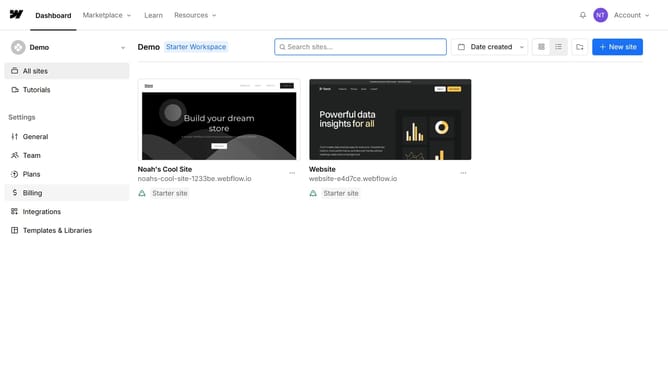
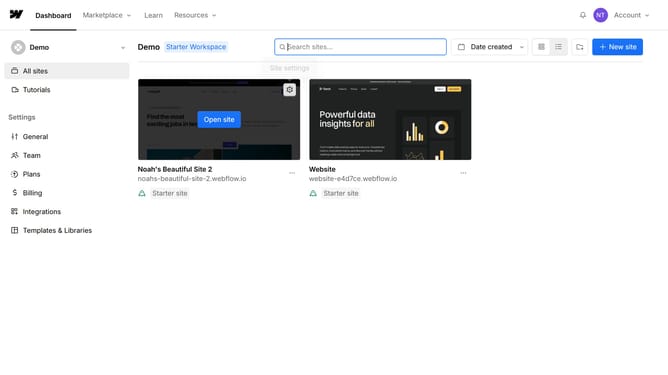
- In your Webflow dashboard, locate your project thumbnail and click the three-dot menu for options
- Select "Settings" from the dropdown menu
- Click on "Fonts" in the left panel
- Under "Custom Fonts", upload the font file you downloaded earlier
- Provide a name for the font file and click the "Upload font file" button
- Once uploaded, the new font will be listed under "Installed Fonts"
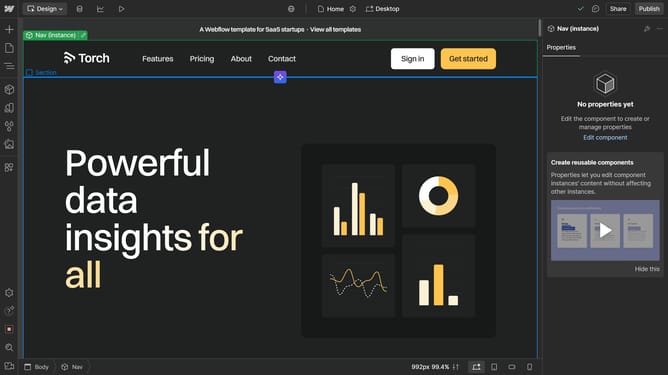
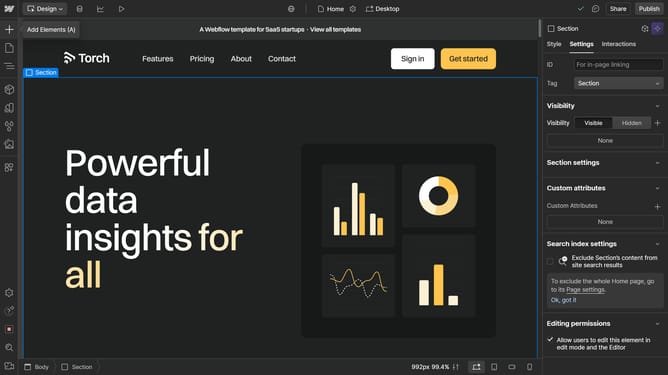
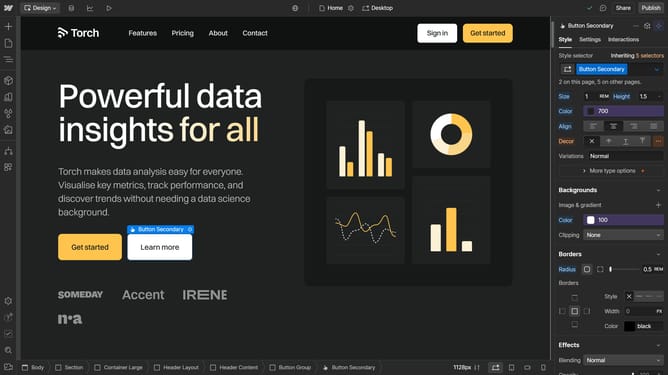
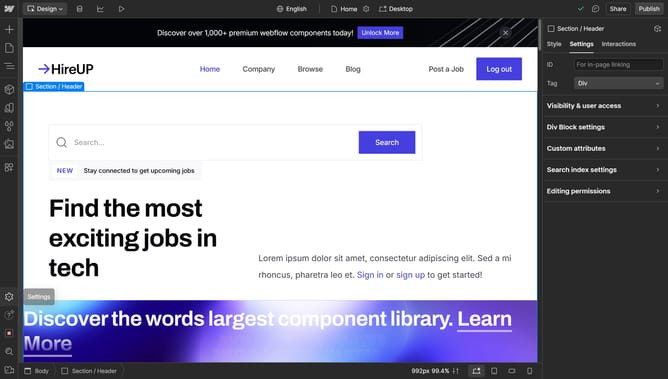
- Open your project in the Webflow Designer and select the button where you want to add an icon
- Then go to "Font" under the Typography section in the right sidebar
- Change the button’s font to the new Google Icons Font
- Next go back to Google Fonts and find the icon you want
- Copy the span tag text associated with the icon
- Return to Webflow and replace the button text with the copied icon name
- The icon will now appear as part of your button, and you can style it like regular text using font size, color, and more
Why should you add icon to button Webflow?
Webflow: A versatile platform that brings web design and development together through intuitive visual tools. Elevate user experience by seamlessly adding icons to buttons in Webflow, offering clear visual cues that enhance navigability.
Incorporating icons into buttons can make interface interactions more intuitive and engaging, catching the eye and conveying actions without relying solely on text. With Webflow's design capabilities, integrating icons complements your brand’s aesthetic while enriching the overall user interface.
This feature is especially beneficial in creating modern, responsive designs that resonate across devices and audience demographics, ensuring efficient and effective communication of core functionalities.
Last update