How to switch between the legacy Editor and the live site in Webflow
Here is how to switch between the legacy editor and the live site in webflow
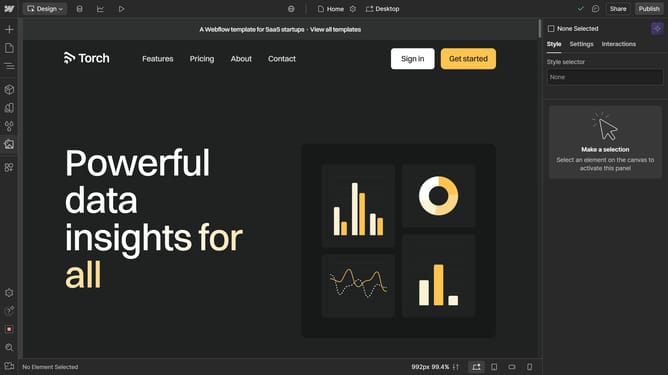
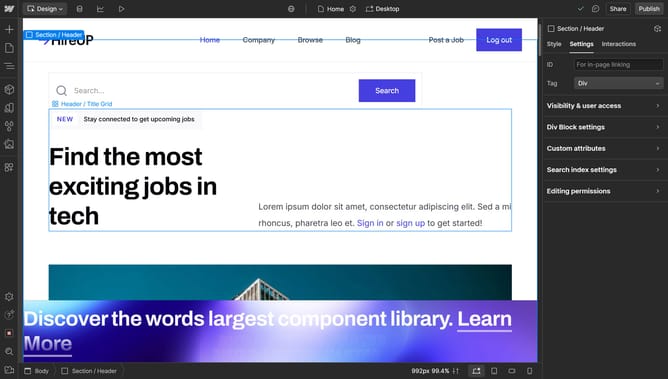
- First click on the gear icon in the top-right corner of the site preview to access site settings
- Then click on the "Editor" button in the top navigation bar
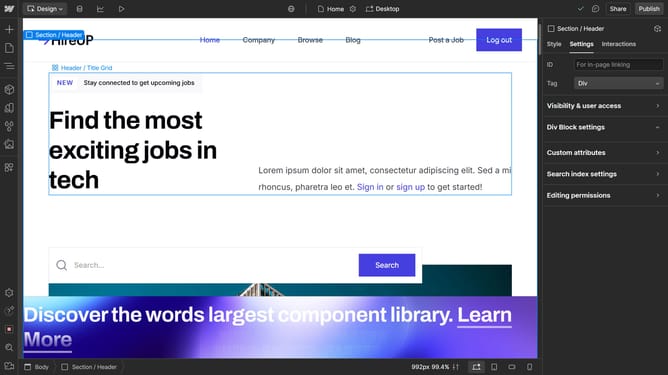
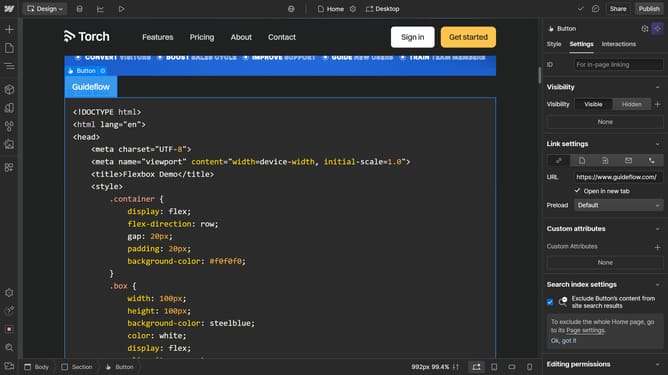
- Once on legacy editor mode, click on the "Back to live site" to see the site in preview mode
- Finally click on the "Edit site" button to return to legacy editor mode
Why should you switch between the legacy Editor and the live site in Webflow
Webflow stands out as a versatile platform for creating professional, responsive websites without coding.
The ability to seamlessly switch between the legacy Editor and the live site in Webflow offers users flexibility and control over their content management process. This feature is particularly beneficial for those who wish to preview changes and ensure edits reflect perfectly before going live.
By transitioning easily between the Editor and the live site, users can maintain workflow efficiency, enhance collaboration, and ensure accuracy across updates, streamlining website management.
Last update