How to add alt text to an images in Webflow
Here is how to add alt text to an images in webflow
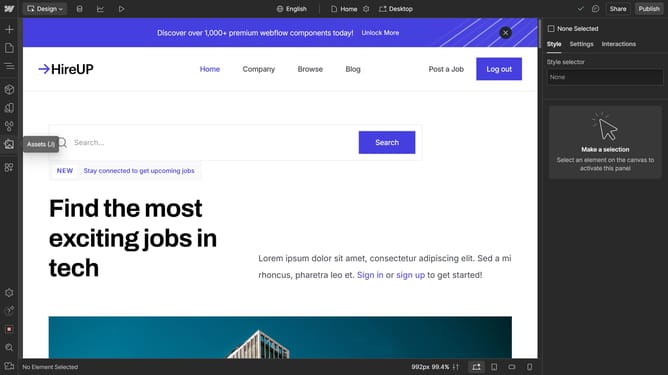
- First click on the "Assets" icon in the left sidebar
- Then click on the "More options" button in image
- Next click on "Edit settings" option in the context menu
- In the Asset settings modal, click on the Alt text field and enter descriptive text
- Finally click the "Save" button in the Asset settings modal to apply the changes
Why should you add alt text to an images in Webflow
Webflow is a powerful web design platform that enables designers to build responsive websites visually.
Adding alt text to images in Webflow is an intuitive feature that enhances accessibility and improves SEO. It ensures that visitors using screen readers can understand image content, aligning your site with inclusive web standards.
Moreover, alt text provides search engines with descriptive information about images, boosting your site’s visibility and searchability. This simple yet effective feature enriches user experience and enhances your website’s overall performance.
Alt text in Webflow effortlessly combines accessibility and SEO benefits in one seamless process.
Last update